

The guide in video
Watch the video and read its transcript on a dedicated page →
Read the transcript
A playback app is not a source of content. Start by separating the software, its licence, and your authorized access. Check the exact name, publisher, and store listing. Similar icons do not prove that two apps are the same player. IBO Player, TiviMate, and VLC illustrate different uses. They are neither a ranking nor a closed commercial selection. On your device, confirm the region, operating system version, and the app’s actual availability. If a licence is required, read the publisher’s terms. It does not automatically provide channels. Install from a verified source. Reject permissions unrelated to playback and protect your credentials. Then test navigation, authorized content, sound, and captions in the room where you will watch. If something fails, change just one thing at a time: app, network, or source. Record the result. With Official OTT, choose an authentic player suited to your device. The written guide explains the checks.
Video chapters
Alternative: YouTube player
Watch the guide on YouTube
Compatible apps
YouTube stays disabled until you click. Loading the player allows a connection to YouTube, which receives information including your IP address.
Which device do you use, and what topic would you like next? Share your question in the YouTube comments. If the video helps, like it and subscribe to OTT Canada.
Quick answer
A compatible app is a player, not a source of content. Verify the exact name, publisher, device store, permissions and sign-in method before activation. Similar names never prove that two apps are the same product.
A playback app does not become a content service merely because it accepts a playlist, portal, or credentials. It presents media identified by the user or an authorized provider. The player, any software licence, the content service, and the right to view that content are separate. Keeping those roles separate is the foundation of a reliable comparison.
The apps discussed are editorial examples, not a ranking or a closed commercial selection. Availability and features vary by model, system, region, store, and release. Verify each app on the device actually used in Canada.
1. Separate the player, activation, and content
The installed software.
Permission to use that software, if required.
Media from the authorized provider.
Private credentials to protect.
The player is the installed software. An activation or licence, when required, unlocks use of that software on a device or account. Credentials connect the player to an authorized source. Content remains supplied under that source's terms. Buying a player licence does not automatically create a playlist, channel package, or subscription.
This distinction prevents three common errors: purchasing a licence while expecting content; giving credentials to an imitation activation site; or blaming the player when the source, network, or media format is not responding. A proper diagnosis tests each layer independently.
Before paying: match the receipt to what is being activated
Record the exact software name, publisher, seller taking the payment, and purchased item. An “activation” line alone does not explain whether you are buying a player feature, a term of software use, or a separate service. Ask what is included when the description is unclear.
- Product: which app or service, and which version?
- Association: which account or device receives the purchase?
- Term: start date, any expiry date, and renewal conditions.
- Contact: which seller handles billing, and which publisher supports the software?
Keep the purchase confirmation privately. For a Google Play purchase, check the order history of the account used; that history does not cover every payment made elsewhere. Do not post a complete receipt in a public comment.
The distinction matters: HOT Player states that it does not sell channels or IPTV subscriptions. Paying for its player therefore does not establish that you bought a channel package. To combine licence, service, and hardware costs over the same period, use the total-cost calculator.
2. Compare app categories
| Use case | Non-exclusive examples | Required check |
|---|---|---|
| Media files and streams | VLC | Formats, audio tracks, and captions on the actual platform. |
| Media library | Kodi | Interface, add-on provenance, and authorized sources. |
| Remote-control navigation | TiviMate, Televizo, OTT Navigator | Authentic store listing, TV ergonomics, and release-specific features. |
| Smart-TV players | IBO, HOT Player, SmartOne IPTV | Exact variant, publisher, region, model, and any licence. |
| Configurable playback interfaces | XCIPTV, IPTV Smarters Pro | Publisher, connection methods, and installed release. |
Categories may overlap. Naming an app guarantees neither availability on every device nor access to content. Consult publisher terms for any licence, trial, or paid feature.
For a Fire TV device, the guide to choosing an IPTV player for your Fire TV explains the checks to make for the model and features you need.
Verify in the real store for each platform


3. Verify the real app before installation
- Open the official store on the exact device.
- Search the exact app name without following a random advertisement.
- Compare the publisher name, icon, and privacy-policy link.
- Read the description to confirm it is a player rather than a content sale.
- Check platforms, minimum software version, permissions, and update date.
- Keep a record of the listing without exposing private identifiers.
- Install and record the version number before configuration.
IBO, TiviMate, Smarters, Navigator, and Televizo names are especially exposed to imitation pages. A plausible domain name is not proof. The device maker's store and the developer details declared there are stronger checks. If identity remains ambiguous, stop before activation and request confirmation from support.
4. IBO Player, IBO Player Pro / IBO Pro, and IBO Pro TV

Identification visual published by the stated source. Check the publisher and the device store: this image guarantees neither Canadian availability, an included licence, nor content.
These three entries remain separate because similar names do not establish a common publisher, licence, or compatibility. Record the store name, developer, version, and device identifier shown by the app. Do not transfer a code from one variant to another without confirmation.
Any licence must match the exact player and device. Check publisher terms before paying or transferring a licence; it grants no rights to content.
When an activation screen displays a MAC address or device key, treat it as a technical identifier. Send it only through the approved support channel. Mask it in public screenshots, reviews, and forums. After activation, verify that the app name, any stated term, and the device match the request.
Partner applications listed by IBO Player
IBO Player’s “Meet Our Partner Applications” section also lists the players below. Similar names and logos help with identification; they do not establish a shared licence. Check the name, publisher and store listing of the installed player.

BobPlayer
BOB Player and Bob Pro are separate entries. Check the exact name before activation.
Visit the listed website
IboStb
Confirm that the player is available in your TV or device store.
Visit the listed website
Duplex
Check current availability on your model; do not assume a licence transfer.
Visit the listed website
AllPlayer
Check the name and publisher in the store listing as well as the logo.
Visit the listed website
AbePlayer
Use the management and activation options specific to ABE Player.
Visit the listed website
MacPlayer
MacPlayer is the player name, not a guarantee of Mac compatibility. Proxy options are separate.
Visit the listed website
KtnPlayer
Check available platforms through the publisher’s links.
Visit the listed website
FamilyPlayer
The site uses the name Family 4K Player. Check the version for your device.
Visit the listed website
HushPlay
The destination uses Hush Player. Compare that name with the store listing.
Visit the listed website
Ibox
The site uses IBOXPlayer and IBOXX PLAYER. Proxy options remain separate from player activation.
Visit the listed website
Virginia
Identify the version and its connection methods before configuring a playlist.
Visit the listed website
IboSol
The site displays IBOSOL Player and offers playlist management and activation.
Visit the listed website
BobPro
Do not confuse Bob Pro with BOB Player; a shared licence is not assumed.
Visit the listed website
IbossPlayer
Check IBOSS Player in the store and use the instructions for that exact player.
Visit the listed website
KingIPTV
Named KingIPTV in the IBO list, the site displays King4k Player.
Visit the listed website
IboTV
IBO lists this partner without a usable dedicated link. Confirm its exact listing with support.
No dedicated site established by the IBO list
IboTVPro
The ibotv.pro destination displays IBO PRO. The name alone does not identify every variant.
Visit the listed website
ProIboTV
IBO lists this partner without a usable dedicated link. Confirm its exact listing with support.
No dedicated site established by the IBO listSource: IBO Player — Meet Our Partner Applications · reviewed September 24, 2026. Availability on Canadian devices has not been tested.
5. HOT Player

Identification visual published by the stated source. Check the publisher and the device store: this image guarantees neither Canadian availability, an included licence, nor content.
HOT Player's site describes it as a media player with no channels included and identifies availability in certain television and device stores. Actual availability must still be confirmed in the Canadian store on the exact model.
Avoid sites that combine activation under this name with catalogue promises. Confirm that the page belongs to the player, that the connection is encrypted, and that the identifier entered is the one displayed by the app. Failed activation can result from a mistyped character, a different variant, or an existing device association; none justifies publishing the identifier.
6. TiviMate, IPTV Smarters Pro, XCIPTV, OTT Navigator, and Televizo


Identification visual published by the stated source. Check the publisher and the device store: this image guarantees neither Canadian availability, an included licence, nor content.
TiviMate
TiviMate is one example of a player to verify on a compatible platform. Many websites reuse the name while selling content; do not confuse them with the app. Check the publisher and store listing. Free or premium options, allowed devices, and management methods can change, so do not base a decision on an old screenshot.
IPTV Smarters Pro
IPTV Smarters Pro acts as a playback interface when an authentic version is available. Confirm the platform, publisher, and accepted input methods before preparing credentials. A site containing “Smarters” in its domain can be an unrelated reseller. Enter nothing until its identity is established.
XCIPTV
The Google Play listing published under OTTRUN describes XCIPTV as a player for Android TV, Android phones, and Android tablets. It identifies built-in players, a program guide, and connection methods while stating that no media content is supplied. Those claims apply to that listing and version; a customized edition from another organization must be assessed separately.
OTT Navigator
The OTT Navigator documentation describes a player with no supplied content. Its privacy policy names Scillarium Studio SIA. Note that the documentation’s Google Play link for televisions leads to OTT TV, published by AppNovatica SIA. Check the selected version’s name and publisher before installation; that link alone does not establish a rename or licence transfer. Availability in your Canadian device store still needs confirmation.
More than one listing or app may use a neighbouring name. Identify the developer of the installed version before assigning a feature or data policy to it. Test remote navigation, favourites, guide, audio tracks, and subtitles locally. Check licensing terms with the publisher.
Televizo
Websites using the word Televizo may sell services without representing the player. Prefer the official listing in the device store and confirm the developer. Test remote-control navigation, list management, EPG, and resume behaviour because a mobile feature may not translate well to a television.
7. VLC and Kodi
Direct sources: VideoLAN for VLC and the Kodi project. These are software projects; do not confuse their names with a content seller.
VLC

VLC is VideoLAN's free and open-source media player for many files, discs, devices, and network streams. Obtain it from VideoLAN or a store where the publisher is clearly identified. It provides no commercial catalogue. Its interface and capabilities differ across desktop, mobile, and television builds.
Kodi
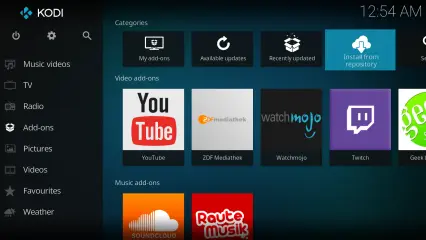
Kodi is a free media centre for organizing and playing media. The official project does not provide content. Each add-on, repository, or skin is a separate component with a separate author and risk profile. Prefer the official repository when possible, inspect permissions, and avoid preconfigured bundles whose source and content rights are not demonstrated.
VLC and Kodi can help isolate a format or network issue using a legal test file. Success in one player does not prove that every other app uses the same engine, buffer logic, or content-protection rules.
8. SmartOne IPTV

Identification visual published by the stated source. Check the publisher and the device store: this image guarantees neither Canadian availability, an included licence, nor content.
SmartOne IPTV describes itself as a video player and says that it does not offer channels, subscriptions, or content. Its site lists several television and device families, but the exact model's store remains the practical proof. Verify publisher, region, and version before obtaining any licence.
Depending on platform and version, advertised features may include account management, favourites, guide data, parental controls, or customization. Test only the functions the household needs. Any licence is governed by publisher terms; check its duration and permitted devices.
9. Choose for the real use case
| Question | Expected evidence | Error to avoid |
|---|---|---|
| Does the app exist on my device? | Listing in the exact model's Canadian store | Relying on a generic list |
| Does the remote work well? | Navigation test at normal viewing distance | Choosing a mobile interface for TV |
| Do audio and subtitles meet the need? | Test with known authorized media | Assuming from a logo |
| Is activation required? | App message and publisher source | Confusing a licence with content |
| Are data protected? | Permissions, policy, and secure channel | Publishing a URL, MAC, or password |
For a shared television, give more weight to readability, remote navigation, profiles, and parental controls. On a computer, window, keyboard, and media-format handling may matter more. On mobile, consider cellular data, battery, heat, and output to a large display.
10. Safe configuration in ten steps

- Update the device without changing unrelated settings.
- Confirm the exact model and Canada region.
- Install the authentic app from the verified source.
- Record its version and granted permissions.
- Activate only when required and authorized.
- Enter information received through a secure channel.
- Test known legal content with automatic settings.
- Check guide, audio, subtitles, search, and remote.
- Measure stability for at least thirty minutes.
- Record the result and rollback method.
Do not change DNS, Wi-Fi, player, video format, and credentials at once. One variable per test reveals what actually caused or fixed the problem. Before clearing app data, confirm that credentials and favourites can be restored.
11. Security, privacy, and rights
- Use only content for which the household holds the required rights.
- Never publish a playlist URL, username, password, token, or full MAC address.
- Reject permissions unrelated to playback.
- Avoid modified, “premium unlocked,” or unknown shortened downloads.
- Update the app and system through their official mechanisms.
- Revoke remote-support access when the session ends.
A MAC address and device key are not passwords, but they can associate a device with a configuration and deserve protection. Playlist credentials may expose an account or private source; they must never appear in a public screenshot.
12. Diagnose without wasting activations
| Symptom | First check | Reversible action |
|---|---|---|
| App not found | Model, region, system version | Search the device store |
| Activation rejected | Variant, characters, device association | Compare with the original request |
| Cannot connect | URL, time, network, provider status | Retype without sharing secrets |
| Playback stalls | Different content and device | Compare Wi-Fi and Ethernet |
| No guide | EPG source and time zone | Refresh once and wait |
| No audio | Track and output format | Temporarily test stereo |
| No subtitles | Track available in the media | Select the language explicitly |
If the same source works in another app on the same device, the player or its configuration may be involved. If no app works, inspect the network, source, or account. If only one item fails, examine that media and format before reinstalling anything.
Three situations to separate before paying again
- Payment is confirmed, but the player remains locked. Compare the product and account on the confirmation with those used in the app. For an eligible Apple In-App Purchase, look for the app’s restore option and use the same Apple Account. This procedure does not automatically apply to a licence bought on a publisher’s website. If the issue persists, contact the support team responsible for that purchase.
- The player is activated, but the list is empty. Check the configuration and status of the authorized source separately. Software activation does not prove that a playlist was supplied or that content access is active. Buying another licence without identifying the failing layer may not solve the problem.
- The old device works, but the new one does not. Confirm compatibility and the exact licence rules before assuming that it transfers. Keep the old configuration while checking; a receipt alone does not guarantee use on every device.
Apple’s instructions for restoring in-app purchases distinguish restorable purchases from consumable ones. They do not promise transfers between stores or different apps. These scenarios are an editorial diagnostic method, not a report of hardware testing.
13. Frequently asked questions
Does a player licence provide channels?
No. A licence covers the software. Content must come separately from an authorized source under its own terms.
Can one activation be used on several devices?
Do not assume so. Rules can depend on app, account, device count, and version. Ask before moving or resetting.
Why do similarly named apps differ?
They may come from different publishers or target different platforms. Compare publisher, store identifier, and documentation.
Which app is best?
There is no universal answer. The right app is authentic, available on the exact model, usable by the household, compatible with the authorized source, and maintained.
Why check add-ons separately?
An add-on may have a different author, request different access, and use a separate source. The player’s reputation does not automatically validate that add-on.
14. Understand connection methods without exposing secrets
An app may accept a playlist address, a server-based sign-in, a portal, or a local file. These are technical connection categories, not evidence that a source is legitimate. Use only information supplied by an authorized organization and verify the rights governing the content. OfficialOTT publishes no reusable open playlist or demonstration credentials.
A URL can contain a username and password directly in its text. Never paste it into a search engine, forum, or screenshot. When it must be sent to authorized support, use the agreed channel and remove temporary copies afterward. Protect a playlist file as carefully as a password.
A portal may associate the device through a MAC address or generated identifier. Confirm whether the association survives reinstallation. Before resetting, record the app name and ask whether deactivation is required. Do not try random MAC variants because the wrong device may become linked.
15. Program guide, clock, and Canadian time zones
An EPG depends on guide data supplied separately or with the source. An empty schedule does not prove that video is unavailable. First set the device date, time, and time zone to automatic. Canada spans several time zones, and seasonal clock changes can shift the schedule when both app and source apply an offset.
Begin with zero manual offset and compare a program whose time is known. Correct only one layer: system, app, or source. After a refresh, allow indexing to finish. Repeatedly refreshing can burden the device without replacing data that the source never supplied.
Logos, summaries, and program images may come from different sources. Their absence does not always prevent playback. An incorrect thumbnail should be reported without assuming that the video itself is wrong. In a bilingual home, separately verify interface language, metadata language, audio track, and subtitles.
Diagnose a missing or shifted program guide
No programs, but video plays
Check whether an EPG source is configured and inspect the last refresh result.
If the source does not cover that channel, a time offset cannot create its schedule.
One channel shows the wrong program
Compare the exact channel name, region and channel association in the player.
Avoid shifting the entire guide to correct a single entry.
Several channels share the same offset
Check the device date, local time and actual time zone before changing EPG settings.
Record the original setting; change one value and then check several programs.
The shift appeared after a clock change
Check that the device and source follow the correct local time rule.
Do not retain a manual correction that duplicates an automatic adjustment.
In Canada, use the time zone for your locality rather than a fixed offset based only on the province. Daylight-saving rules can differ locally. Compare the device with the NRC official clock before adjusting the player. Official clock · Time zones and daylight saving.
Documented settings: MYTVOnline 3 and OTT Navigator
MYTVOnline 3
For MYTVOnline 3, Formuler places the setting in Content Manager → Content Source: edit the active portal, find EPG offset and save with UPDATE. Check the guide afterward. This path is documented for MYTVOnline 3; do not automatically apply it to another version. Formuler.
OTT Navigator
The OTT Navigator FAQ points to Settings → EPG → Reload to inspect loading results. For one channel, it describes channel properties → EPG → time shift. Reload the EPG after changing an offset. These instructions concern OTT Navigator; they do not establish identical menus in OTT TV. FAQ OTT Navigator.
For setup, content sources and settings, see the Formuler and MYTVOnline 3 guide.
An example, not a universal setting. Check example: a program advertised for 8 p.m. appears at 9 p.m. in the guide. The observed difference is 60 minutes. First verify the regional feed, device clock and source; the setting’s direction depends on the player. Record the initial value and undo the change if the result gets worse.
If the issue persists, give support the device model, application and version, exact names of two channels, expected time and displayed time. Hide credentials, full playlist URLs and device keys in screenshots. Do not reset the device for a simple time shift before identifying its cause.
Editorial diagnostic method and publisher-documented procedures, reviewed September 24, 2026. No hardware test performed. Formuler recommends checking with the provider that EPG data exists for the channel when the issue persists. Formuler source.
16. Assess features without turning a possibility into a promise
| Feature | What to test | Common limitation |
|---|---|---|
| Favourites | Add, sort, and retain after restart | Stored only on the device |
| Search | Accents, language, and categories | Limited by source metadata |
| Resume | Stop and resume the same item | Not synchronized across devices |
| Parental control | PIN, scope, and recovery | Category rather than account |
| Recording | Storage, space, sleep, and rights | Platform or source limitation |
| Multi-screen | Performance and allowed connections | Device and network load |
| External player | Controlled handoff and return | Loss of certain app features |
A publisher-advertised feature may depend on a premium edition, source type, operating system, or newer device. Verify it in the installed build. A feature described by XCIPTV or SmartOne cannot automatically be assigned to other apps.
17. Picture, audio, subtitles, and frame rate
Displayed resolution is produced by the content, player, device decoder, HDMI output, and television. A 4K label in a list does not prove that each link delivers 4K. Use the television information panel and player statistics where available. Highly compressed video does not regain authentic detail because output is set to 4K.
Advertised 4K, the playing stream, and HDMI output: three separate checks
Before changing your plan or equipment, establish what each information screen measures. A 2160p output indicator alone does not establish the resolution of the received stream, let alone the resolution of the original recording.
- The available format. Check the title page in the service you use and your subscription terms. Badges do not all mean the same thing: in the Apple TV app, they show the highest format offered for the movie; Netflix adjusts its title-page indicators to the device’s playback capabilities. A channel name containing “4K” is not a measurement. Apple TV app formats · Netflix video quality.
- The stream being played. If the app provides statistics, look for decoded video resolution rather than just window or output resolution. Record the value during the same passage after playback settles. If the app does not provide that information, write “not verified”: a sharp picture or a speed test cannot replace this measurement.
- The signal sent to the television. HDMI input information describes the signal reaching the screen. A streaming device can convert lower-resolution video to a 2160p output. That conversion does not prove the service supplies a 4K stream. For an app running directly on the television, there is no external HDMI connection to troubleshoot.
Choose the next check from the symptom
- Only one title is missing 4K: check its listing, version, and your access entitlement before changing the entire setup. Another title’s availability does not prove this one’s.
- The measured stream stays below the expected quality: check profile settings and support for that particular app on the exact device model. Netflix, for example, requires the components in the playback path to support the target quality. For interruptions or quality that drops during playback, continue with the Internet and streaming guide; no universal speed guarantees 4K across all services.
- 4K works, but HDR does not: treat these as separate checks. Apple TV 4K also offers 4K SDR output. For its streaming box, Apple directs users to check the television’s port and settings; if the signal passes through a receiver or soundbar, a temporary direct connection to the television can isolate that component. Follow the Apple TV 4K procedure and the model’s manual, then restore the original connection if the test does not help.
What to send support: title and passage, app and version, device model, quality included in your plan, stream resolution if available, observed HDMI signal, and the result of a single change. Hide account identifiers. This diagnostic method is an editorial proposal, not a hardware test performed by OfficialOTT. References checked September 26, 2026.
For audio, start with automatic output. If sound is absent, temporarily test stereo to isolate the format, then restore the original setting if it does not help. With a soundbar or receiver, record whether the signal travels through ARC/eARC or directly from the device.
For subtitles, distinguish an embedded track, external file, and app-supplied subtitles. Check language, encoding, timing, size, and contrast. A track absent from the media cannot be created by a simple button. Do not automatically download files from an unverified source.
18. Separate an app fault from a network fault
Test a short, known, legal media item on the same device. If navigation is slow before playback, inspect storage, memory, and the app. If playback begins and then stalls, compare Ethernet and Wi-Fi at the same time. If every app fails, the network or service deserves more attention.
Measure throughput, latency, and stability at the television, not only beside the router. Excellent speed on a phone does not necessarily describe a box placed behind a metal-backed panel. Do not make DNS the first change: DNS resolves names but adds no capacity to a weak wireless link.
Repeat the same test after each change and record the outcome. Changing both player and network destroys the evidence needed to explain an improvement. The OfficialOTT buffering guide provides a more complete diagnostic path.
19. Updates, backups, and migration

Before a major update, record the version, connection method, important favourites, and non-secret settings. Use an official export if the app provides one and protect the file. Do not assume an Android backup works on Samsung, LG, or another app.
After updating, check launch, sign-in, EPG, audio, subtitles, and remote before deleting the old configuration. For migration, install the new device in parallel. Erase the old one only after an acceptance period and after correctly revoking its licence or session.
If your new box is a Formuler Z12 with MYTVOnline 4, follow the MYTVOnline 4 setup tutorial to prepare the source and check playback.
A factory reset is a last resort. It may remove accounts, local licences, favourites, and accessibility settings. First close the app, restart the device, check free space, refresh once, and ask support whether the licence must be released.
20. Accessibility and living-room ergonomics
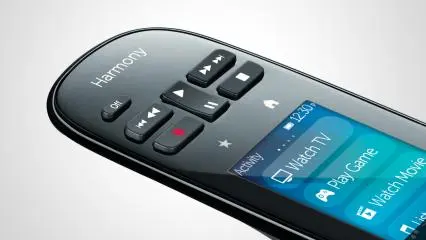

Assess the app from the sofa, not only thirty centimetres from the screen. Check text size, contrast, focus indicator, navigation order, and the number of key presses. A feature-rich player can be a poor choice when a viewer cannot read its menus or find Back.
Test screen reader, voice control, and subtitles on the actual platform. System accessibility may not cover every custom control. For an older viewer, keep a short card explaining how to open the app, choose Favourites, return Home, and request support without disclosing credentials.
21. Profiles, children, and shared devices
Parental controls may belong to the player, source, or operating system. Determine exactly what the PIN blocks. A category PIN may not protect settings, purchases, or another app. Use platform profiles and restrictions as well when available.
On a shared television, avoid displaying credentials in plain text and close administrative screens after setup. Do not reuse the same PIN for parental controls, the main account, and Wi-Fi. Keep recovery instructions in a password manager or secure record.
22. Prepare an effective support request
Provide device, model, system, exact app name, publisher, version, connection type, date, time, symptom, and completed tests. Mask URL, username, password, token, public IP, MAC address, and device key. A cropped error screenshot is generally more useful than a full photograph of configuration details.
Ask a precise question: is activation linked to the correct player? Is the source responding? Is the installed version supported? Avoid requesting several changes at once. After support, record the modification, test rollback, and revoke any remote access.
23. Quarterly installation audit
- Check system and app updates.
- Confirm that publisher and store listing have not changed.
- Remove unused apps after preserving necessary data.
- Review permissions, connected accounts, and authorized devices.
- Test known media, EPG, subtitles, and remote navigation.
- Update the support record and verification date.
This audit reduces surprises when a store removes a version, an older device lacks free space, or a licence remains linked to an unused device. Do not automatically reinstall an app that works; the goal is to verify and document, not create unnecessary change.
24. Final decision record
Select the platform and exact model first, then confirm the authentic app. Record whether a licence is required, its terms, the necessary data, and how to roll back. Run a controlled trial and retain only the solution that meets real needs.
Before paying for a player licence, check its term, any renewal, and the publisher’s cancellation or refund conditions. Keep these separate from the content service’s terms. To compare a complete offer, use the 14 checks for choosing an IPTV Canada solution: content rights, simultaneous streams and service stability must be checked separately from player features.
A useful decision record also names the person responsible for the account, the date of the last verification, and the approved support channel. It should state whether the player is tied to a device identifier, an app account, or neither. This information prevents a future television replacement from becoming an emergency and lets another household member distinguish a software licence from content credentials.
Do not select a player solely because it exposes the largest number of settings. Every option adds a possible failure state and training burden. A simple, readable player that reliably handles the household's authorized source can be a better choice than an advanced interface whose recording, multi-screen, or external-player controls will never be used.
Finally, repeat the acceptance test after a system update, router replacement, or migration to another television. Preserve the original results so a change can be compared rather than guessed. If the new configuration performs worse, restore the last known working setting one item at a time. This disciplined approach costs less time than repeated reinstallations and protects activations that may be associated with the previous device.
25. Conclusion: decide using evidence
Confirm the model, Canadian store, player and authorized source before activation. Then test picture, audio, captions and controls in the actual room. If identity or support remains uncertain, stop setup and request confirmation instead of making more changes.
Continue with the compatible-devices guide · Device Centre · Support
Scope and limits of this guide
This guide provides a method for checking the compatibility of playback apps. It is not a test of every product or a guarantee of Canadian availability. Compatibility depends on the exact model, system, software version, store, account, content and connected equipment. Check official sources and your actual setup before installing or purchasing. An app or device does not automatically provide a subscription, content or access rights.
26. Sources and editorial method
First-party references reviewed again September 4, 2026: HOT Player — player website; Google Play — XCIPTV listing published by OTTRUN; VideoLAN — VLC; Kodi — project overview; SmartOne IPTV — player website. For names exposed to impersonation, this guide relies on the store listing on the exact device and does not assign unverified features. Recheck commercial terms and availability before installation.
Limitations: reused photos and screens identify only the stated models or releases. This guide is not a hands-on test of every device or player. Confirm Canadian availability and activation terms on the device at installation time.
Editorial update and further reading: