

The guide in video
Watch the video and read its transcript on a dedicated page →
Read the complete transcript
At first glance, one black streaming box can look much like another. A reliable setup starts with identifying the exact device. For this OfficialOTT check, the reference points are clear: the Formuler Z12 Ultra, in black with rose-gold trim, paired with the GTV-BT3 remote.
Before opening any menus, check the connections. The power adapter powers the box, the HDMI output connects to the TV, and for a wired connection, the Ethernet port connects the device to your network.
Before going further, also make sure the system is up to date. Then open MYTVOnline 3 and select Content Manager. Add only a source you are authorized to use, while keeping the portal address, username, password, and MAC address out of view.
Finish with four checks: picture, sound, remote, and network. If your hardware or menus differ from what is shown, consult the documentation for your exact model.
Alternative: YouTube player
Watch the guide on YouTube
Formuler and MYTVOnline 3
YouTube stays disabled until you click. Loading the player allows a connection to YouTube, which receives information including your IP address.
Which device do you use, and what topic would you like next? Share your question in the YouTube comments. If the video helps, like it and subscribe to OTT Canada.
A Formuler box combines an Android-based television device, a remote, and—depending on generation—a particular MYTVOnline version. Reliable setup starts with the exact model. Instructions for a Z11 Pro Max and MYTVOnline 3 must not automatically be applied to a Z10, GTV, or another version of the app.
This guide focuses on Z11 and Z12 devices that use MYTVOnline 3, particularly Z11 Pro, Z11 Pro Max, and Z12 Ultra. It provides no portal, channel, or playlist. Formuler states that it manufactures devices and does not provide content. Use only a source for which you hold the required rights.
1. Identify the model before any action
Check the label under the box, packaging, and system page. Record the complete name, Android version, Formuler software version, and MYTVOnline version. Mask the serial number, MAC, and other identifiers in support records. If label and menu do not agree, stop until the seller explains the difference.
Formuler lists Z11 Pro Max with Android 11, 4 GB RAM, 32 GB storage, AX Wi-Fi, Gigabit Ethernet, and MYTVOnline 3. Z12 Ultra is listed with Android 12, 4 GB RAM, 128 GB storage, tri-band Wi-Fi 6E, Gigabit Ethernet, Dolby Vision, Dolby Atmos, and MYTVOnline 3. These specifications describe those exact products, not every Formuler box.
| Check | Z11 Pro Max | Z12 Ultra |
|---|---|---|
| Listed system | Android 11 | Android 12 |
| Memory / storage | 4 GB / 32 GB | 4 GB / 128 GB |
| Wired network | Gigabit Ethernet | Gigabit Ethernet |
| Listed wireless | AX Wi-Fi | Tri-band Wi-Fi 6E |
| App | MYTVOnline 3 | MYTVOnline 3 |
| Decisive check | Inspect the label and menus of the box actually received | |
Z11 Pro has different capacity from Z11 Pro Max. Z12 Ultra also differs from Z mini. Do not transfer storage, remote, port, or accessory assumptions from one model to another. Recheck Formuler's comparison page when its product range changes.
2. Inspect hardware and accessories

Unpack on a stable surface. Compare the contents with the model page: receiver, remote, HDMI cable, power supply, batteries, and guide. A power adapter from another device can have a different voltage or polarity. Use the supplied adapter or an officially compatible replacement.
Install the box in a ventilated location away from heat. Connect HDMI to the television or audio receiver and select the matching input. Ethernet is useful for first setup when available because it removes variables during updates and initial connection.
The official Z12 Ultra image shows USB 3.0, USB 2.0, HDMI, Gigabit Ethernet, microSD, optical S/PDIF, and power. Z11 ports are not identical. Read labels before inserting a cable and never treat an IR port as a reset switch unless the exact model's Formuler procedure explicitly requires it.
3. First start and update
- Connect HDMI, network, and power without unnecessary USB devices.
- Select language, Canada region, and automatic time zone and clock.
- Keep output resolution automatic.
- Open the device's official update function.
- Install a stable update and allow restart to finish.
- Recheck model, versions, date, and free space.
- Test the remote before opening MYTVOnline 3.
Do not disconnect power during an update. Do not install firmware found on a forum or built for another model. If updating fails, capture only the error and non-sensitive version details, then consult Formuler support.
4. Remote, Bluetooth, and television control
Remotes and editions vary. Formuler documentation says recent models can pair compatible Bluetooth accessories through Remotes & Accessories; confirm the combination and menu for the remote received. Do not assume BT1 and BT3 share every function.
A compatible remote may learn infrared television commands or be configured in Formuler Remote. Test power and volume without erasing the original television remote. HDMI-CEC may also participate; enable one control function at a time to prevent double commands.
5. Understand MYTVOnline 3
MYTVOnline 3 is the integrated media client on compatible devices. Formuler presents source management, search, channel organization, guide data, and viewing tools that depend on the connected source. The app does not create content or make unauthorized access legitimate.
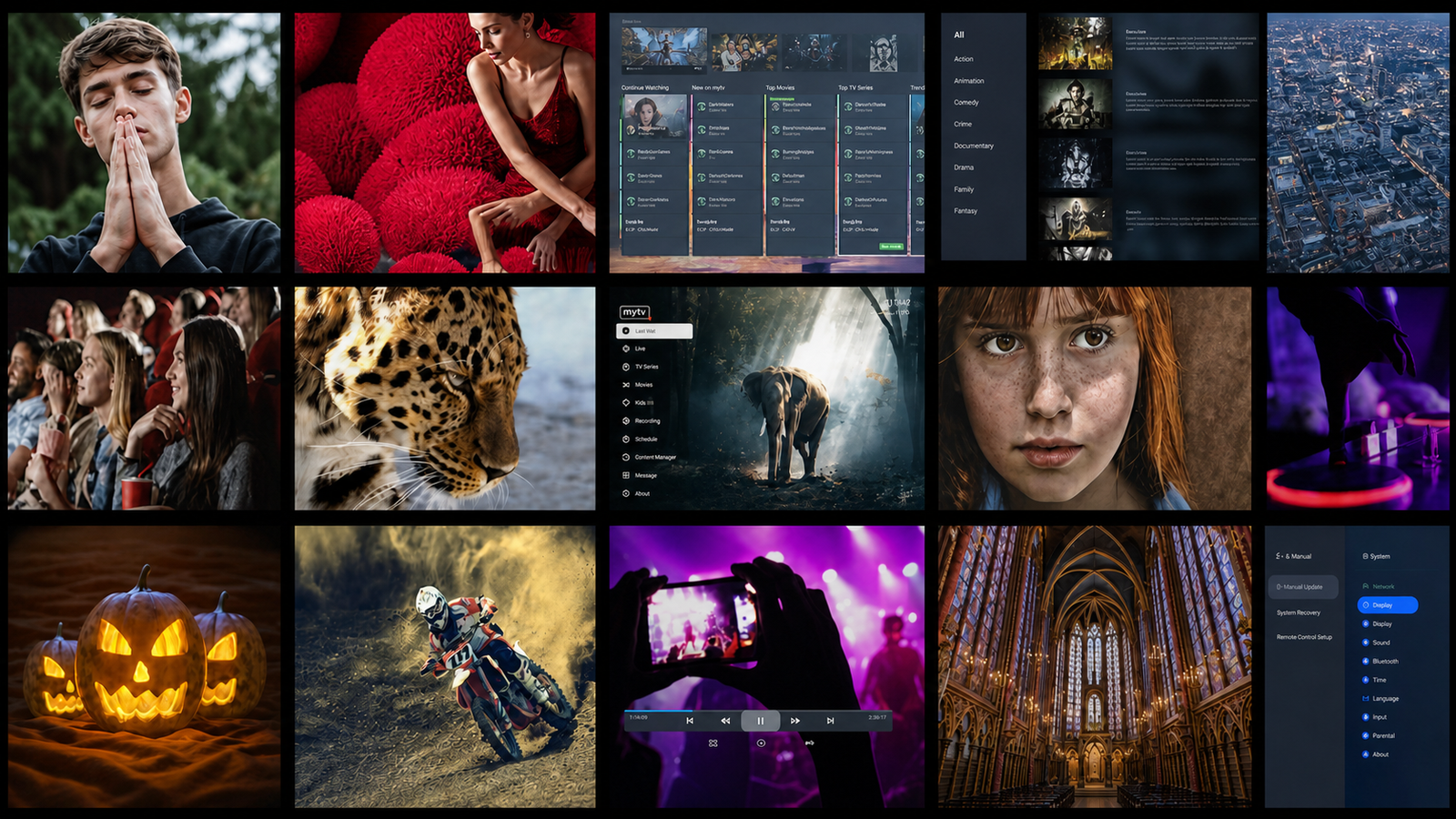
On MYTVOnline 3, management is generally under Menu > Content Manager > Content Sources. Names may change after an update or with language. Before following an old screenshot, compare the version and use integrated help or the Formuler knowledge base.
6. Add an authorized source
Formuler support describes three technical categories: MAC-ID, a structured connection with URL and credentials, or an M3U list. They are not interchangeable. Use the type supplied by the authorized provider and do not improvise conversions. This guide reproduces no sample URL so a real secret cannot be mistaken for a template.
- Open MYTVOnline 3 and Content Manager.
- Select Content Sources and add a new source.
- Choose the exact connection type supplied.
- Use a generic profile name that reveals no identifier.
- Enter information away from cameras and screen sharing.
- Check every character before saving.
- Allow initial synchronization to finish without restarting it.
For MAC-ID, provide only the identifier requested by the authorized organization and confirm which displayed value it needs. For an account connection, protect URL, username, and password together. For M3U, protect both file and address because credentials may be embedded in the link.
7. Protect credentials and screenshots
- Never record the screen while entering information.
- Fully mask MAC-ID, URL, username, and password.
- Do not email a MYTVOnline backup without protection.
- Use a support channel confirmed on the official domain.
- Remove remote access at the end of support.
- Revoke old devices after successful migration.
Partial masking can fail when an address or code remains recognizable. Crop an image to the error message. If support needs a value, send it separately through the approved channel and request deletion when the case closes.
8. Organize the interface and guide

Start with a few favourites instead of reorganizing everything. Test search, category order, guide, and language. An empty grid can result from missing EPG data, the wrong time zone, or incomplete synchronization; it does not prove hardware failure.
In Canada, leave time and time zone automatic before adding any offset. Compare a program whose schedule is known. Do not change system, app, and source at once. In a bilingual household, separately test interface language, metadata, audio, and subtitles.
9. Configure picture and sound
Keep resolution, frame rate, and dynamic range automatic for the first test. 4K or HDR requires compatible content, player, box, cable, input, and display. Z12 Ultra supports advanced formats according to Formuler, but that does not mean every television, app, or item provides them.
For a black screen, return to a known mode and check input, cable, and HDMI chain. For silence, temporarily test stereo output to isolate the audio format. Record the original setting and restore it when a change does not help.
10. Ethernet, Wi-Fi, and Wi-Fi 6E
Gigabit Ethernet offers a predictable link when wiring is practical. Z12 Ultra's Wi-Fi 6E can use 6 GHz with a compatible router and regional rules, but shorter wavelengths often lose more through walls. A standards label does not replace measurements beside the television.
Use the same authorized content at the same time when comparing. Measure throughput, latency, and consistency near the box. Avoid changing DNS, wireless channel, resolution, and source together. OfficialOTT's network guide provides a deeper interruption diagnosis.
11. Recording and live pause
Capabilities depend on model, MYTVOnline, storage, and service. Formuler says Z12 Ultra can use internal storage for recording and time-shift, while some generations need USB or NAS storage. Content rights and allowed simultaneous connections still apply.
Before an important recording, test five minutes, file playback, free space, sleep behaviour, and time. Never remove a drive while it is writing. Cloud time-shift can depend on service and guide data; a missing icon is not fixed by factory-resetting the box.
12. MYTVOnline 3 backup and restore
Formuler’s backup and restore article for MYTVOnline 3 and 4 contains conflicting instructions: its introduction allows restoration to the original device or another device, while its important notice restricts restoration to the same device. Before restoring or migrating, ask Formuler support to confirm compatibility for the exact models and versions involved. Keep the old device and a copy of the backup until validation. Prepare separate storage, disconnect other accessories, and protect the resulting file. Read the official Formuler article.
A backup may contain sensitive details. Do not upload it to an online viewer or public forum. Test restoration only on the intended device and keep an encrypted copy away from the box. A backup does not replace provider confirmation that migration is allowed.
13. Methodical troubleshooting
| Symptom | Check | Reversible action |
|---|---|---|
| No startup picture | Input, HDMI, power | Known input and cable |
| Remote inactive | Batteries, pairing, line of sight | Pair according to model |
| Source rejected | Type, characters, account | Retype without publishing data |
| Empty guide | EPG, time, synchronization | Refresh once and wait |
| Playback interruption | Different content and network | Compare Ethernet and Wi-Fi |
| No audio | Track and output format | Temporarily test stereo |
| Storage missing | Format, port, power | Test an empty supported drive |
Factory-reset only after documenting model, versions, backup, and the ability to reactivate the source. Formuler publishes different procedures by model; never improvise with a recovery button.
14. Frequently asked questions
Does a Formuler box include channels?
No. Formuler states that it manufactures the device and does not provide content.
Does MYTVOnline 3 run on every Formuler?
No. The integrated version depends on generation. Check the exact model page and menu.
Can I publish my MAC-ID for help?
No. Send it privately only to the authorized provider when required.
Does Z12 Ultra guarantee 4K?
No. The complete chain, content, and settings must support it.
Should I reset when the guide is empty?
No. First check EPG data, time, time zone, and synchronization.
15. Checks before buying a Formuler
Ask for the complete model name, remote edition, box contents, warranty, and return policy. Compare the listing with Formuler rather than a marketplace title. An advertisement mixing Z11, Z12, and Z mini photographs does not establish what will be delivered.
Confirm that the power supply and plug suit Canada. Check required ports, HDMI cable length, practical Ethernet access, and space near the television. Never buy a box solely for a catalogue promise: neither the device nor MYTVOnline provides content.
16. Used box and previous owner
A used device can retain accounts, sources, favourites, and identifiers. Require an official reset and confirm that the seller removed associations. Never use a source that appears after purchase unless it belongs to you. Record the model and confirm that it still receives required updates.
After receipt, configure the network, update the system, and inspect apps before entering accounts. A reset must not use an image built for another model. If the device requests an organizational account or remains remotely managed, return it instead of bypassing controls.
17. Select and maintain storage
For USB or microSD, use reliable media and an officially supported format. Advertised capacity differs from usable space. Recordings, apps, caches, and updates share storage. Maintain free space and periodically inspect drive health.
Before formatting, copy authorized files and verify the backup. Formatting erases data. Do not use one drive as both the only backup and daily recording medium. An external hard drive may also require more power than the USB port supplies.
18. Favourites, Watchlist, and scheduling
Formuler documents a MYTVOnline 3 Watchlist that depends on EPG data. A future program can be selected from the guide and appear in a dynamic group when it begins. If the guide lacks that event, Watchlist cannot invent its schedule.
Separate favourites, reminders, Watchlist, recording, and resume. A favourite organizes an entry; a reminder signals a time; a recording creates a file only when the feature, source, and rights permit it. Test each behaviour before teaching another household member.
19. Accessibility and family use
Inspect the interface from sofa distance: text size, contrast, focus indicator, menu order, and subtitles. Official images are promotional and do not guarantee that every screen matches the installed version. Also test Back and recovery from an accidental selection.
For a bilingual household, create a short FR-CA/EN-CA card explaining how to open MYTVOnline 3, find favourites, and contact support without exposing data. Parental controls may depend on app and source; test their exact scope.
20. Seven-day acceptance protocol
- Day 1: hardware, update, Ethernet, and remote.
- Day 2: initial synchronization, guide, and favourites.
- Day 3: Wi-Fi at the real location and during peak hours.
- Day 4: audio, subtitles, 4K/HDR with compatible content.
- Day 5: pause, short recording, and storage when authorized.
- Day 6: sleep, restart, and setting retention.
- Day 7: backup, support record, and final decision.
Record the same observations each day: time, network, test item, startup delay, interruptions, perceived temperature, and result. This separates a repeatable fault from a one-time incident.
21. After a MYTVOnline 3 update
Read official release notes before changing settings. After restart, check Content Sources, EPG, favourites, audio, subtitles, storage, and remote. Do not clear data merely because a menu moved.
If behaviour regresses, record version and time, reproduce the issue with authorized content, and contact Formuler. Avoid beta software on the main device unless you knowingly accept the risk and have a supported recovery plan.
22. Migrate from Z11 to Z12
Install the new box in parallel. Do not remove any old source until provider rules and restoration compatibility have been confirmed with Formuler for the exact models and versions. The official article contains conflicting instructions and does not establish a guarantee of full migration.
Recreate settings gradually, test network, picture, sound, and remote, and then revoke the old device. Reset it only after an acceptance period. Z12 Ultra's larger capacity does not automatically repair an unstable source or poor wireless coverage.
23. Support record without sensitive data
| Provide | Mask |
|---|---|
| Exact model | Full serial number |
| System and MYTVOnline versions | MAC-ID and network address |
| Date, time, and message | Portal URL |
| Ethernet or Wi-Fi | Username and password |
| Completed tests | M3U file or backup |
Use the Formuler support domain for hardware and app questions. Use the authorized provider for its source availability and credentials. Do not ask one party to solve the other's responsibility without evidence.
24. Rollback plan
- Photograph cabling without identifiers.
- Record original settings.
- Create a MYTVOnline 3 backup when appropriate.
- Change one variable.
- Repeat the reference test.
- Restore the setting if results worsen.
- Factory-reset only with the exact model's procedure.
25. Complete visual installation check

Inspect the installation from both front and rear. At the front, do not hide remote sensors or status lights. At the rear, cables should form gentle curves without pulling HDMI or power connectors. Leave space around ventilation and do not stack the box with a warm router, amplifier, or unventilated drive.
Label both ends of Ethernet and HDMI when the cabinet contains several devices. An intermittent fault is easier to reproduce when port and cable are known. Do not attach the box with adhesive that covers its model label or traps heat.
Map the signal path: Formuler directly to television, or Formuler to receiver and then television. Record which device controls volume and which remote changes input. This small map prevents MYTVOnline 3 from being blamed when an audio receiver is simply on the wrong input.
26. Heat, power, and long-term stability
Navigation that slows after an hour can result from heat, full storage, a failing USB drive, or a background process. Carefully compare behaviour when cold and after thirty minutes without blocking vents. Do not open the device or add a USB-powered fan without checking requirements.
If the box restarts, first inspect the outlet, supplied adapter, and connector. Avoid an overloaded power bar. Test without an external drive, USB hub, or other accessory. If the problem disappears, reintroduce one item at a time. Stable power must be established before blaming the app or network.
Maintain free space for updates and caches. The Z12 Ultra's listed 128 GB does not mean every byte is available for recordings; system and apps consume part of it. Remove only identified, backed-up files, never random system folders.
27. Advanced EPG and schedule diagnosis
When some channels have guide data and others do not, inspect source-supplied identifiers and data instead of changing the global clock. When the entire grid is shifted by the same number of hours, check the operating system, time zone, and EPG setting. When the offset changes at daylight-saving transitions, confirm automatic time and refresh the data.
A full refresh can take time with a large database. Allow MYTVOnline 3 to finish before closing it and record the last update time. If the problem returns after every restart, provide support with version, time zone, and one non-sensitive example rather than a Content Sources screenshot.
Watchlist, search, and descriptions depend on this database. Validate one day and a few known entries first. A missing image, summary, or logo is not the same fault as a program placed at the wrong time. Precise symptom descriptions accelerate diagnosis.
28. Account security and device retirement
Use a distinct password when the authorized provider offers an account. Never reuse email or Wi-Fi credentials. If stronger authentication exists for the support or purchase account, enable it. Periodically review associated devices and remove those no longer used.
Before selling, giving away, or recycling a Formuler, back up only required data, revoke the source, sign out of accounts, remove storage, and run the exact model's reset procedure. After restart, confirm that no source, profile, or account remains. Never include a backup USB drive with the device.
If the model no longer receives security fixes, consider replacement even when media still plays. A connected box handles accounts and network data. Keeping it only for isolated local files may reduce exposure, but that choice should be documented and appropriate for the household.
29. Build a repeatable quality record
Create a one-page record for every acceptance test. Include model, software versions, display, HDMI path, network connection, source type without secrets, test date, and expected outcome. Use the same short authorized items for startup, channel change, audio, subtitle, and seeking tests. Consistency makes results comparable after an update.
Measure more than headline speed. Note the time to open MYTVOnline 3, load guide data, begin playback, change categories, and resume after sleep. Record interruptions over a fixed thirty-minute period. If Ethernet works and Wi-Fi does not, document signal conditions before replacing the box.
Keep screenshots focused on visible behaviour and mask every identifier. A photograph of the television input message can be safe; a photograph of Content Sources generally is not. Store the record with warranty and purchase information, not in a public cloud link.
30. Train the household without exposing administration
Separate everyday viewing from administration. A normal user needs to open MYTVOnline 3, locate favourites, select audio or subtitles, and return Home. They do not need access to portal details, backups, developer settings, or factory reset. Keep those procedures in a secure owner record.
Demonstrate the real remote at sofa distance. Explain which button returns one level and which returns to the launcher. If a programmable key is used, label its purpose in the household card. Avoid assigning a destructive function to a frequently pressed key.
For support, teach users to stop at the error message, note the time, and avoid repeated sign-in attempts. They should not photograph credentials or accept remote access from an unsolicited caller. This simple process protects the account and preserves useful diagnostic evidence.
31. Final review before daily use
Perform one final restart after all approved settings are complete. Confirm that the launcher opens, the remote reconnects, MYTVOnline 3 loads the authorized source, the clock is correct, and guide data remains available. Play a known item, change the audio track, enable a subtitle when available, return to the guide, and resume after sleep. This short sequence verifies the complete path rather than a single successful screen.
Record the accepted versions and date, then stop changing settings without a reason. Keep the support record, backup media, and purchase information secure. If a later update changes behaviour, compare against this baseline before resetting or moving the source. A documented working state is the most valuable troubleshooting tool in the installation.
Conclusion: validate before everyday use
Keep the setup simple and documented: confirmed model, official software, authorized source, and protected credentials. Validate picture, sound, subtitles, EPG, and wake from sleep in your actual installation. If a problem occurs, change one variable at a time and retain the results before contacting support or resetting.
Compare devices · Understand apps · Get support
Scope and limits of this guide
This documentation-based guide is not a hands-on test of every model or a guarantee that your source is compatible. Menus, features, and accessories vary by device, version, and authorized service. Visuals identify or illustrate the items described. Confirm features on your device and terms with the publisher. Setup does not provide content or access rights.
Editorial supplement, September 14, 2026: quick answer, conclusion, limitations, bilingual coverage, and navigation checked. The technical references below retain their stated consultation date; this supplement does not claim a new hands-on hardware test.
Sources and editorial method
First-party Formuler sources reviewed August 4, 2026: Z12 Ultra; Z11 Pro Max and MYTVOnline 3; model comparison; MYTVOnline source types; MYTVOnline 3 backup; remote programming. Formuler and MYTVOnline 3 visuals are attributed to the manufacturer; rights must be confirmed before commercial publication.