
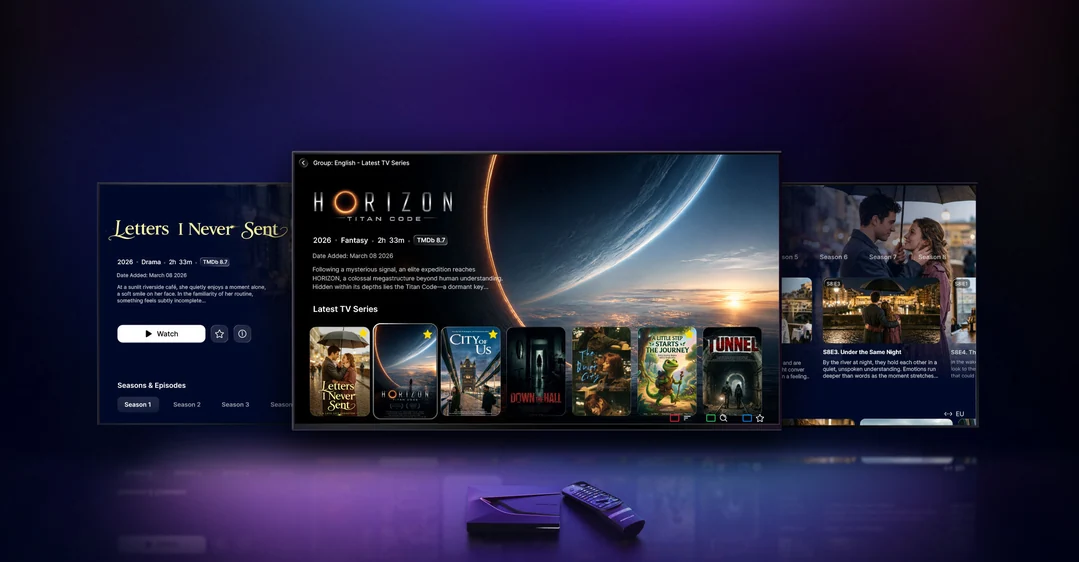
Quick answer
To set up MYTVOnline 4, update your Z12, then open Menu → Settings → App Settings → Content Sources. Choose the format you received: MAC/ID, XC or M3U. Add your authorized source, test playback, then check the EPG, favourites and profiles. The box and application do not supply channels; available features also depend on your access.
Your setup path
On a Formuler Z12 running MYTVOnline 4, configure sources under Menu → Settings → App Settings → Content Sources. Prepare the details for your authorized access, choose its format, then verify playback before adjusting the EPG and profiles. Menu labels below follow the manufacturer’s documentation; translations and appearance can vary with the installed version.
This tutorial covers MYTVOnline 4. If your screen says MYTVOnline 3, use the guide for that version. To compare boxes, read what is new in the Z12 range.
1. Prepare the box and the information you need
- Identify the model on its label: Z12 Pro, Z12 Ultra SE or Z12 Ultra.
- Have the HDMI cable, correct power supply and remote batteries ready.
- Choose your home network and keep its password available privately.
- Find the setup message from your authorized service and check that access is active.
- Choose a time when an update or restart will not disrupt anyone.
The box and MYTVOnline do not supply channels. A random address found online cannot replace the information provided by your service. If the format you received is unclear, have it clarified before filling in the fields.
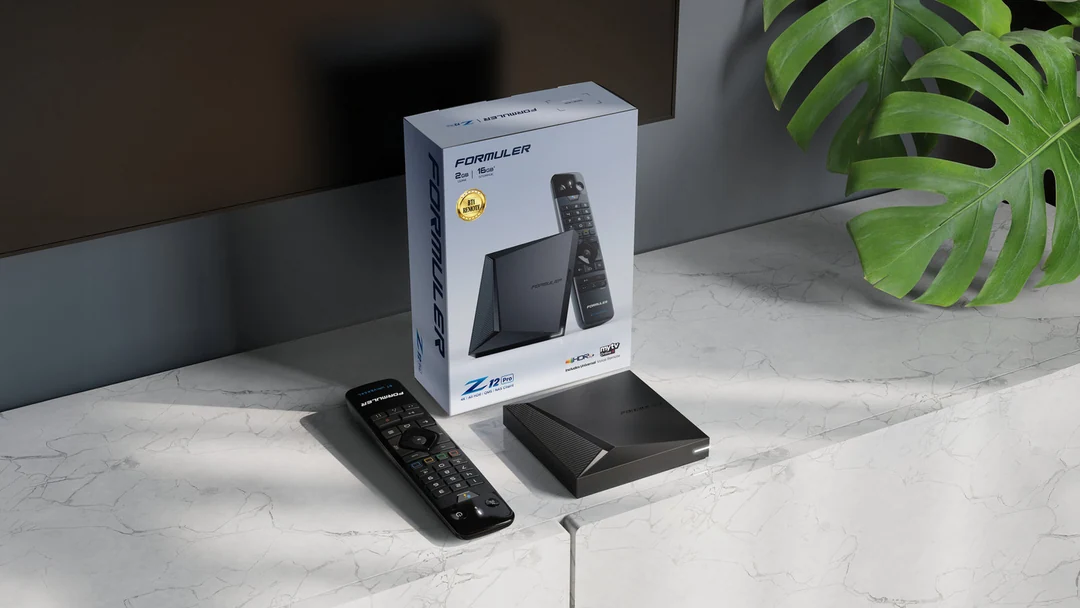
For a used device, make sure you can configure your own access and that the previous owner has removed theirs. Do not begin by using or disclosing credentials already stored on it.
2. Connect the hardware and check the network
- Connect the box to the television through HDMI, then select the matching TV input.
- Connect the power supply intended for the model. Leave room around the box for ventilation.
- Complete initial setup: language, region, network and local time.
- Start with Ethernet where possible. For Wi-Fi, select your home network and check its password.
- Check that an available online application or feature loads. A Wi-Fi symbol alone does not prove that Internet access works.
Keep the first test simple: one box, one television and one source. This helps separate installation problems from catalogue problems. If the TV is black before MYTVOnline even opens, check the HDMI input and connections.
3. Install the official update offered to your device
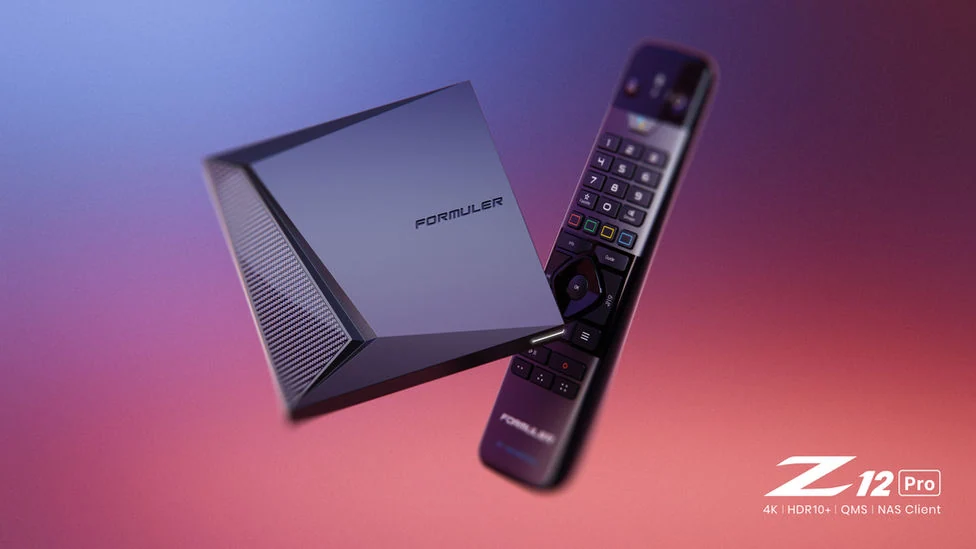
Open Software Update on the box, check for updates and read the details. When MYTVOnline 4 is offered for your device, start installation and let the restart finish. Do not interrupt power during installation.
Before migrating, privately save the information needed to configure your source again. A backup does not guarantee restoration between models; Formuler documents that limitation. If you have important settings or recordings, check how they are handled before continuing.
If the update is missing, record your model and versions and consult official support. A missing update is not a reason to immediately factory-reset the device or download a third-party APK. Beta releases require a separate decision and are not necessary to follow this guide.
Official August 31, 2026 announcement · Formuler: cross-model restore limitations
4. Identify your source format

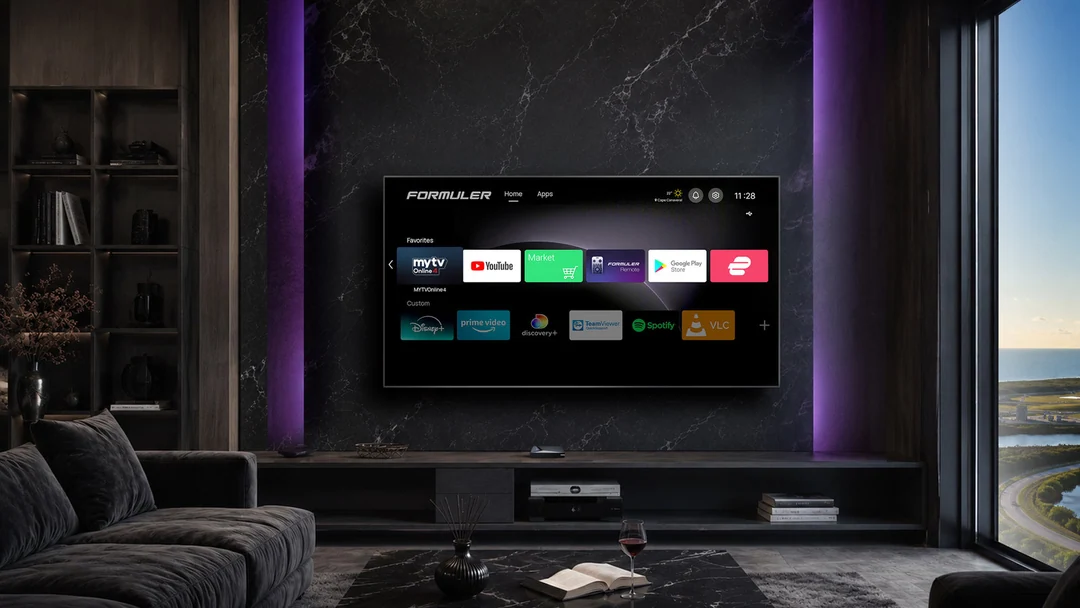
Open MYTVOnline 4, then Menu → Settings → App Settings → Content Sources. Compare the information you received with this table. Start with one source to keep troubleshooting straightforward.
| Format | What you receive | What to check |
|---|---|---|
| MAC/ID portal — Stalker | A portal address; the service registers your MYTVOnline ID. | Use the application ID requested by the service, not an arbitrary network address. |
| XC — Xtream Codes | Server address, username and password. | Keep the three values in their separate fields. |
| M3U | A playlist URL or file; an XMLTV URL may be supplied for the EPG. | A long playlist URL may already contain credentials. |
The source name helps you recognize it. A name such as “Living room” does not replace any login detail. Preserve the supplied protocol, port and path: do not automatically add /c, remove a port or convert an address yourself.
5A. Configure a portal associated with a MAC/ID

- In Content Sources, choose to add a portal.
- Find the MYTVOnline ID used for this connection. Formuler’s documentation describes an identifier beginning with
00:1A. - If the service must register this ID, send it only through its private support channel and wait for confirmation.
- Enter the exact portal address in the relevant field and confirm the connection.
If registration was just completed, check with the service that it applies to the correct device and account. Entering the same information in several sources does not fix an incorrect association. Do not replace the ID with one from another box.
5B. Configure XC access

- Choose a portal connection with login credentials, according to the options displayed in your version.
- Enter the server URL, username and password separately.
- Check capitalization, digits and unwanted leading or trailing spaces.
- Confirm and allow loading to finish.
Do not paste a complete M3U URL into the XC base-server field. If connection fails, compare each value with the original message privately. A customer-account password may differ from the password intended for the playback application.
In the add-source screen documented by Formuler, enable Login required? when offered, enter the credentials in their respective fields, then use Connect. The portal nickname only helps you identify it.
5C. Configure an M3U playlist and its EPG

- Choose to add a playlist and enter the supplied M3U URL or file.
- If your service supplies an XMLTV URL, enter it in the EPG field for that playlist.
- Confirm loading, then open a known channel.
Keep the playlist and EPG together in your private setup record: they serve different purposes. A playlist may load channels without programme schedules. Do not invent an EPG URL or reconstruct one from an example without confirmation from your service.
M3U URLs may contain a username and password. A screenshot of the full address can therefore disclose access. Hide the entire address before asking for help in a public forum.
6. Verify playback before customizing everything
Start with a known channel, then a second item from the same source. Check picture, sound, channel changes and, where available, an audio track and subtitles. Then test VOD or series only if your access includes them.
Note what works and what fails. “One channel has no sound” and “no channels start” are different problems. If only one item fails, do not immediately remove a source that works for the others.
Initially keep picture and sound settings compatible with your television. A 4K, HDR or Dolby label on the box does not prove that every programme uses that format. Change one setting at a time and restore its previous value if the result gets worse.
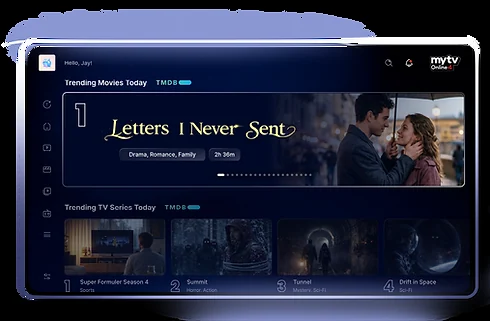
7. Fix an empty or offset programme guide

When schedules appear at the wrong time
First check the box’s time and time zone. In MYTVOnline 4, open Menu → Settings → App Settings → Content Sources → your portal → Edit. Adjust EPG offset only if necessary, confirm with UPDATE, then compare several programmes whose times you know.
Do not arbitrarily choose +1 or −1 hour: observe the difference first. If only one channel is affected, its data may be the problem rather than a global setting.
When the EPG says “No information”
Check that the source supplies schedules for the affected channels. For an M3U playlist, also check the supplied XMLTV URL. A time offset cannot create missing data. Compare several channels and ask the service whether that information is available.
8. Refresh the catalogue and add favourites
To refresh a source, use Menu → Settings → App Settings → Content Sources → your portal → Refresh Content. For the current section, Formuler describes the shortcut OK → Left twice → “…”, followed by the refresh command for Live, VOD or Series.
In the channel list, select the channel you want and use the blue button to add it to favourites. Start with a few channels and check the result. Do not assume that every MYTVOnline 3 sorting command is identical in MYTVOnline 4.
A refresh retrieves available data; it does not renew expired access. If an announced new channel remains absent, check your package’s catalogue before changing other settings.
Formuler: refreshing content · Formuler: MYTVOnline 4 favourites
9. Create and select profiles
Open Menu and select the profile icon at the top. This is where you choose a profile, edit the current one or create another, up to four in total.
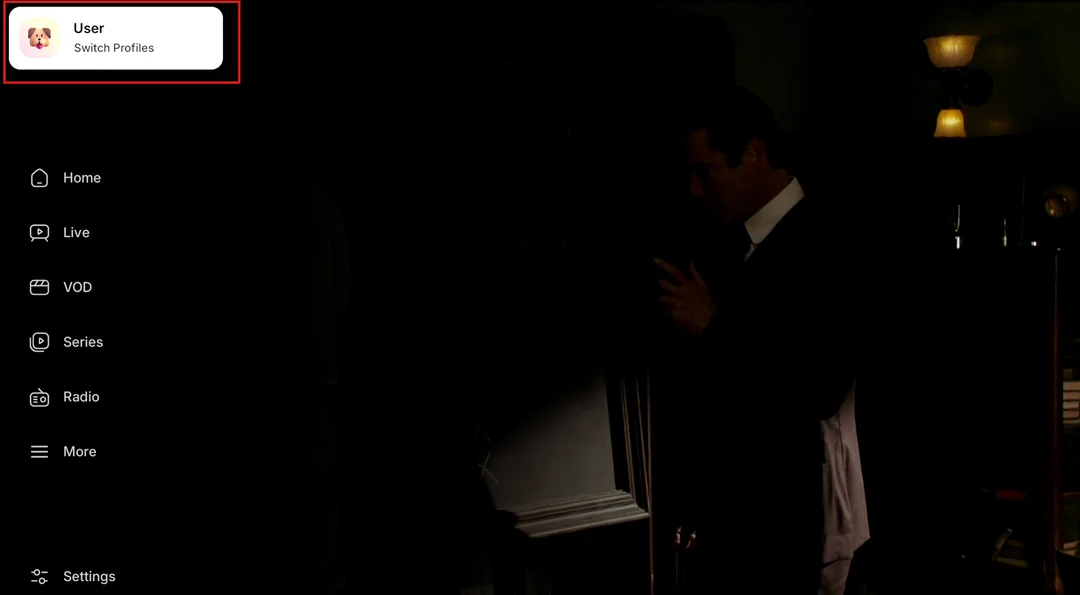
On the selection screen, use Add Profile when a slot is available. Give the profile a recognizable name and choose an avatar. These screenshots come from Formuler’s help centre; appearance may change with software updates.
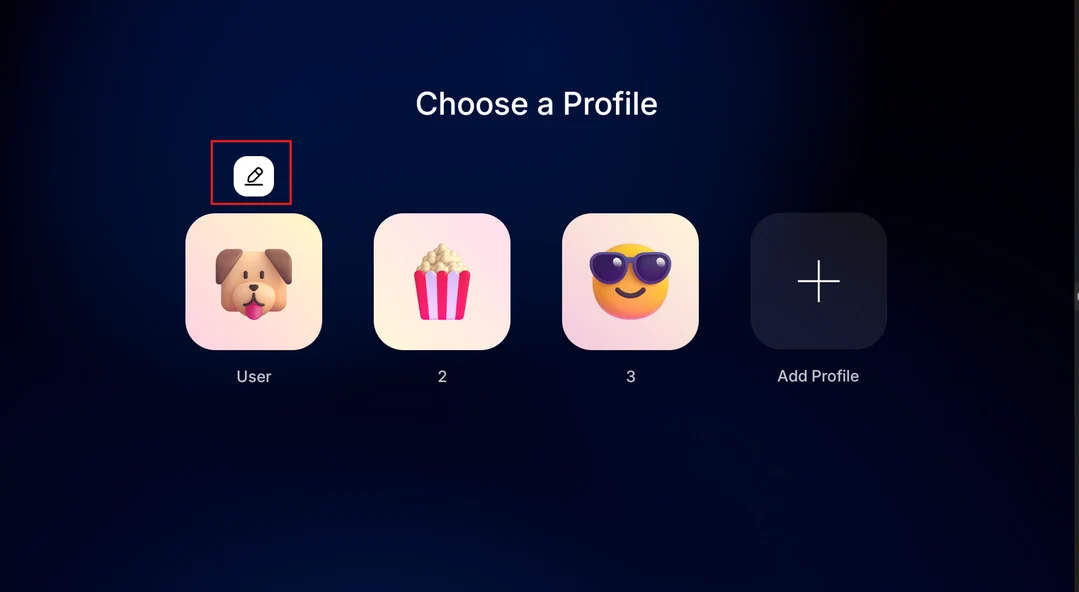
Try a simple check: open something in one profile, switch profiles and inspect the history. Show other users how to return to their own profile. Adding profiles does not increase the simultaneous connections allowed by the service.
10. Configure sensitive categories and protection
From the menu, open the user icon and then the profile’s edit icon. Find Sensitive Categories. The official help page shows options to hide sensitive categories and lock adult categories.
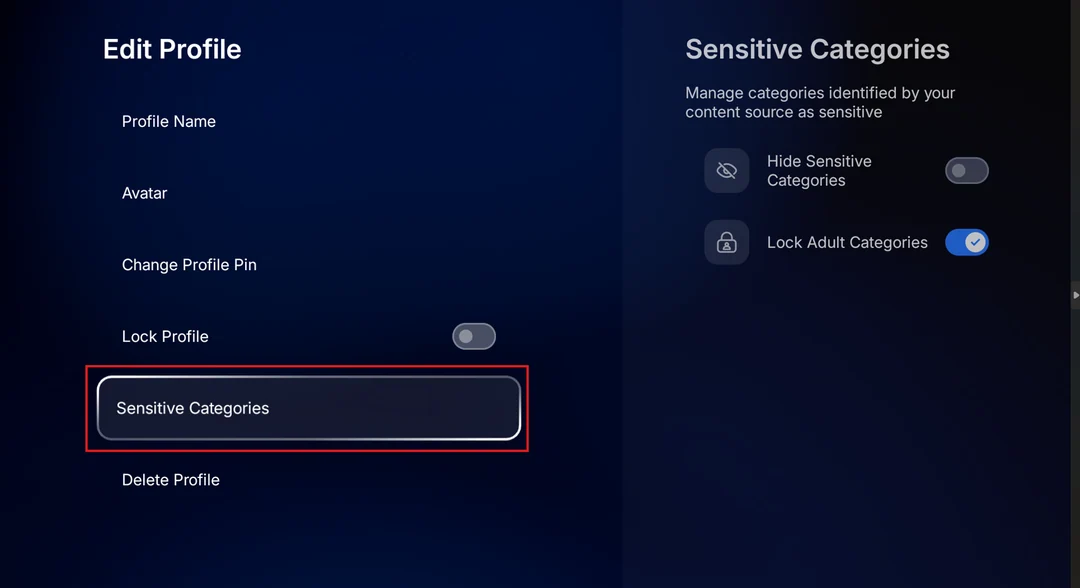
Choose the options appropriate to the profile, then test the result from that profile. The manufacturer’s screenshot also shows profile locking and Change Profile Pin: distinguish that PIN from protection of the application settings.
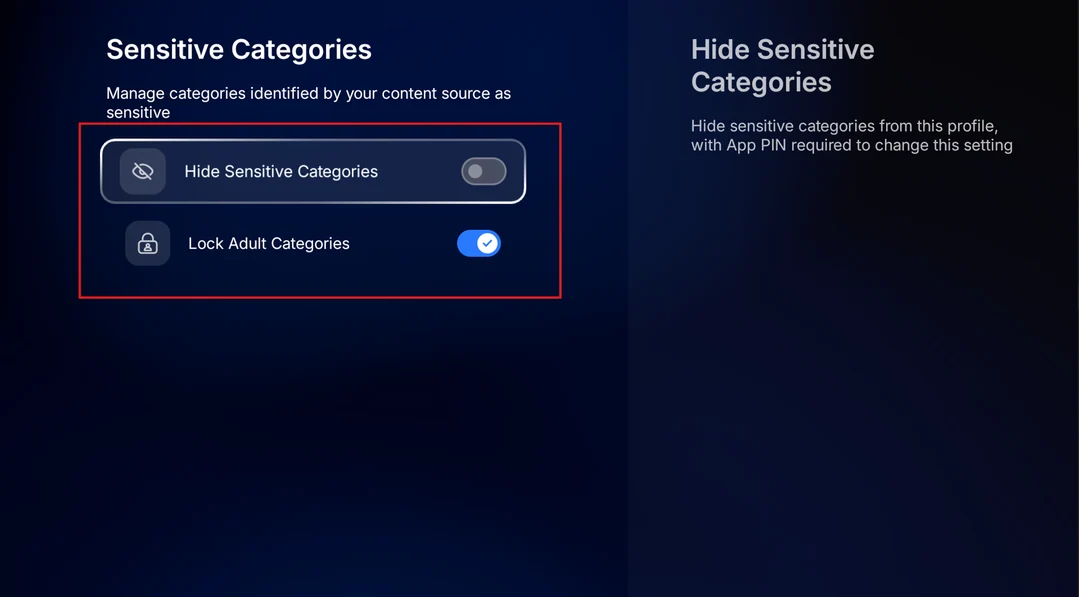
For settings protection, Formuler gives the path Menu → Settings → App Settings → Protection → App Setting Lock. Keep your codes private. Check other accessible profiles and applications as well: hiding a category in one profile does not automatically protect the entire box.
Formuler: sensitive categories with screenshots · Formuler: PINs and protection
11. Check recording and live pause
These features need a separate check from ordinary playback. The Z12 Ultra and Ultra SE specifications advertise internal storage for recording and timeshift. The Z12 Pro has less storage; check the options offered by your model and version before choosing a drive.
Check free space, the recording destination and what your access permits. Make a short test recording, stop it normally and play it back. Never format a drive containing useful data without backing it up first.
Local timeshift, recording and service-provided replay are three different functions. Replay depends on the source; plugging in a drive does not automatically add it. To record one channel while watching another, check connection limits and the actual behaviour of your access.
Formuler Z12 Ultra specifications · Formuler Z12 Ultra SE specifications
12. Troubleshoot by symptom
| Symptom | First check | Avoid |
|---|---|---|
| Portal will not connect | Source format, exact address, active access and ID registration where required. | Creating several duplicate sources. |
| List loads but nothing plays | Access validity, connection limits and service incidents. | Immediately assuming the box is faulty. |
| Only one channel fails | Compare two other items and note the channel and time. | Erasing the entire configuration. |
| Interruptions over Wi-Fi | Try Ethernet where possible with the same content. | Changing the network, player and source together. |
| Empty EPG | Availability of service data and the XMLTV URL where applicable. | Repeated time-zone changes when data is missing. |
| Offset EPG | Device time, then the measured offset. | A global correction for one incorrect channel. |
| Unexpected history or categories | The active profile and its options. | Confusing personalization with account permissions. |
| Update blocked | Connection, model, offered version and official announcements. | Interrupting power during installation. |
For support, prepare the model, software versions, network connection type, source format and exact error message. Describe the steps that reproduce the issue. Remove passwords, complete playlist URLs and other credentials from screenshots shared publicly.
Is your installation ready?
- The model and MYTVOnline version are identified.
- Your authorized source loads and two different items play.
- Picture and sound work with the television.
- The EPG is consistent across several channels that provide schedules.
- Favourites can be found and everyone knows how to choose their profile.
- The protections you want have been tested.
- Credentials are stored privately and useful settings are recorded.
Once these checks pass, customize gradually. Keep a record of each setting’s previous value so you can understand the effect of a change.
Frequently asked questions
Which connection method should I choose?
Use the format you received: a MAC/ID-linked portal, XC access or an M3U playlist. These methods are not interchangeable. If the setup message does not identify the format, ask the source before filling in the fields.
Should I configure all three methods at once?
Start with one valid source and test it. Adding several entries for the same access complicates troubleshooting and does not create additional connections.
Why can channels play without a TV guide?
Video streams and EPG data are separate. Check that your source supplies schedules and, for M3U, that you entered the correct XMLTV address when one is required.
Do four profiles allow four simultaneous streams?
No. Profiles personalize the experience; your access determines the permitted number of simultaneous streams.
Should I reset the box when one channel fails?
Test other channels first and note when the issue occurs. One failing channel does not justify erasing an otherwise working setup.
Can I directly restore a Z11 backup?
Do not assume backups are compatible between models. Check Formuler’s restore limitations and retain the setup information you need before migrating.
Conclusion: verify before customizing
A reliable MYTVOnline 4 setup starts with the correct source format and stable playback. Then check the EPG, favourites, profiles and protection settings. Test recording and live pause separately, according to the model, free space and your access capabilities.
Once the setup is verified, change one setting at a time and keep useful access information private. If a problem occurs, start from the observed symptom and completed tests to avoid an unnecessary full reconfiguration.
For a deeper troubleshooting method, follow the advanced Academy path.
Scope and limitations
This guide is based on official Formuler product pages and help documentation checked on October 10, 2026. It is not a laboratory hardware test. Menus identified as specific to MYTVOnline 4 were checked in documentation for that version. Preparation and troubleshooting advice is an editorial workflow; verify your source’s capabilities with its provider.
Screenshots help identify the screens; their appearance and labels may change with an update. Always check the model and version displayed on your own device.
Sources and editorial method
Information checked against official Formuler documentation on October 10, 2026.
- Formuler: cross-model restore limitations
- Formuler: missing EPG information
- Formuler: EPG offset
- Formuler: MYTVOnline 4 favourites
- Formuler: sensitive categories with screenshots
- Formuler: PINs and protection
- Formuler: MAC/ID, XC and M3U connection details
- Formuler: source types and menus
- Formuler: creating profiles
- Formuler: refreshing content
- Official August 31, 2026 announcement
- Formuler Z12 Ultra SE specifications
- Formuler Z12 Ultra specifications
- Formuler: XC connection fields
Manufacturer product visuals, simulated presentations and interface screenshots are credited for identification and explanation. They do not imply a Formuler endorsement of OfficialOTT. Captions distinguish help-centre screenshots from promotional presentations.