

1. Quick answer
- Separate three needs: reading dialogue and sounds, hearing on-screen action, and having menu controls spoken aloud.
- Record the television or streaming-box model, system version and app name.
- Check the programme’s tracks and the app’s settings alongside the system options.
- Try the whole routine with the usual remote: open, find, play, adjust, leave and resume.
- Keep the settings that help and record anything still unverified; an enabled switch does not establish that the whole experience works for you.
Watch the guide
The option is on, yet the person still cannot find their programme. Check a real viewing task together with the person using it. · 2:39
Open the dedicated video page →
Read the transcript
The accessibility option is on. Yet the person still cannot find their programme. An available feature does not make the whole experience usable. Start with a concrete task, together with the person watching television. Do they want to read dialogue from their seat, hear what happens in a scene, or identify the selected button? These needs involve different features. Record the television or box, system and application as well. A television setting does not demonstrate the result on a device connected through HDMI. For text, distinguish translation from captions that include useful sounds. Depending on the track, captions may identify speakers, music or a doorbell. Selecting English does not guarantee those details. Check the label and the content of a suitable passage. Then adjust size, contrast and background where those options exist. Watch bright and dark scenes from the usual seat. Text should remain readable without hiding important information. System settings may not apply to every application, so check the application too. Audio description adds narration of visual elements in the programme. It does not read menus. Availability can vary by title, episode and language. Select the offered track, then listen to a scene whose action is not explained by dialogue alone. To hear controls, look instead for a screen reader, such as VoiceOver on Apple TV or TalkBack on Google TV. Consult the model’s procedure and learn how to restore the previous setting before trying it. Then check button names and states in the actual application. A well-announced home screen does not prove that search or playback will be usable. Try the remote as well: move the selection, confirm, go back and return home. After magnification, check that controls near the edges remain reachable. Make choices with the person concerned; do not assume that speech or larger text suits everyone. Finish with a complete route: open, find a programme, play, select the track, pause, exit and resume. Record whether it worked independently, with help, was blocked or remains unverified. Keep what works and describe the difficult point precisely. The worksheet in OfficialOTT’s guide preserves these observations without passwords. After an update, repeat the essential tasks. The goal is an experience that works for the person, not simply a checked option.
Alternative: YouTube player
The player stays disabled until you click. Loading it connects to YouTube, which receives information including your IP address.
This video uses AI-generated illustrative images and scenes, with synthetic narration. Fictional situations are neither customer testimonials nor evidence of service performance.
The Apple TV 4K, Google TV and Netflix examples describe documented features. They do not establish availability on another television or IPTV player. Make choices with the person who will watch, from their usual seat and according to their preferences.
2. Start with a task and the person using the TV
Write an observable goal: “read dialogue from the armchair,” “identify the selected button without looking at the screen,” or “find my show using controls I can operate.” Several needs can overlap. Someone may want captions while keeping the sound on, or larger text without spoken menus.
Choose a familiar programme and a second one for comparison. Record the input you use: a television app or a device connected through HDMI. The television’s menu and the streaming box’s menu are separate places. A successful change in the first does not establish a result in the second.
Before changing a setting, record its original value and how to restore it. Change one thing at a time. Ask whether the result actually helps, without assuming that bigger text, narration or stronger contrast will suit everyone.
3. Understand the features and their scope
- System
- App
- Programme
| Need | Feature to look for | Practical check |
|---|---|---|
| Read dialogue | Subtitles in the preferred language | Do the chosen programme’s spoken lines appear? |
| Read useful sound information too | Closed captions, CC or SDH, depending on the service | Check for sound and speaker information where provided |
| Hear what happens visually | Audio description, sometimes labelled AD | Listen to a scene whose action is not clear from dialogue alone |
| Hear buttons and menus | A screen reader, such as VoiceOver or TalkBack | Are the selected button’s name and state announced? |
| Distinguish controls more easily | Text size, contrast and selection indicator | Read and follow the selection from the usual seat |
Ordinary subtitles do not necessarily contain the same information as captions intended for deaf or hard-of-hearing viewers. The W3C explains how captions cover speech and relevant sounds. Audio description concerns the programme; a screen reader concerns the interface. A single setting therefore does not perform every role. Apple documents these features separately in its accessibility overview.
4. Choose captions you can read
During playback, find the programme’s track menu. Record the language and the exact label of the selected track. Watch several passages: brief dialogue, a fast conversation and a scene with a meaningful sound. Check for timing differences between speech and text, and for lines cut off at the picture’s edge.
On Apple TV 4K, the documented controls are in Settings > Accessibility > Subtitles and Captioning. Style options include font, size and background adjustments. Caption availability also depends on the video. Apple’s caption instructions.
Try the text against a bright scene and a dark one: the words should remain easy to distinguish without hiding important information. If an app’s text size appears unchanged, check its own controls. Google notes that system caption preferences may not apply to some apps. Google TV options.

5. Check the programme’s audio description
Audio description adds narration of selected visual details. Netflix documents it for some titles, with possible differences between seasons and episodes; where available, it is selected as an audio track. Netflix audio-description help.
Check the title, episode, language and track actually selected. Listen to a passage containing silent action: does the narration provide the information you wanted? Record that result for the specific episode, then check another programme you want to watch.
Example check: narration works on a film, but no matching track appears on a show. Record those as two separate results. A missing track on the show does not, by itself, establish a device fault.

6. Have menus read aloud
Apple documents VoiceOver under Settings > Accessibility on Apple TV 4K and Apple TV HD. Google TV offers TalkBack through its accessibility services. Read the instructions for your device and identify how to turn the feature off before trying it. VoiceOver on Apple TV, TalkBack on Google TV.
Then explore your everyday app. Listen to labels, the selected button, lists and messages. Hearing “button” without knowing which button it is may prevent completion of a task. Also check whether speech follows the selection when returning to the previous screen.
A clearly announced home screen does not test the entire video player. Try search, favourites, the programme guide and track selection. Record the exact point where a control becomes silent or unclear, along with the app name and version.
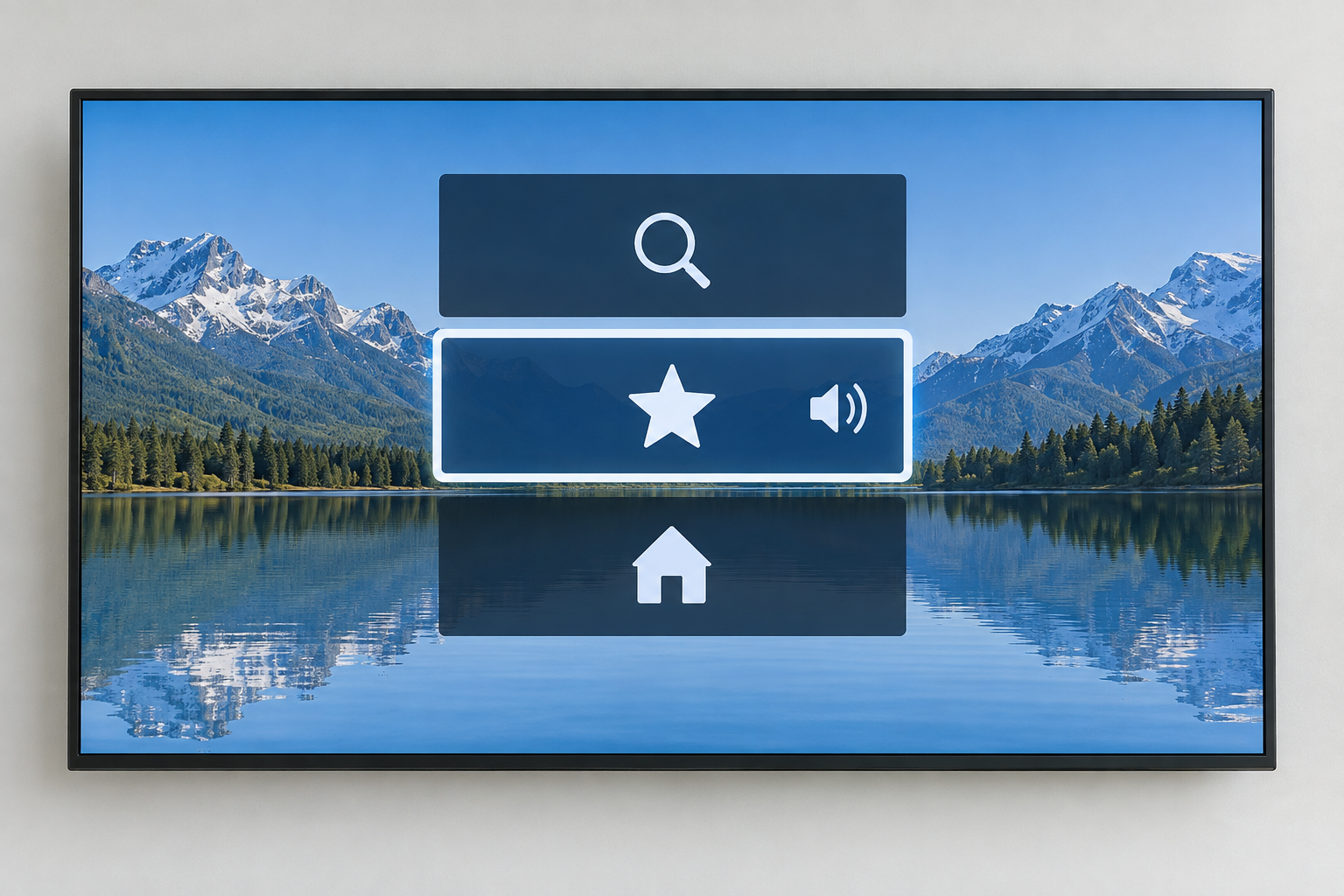
7. Adjust readability from the sofa
Apple’s accessibility overview for Apple TV 4K includes magnification, bold text and contrast options. Available controls depend on the software version and model. Apple’s feature overview.
Start with a screen you use often. Read a long title, a duration, a message and the buttons. Check that you can identify the selected item when moving between rows: a colour change alone may be difficult for you to distinguish.
After magnifying the view, look for controls near the edges. Larger text helps little if the next control becomes impossible to find. Observe reflections under normal viewing conditions too. Repeat the check in the evening if the lighting changes substantially.

8. Use a remote that works for your routine
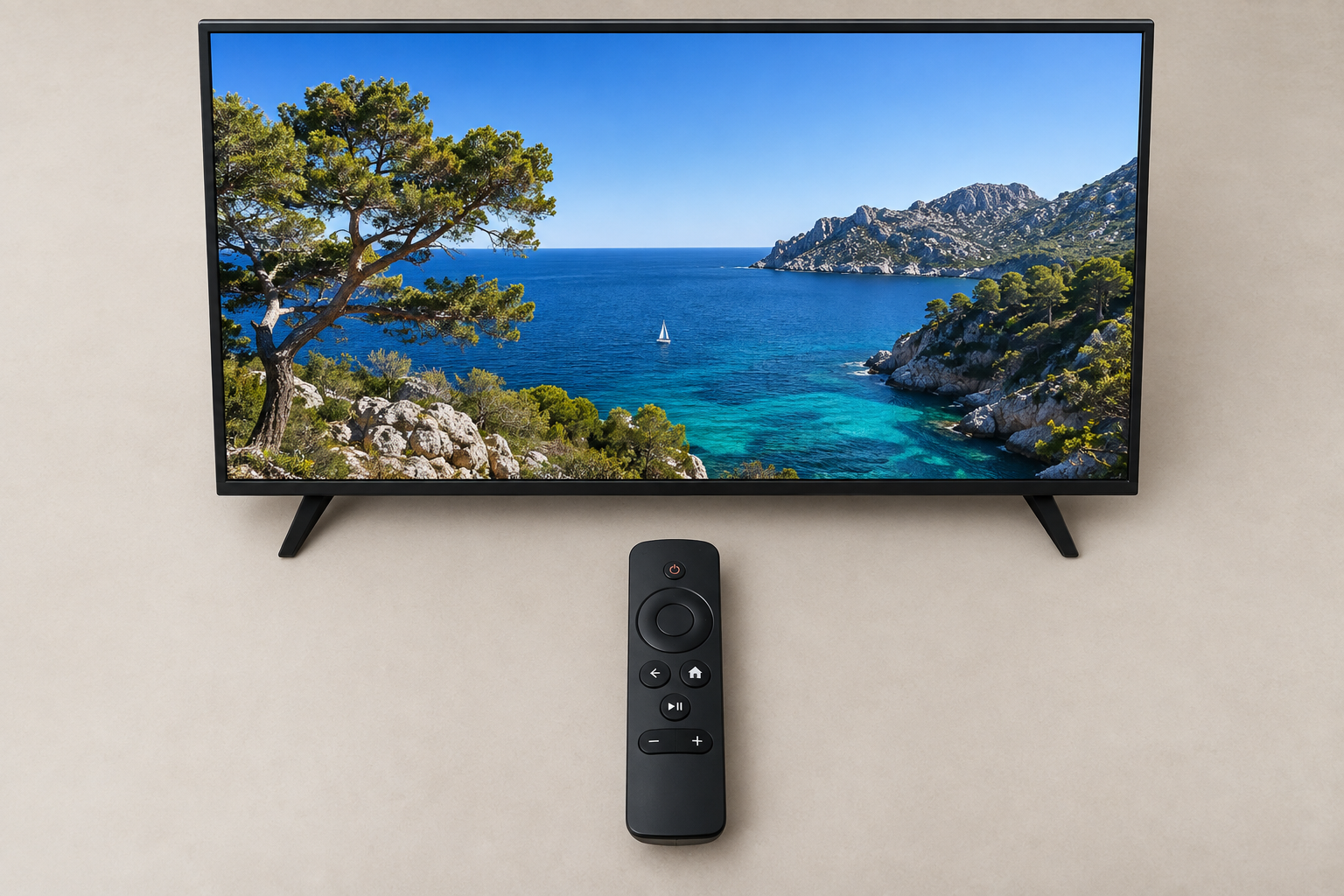
Position the remote as you would normally use it. Try moving the selection, confirming, going back and returning home. Count presses only to compare two routes on your own setup, without setting a universal target for a “good” number of presses.
| Task | What to observe | What to record if it blocks progress |
|---|---|---|
| Move the selection | Does one press move it as expected? | Double movements or a difficult direction |
| Confirm and go back | Can you distinguish the two controls easily? | Confused buttons or an unexpected exit |
| Use a temporary option | Is enough time available? | Menu disappears before selection |
| Return home | Can you repeat the route? | A step that requires help |
Google TV documents timing options and accessibility shortcuts; check them against your software version. Enable the option that addresses the task and try it with the person using the TV. Google TV settings. For a different remote or accessory, confirm compatibility with the exact model before buying.
9. Check apps and IPTV players
The term IPTV does not describe how accessible an interface is. Record the player, its version, the device and the content tested. A subtitle menu does not establish that every channel includes a track, or that a screen reader will announce the selection.
| Observation | Useful comparison | Information for support |
|---|---|---|
| Captions missing on one programme | Another title listed with captions in the same app | Programme, episode or channel, language and time |
| Spoken menus stop inside one app | The same task in the system’s home screen | Player name, version and affected button |
| Enlarged text only on the home screen | The app’s own settings | Affected screen and observed result |
| Option lost after closing | Reopen the same profile and programme | Reproduction steps without account credentials |
These comparisons help describe the issue; they do not automatically prove its cause. To identify the environment to check, see the compatible-apps guide. A general compatibility list does not replace this task-based check.
10. Try the complete routine and keep a worksheet
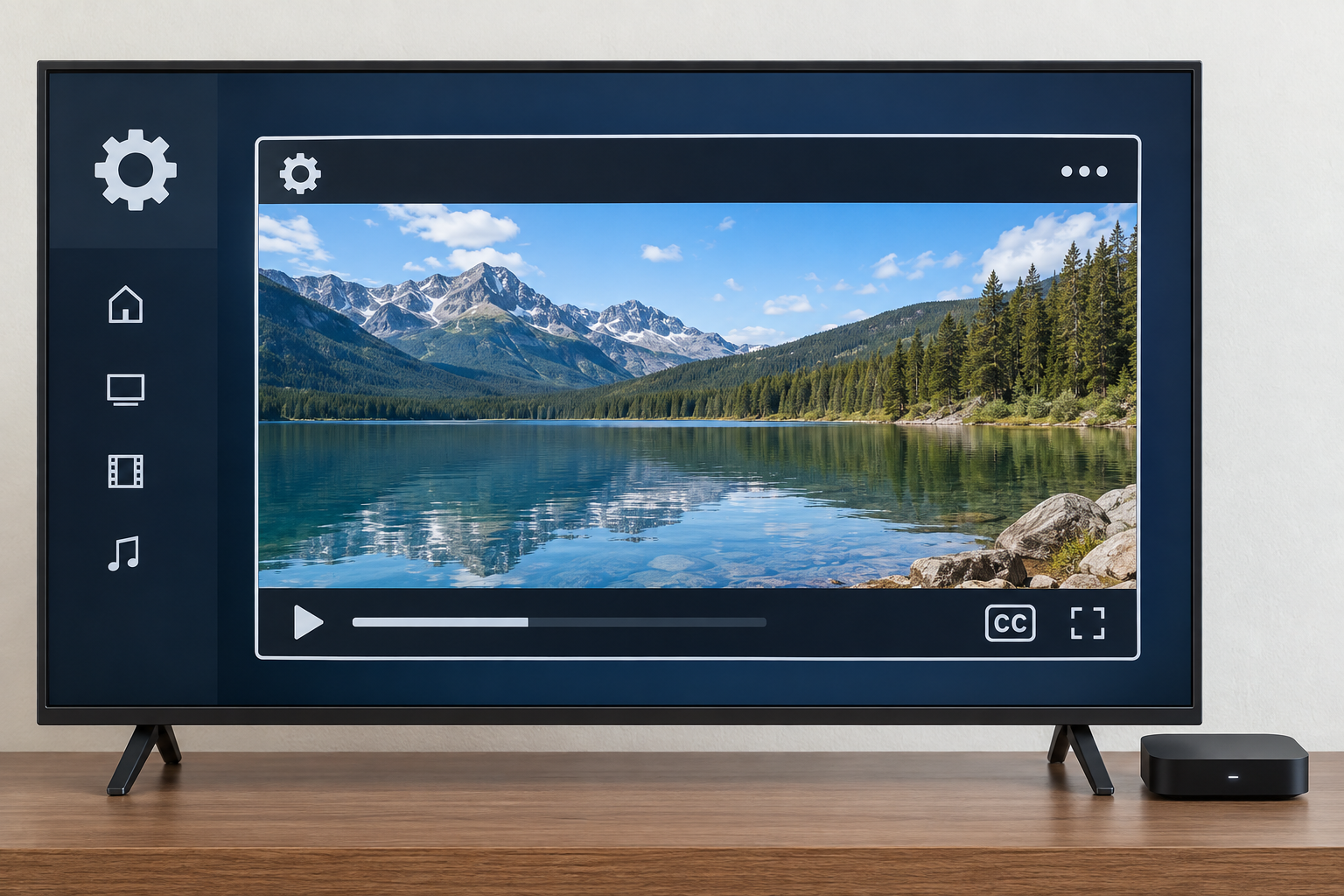
Follow this route: open the app, find a programme, start playback, select the useful track, pause, return home and resume. Repeat after closing the app normally. Avoid a full reset for this simple check.
| Worksheet field | What you can record |
|---|---|
| Setup | Model, system, app and versions |
| Task and content | Action, title, episode or channel, language |
| Setting | Original value, new value and route back |
| Result | Completed independently, with help, blocked or unverified |
| Follow-up | Open issue, documentation to consult and date |
Fictional example: “Captions are readable on two shows; changing the track remains difficult; the button is not announced.” This note is more useful than “accessibility enabled.” It identifies a specific problem without losing the successful results.
If someone assists with the check, let the viewer perform the actions they wish to verify. Keep a short reference sheet of useful controls, without passwords or account details. After an update, repeat essential tasks, especially those that previously caused difficulty.

11. Frequently asked questions
Are English subtitles always intended for hard-of-hearing viewers?
No. Check the track’s label and content. A translation subtitle track may omit sounds or speaker identification.
Does audio description read the menus?
It describes visual elements of the programme. For menus, look for a screen-reader feature and check how it works inside the relevant app.
Does a television setting also work on an HDMI streaming box?
Do not assume so. Identify which device displays the menu or plays the programme, then check its settings and the visible result.
Why can two programmes produce different results?
Available tracks may differ. Compare the title, episode, language and selected option before changing the setup.
Does an IPTV premium subscription guarantee these features?
The word “premium” does not establish that your routine will work. Ask for specific information about the device, player and content you want to use.
Do I need to replace the remote?
Start by observing difficult actions and the options already available. If a replacement would help, check compatibility and whether you can try your intended routine.
Can sound stay on while captions are displayed?
Try the combination in the relevant player. Check both outputs together and confirm that the result suits the viewer.
When should I repeat the checks?
After changing the device, app or profile, or after an update that changes the routine. Keep the previous worksheet for comparison.
12. Conclusion
A useful setup lets the viewer complete their chosen tasks with the level of assistance that suits them. Separate programme tracks, app controls and system settings. Verify the result on familiar content and retain a record of open issues.
Scope and limits of this guide
The menu paths are documented examples. The Apple pages consulted display different tvOS editions depending on the topic and language: select the edition for your device. No hardware testing or comprehensive app audit was performed for this guide. The tables provide an observation method, without accessibility certification or a guarantee about the Canadian catalogue.
The situations are illustrative. The photos are AI-generated conceptual illustrations, identified in their alt text. They are not official menu screenshots or evidence of compatibility.
13. Method and sources
Prepared by the OfficialOTT editorial team. Official sources consulted September 28, 2026: Apple for accessibility features, captions and VoiceOver; Google for Google TV; Netflix for audio description; W3C for the definition of captions. Links appear beside the relevant explanations.