

1. Quick answer
- Check video playback and the guide separately; record what actually works.
- Compare two precisely identified channels for the same date and the correct regional feed.
- Record the outcome of the last update before starting another one.
- Check the device clock and location before changing an EPG time offset.
- Change one setting, verify several programmes and restore the original value if the result gets worse.
Start with one affected channel and one comparison channel. Record the title, date, expected time and displayed time. This small observation helps prevent a problem with one entry from becoming an unnecessary change to the entire guide.
Watch the guide
The channel plays, but the guide lists another show. Shifting the whole grid is not always the right correction. · 2:32
Open the dedicated video page →
Read the transcript
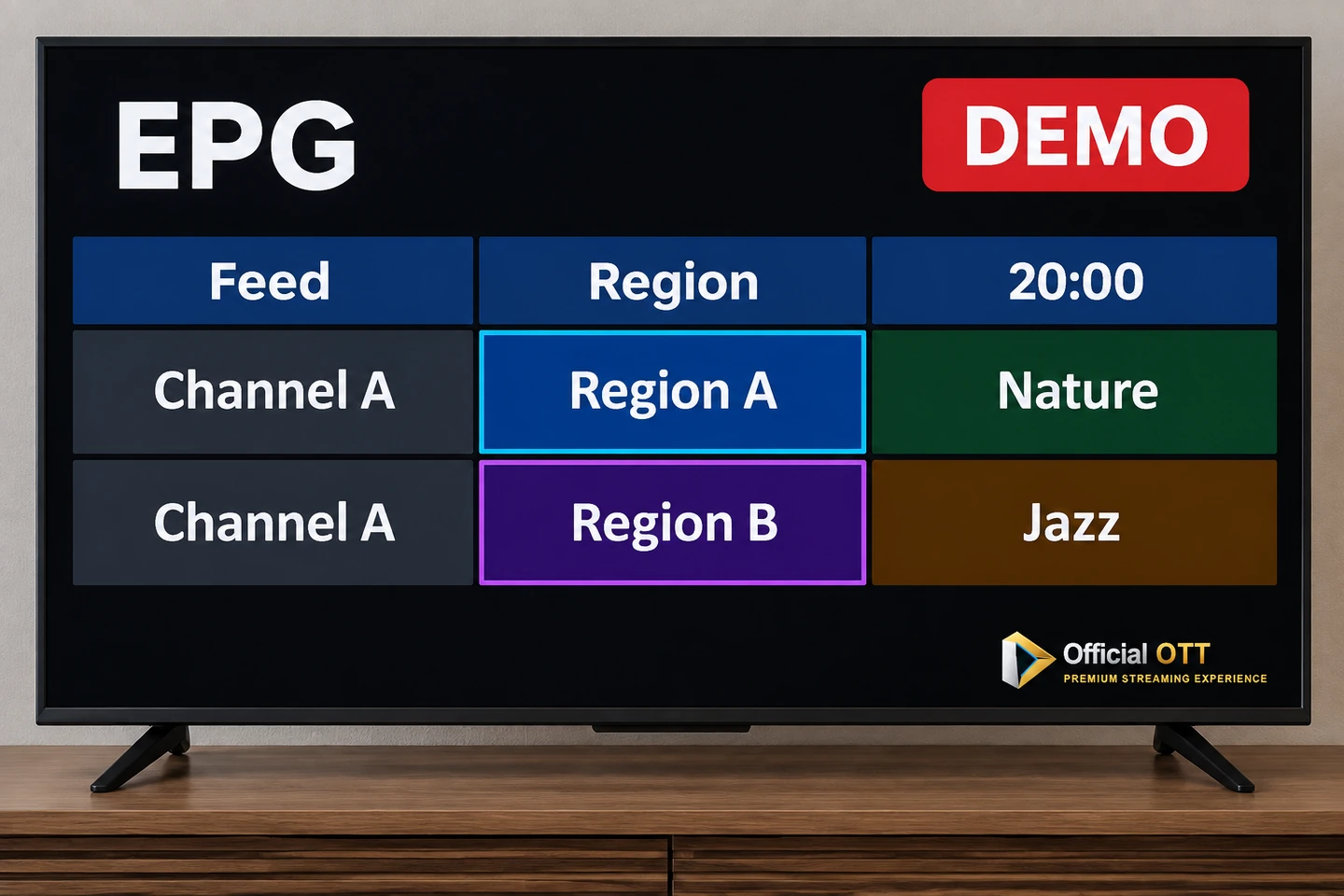
The channel plays, but the guide lists a different show. Shifting the entire grid could disrupt channels that were already correct. Before changing the time, separate three problems: missing listings, incorrect channel mapping and a time offset. The electronic programme guide, or EPG, displays information. Its presence does not prove that video works, and working video does not prove that the grid is accurate. Observe the two separately. Past listings do not guarantee a catch-up service either. Start with one affected channel and one comparison channel. Record their full names, regions, the date and the programme. Compare against the broadcaster’s schedule for the same feed. Similar names can identify different versions. If the grid is empty, first check the selected day. Then identify the schedule source and the result of its last load. Starting an update does not mean it finished. If the player does not show the outcome, record: unknown. Ask the provider whether that channel is covered and through which date. There is no universal number of days for every guide. If only one channel lists the wrong show, check its mapping and region before shifting every schedule. In our fictional example, at eight p.m., the Region A feed lists Nature and the Region B feed lists Jazz. Changing the time cannot turn one region into another. If several channels share the same discrepancy, check the device date, clock and time zone for your actual location. Also record offsets already configured. A programme expected at eight p.m. but displayed at nine p.m. on the same day shows a plus sixty-minute difference. That does not tell you which value to enter. The setting’s direction depends on the player. Near midnight, keep the date as well. Updating and clearing are different operations. In MYTVOnline 3, Formuler distinguishes updating EPG data from deleting it, which affects all portals in the application. Consult the procedure for your version before clearing. A factory reset is not the first check. Change one setting. Apply it using the player’s procedure, then check the programme, the next one and a previously correct channel. If the result gets worse, restore the original value. For support, include the model, version, your observations and the loading message, with private credentials hidden. The comparison worksheet and sources are in OfficialOTT’s EPG guide. A populated grid is not enough: verify the right show, on the right channel, on the right date and at the right time.
Alternative: YouTube player
The player stays disabled until you click. Loading it connects to YouTube, which receives information including your IP address.
This video uses AI-generated illustrative images and scenes, with synthetic narration. Fictional situations are neither customer testimonials nor evidence of service performance.
This guide provides a troubleshooting path, a comparison worksheet and fictional examples. It concerns services and sources you are authorized to use. Player-specific instructions are separate from the general method. They are neither a hardware test performed by OfficialOTT nor a promise that every channel has programme data.
2. What the EPG describes — and what it does not prove
EPG means electronic programme guide: information that places a show in a schedule. Observe its display separately from video playback. For a channel without programme information, Formuler advises checking with the provider whether EPG data is supported for that channel. Formuler: missing information.
In XMLTV, a programme is associated with a channel identifier and broadcast times; some fields can carry a language. The displayed name and the technical identifier therefore serve different purposes. This structure explains why we check mapping, time and text separately. It does not describe every portal system. XMLTV specification.
| Observation | What you can record | What it does not demonstrate |
|---|---|---|
| A channel plays | Playback works at that moment | Its schedule is accurate for the entire week |
| A show is listed | The player displays an entry | It belongs to the correct regional feed |
| Previous days appear in the grid | Past listings are visible | Catch-up service is included |
| A logo or picture is missing | One visual element is absent | Video or the entire EPG source has failed |
The aim is to describe the problem without confusing an observation with a conclusion. Do not buy another subscription solely because a title is absent from the grid. First identify the service responsible for supplying that information.
3. Choose the right troubleshooting branch
Start with playback, then establish how much of the guide is affected. The following table is an editorial method for selecting the next check. It does not automatically assign the cause to a provider or device.
| Situation | First check | Unhelpful assumption to avoid |
|---|---|---|
| Video and guide are unavailable | Service access, connectivity and any announced incident | Trying repeated time corrections |
| Video works but the whole grid is empty | Configured EPG source, loading result and covered period | Treating a started update as a successful update |
| One channel is incorrect | Full name, region and mapping for that entry | Shifting every channel |
| Several channels have the same offset | Clock, date, location and existing offset settings | Adding a correction at each layer |
| Only later days are missing | The last day actually supplied | Diagnosing a failure from a missing distant date |
If playback also breaks up, the Internet and streaming guide covers the network path. Return to the EPG once both symptoms have been described accurately; they may have different causes.
4. Trace the programme information
- 1. Identify source
- 2. Confirm loading result
- 3. Check channel mapping
- 4. Verify displayed time
Editorial troubleshooting diagram; the actual implementation depends on the service and player.
For your installation, identify the source, data retrieval, channel association and final display. The diagram in this section is a troubleshooting aid, not an architecture imposed on every application.
Ask four questions in order: who supplies the listings? Did the last load finish successfully? Is the information associated with the correct feed? Does the displayed time match your reference? Write “unknown” when the player does not expose an intermediate step.
A playlist address and an EPG address may be presented differently depending on the service. Do not replace a recognized source with an arbitrary link just to fill the grid. Ask your service which address or configuration method it provides for your player. Preserve the current settings before changing anything.

5. Empty grid: check loading and date coverage
First record the date and time selected in the guide. A view positioned on a different day can create a misleading impression. Then inspect the update result, when available: completed, error, or no outcome exposed. Record the exact message without including connection credentials.
If several sources are present, identify the one for the channel being tested. A successful result for another source does not resolve this case. Compare a channel with listings against the empty channel, then check a programme currently airing and the next one.
For a channel that remains empty, ask the provider to confirm coverage and the available period. This is a step recommended by Formuler. Do not assume a universal number of EPG days; use the coverage confirmed for your service.

6. Wrong show: identify the exact channel
Copy the complete entry name and any region or language information. Compare it against the broadcaster’s schedule for that feed and the same date. Similar channel names do not establish that two entries are equivalent. Also record whether the previous and next programmes match.
If the player permits manual mapping, consult its documentation before changing the association. Keep a record of the original entry. The objective is to correct the affected channel, then verify that a previously correct channel remains correct.
Do not change the name, source and time offset together. You would lose the ability to tell which change affected the result. If the feed’s identity remains uncertain, ask the provider to clarify it before continuing.
7. Local time, time zones and seasonal changes
Compare the device date, clock and time zone with a reference appropriate to your location. The NRC web clock provides official time and an indication of the difference from your local clock. A difference of a few seconds does not justify shifting a programme grid by an hour.
Canadian time practices can vary by province, territory and locality. Use your actual location rather than deriving a fixed offset from the province name alone. Consult the NRC time-zone information and check recent local changes before applying a seasonal correction.
Record existing settings at the different layers. If the device date is wrong, correct it using the device documentation and reassess the guide. If an offset remains, do not assume that the sign required by the player is obvious.
Fictional example: a programme on the correct feed is expected at 20:00 on October 15 but appears at 21:00 on the same day. The observed difference is +60 minutes. That describes the display; it is not an instruction to enter +60 or −60. Check how the setting works, make one change and compare again. Keep the date: near midnight, a calculation that ignores the day may be wrong.

8. Refresh without unnecessary deletion
An update command and a clear command have different effects. In MYTVOnline 3, Formuler distinguishes updating EPG information, deleting its saved data, and clearing followed by another load. These operations apply across the application’s portals. Clearing can therefore remove information you wanted to retain. Formuler: MYTVOnline 3 refresh.
Our method is to start with the player’s update function, wait for its observable result and record it. If you subsequently consider clearing data, check the documented scope and consequences for your use. This article prescribes neither a fixed waiting time nor a universal update interval.
After an update completes, revisit the same channels and times. If nothing changed, record that outcome instead of launching several identical operations. A factory reset is not the starting point for a programme-grid error.

9. Documented procedures: use the correct version
MYTVOnline 3 and MYTVOnline 4
For version 3, open the content manager, choose the content sources and edit the relevant portal. Version 4 places its content sources inside the application settings. The EPG offset control is saved with UPDATE; check the grid afterward. Formuler documents these versions separately. Do not automatically transfer the UTC/Normal mode option described for version 2. Formuler procedures.
For version 3 EPG updates, find EPG data under the content manager’s synchronization area. Select updating rather than confusing it with clearing. Refresh documentation.
OTT Navigator
The FAQ locates loading results under Settings → EPG → Reload. For a channel-specific offset, it documents a time setting in that channel’s EPG properties followed by reloading. It also distinguishes a provider-linked source from a globally added source: their matching rules differ. Follow the procedure for your configuration. Official FAQ.
These instructions were reviewed on September 27, 2026. If your menu differs, record your version and consult its corresponding help. We do not invent a menu path for another player or prescribe a default offset value.
10. Three examples that avoid a false correction
Channels A and B below are fictional. Their times illustrate reasoning and do not reproduce a real schedule.
| Example | Observation | Reasonable next action |
|---|---|---|
| Missing source data | A plays but shows no listings; B has a guide | Confirm EPG coverage for A and its source |
| Incorrect association | A lists a show from another regional feed; B is correct | Confirm A’s identity before making a global correction |
| Shared offset | A and B show programmes at 21:00 and 22:00 that were expected at 20:00 and 21:00 on the same day | Check clocks and shared settings, then test one documented value |
These observations alone do not identify who is responsible. A hypothesis becomes better supported when a targeted check confirms it; it remains a hypothesis when the necessary information is unavailable.
11. Comparison worksheet and checks after a change
Copy this table into your notes. The worksheet is part of the article; no downloadable file is advertised. Choose two channels and enter “unavailable” whenever information is missing.
| Field | Channel A | Channel B |
|---|---|---|
| Full name, region and source | Complete yourself | Complete yourself |
| Comparison date and location | Complete yourself | Complete yourself |
| Programme and schedule reference | Complete yourself | Complete yourself |
| Expected time / displayed time | Complete yourself | Complete yourself |
| Video playback at that moment | Yes / no / not tested | Yes / no / not tested |
| Last update and result | Complete yourself | Complete yourself |
| Original setting and single change | Complete yourself | Complete yourself |
| Result after checking | Complete yourself | Complete yourself |
Verify the tested programme and the next one, along with a channel that was correct before the intervention. If you changed time settings, also revisit a period near the change of day when relevant. Compare available listings rather than a period the source does not supply.
Keep a correction only when the result is consistent with your chosen references. Otherwise restore the original value. If the problem returns after the next update, record when it happened. That information is more useful than a sequence of undocumented changes.

12. Prepare a useful support request
Include the device model, exact player name, version, location, service connection type and scope of the problem. Attach the two worksheet observations, the update message and the change already tested. Clearly distinguish “the guide is wrong” from “the video does not play.”
Before sending a screenshot, hide passwords, full addresses containing credentials, device keys and account details. A crop showing the channel, date and time is often enough to explain the symptom. Do not post a private playlist in a public discussion.
Ask the service supplying the listings about their coverage or contents; direct player-menu and application-behaviour questions to the publisher’s official help. OfficialOTT support is a starting point for questions about your OfficialOTT service, without assuming responsibility for another publisher’s product.
13. Frequently asked questions
Is it contradictory for video to work while the grid is empty?
No. Record both results and follow the “video works, grid empty” branch. Data availability and loading still need to be established.
Should I reset every time offset to zero?
Not without understanding the current configuration. Record the values and consult the player’s procedure. Changing several layers at once makes the result hard to interpret.
Does a one-hour difference mean I should enter −1?
No. The observed difference and the direction of a setting are separate facts. Use a dated example and the player documentation.
Why is only one channel incorrect?
Start with its identity, region and mapping. An issue limited to that entry does not justify changing the whole guide immediately.
Do past listings mean catch-up will work?
Do not infer that from the grid. Check the functions and conditions of your service separately.
Will changing the menu language fix the programme?
Check interface language, guide text, audio track and subtitles separately. Identify which one is causing the problem before looking for its setting.
Should I clear the guide or reset the box?
Begin with non-destructive checks. Clearing should follow a specific procedure with an understanding of lost data; a full reset is not the first test proposed here.
Is troubleshooting finished as soon as a title returns?
Check its date, time and channel, then another programme. A populated screen does not replace that comparison.
14. Conclusion
To correct a TV guide, begin with a precise observation and trace it back to the source, mapping or clock. Compare two channels, preserve the original settings and test one change at a time. When information is missing, a documented support request is more useful than a guessed offset.
Scope and limits of this guide
Only the EPG sections of the OTT Navigator FAQ are used; its other operating-system or hardware recommendations are not adopted. Formuler procedures apply only to the named versions. NRC information supports a local clock check rather than a fixed nationwide seasonal rule. XMLTV illustrates one data format; not every source uses it.
15. Method and sources
Prepared by the OfficialOTT editorial team using the primary documents linked throughout, consulted on September 27, 2026. The troubleshooting sequence, tables and fictional examples are an editorial method. No device, customer portal or listing provider was tested for this article.
Sources: Formuler — time settings, Formuler — refresh, Formuler — missing data, OTT Navigator — FAQ, NRC — clock, NRC — time zones, XMLTV — format.
Editorial update and further reading: