

1. Quick answer
- Separate your goals: opening an app, choosing content, making a purchase and leaving a profile.
- Record the television or streaming box model, system version and relevant apps.
- Check device settings and service settings separately; a control at one level is not evidence for every other level.
- Have an adult perform the checks with the usual remote, without making a real purchase.
- Record results, keeping codes out of the household worksheet. Unverified items remain unverified.
Watch the guide
A lock on a child profile does not explain its full protection. Check a specific action on the right device and in the right application. · 2:32
Open the dedicated video page →
Read the transcript
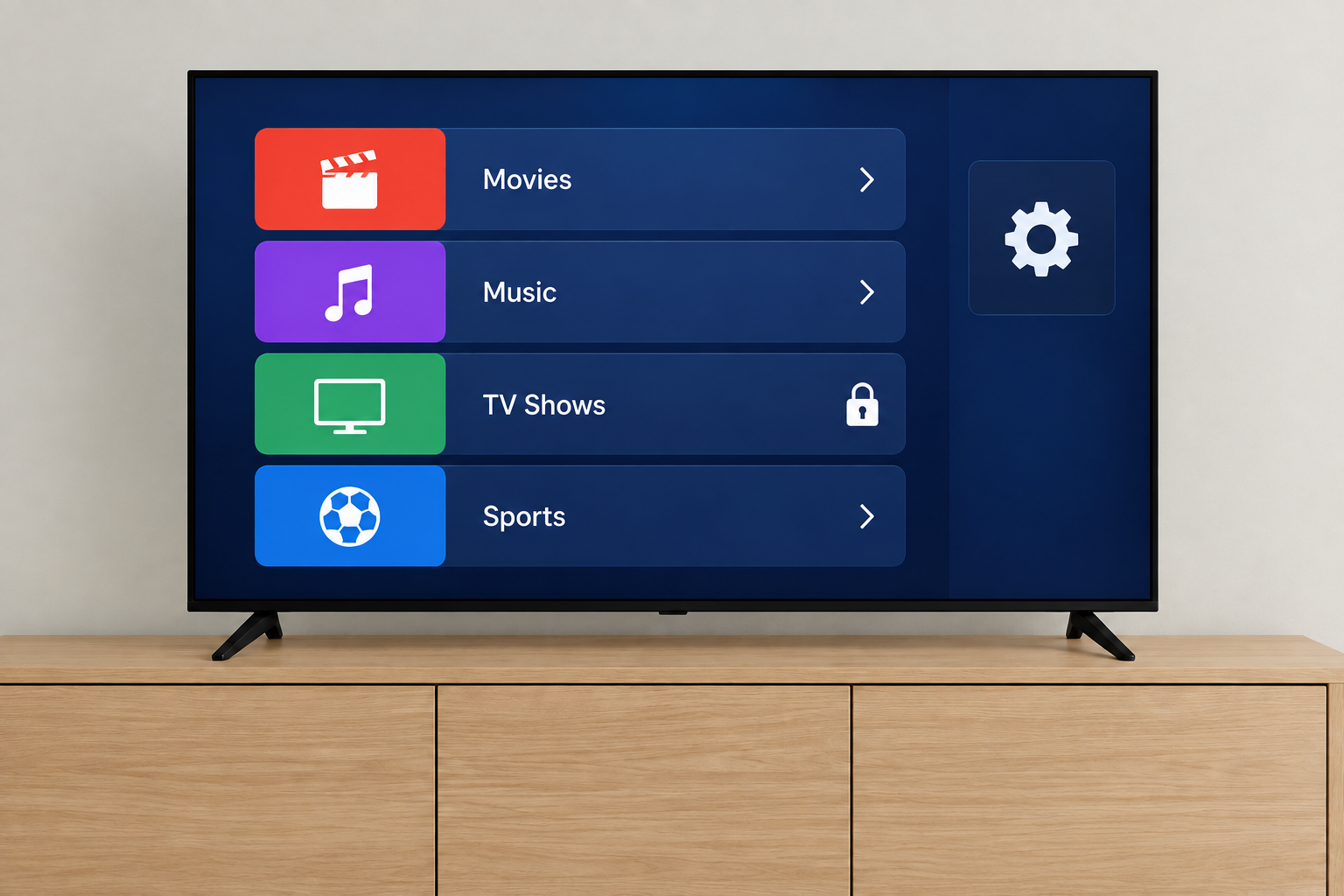
A lock appears on the child profile. But what does it protect: leaving the profile, programmes, opening an application or purchases? To check parental controls, begin with a specific action rather than a reassuring symbol. Write down your goal first. Require an adult before a purchase. Control access to an adult profile. Or limit the content offered in an application. These goals need separate checks. The household chooses its rules; a menu does not define them for you. Record the device displaying the screen, its system, the application and the active profile. A box’s setting is not automatically every service’s setting. A profile named child does not prove that every intended route is protected. Google TV documents child profiles and distinguishes content restrictions from the profile exit lock. Availability and scope depend on the setup. Some recommendations and searches from applications may fall outside those restrictions. Check the procedure and limits that apply to your screen. For Apple TV, identify the box and its version, without confusing it with the Apple TV application installed elsewhere. System restrictions may not cover every downloaded application. Consult the controls in the application you use as well. Netflix distinguishes maturity ratings and title blocking from profile locking. After changing a setting, check the result on the television, even if you made the change on a phone or in a browser. A saved confirmation does not replace that observation. For an IPTV player, record its full name, version and the control’s label. Ask what it actually limits: a category, opening the player, settings or something else. A lock icon does not answer all those questions. Perform the checks yourself, without exposing a child to unsuitable content. Keep the original setting, make one documented change, then follow the normal viewing route. Close and reopen the application to check the state that returns. For purchases, inspect the configuration and its scope without making a real transaction. This checks the displayed setting; it does not certify every payment step. Ask the service to confirm anything that remains uncertain. The worksheet in OfficialOTT’s guide separates observations from unverified points. Keep access codes and account information out of it. The useful conclusion is specific: which action was checked, on which device, and with what result?
Alternative: YouTube player
The player stays disabled until you click. Loading it connects to YouTube, which receives information including your IP address.
This video uses AI-generated illustrative images and scenes, with synthetic narration. Fictional situations are neither customer testimonials nor evidence of service performance.
The method helps organize household checks. Google TV, Apple TV 4K and Netflix examples explain the scope of their documented features. For an IPTV player, identify the product and version before finding the matching instructions.
2. Start with an observable household rule
“Protect the TV” is too broad to select a setting. Write a specific goal instead: “ask me before a purchase”, “show the apps we selected” or “check access to the adult profile”. The household makes those choices. This guide does not prescribe viewing time or an age rating for an individual child.
Use one device and one app for the first session. Keep a record of the original settings so you can understand what changed. Tell other adults using the television about the intended restrictions, so later troubleshooting does not inadvertently remove them.
| Goal | Action to observe | Result to record |
|---|---|---|
| Adult profile access | Switch profiles through the normal route | Authorization requested or direct access |
| Programme selection | Search for a reference title chosen by the adult | Visible, absent, locked or unverified |
| Purchase confirmation | Read the relevant setting without buying | Stated scope and remaining uncertainty |
| Allowed app | Open the selected app | Works or needs adult intervention |
| Session reopening | Close and reopen the app | Profile and state restored |
3. Separate the settings involved
- Device
- App
- Profile
- Purchases
Record the device, app and service profile separately. This is an editorial troubleshooting framework, not a universal description of security systems. Your screen may use different names or lack a particular feature.
| Level to identify | Useful question | Conclusion to avoid |
|---|---|---|
| Television or streaming box | Which device displays this menu? | This setting covers every other screen |
| App | Which software opens the programme? | Installing the app validates its restrictions |
| Service account or profile | Which profile is active now? | A “kids” label proves the intended outcome |
| Purchase | Which seller requests confirmation? | A playback lock necessarily prevents payment |
If you are unsure whether you paid for player software or a content service, use the player licence and subscription guide. That guide identifies the purchased product; this one focuses on restrictions and their verification.
4. Google TV example: check the kids profile’s scope
Google says kids profile availability can vary by device and region. Not every Family Link control is available for that profile. Match the documentation to the options on your screen before adopting a procedure. Google’s kids profile documentation.
Google distinguishes locking exit from a profile from restricting content. Some app-provided recommendations and searches fall outside those content restrictions. The lock uses the Google identification mechanism documented by the service; do not assume a separate code is always offered. Google’s parental controls documentation.
Record two separate observations: switching to another profile and the result inside your chosen app. Do not infer the second from the first. If an option is missing, record “not found on this model” instead of applying instructions for a different operating system.

5. Apple TV example: identify the box and software version
The Apple TV 4K guide consulted presents tvOS 27. It places restrictions under Settings → General → Restrictions, using a code, and distinguishes activities including purchases. Apple notes that restrictions may not cover downloaded apps: check each app’s own settings. These instructions concern the documented box; “Apple TV” alone does not identify your setup. Apple Canada’s guide.
Record whether you use an Apple box or the app installed on another television. Select the matching documentation. Check playback and purchase objectives independently, without assuming every app adopts the same restrictions.

6. Netflix example: distinguish title selection from profile access
Netflix documents maturity ratings and title blocking for individual profiles. Its instructions for changing a Kids profile’s maturity rating direct you to a web browser. Confirm which profile you selected before saving. Netflix’s ratings and title guidance.
Profile locking is separate. Netflix describes a PIN and exceptions, including an extra member’s profile. The documentation also notes that a device may need refreshing after changes. Netflix’s profile locking guidance.
Check the result on the television after configuring it, even if you made the change on a phone. A confirmation message on a website is not enough to mark the television result as verified. Before following instructions that require signing out, make sure you can use your own sign-in method again.

7. IPTV players and other devices: request matching evidence
For an IPTV player, Fire TV, Samsung, LG or Roku, start with the publisher’s help for your model. An operating system name or a padlock icon alone does not identify which actions a setting limits.
Record the exact product, version and setting label. Ask its publisher what the feature limits: a category, opening the app, changing settings or purchasing. Keep the response and date. A hidden catalogue on one screen is not enough to conclude that every relevant route has been checked.
The compatible apps guide remains the starting point for identifying and choosing a player. Check whether your model supports the needed function before buying replacement hardware because a menu is missing.
8. Run a household check without a transaction
OfficialOTT proposes this sequence as a method, without prefilled test results:
1. Select one goal and record the original setting. 2. Make one documented change using your authorized account. 3. Return to the normal viewing route and observe its behaviour. 4. Close and reopen the app; record whether the result is consistent. 5. Note the device, date and remaining uncertainty.
Do not complete a purchase merely to test a restriction. Reading settings can establish their configuration, but does not prove every step in a payment process. If a required purchase protection remains uncertain, ask the relevant service to clarify it.
Do not expose a child to unsuitable material to conduct these checks. An adult can inspect menus, profiles and chosen references without involving the child in the test session.

9. Keep a useful worksheet without secret codes
| Field | Your observation |
|---|---|
| Device, system and version | To complete |
| App and profile | Record without private identifiers |
| Goal | To complete |
| Documentation | Link and date |
| Original setting and change | Describe without the code |
| Result after reopening | Meets goal / difference / unverified |
| Identified limitation | To complete |
| Next action | One specific check |
Keep codes and recovery methods in an appropriate private location. The worksheet describes the setup; it should not disclose access credentials. Hide account addresses, codes, service identifiers and information about children in screenshots sent to support.
10. When the outcome does not match the goal
First check the device, app and active profile. Then compare the documented scope with the action you observed. Do not stack unfamiliar settings to compensate for a result you have not understood.
| Observation | Next check |
|---|---|
| The menu is missing | Model, version and matching documentation |
| Another profile remains accessible | Profile setting and lock scope |
| A title remains visible | Active profile and applicable content restriction |
| The television does not show the change | Service-specific refresh instructions |
| A code is forgotten | Official account or device recovery |
For a forgotten code, use official account recovery or the manufacturer’s support. Preserve existing settings during troubleshooting; check the consequences of a reset before considering one.

11. Frequently asked questions
Does one setting protect the entire setup?
Check profiles, apps and purchases separately. For example, a lock on leaving a profile does not establish that searches inside an app are filtered.
Are a kids profile and a locked profile equivalent?
Do not treat them as interchangeable. Identify the action each feature is intended to limit and check that action.
Should every control have a different code?
Follow the official mechanism: some controls use account authentication. Do not assume the service offers a separate code when it does not.
Should I make a small purchase to confirm the protection?
This method does not require one. Record the settings and ask the seller about uncertainties without buying a test item.
Do parental controls guarantee every programme offered?
This guide makes no complete-coverage guarantee. Documented limitations and your own checks remain essential.
Can I apply Google TV instructions to every Android box?
Do not transfer menu instructions based only on the Android name. Find documentation for the actual product.
Should I recheck after replacing a device?
Yes. Repeat the worksheet checks on the new screen. A previous result does not establish the behaviour of a different setup.
What should I send to support?
The model, version, relevant setting and observed difference. Exclude codes and private information.
12. Conclusion
Start with one observable household rule. Identify the responsible setting, follow its official instructions and check the outcome on the screen you use. A short worksheet separating confirmed results from known limitations is more useful than a collection of locks whose scope is unclear.
Scope and limits of this guide
No household accounts were inspected, no device was configured and no payment was made. Menus, features and supported regions may change. This guide certifies neither complete protection nor a programme’s suitability for an individual. OfficialOTT also operates a commercial service; this editorial method is not an independent platform audit.
13. Method and sources
Documentation reviewed on September 28, 2026 from Google, Apple and Netflix. References sit beside the relevant claims. English Apple Canada and Netflix documentation was also checked for this edition. Netflix pages display a country-selection notice: the visible text is documented, without claiming a tested Canadian account. Match the Apple guide’s stated version to your device.