

1. Quick answer
Before paying a second time, identify what the first purchase covers and who billed it. Then compare that evidence with the message displayed in the app.
- Player and content: a software licence alone does not establish that you subscribed to channels.
- Receipt: record the product, seller, purchase channel, date and order status.
- Account or device: check which one the purchase is associated with under the seller’s terms.
- Symptom: distinguish a locked app, an empty list and a replacement device.
- Support: send the relevant details to the right contact before considering another payment.
Watch the guide
You paid, yet the player is locked or has no channels. Start by identifying exactly what your receipt covers. · 2:31
Open the dedicated video page →
Read the transcript
You paid, but the player is still locked. Or it opens with no channels. Before paying again, one question changes the diagnosis: what did you actually buy? An application, a software licence and access to content are not necessarily the same product. Start with the receipt. Record the product, seller, purchase channel, date and order status. Compare the application’s full name and publisher with the receipt. Similar icons do not prove that two purchases are the same. If something is missing, mark it: to be confirmed. A licence may unlock player features. A content service provides the access described in its own offer. For example, HOT Player describes itself as a player and says it does not sell channels. That distinction does not establish every other application’s terms. A bundle should identify what it includes. Then choose the relevant branch. Payment confirmed, player locked: check the product and its association with the account or device. Player active, list empty: examine source configuration and content access separately. Old device recognized, new device refused: confirm compatibility and replacement conditions before deactivating the old one. Recovery follows the original purchase channel. Apple documents restoring certain eligible in-app purchases with the same account. This does not automatically cover a purchase from an external website. Google allows a purchased application to be reinstalled using the purchasing account, subject to availability and compatibility. Reinstalling the application does not prove that an external licence or content service has transferred. Restore, transfer and renew are different requests. Restoring means recovering recognition of an eligible purchase. Transferring concerns a change of association. Renewing extends a particular product. Ask the seller which procedure applies to your situation. Keep expiry dates separate as well. On Google Play, uninstalling an application does not cancel its subscription. Identify the company that bills you and keep the confirmation of any action. For support, share only the necessary references, with private information hidden. The worksheet in OfficialOTT’s guide helps connect the receipt, the product and the screen. A confirmed payment is evidence of a purchase to examine, not proof that every part of your setup is active.
Alternative: YouTube player
The player stays disabled until you click. Loading it connects to YouTube, which receives information including your IP address.
This video uses AI-generated illustrative images and scenes, with synthetic narration. Fictional situations are neither customer testimonials nor evidence of service performance.
This guide helps you find the purchase, choose the relevant procedure and prepare a useful support request. It separates the player, its activation and access to content. All examples are fictional; they describe neither an OfficialOTT offer nor an OfficialOTT guarantee.
2. Separate these four elements
The word “subscription” can describe different purchases. Always ask: a subscription to what? This table helps you read an offer and an invoice; it does not describe a required technical architecture.
| Element | What it may cover | What to check separately |
|---|---|---|
| App or player | Installation and playback features | Compatibility with the device and formats you use |
| Licence or paid feature | Feature access under the offer | Duration, associated account, eligible devices and transfer terms |
| Content service | Access described in the service’s offer | Catalogue, access conditions and permitted connections |
| Account or device identifier | Association between a purchase and its recipient | Correct account, correct device and replacement procedure |
For a concrete example, HOT Player describes itself as a player and states that it does not sell channels or content subscriptions. Activating it therefore does not constitute ordering programming. This documented distinction does not establish other players’ terms. HOT Player’s official description.
One business may sell several components together. In that case, the offer and order details should identify what is included. A logo, familiar name or matching icon is not enough to establish who received the payment.
3. Reconstruct your purchase record
Keep the original receipt in your records. Create a short worksheet to compare the details without publishing personal information. If a field is missing, write “to confirm” instead of guessing.
| Field | Where to look | Question to resolve |
|---|---|---|
| Exact product | Receipt and order confirmation | App, premium feature, term or content service? |
| Seller and channel | Invoice, store used or purchase website | Apple, Google Play, developer website or another seller? |
| Date and status | Order history | Completed, pending or not found? |
| Association | Seller’s terms and account page | Account, device or a combination? |
| Duration | Accepted offer and confirmation | Expiry, renewal or one-time payment? |
| Device and app | Settings and “About” screen | Same name, developer, version and platform as the purchase? |
For a Google Play purchase, check Payments & subscriptions → Budget & history in the relevant account. That history is not a record of every payment made through Google or on external websites. Google Play order history.
A bank statement descriptor is a clue, not a complete product description. Match it to a receipt and date. Do not send an entire statement to demonstrate a single transaction.
4. Choose a path based on the symptom
- 1. Product identified
- 2. Purchase channel found
- 3. Account or device confirmed
- 4. Symptom and support contact
Editorial verification path; it promises neither activation nor transfer.
Record the exact message, time and screen where it appears. “It does not work” can describe several problems with different support contacts.
| What you observe | Useful first check | Contact to identify |
|---|---|---|
| Payment confirmed, player still locked | Purchased product and account or device association | Player developer and purchase channel |
| Player active, but no list | Expected configuration and service access | Access provider or person responsible for configuration |
| Old device works, new one is rejected | Compatibility and replacement terms | Developer for the licence; service for its own limits |
| Unexpected charge or renewal | Corresponding invoice and subscription | Business billing that subscription |
Follow one branch at a time. An active licence does not prove that the network, content service or configuration works. Conversely, an empty list does not prove that a purchase failed.
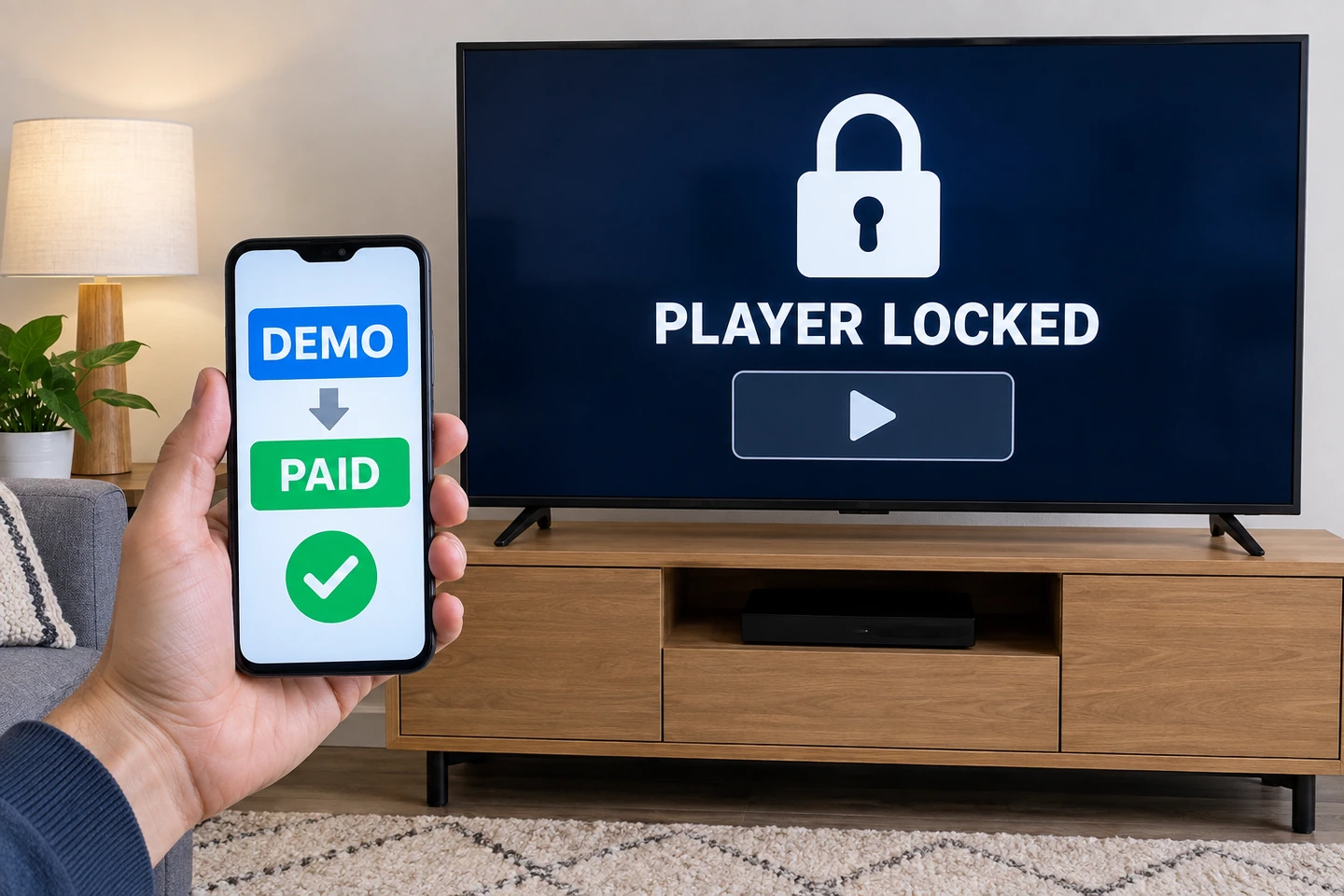
5. Payment confirmed, app still locked
First compare the app’s full name and developer with the order. Then verify that the payment is complete and that the account or device matches the expected association. Another app with a similar name may have separate billing.
Google Play’s help suggests checking connectivity, closing and reopening the app, and confirming that payment is complete. If the purchase remains unavailable, the developer can help with delivery or app functionality. Resolve an in-app purchase problem.
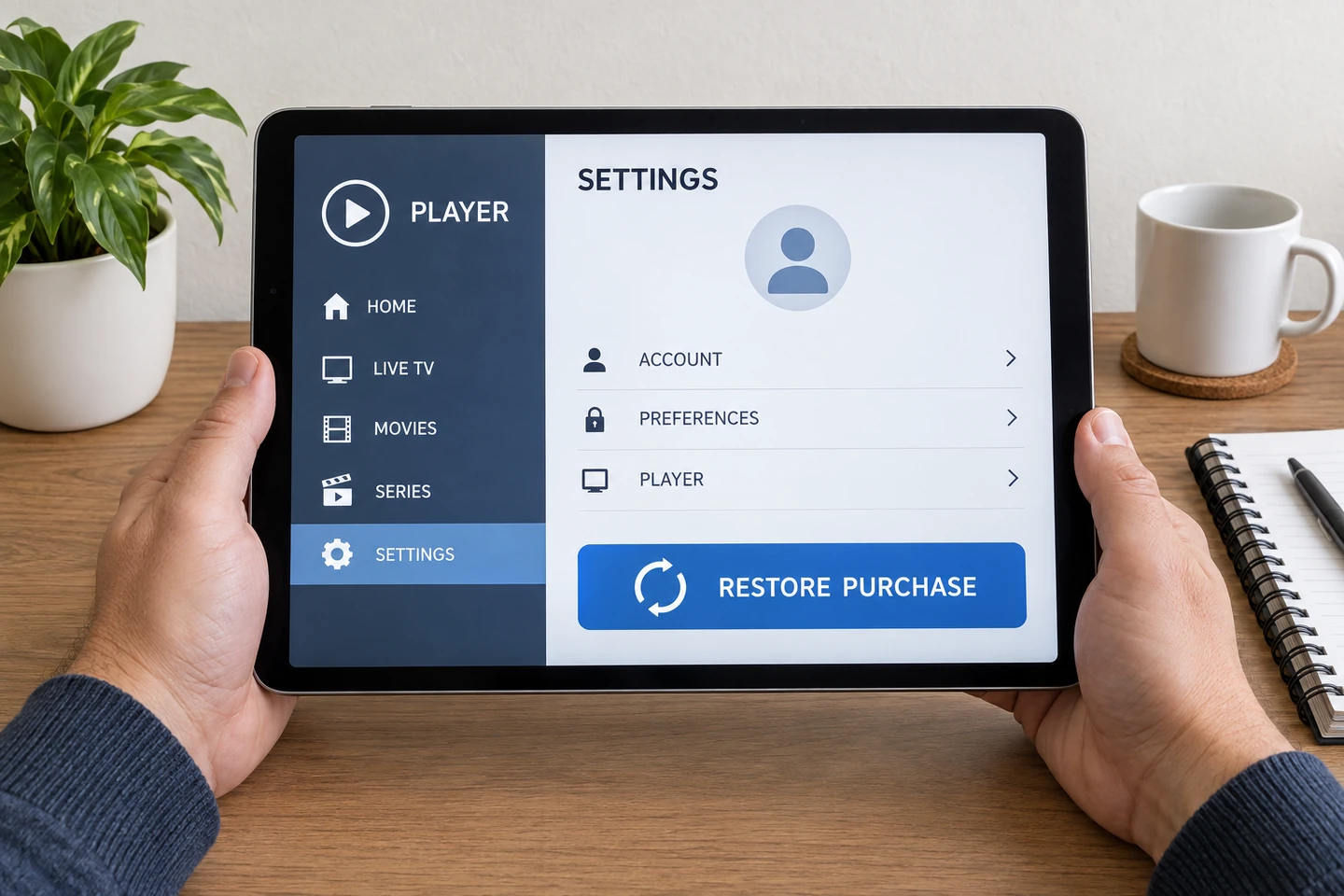
Record the outcome of each action. Avoid resetting the device or clearing its data simply as an experiment: you could lose configuration needed for comparison. A purchase restoration option, where available, must be relevant to the original payment channel.
6. Player active, but lists or programmes are missing
Start by reading the player’s displayed status. If it indicates valid activation, examine the content source setup and service access separately. Do not enter credentials on a website found only through an advertisement or unsolicited message.
Check the profile name, error message and setup method provided by the service. Never publish a playlist address containing a username or password. Ask the service contact whether the expected access exists for your account and device.
Paying for additional player features is not evidence that a list will reappear. If channels work and only schedule information is missing, investigate that as a separate TV guide problem.

7. Apple, Google Play or a website: use the relevant procedure
Apple In-App Purchase
Apple says some non-consumable purchases and subscriptions may be restored in the original app using the same Apple Account. Consumables cannot be restored. Look for the app’s restoration option and contact its developer if needed. This does not promise restoration of a licence bought on an external website. Restore an Apple In-App Purchase.
App bought on Google Play
Google explains that a Play app purchase can be reinstalled using the purchasing Google Account. Also check availability and compatibility on the target device. This procedure concerns the app; it does not establish that an external licence or content subscription follows automatically. Reinstall an app.
Licence bought on a website or through a seller
Return to the channel identified on your order. Ask which reference associates the licence with your installation and which procedure applies. Do not automatically use an Apple or Google button for a transaction made outside that channel. If the seller supplied a bundle, request written clarification of its components.
8. Restore, transfer and renew are different requests
| Request | Objective | What to confirm before acting |
|---|---|---|
| Restore | Recover recognition of an eligible purchase | Correct account, relevant channel and app’s supported option |
| Transfer | Associate use with a different device or account | Availability, limits, procedure and any seller fees |
| Renew | Extend a particular product’s term | Relevant product, expiry and billing arrangement |
| Add a device | Extend use to another installation | Player licence and service conditions, separately |
Commercial wording varies. “Lifetime” alone does not answer questions about device replacement, switching platforms or included content. Keep the terms applicable to your purchase and seek written clarification when they do not address your situation.
9. You replaced a television, streaming box or phone
If the old device still works, keep it available during verification. Record both models, operating systems and player versions. The same product name on two platforms does not establish a shared purchase.
- Confirm that the new model supports the app and purchased feature.
- Check association or transfer conditions before deactivating the old device.
- Check the service’s rules separately if you want to use both devices.
- After an authorized change, test one adjustment and record the outcome.
For the distinction between installed devices and simultaneous playback, see the guide to IPTV devices and connections. Both questions are separate from recovering a purchase.

10. Renewal and cancellation: find the invoice first
Track player and content renewal dates separately. Record the product, billing business, next stated date and action you want to take. A request concerning one service does not automatically handle other household purchases.
Google notes that uninstalling an app does not cancel its subscription. Manage the relevant subscription from the correct account. Cancel or manage a Google Play subscription.
To identify Apple billing, locate the receipt and Apple Account it names. If another business bills the subscription, contact that business for the corresponding management process. Identify and cancel a subscription.
Keep the action confirmation and effective date. This guide promises neither a refund, retroactive cancellation nor removal of any outstanding commitment: applicable terms and the responsible contact must still be checked.
11. Three fictional examples of asking the right question
A licence receipt, but no channels
A person finds an invoice listing “player activation.” The app says “active,” but the list is empty. The next question is: “What content access did I order, and how should it be configured?” Buying another player licence does not answer that question.
The same player on a replacement television
The old device works; the new one requests activation. The person records both models and finds the order. They ask the seller whether replacement is eligible and how to complete it. The example establishes neither a free transfer nor the need for a second licence.
Two payments close together
A household sees two bank entries and assumes a duplicate. The receipts may reveal different products. Compare the product, seller and order before requesting an explanation or correction. These examples intentionally contain no real amounts or invoice numbers.
12. Prepare a support request someone can act on
Use the official channel located through the app, store or your order. Prepare the player name and version, device model, purchase channel, date, observed status and checks already performed. Share an order reference only in the private exchange where it is needed.
Adapt this message: “My purchase is for [product], made through [channel]. On [model and version], I see [exact message]. I checked [items]. I want to [restore, transfer or understand the billing]. Which procedure applies to this purchase?”
A useful screenshot shows the error and its context. Hide unnecessary contact details, banking information and identifiers. Never provide a password or verification code merely to explain a licence problem. Keep the case number and response so the diagnosis does not have to start over.

13. Frequently asked questions
Does the player licence include channels?
Only the purchased offer can establish that. Separate software activation from content access; a licence alone does not demonstrate that channels are included.
Should I pay again if the player is locked?
Start with the receipt, payment status and purchase association. A second order does not explain the first one.
Does one licence work on all my devices?
Do not assume so. Check the product’s terms, compatibility and procedure for another device.
Can I move from Android to a television on another platform?
Ask whether your purchase covers that specific version. A matching app name does not establish a shared licence.
Does restoring a purchase also recover my configuration?
Check those functions separately. Purchase recognition and backing up lists or settings are different operations.
Who should I contact when the player is active but empty?
First identify the source and the party responsible for the expected access. Explain the player status and observed message without sharing login secrets.
Does a one-time payment mean everything is included forever?
Read which product and conditions the wording covers. It does not establish unlimited content, transfers or updates.
Can I use this guide to calculate my budget?
This guide helps identify purchases. To add up the player, service and other items, use the total-cost guide below.
14. Conclusion
A useful diagnosis starts with a precise statement: “I bought this product from this seller for this account or device.” The player’s message can then help you choose an appropriate restoration, transfer, configuration or billing request.
Keep relevant evidence, perform one check at a time and verify the outcome before another purchase. The objective is to resolve the difference between what was ordered and what the screen recognizes.
Scope and limits of this guide
We made no purchase and tested no recovery using a customer account for this article. Labels and options vary with the app, version, platform, account country and contract. Apple and Google guidance is not automatically extended to external purchases.
Different sections of HOT Player’s website displayed conflicting prices when checked; none is reproduced here. This guide sets no price, OfficialOTT commercial term or universal transfer or refund rule. If information differs, ask the contact responsible for your order to clarify its terms.
15. Method and sources
Primary sources checked September 27, 2026: Apple documentation on restoration and subscriptions; Google Play documentation on orders, in-app purchases, reinstallation and cancellation; and HOT Player’s official description. Links appear beside the relevant claims. The diagnostic paths, purchase worksheet and fictional cases are our editorial synthesis.
Editorial update and further reading: