
Searching for Smarters can produce several applications with very similar names. Before installing or paying, establish which product you are looking at and what you expect it to do. This guide uses Smarters Pro and publisher information checked on October 13, 2026 as its reference point. It then provides a practical setup and diagnostic workflow to help you resolve early obstacles without repeatedly installing different applications.
1. Quick answer
Smarters Pro is a player, not a television-channel subscription. Verify the publisher, the version intended for your device and the access method supported by your content provider before buying an option or entering credentials.
Five key points
- The application name alone does not establish its publisher.
- The player’s price is separate from programme access.
- Check availability for the actual device and store you use.
- Prepare only information for your authorized content access.
- Separate sign-in failures from playback problems.
- 1Identify the product
- 2Verify the device
- 3Prepare access
- 4Test the journey
2. Identify the exact application
The Canadian Apple listing for Smarters Pro names Tech Smarters Private Limited and links to smarterspro.com. It describes a standalone player to which users add their media. This provides a reference for comparing a specific listing with the publisher website; it does not validate every similarly named application.
Before installing, record the complete name, publisher and store. Check whether links between the listing and website correspond. When following an older tutorial, compare those details with what is displayed today. An old video may show a different version or product. Do not copy its buttons or download address without establishing that they apply to your intended application.
Documentation: Apple App Store Canada — Smarters Pro
3. Verify the version for your device
At the time of review, the publisher lists Android, Android TV and Apple versions, along with a Samsung offering. Windows and macOS downloads are labelled beta, while LG is described as coming soon. That last statement should not become a promise of a native installation on a current LG television.
Record the model and operating system, then consult the store available on that device. Android phone availability does not prove an identical remote-control experience. Evaluate a beta version against your own stability requirements too. If the expected version is missing, check officially supported alternatives before searching for a file elsewhere. Device-specific requirements matter more than a broad claim of support for smart televisions.
Documentation: Smarters Pro — official publisher information
4. Prepare access information before opening the player
Ask the content provider which method it supports for your version of the player. A media list, account and dedicated application are not necessarily interchangeable. Enter supplied information into the corresponding fields, checking for added spaces and the exact address. An example found in a forum is not a substitute for your own authorized access.
Keep the account used to buy player features separate from the content account when they are different. When asking for support, provide the device model, version and error message. Remove passwords and addresses containing credentials before sharing a screenshot. Those details are unnecessary for describing most symptoms. A clear problem description is more useful than exposing an entire configuration page.
5. Validate a short, practical viewing journey
Begin with content your access actually authorizes. Check that it opens, plays with sound and returns to the menu. Then test required features, such as choosing an audio track or consulting a programme guide when available in your version and source. A menu entry does not mean every programme supplies the corresponding data.
On a television, use the everyday remote throughout the process. On a tablet, assess readability and movement between the menu and video. Keep a record of what works before changing settings. This creates a comparison point if a later adjustment introduces a problem. It also helps other household viewers repeat the journey without depending on the person who installed the application.
6. Diagnose according to the symptom
If sign-in is rejected, first check the access method, entered information and account status with the relevant provider. If the catalogue opens but one programme fails, record its name and the time. If every video repeatedly stops, carefully compare another authorized application on the same network to help locate the issue.
Change one setting at a time and record the result. Avoid immediately reinstalling and erasing information that would help diagnosis. No player alone can guarantee uninterrupted viewing: the source, network and device all contribute to playback. Keep system protections enabled and use verifiable distribution routes. When requesting assistance, explain what changed and which checks already passed instead of simply reporting that the application does not work.
7. Frequently asked questions
Does buying a Premium option add channels?
Do not assume so. Distinguish paid player features from programme access, whose conditions need to be confirmed with the relevant content provider.
Can I follow a tutorial for another version?
Use it as background, then verify the screens and methods your version actually offers. Similar names do not guarantee an identical procedure.
Are the images genuine Smarters screenshots?
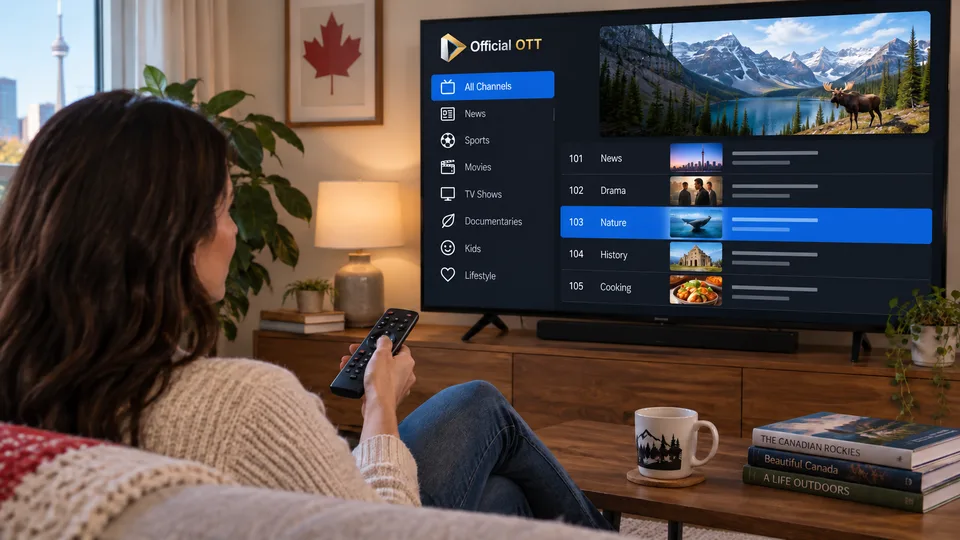
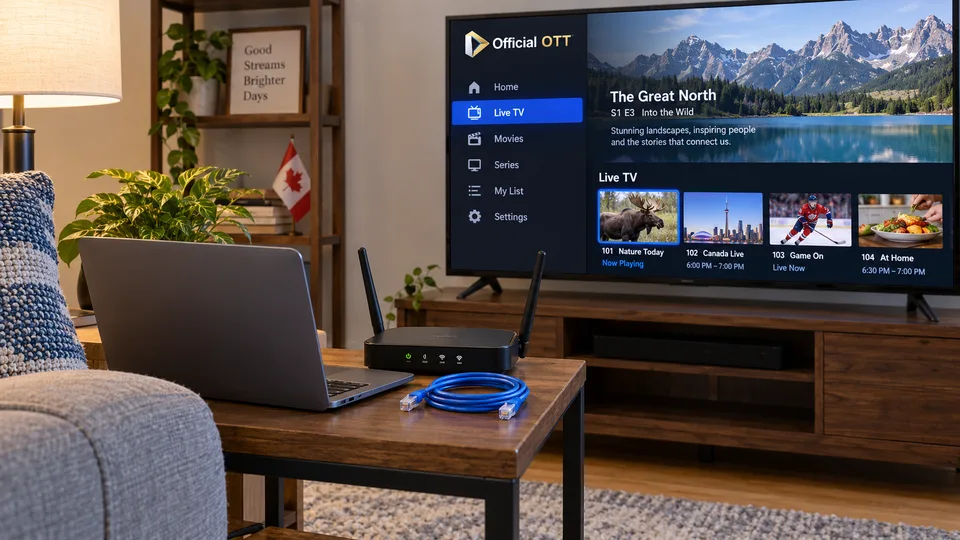
No. They are fictional scenes and interfaces illustrating the workflow, not documentation of the exact buttons in a commercial release.
8. Conclusion and limitations
Publisher information checked on October 13, 2026. Compatibility, features and availability can change. This article provides neither a content account nor measured Smarters performance results.
To continue with a guide for your screen or a video tutorial, visit OfficialOTT’s IPTV and device resource centre.
9. Method and sources
Documentary research conducted on October 13 and 14, 2026 using the references below. Procedures and examples form an original editorial synthesis. Illustrated scenes and interfaces are fictional: they do not represent an OfficialOTT catalogue or establish broadcasting rights. No purchase, service trial, private-account inspection or performance measurement was conducted for this article.
Editorial update and further reading: