
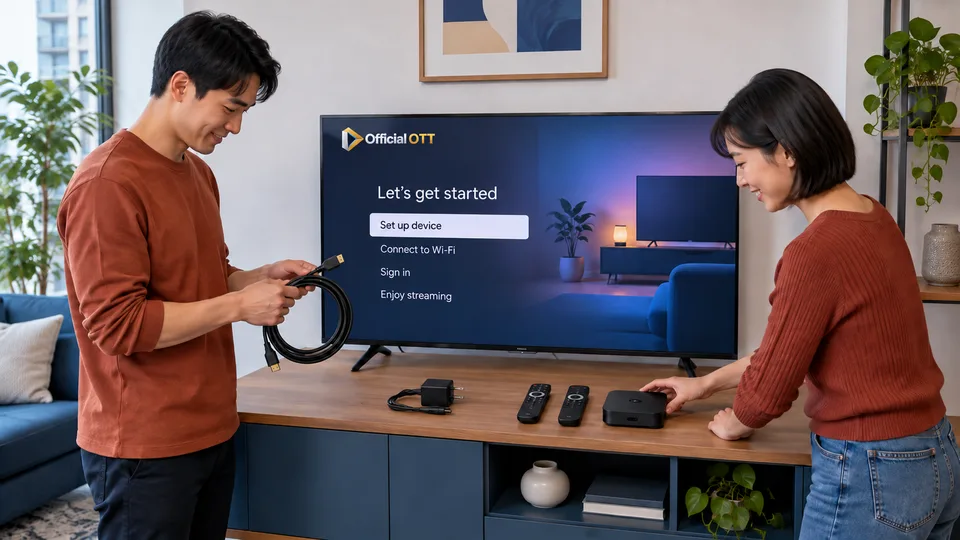
A successful setup starts before you download an application. You need to know which device displays the picture, which one connects to the Internet and which account provides programme access. Keeping those stages separate makes a failure easier to understand and helps you return to the last working state. This 2026–2027 workflow organizes a multi-device installation; the manufacturer’s instructions remain the reference for your model’s buttons and connections.
1. Quick answer
Work in this order: identify the hardware, establish connectivity, install a compatible application, activate authorized access and verify household viewing needs. Finish one device before repeating the process on other screens.
Five key points
- Record each device’s model and operating system.
- Prepare the correct cables and power supply.
- Verify Internet access before configuring television access.
- Distinguish device, application and subscription accounts.
- Test reopening and keep useful setup notes.
- 1Identify
- 2Connect
- 3Configure
- 4Verify
2. Inventory the equipment before connecting it
Choose your first screen and record its exact model. Add any external box, its remote, the intended application and the network connection method. Look for the service’s supported-device list. An application working on your phone does not prove it exists on a television from the same brand or on an older generation. Resolve that uncertainty before investing time in detailed configuration.
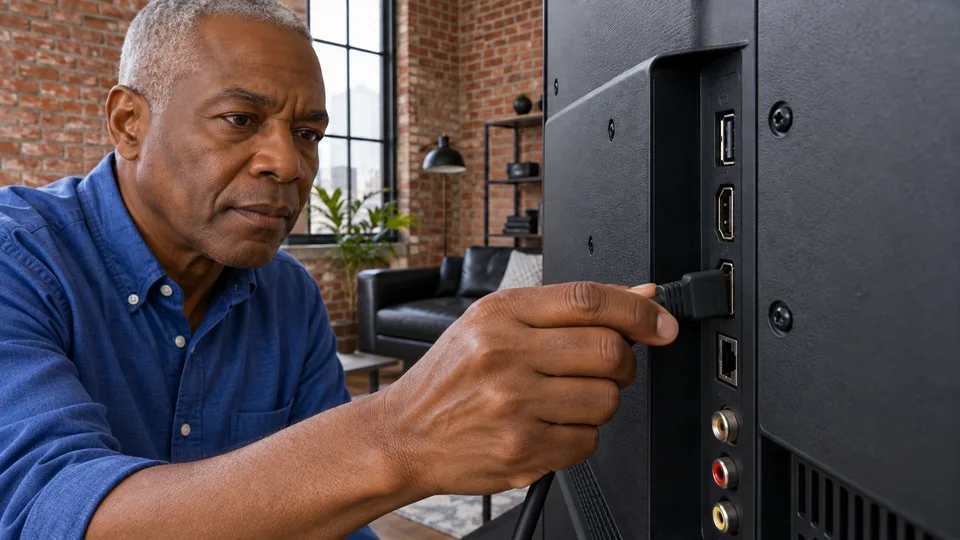
Gather the accessories specified by the manufacturer, then inspect the ports without forcing connectors. Keep equipment stable and ventilation openings clear. If the television is wall mounted, follow its handling instructions when accessing connections. Photograph the existing cable arrangement before making changes, taking care to exclude private information. That reference can help you restore a previous setup without guessing where each cable belonged.
3. Establish a picture and network connection
With an external box, first confirm that its home screen appears on the appropriate television input. Apple’s Apple TV 4K instructions describe HDMI, separate power and selection of the corresponding input. That example applies to that hardware; for a stick or another box, consult its exact instructions rather than assuming the same power arrangement will work.
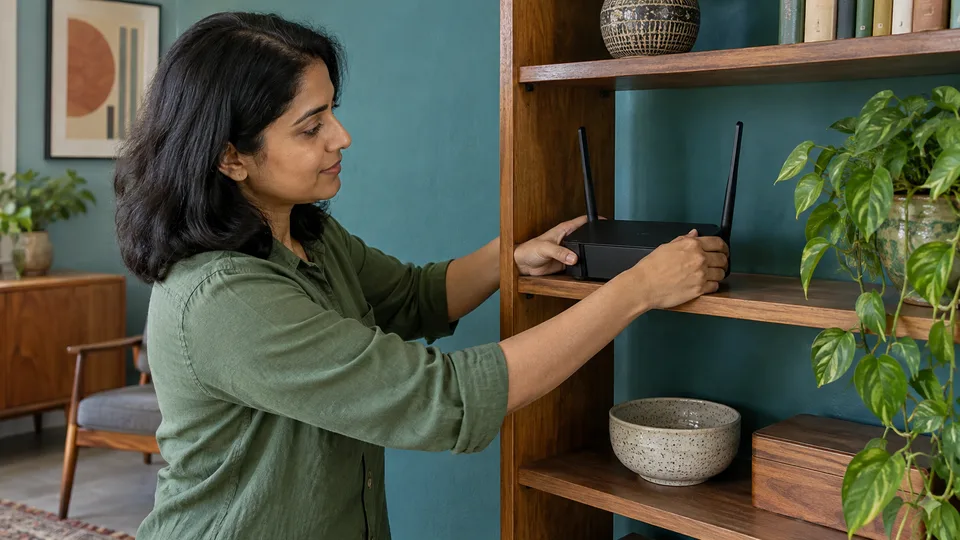
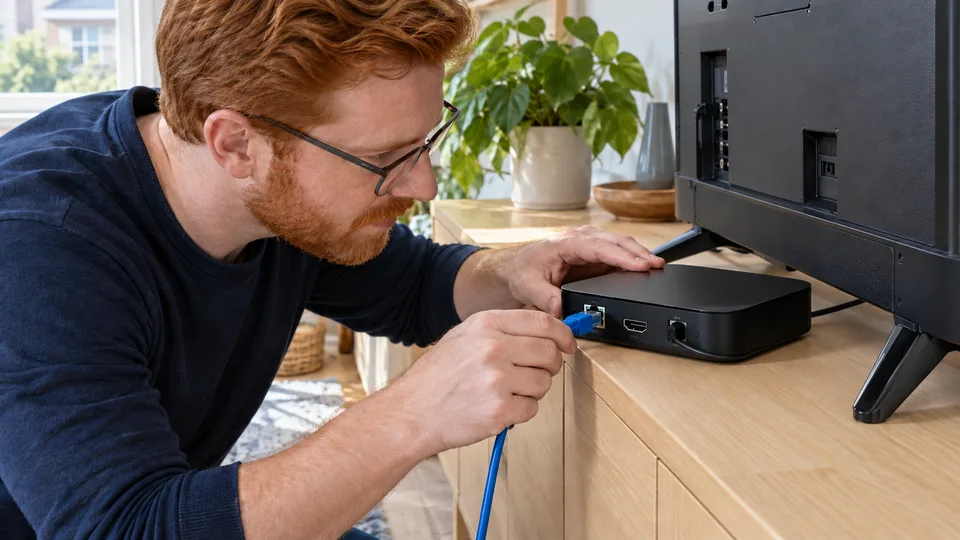
Next, connect the device to your network using its supported options. Google TV’s guide covers Wi-Fi or Ethernet and explains that setup experiences can vary across models. Once connected, check that a known Internet function responds. If the operating system cannot join the network, resolve that stage before changing television service credentials: adjusting an account will not repair a missing network connection.
Documentation: Apple — set up Apple TV 4K · Google — set up your Google TV device and remote
4. Install an application you can identify
Use the store or official installation route specified for your device. Compare the publisher name and support link with the service’s own website. Several applications may use similar names, so a familiar-looking icon is not enough to identify the correct product. Establish whether you are installing a broadcaster’s application or an independent player that will need an authorized content source.
Apply required updates according to the manufacturer’s guidance and let them finish. Do not replace a television’s system or change its security settings just to follow a generic video. If the application is missing, first check the model, region and minimum software version. A supported external device may provide a more maintainable solution than an installation procedure that the publisher does not document.
5. Associate the right account with each purpose
The device account belongs to its operating environment, while the service account identifies your programme access. Some setup flows offer account linking through a phone or browser. Read the address displayed on the television and use only the official destination specified by the service. Keep passwords in your usual password manager rather than on an instruction sheet left beside the remote.
Next, verify the selected profile, preferred language and usage limits of your offer. With an independent player, any player licence remains separate from the content subscription. Do not purchase a second plan simply because a screen asks you to sign in. First establish whether your existing access can be linked and which organization manages its billing. This makes later subscription questions easier to resolve.
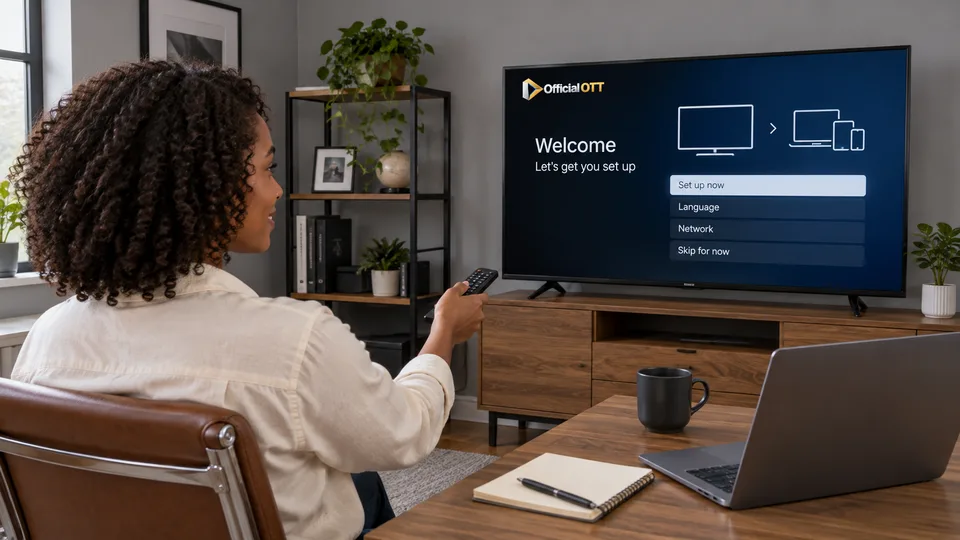
6. Verify the result and prepare the next device
Start a programme you know is included. Check picture, sound, navigation and any required captions, then close and reopen the application. Also test returning after standby. Ask another household member to find the programme without your instructions. This practical check can reveal a confusing input name or an everyday navigation problem that you overlooked while concentrating on the technical setup.
Once the first device works consistently, configure the others one at a time within the service’s rules. Record actual differences between them. If a step fails, keep the precise message and last successful stage; reconsider the recent change before attempting a factory reset. Save a short everyday control guide and the relevant support links so the arrangement remains usable after the first evening. Keep the setup record separate from sensitive account information.
7. Frequently asked questions
Should every screen be configured at the same time?
Finish one reference device and verify playback before moving to the next screen. This makes differences and errors easier to identify.
Does installing a player provide channels?
Not necessarily. A player and access to content are separate components. Use an authorized source compatible with the application.
What should I record before contacting support?
The model, application and version, exact message, connection type and last working step. Do not share passwords.
8. Conclusion and limitations
A general 2026–2027 workflow, without a promise of universal compatibility. The linked manuals illustrate particular devices and do not replace your own equipment’s documentation.
9. Method and sources
Documentary research conducted on October 13 and 14, 2026 using the references below. Procedures and examples form an original editorial synthesis. Illustrated scenes and interfaces are fictional: they do not represent an OfficialOTT catalogue or establish broadcasting rights. No purchase, service trial, private-account inspection or performance measurement was conducted for this article.
Editorial update and further reading: