
An installed app, a registered account and a channel listed in a menu do not necessarily mean the programme is available to you. To avoid unnecessary purchases and signing in through the wrong route, work in a clear order: identify the channel, find its distributor, confirm your access and then configure the device. This method helps prepare your television for 2026–2027 without promising a universal catalogue.
1. Quick answer
Access depends on the programme, its Canadian distribution, your subscription and the device. A video player helps play content; it does not create channel entitlements by itself.
Five key points
- Start with the exact channel and programme names.
- Check distribution for your Canadian location.
- Distinguish a platform account from a TV-provider account.
- Follow activation through the official app or website.
- Test the intended programme before calling access confirmed.
- 1Name the channel
- 2Find the offer
- 3Associate the right account
- 4Confirm playback
2. Define what you actually want to watch
Write down the channel’s full name, your preferred language and the programme that prompted the search. Add the date or broadcast time when live viewing matters. One channel brand may have multiple editions, while a series title may be available as individual episodes without access to the linear channel. A precise request makes an answer from customer support easier to verify.
In a fictional example, a viewer wants local French-language news and a particular Sunday game. These require separate checks even when one offer groups both under television. Keep one line for each need in your notes. Replacing that list with a search for thousands of channels removes the information that would tell you whether you achieved your goal. Include the device you expect to use so you can assess the entire viewing journey.
3. Trace the channel to an identifiable Canadian offer
Begin with the channel or broadcaster’s official website and its information about ways to watch. Check the country, location, language and access model described. If it names a distributor, reach that distributor through an identifiable source and read the offer’s conditions. An older help page may explain the general idea while describing a sign-in route that has since changed.
Ask whether the intended programme is included in your situation: a direct subscription, an existing television package or free access provided by the broadcaster. Seeing a logo in an app does not settle this. Compare activation links from older forum posts with the service’s current instructions. Keep a record of the answer without adding passwords to your notes. When the answer is unclear, resolve that specific uncertainty before choosing equipment.
4. Identify the account and subscription being requested
Some platforms support sign-in through a television provider. Citytv+ explains that this access matches the channels included in the subscriber’s TV package. That model does not make the entire catalogue available to every account. Check the participating-provider list and any service-specific conditions as well.
Before subscribing again, investigate whether your current package already meets the need. Separate the email used for a platform account from the account held with your television provider. If sign-in fails, first identify which account the page is requesting. Creating more accounts or purchasing another offer can complicate the situation without addressing a simple mix-up between sign-in routes. Keep the provider’s official support address available so the question goes to the right organization.
Documentation: Citytv+ — access through a television provider
5. Associate the device without confusing setup with entitlement
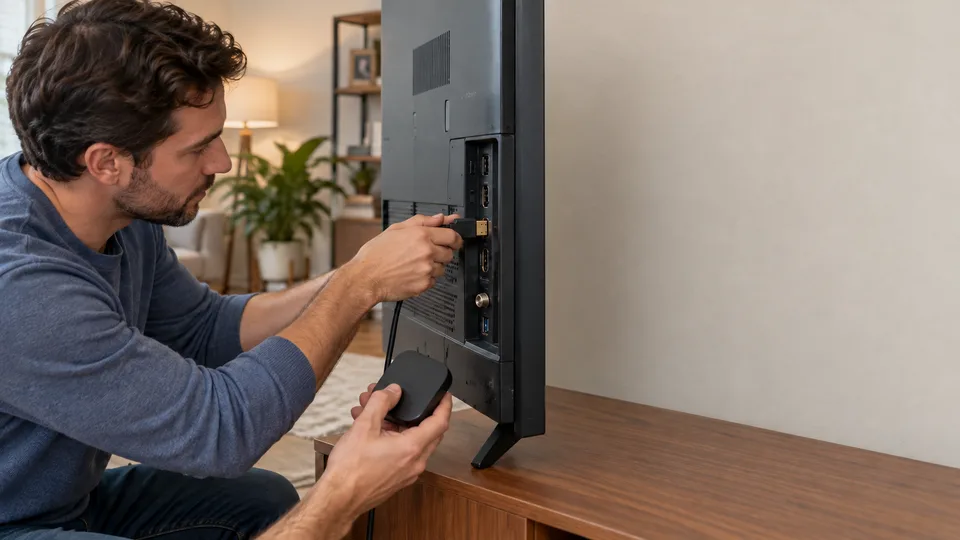
Install the appropriate app from the store supported by your device and check its publisher. Open it and follow the route it actually displays. If it provides a temporary pairing code, use the address shown by that official app and check the domain before entering account details. Do not post the code publicly or send it to someone who contacts you unexpectedly.
Smarters Pro, for example, is described by its publisher as a player for content supplied separately by the user; the app does not come with channels. Choose an authorized content source and an access method that source supports first. Do not assume a subscription to one platform can be exported into any player or converted into a personal channel list. The service’s documented method determines how the account should be used.
Documentation: Smarters Pro — official publisher information
6. Confirm playback and keep useful records
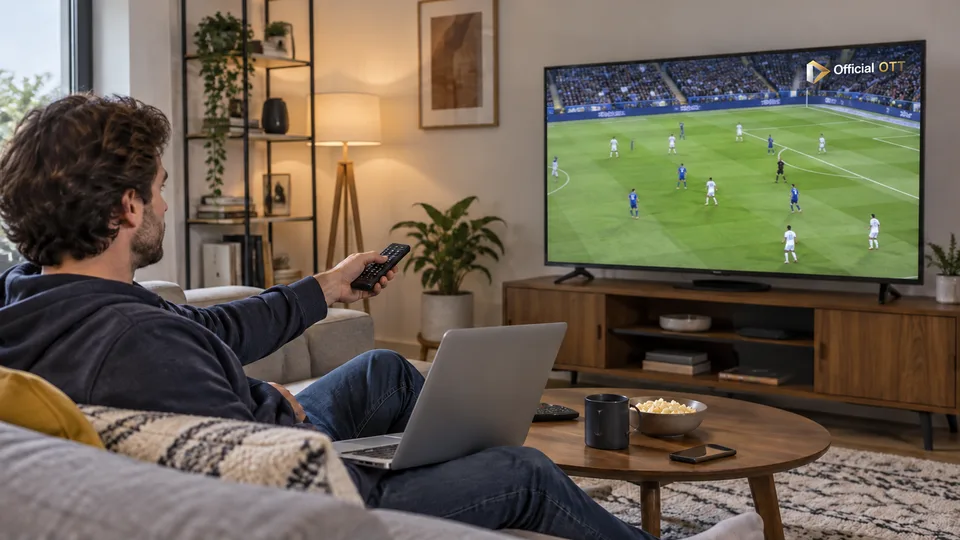
Launch the exact channel or programme on the intended device. Check audio, any subtitles you need and the transition from browsing to playback. For a sporting appointment, also verify the conditions attached to that game and your location. A free preview that plays successfully does not establish access to the content included in a paid offer.
If a lock icon or error appears, record its wording, the time, device model and route you used. Start with the help page relevant to that message. After access works, keep a short record of the provider, sign-in method and official support link. This makes future troubleshooting more efficient and avoids rebuilding the entire setup whenever you change screens. Store credentials securely elsewhere, rather than including them in a shared troubleshooting note.
7. Frequently asked questions
Why is a listed channel still locked?
The menu may display content your current entitlement does not cover. Check the plan, account used and programme conditions with the relevant service.
Does installing an IPTV player provide channels?
No. A player does not replace a content source and the necessary permissions. Installing the app is a separate technical step.
Should I buy another subscription when sign-in fails?
First identify the requested account, check what your existing package includes and consult official support. A sign-in error does not prove another purchase is necessary.
8. Conclusion and limitations
A general access workflow for 2026–2027. Screens, participating providers and conditions vary by service. No stream list or guarantee of access to a particular channel is provided.
9. Method and sources
Documentary research conducted on October 13 and 14, 2026 using the references below. Procedures and examples form an original editorial synthesis. Illustrated scenes and interfaces are fictional: they do not represent an OfficialOTT catalogue or establish broadcasting rights. No purchase, service trial, private-account inspection or performance measurement was conducted for this article.
Editorial update and further reading: