
1. Quick answer
- Inventory both devices, operating systems, players and versions before making changes.
- Separate configuration, software licensing and content access: each needs its own check.
- Confirm that the backup or export feature supports your destination and the data you need.
- Test essential tasks on the new device, using one playback session at a time if your terms require it.
- Keep the previous setup until the replacement is accepted, then follow the official retirement procedure.
Watch the guide
The picture is back, but favourites are missing and the TV guide is wrong. Prepare the move while your old setup remains available. · 2:42
Open the dedicated video page →
Read the transcript
The new player shows the channels. But favourites are missing, subtitles have changed and the TV guide is wrong. Getting a picture is not enough to validate a migration. Prepare the change while the old setup is still available. Describe the starting point and destination: models, systems, players and versions. Replacing a box with the same software differs from moving to another application. Check configuration, player licensing and content access separately. Next, make a short inventory. Important favourites and their order. Two channels for checking the TV guide. Usual audio and subtitle choices. Restrictions, profiles and the remote-control route. Keep passwords, codes and private access addresses out of this worksheet. Before exporting, ask what the feature actually recovers. A configuration backup, source export, home-screen synchronization and purchase restoration are not interchangeable. Mark each item: confirmed, to be checked or to be rebuilt. Compatibility must cover both ends of the transfer. Kodi’s documentation cautions against moving the complete data folder across different operating systems or major versions. Do not generalize a procedure just because applications share a name. If documentation is ambiguous, confirm the model and version pair before restoring. Formuler documents a portal export from MYTVOnline 3 to MYTVOnline plus, subject to provider support. That route does not demonstrate a transfer of favourites, settings or a licence. A connection code or export must remain private. Keep the original backup and use a working copy when a compatible import is confirmed. Otherwise, rebuild the essential favourites first. Change one thing at a time. Keeping two devices for comparison does not mean two simultaneous streams are permitted; follow the service’s conditions. On the destination, check playback, favourites, programme names and guide times, audio tracks and subtitles. Recheck restrictions and accessibility features. Close and reopen the application normally to see which settings remain saved. If something is missing, record the first failed check. Missing favourites and refused content access are different problems. Preserve the old state until the new setup is accepted and while returning to it remains possible. OfficialOTT’s guide provides a decision worksheet. After validation, follow official procedures for removing accounts and erasing the old device before passing it on. Erasing the old device is never a way to test your backup.
Alternative: YouTube player
The player stays disabled until you click. Loading it connects to YouTube, which receives information including your IP address.
This video uses AI-generated illustrative images and scenes, with synthetic narration. Fictional situations are neither customer testimonials nor evidence of service performance.
This guide offers a migration method and a verification worksheet. It does not guarantee that a backup works between two apps, platforms or device models. The examples are fictional; no customer account has been changed or tested.
2. Define the change
Start with a specific statement: “I am moving from this model and version to these.” Replacing a box while keeping the same software differs from moving from an Android player to a television app.
| Situation | Question to resolve | Fallback to prepare |
|---|---|---|
| Same device, player reinstallation | Is a compatible restoration available? | Backup stored outside the installation being replaced |
| Different device, same player | Are the destination model and version supported? | Previous device available, without assuming two playback sessions are allowed |
| Different player or system | Does the destination officially accept an export? | Manual reconstruction of essential settings |
| Previous device has failed | Do you already have a backup or useful records? | Documentation and support, without assuming the inaccessible device can export data |
If the problem is recognising an existing purchase, begin with the player licence and subscription guide. It addresses what was purchased and how it is associated with an account or device.
3. Create a useful inventory without secrets
Record the exact player name, publisher, version, operating system and device model. List important favourite groups, their preferred order and the settings you actually use. A short list of ten priorities is easier to verify than a screenshot of every menu.
| Item | Previous setup | Destination | Expected result |
|---|---|---|---|
| Player and version | Fill in | Fill in | Available, compatible version |
| Favourites and order | Non-sensitive names | Check | Priority items recovered |
| Programme guide | Two reference channels | Check | Correct programme and time |
| Audio and subtitles | Usual preferences | Check | Available, readable choices |
| Profiles and restrictions | Required functions, without PINs | Check | Behaviour verified |
| Remote navigation | Daily tasks | Check | Open, choose, return and exit |
Keep sign-in information in its usual private location. A migration worksheet shared with support does not need passwords, verification codes or complete access URLs.

4. Identify what the feature actually recovers
Ask separately whether a feature restores configuration, exports a source, synchronises a layout or recognises a purchase. The word “backup” does not answer all these questions.
For Android phones, Google warns that some apps do not back up or restore all their data. That phone documentation does not establish that an Android TV box will recover your player settings. Android help.
Apple describes One Home Screen as synchronising appearance and apps across Apple TV 4K devices using the same account, for the default profile. This description does not establish recovery of a third-party player's favourites. Apple TV documentation.
Mark each requirement “confirmed,” “needs verification” or “rebuild.” This gives you a usable plan even when no complete export is offered.
5. Check software-specific backup limits
The Kodi documentation, marked for version 21, advises against moving the entire data folder between different operating systems or major versions. Hardware differences can also require adjustments. External media files are outside the backup described. Kodi backup documentation.
The Formuler backup article contains conflicting statements: its introduction mentions other devices, while a warning restricts restoration to the same device. Obtain confirmation for your model and version before transferring. This guide does not resolve that conflict. Formuler backup and restore.
Avoid testing an assumption by overwriting your only working configuration. If the instructions do not cover the destination, ask support which export is accepted and what must be rebuilt.

6. Portal export is a narrower operation
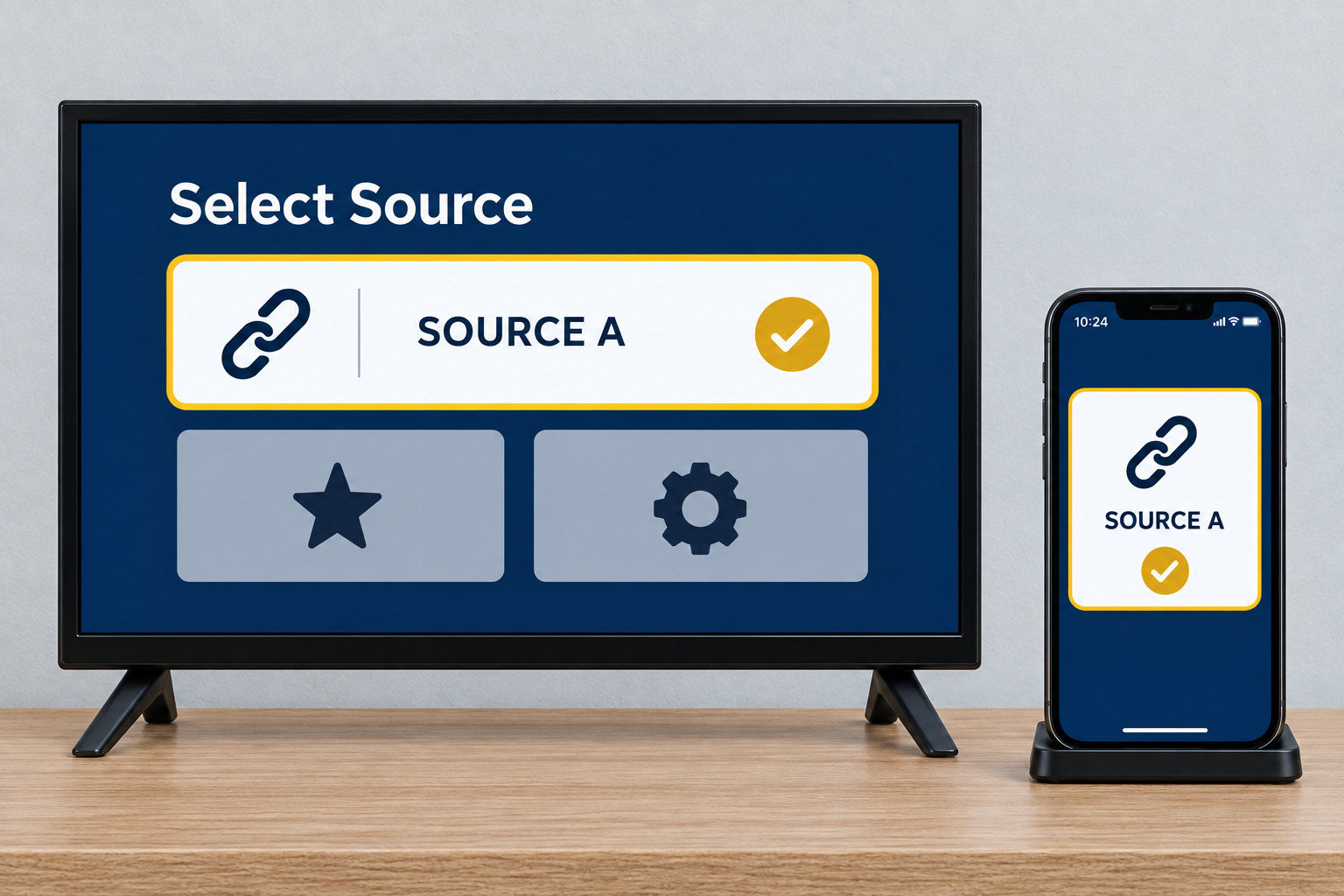
Formuler documents a portal export from MYTVOnline 3 to MYTVOnline+, subject to provider support. The process uses content sources and a QR code. It does not establish that favourites, settings or a licence are transferred. Formuler portal export.
Treat a sign-in code or export file as private information. Do not post it in a screenshot or forum. Use the intended destination and preserve an original backup before attempting restoration.
7. Prepare the destination in stages
First verify that the player is available through its official channel. Then confirm how software activation and content access will be handled. For a replacement, the provider may need to explain the device association procedure; a backup does not substitute for that confirmation.
Install and configure the player following its documentation. If a compatible import is confirmed, use a working copy of the file. Otherwise rebuild essential favourites and necessary settings first. Avoid simultaneously changing the network, player and account: it becomes harder to identify what caused a difference.
Keeping two devices for comparison does not establish permission for two simultaneous streams. Check your terms and, when needed, stop playback on the previous device before testing the replacement. The devices and connections guide explains the distinction.
8. Test a complete viewing journey
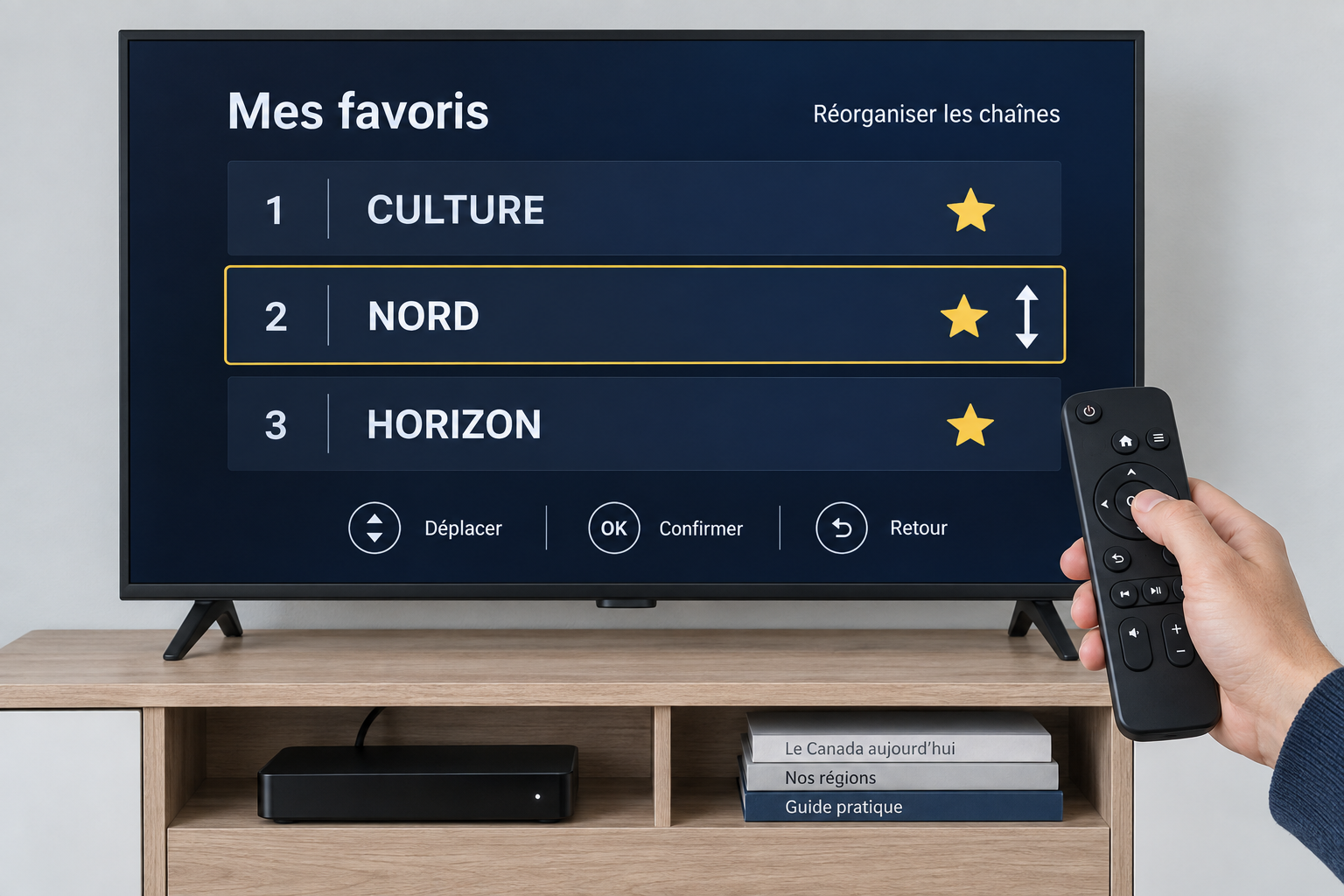
Choose a programme you can access and a few representative favourites. Follow the same journey to record differences. This protocol is an editorial proposal, not a certification test.
| Check | Observation to record | If something differs |
|---|---|---|
| Launch and access | Player opens and expected source appears | Check identity, account and association |
| Favourites | Essential names, groups and order | Check import scope or rebuild |
| Programme guide | Programme and time on two channels | Separate data, channel and time issues |
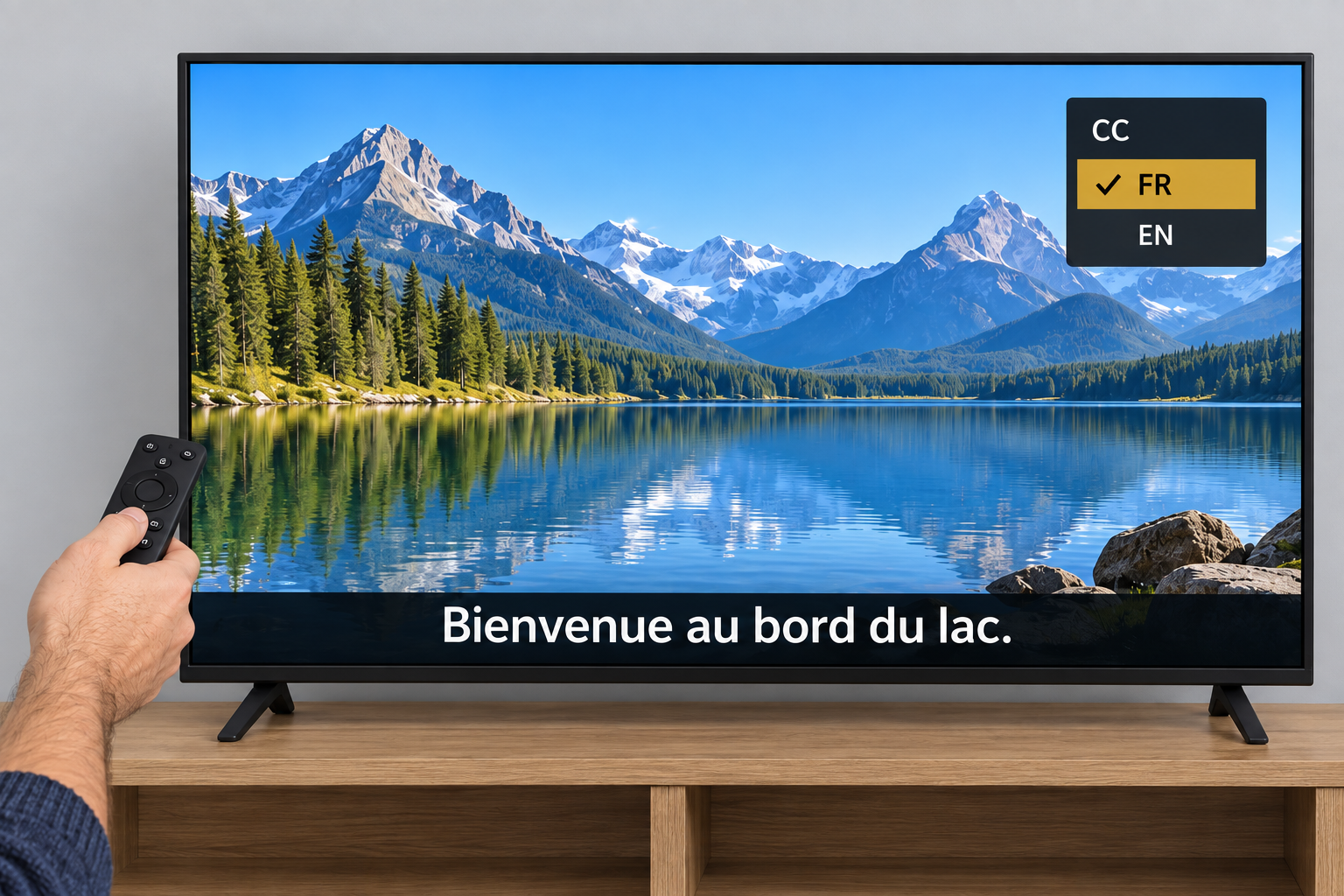
| Audio and subtitles | Selected language, availability and readability | Check programme, player and system |
| Profiles and purchases | Restrictions actually observed | Repeat platform-specific checks |
| Return and restart | Journey works after normal closing | Record settings that were not retained |
Include tasks that matter to the people using the television. The TV accessibility and parental controls guides provide more detailed checks.

9. Handle an incomplete migration
A player opening with an empty favourites list has not necessarily lost service access. Separate a configuration problem from a playback problem. Record the first failed check and its exact message.
If only favourites are missing, confirm that the export included them. If access fails, compare device identity, the licence and the service's association procedure. If the whole app behaves incorrectly, stop repeated imports and request a compatibility check.
Returning to the previous device requires its access to remain valid. Before changing an association, ask whether returning is possible and under what conditions. Do not deactivate several devices in succession as a guessing exercise.
10. Accept the replacement before retiring the old device
Agree with your household on what makes the new setup acceptable: essential favourites recovered, important functions tested and support information available. This guide does not prescribe a universal acceptance period.
Before giving away or recycling a device, follow its manufacturer's account and erasure instructions, plus the service's session or association procedure. A factory reset is not a backup test. Do not start one until needed data has been recovered or its loss knowingly accepted.
11. Decision worksheet and example
| Field | Fill in |
|---|---|
| Starting point and destination | Models, systems and versions |
| Feature used | Backup, limited export or reconstruction |
| Compatibility confirmed by | Document or support reply, with date |
| Recovered and missing items | Observed results |
| Fallback available | Verified conditions |
| Decision | Continue, correct or keep the previous setup |
Fictional example: a household replaces a box. Playback and subtitles work, but favourites have not returned. They keep the previous device, determine what the import covers and rebuild ten priority favourites if necessary. The person who regularly uses the television then checks the viewing journey before retirement is prepared.
12. Frequently asked questions
Can I copy a backup between two players?
Only when a compatible procedure is documented for that pair. Otherwise plan to rebuild the essential items.
Does using the same app guarantee a transfer?
No. Identify the models, systems, versions and data covered by the procedure.
Will restoring the app recover my licence?
Check the purchase separately. This guide promises no commercial licence transfer.
Will a QR code recover my favourites?
You need to know its exact function. The portal export described here does not establish that recovery.
What if the previous device no longer starts?
Inventory backups and records you already have, then contact the relevant support. Do not assume an export can be created without access to the device.
Must I buy another connection to test?
Check your service's terms. Successive playback may be suitable; an additional purchase is not assumed necessary.
Why check restrictions and accessibility again?
Observe their behaviour on the destination. A successful import does not replace these practical checks.
When should I erase the previous device?
After accepting the replacement and preparing retirement under the applicable procedures, with an informed decision about remaining data.
13. Conclusion
A successful migration is visible in daily use: opening the right player, finding what matters and watching under the expected conditions. Start with an inventory, establish the tool's scope and test before retiring the previous device.
Scope and limits of this guide
The examples do not cover every IPTV player. Match instructions and conditions to your versions. The Formuler documentation conflict is disclosed; it supports no promise of cross-device restoration. This guide announces no new OfficialOTT service. The English manuscript adapts the French Google and Apple documentation cited above.
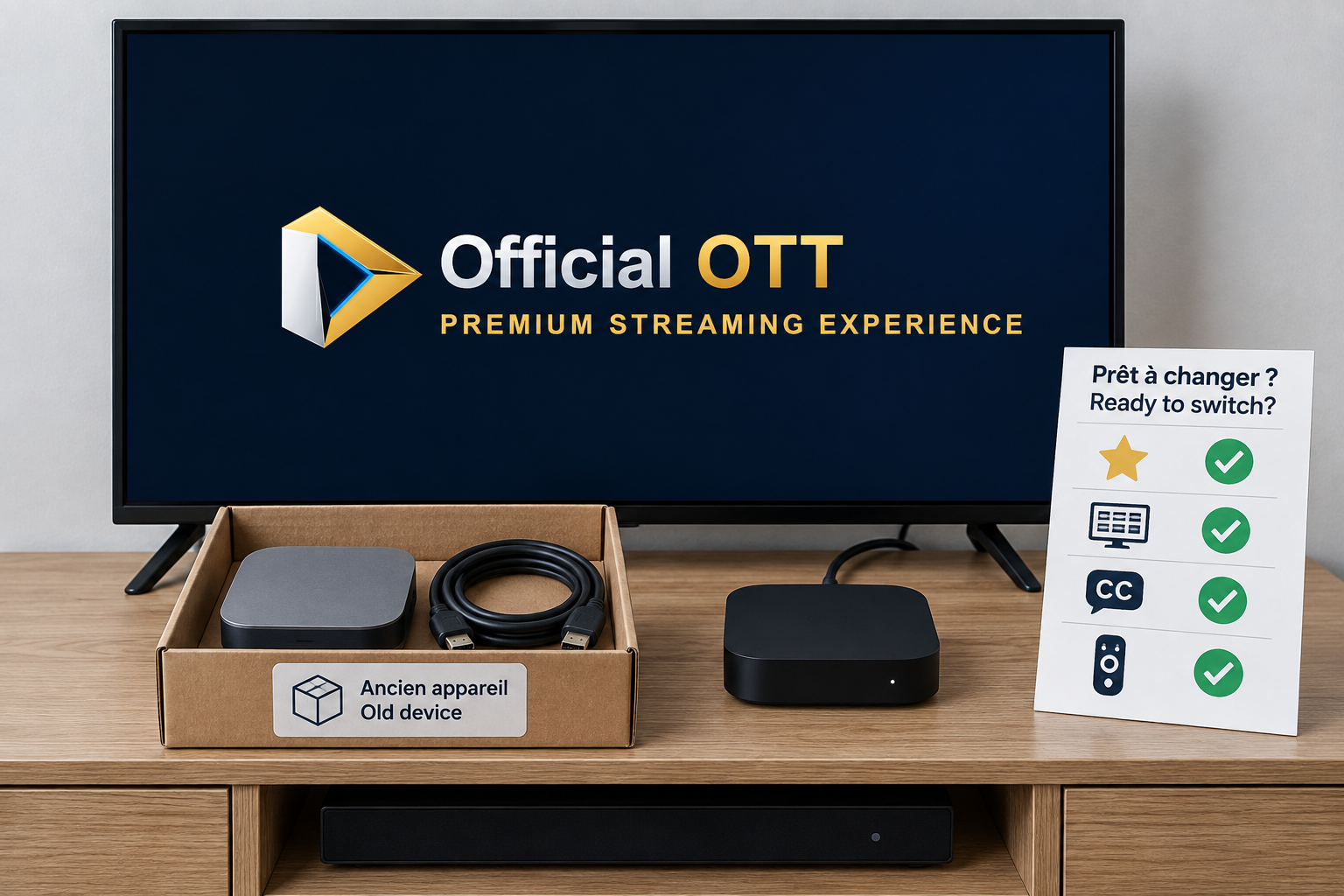
The photos are AI-generated conceptual illustrations, identified in their alt text. They are not official screenshots or evidence of successful transfers between devices.
14. Method and sources
We reviewed the five primary documents linked in sections 4–6 on September 29, 2026. The method, tables and scenario are an editorial synthesis. No purchase, actual transfer or customer account restoration was performed.