
Quick answer
Start by separating the service, app and device. Check compatibility, install the official app, sign in to authorized content and test picture and sound before changing advanced settings.
What you will be able to do
Learning about IPTV Canada or setting up an OTT service? This path connects terminology to practical steps. Labels such as “IPTV Canada” and “IPTV premium” do not describe a complete setup: check authorized content, the app and access conditions. The IPTV premium in Canada guide explains the criteria.
By the end of this learning path, you will be able to describe your setup, choose the right tutorial for your device, open an app from its official store and check a first playback session. You do not need to understand advanced router settings.
Allow roughly 45–60 minutes, excluding updates and account creation. This is a learning estimate: take the time you need. Have a suitable TV or display, a compatible device, an Internet connection and content you are entitled to access.
Your starting point
Write down the TV model, the device you use and the app name. If one is missing, find it in system information or on the device label before proceeding. Keep passwords off this worksheet.
1. Separate the service, app and device
A setup is easier to understand when each component has a clear role. The service provides access to a catalogue or channels under its terms. The app is the software used to browse and play that content. The device runs the app. The TV displays the picture and plays sound, either directly or through a soundbar.
| Component | Its role | What it does not guarantee |
|---|---|---|
| Service or authorized source | Provide content and define access. | An app for every device. |
| Playback app | Open the service and provide navigation. | A subscription or content rights. |
| Smart TV or external player | Run the app. | Every resolution and feature offered by every service. |
| Home network | Connect the device to the Internet. | Continuous availability of the remote service. |
A smart TV can act as both the device and the display. An external player adds another operating system and app store; setting it up does not automatically configure the TV’s apps. The OTT and IPTV comparison explains distribution differences without treating either label as a promise of quality.
- 1 · ServiceContent and access conditions.
- 2 · AppNavigation and playback.
- 3 · DeviceThe system that runs the app.
- 4 · NetworkLocal connectivity and Internet access.
OfficialOTT learning diagram. Check each role in your own configuration.
Exercise: name the four components
Complete this sentence using your own equipment: “I watch content from ___ in the ___ app, on ___, connected to the Internet through ___.” If the first answer is unclear, check what your access includes before continuing.
2. Check the equipment before installing an app
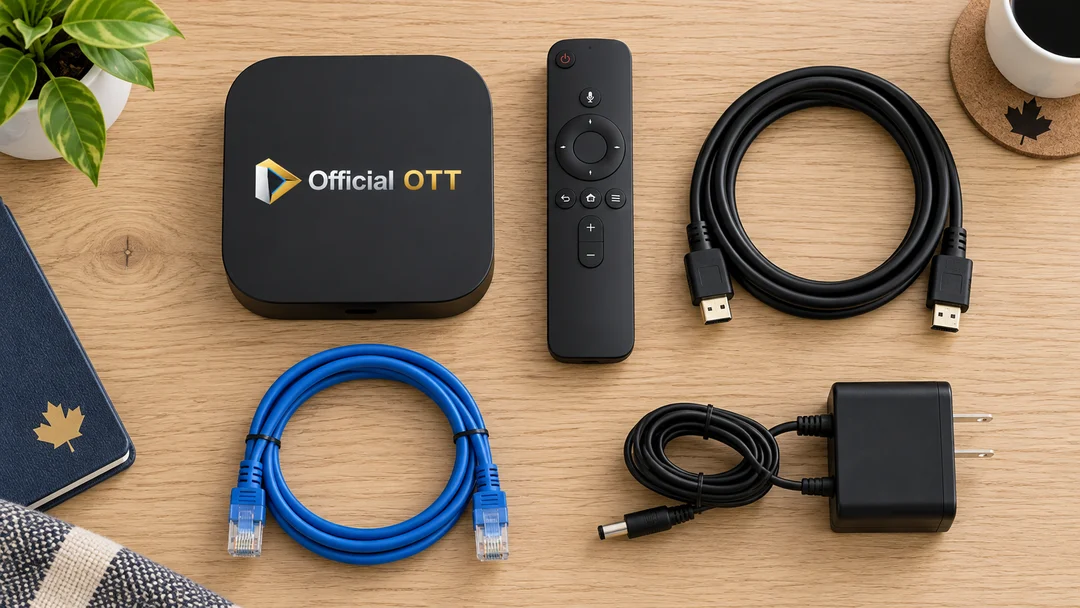
Record the exact model and operating system version. A TV brand alone is not enough: two sets from the same company may belong to different generations and offer different app stores. Check availability with the app publisher and in your device’s store for your region.
- Identify the remote for the TV and, if applicable, the remote for the external player.
- For an external player, locate a suitable HDMI input and the cable you need.
- Use the manufacturer’s recommended power supply; do not assume a TV USB port can provide the required power.
- Place the device on a stable surface with its ventilation openings clear.
- Consult the device guides before following menus written for a different model.
Do not buy a new player simply because a tutorial names another device. First check whether your TV already supports the app and the features you need.
3. Connect the equipment and select its input
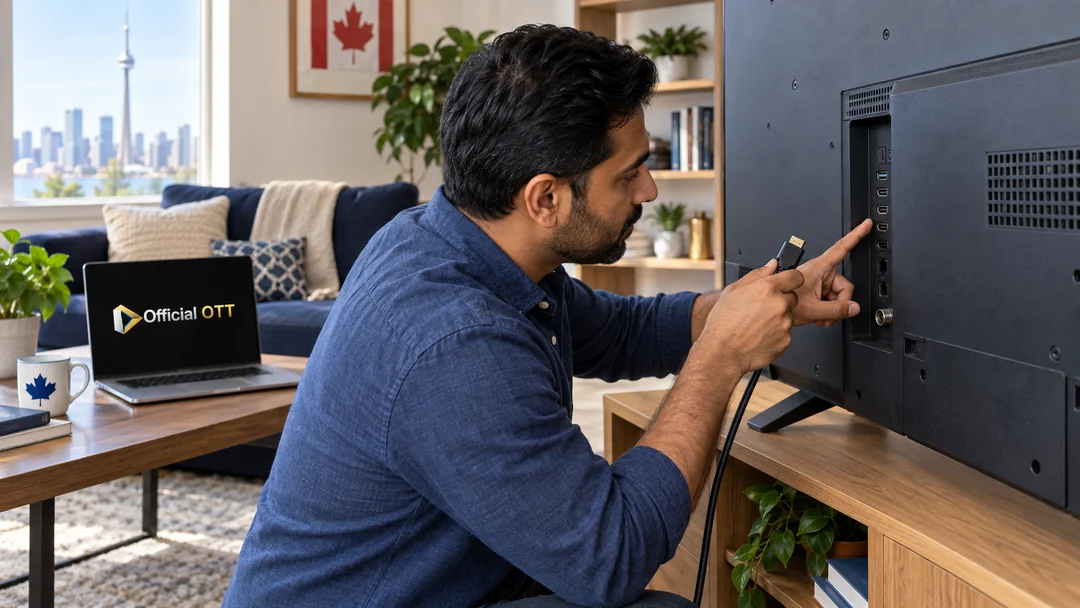
For an external player, follow the manufacturer’s connection instructions. Turn the equipment off before working on its setup, connect the player to the TV and then connect its power supply. Select the input that matches the port you used: HDMI 1, HDMI 2 or the name assigned by your TV.
If the TV says “No signal,” this is not yet a subscription problem. Check the selected input, player power and cable seating. Never force a connector. Two cables that look similar are not necessarily interchangeable.
On a TV without an external player, open its home screen and app store. The button used to open antenna or cable channels may not open your apps. Remember this distinction so you can explain the process to someone else.
Check your progress
Turn the setup off and back on normally. Find the device’s home screen without unplugging cables. You should have a stable home screen and a remote that lets you navigate.
4. Establish a straightforward network connection
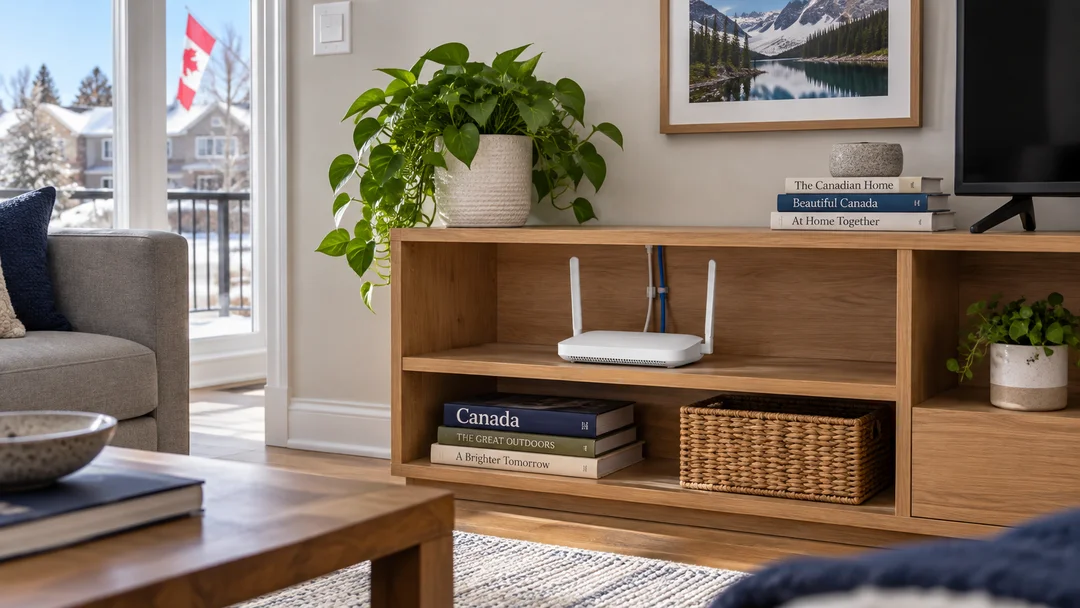
Start with a connection you can reproduce. Ethernet is useful when a cable can run safely from the player to the router. For Wi-Fi, select your home network and enter its password on the device. Check the network name: a guest network or a neighbour’s network can complicate connectivity and communication between devices.
Check placement before buying equipment if your router is enclosed in furniture or far from the TV. Leave space around it and test where you will actually watch. A phone working beside the router does not necessarily describe the connection of a player behind the television.
Keep automatic network settings for this first installation. Changing DNS, disabling protection or resetting the router is not a normal starting step. Consult your router manufacturer before changing its configuration. [1]
Required throughput depends on the service and quality. As an example specific to Netflix, its published recommendations are 3 Mbps for 720p, 5 Mbps for 1080p and 15 Mbps for 4K. These figures are not a guarantee for every platform or several simultaneous streams. [3]
5. Install and sign in to the right app

Open the device’s official app store. Search for the exact app name and check the publisher. Install it and open it from the home screen. If it is unavailable, investigate compatibility instead of installing an unknown file from a message.
Follow the sign-in method shown in that app. It may use an account, a code entered on the service’s official website or, for some players, separately supplied source details. A player licence and content access are different purchases or permissions. The player licence versus subscription guide helps identify who provides what.
If you are asked to finish on a phone, check the site address and service name before entering account details. Do not share screenshots containing a password, private source address or still-valid activation code.
Exact steps depend on the platform. For example, Google separately documents remote pairing and Chromecast with Google TV setup. Use the procedure for the hardware you own rather than assuming its menus apply to another player. [2]
6. Validate your first viewing session
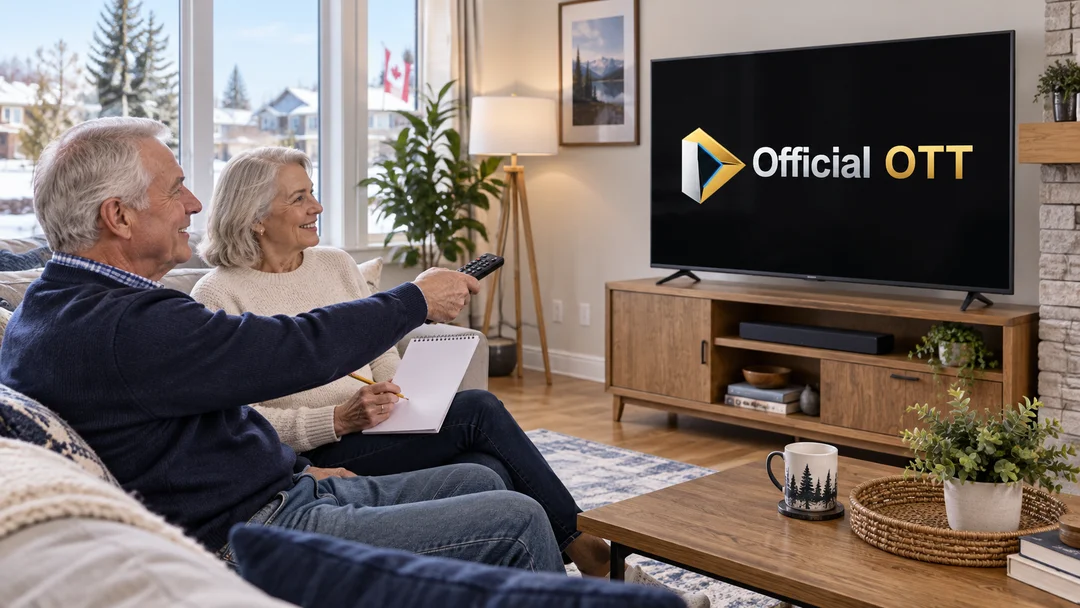
Choose content with confirmed access that you can find again. This session checks the basics. You can organize favourites, profiles and detailed picture settings afterward.
- Start playback and check that both picture and sound appear.
- Check the TV volume and then the soundbar volume, if present.
- Open language or subtitle options if this content offers them.
- Try pause and resume when the playback mode supports them.
- Return to the app’s home screen and play the same content again.
- After several minutes, record only what you observed: interruptions, an error message, missing sound or navigation difficulty.
Live TV, catch-up and on-demand video do not always offer the same controls. A channel without a pause function does not prove that the remote is faulty. Check what that content and your access actually support.
Your success record
Note the app, content tested, connection type, whether picture and sound worked and the result after a normal restart. Keep this record as a reference for the Advanced level if behaviour changes.
If the first playback session fails
| What you see | First check | Useful next step |
|---|---|---|
| No signal on the TV | HDMI input, power and cable. | TV and player instructions. |
| Home screen visible, app missing | Model, system, store and region. | The publisher’s compatibility information. |
| App opens, sign-in is rejected | Account, activation and exact message. | The service’s official help. |
| Picture without sound | Mute, volume and audio output. | TV or soundbar instructions. |
| Playback keeps stopping | Another authorized title, then the player’s connection. | Playback troubleshooting method. |
Change one thing at a time and record its effect. A factory reset removes useful diagnostic information and can require every account to be connected again. It is not this learning path’s first step.
Self-check: are you ready to move on?
Does installing an app provide access to all its content?
No. Software installation, any player licence and content access are separate. Check what the service provides.
The TV says “No signal.” What comes first?
Check the input, player power and cable. The app and service come after the device appears on the display.
A phone works beside the router. Is the TV’s Wi-Fi validated?
No. Observe the actual playback device in its normal location.
What result lets you move to Intermediate?
You can find the app, start accessible content, get picture and sound and repeat that process after a normal restart.
Frequently asked questions
Do I need an external player?
Not automatically. First check your TV’s compatibility and the features available in its app.
Is Ethernet mandatory?
No. Suitable Wi-Fi can work. An Ethernet trial is especially useful as a comparison when wireless playback has problems.
Why does my tutorial show different menus?
The model, operating system and app version can change the process. Check all three before following a different procedure.
Should I set up 4K and HDR right away?
Validate basic playback first. The Advanced level covers compatibility across the whole signal chain.
Does the Academy provide a subscription or certification?
No. It provides a learning method and practical exercises. Accounts, content and terms belong to the relevant services; the self-check is not a professional qualification.
Conclusion: a setup you can use again
You have completed Beginner when you understand the roles of the hardware and service, can find the correct app and can reproduce successful playback. Keep your equipment details and success record. Move to Intermediate to organize favourites, profiles, programme information and household viewing.
Scope and limits of this guide
This path explains an initial setup using an authorized service. It does not supply a subscription, channel list or compatibility guarantee. Menus vary by device, app and version. Exercises check your own setup and are not a professional certification.
Sources and method
This original learning path draws on the official sources below, checked on October 11, 2026. Exercises, suggested durations and self-check criteria are an editorial teaching method, not laboratory tests or professional certification. Menus and features depend on the model, version and each service’s conditions.
Photographs are AI-generated illustrations, separate from interface screenshots and measurement evidence. Equipment is generic. Diagrams are original OfficialOTT explanations.
Further reading added: