
Quick answer
Start with a short favourites list, then check languages, profiles and protections in each app. Separate EPG data errors from time shifts and verify your plan’s simultaneous-stream limit.
What you will learn
This intermediate path helps you organize a working IPTV Canada or OTT setup. You will find content more easily, adapt viewing to your household, check programme information and understand access across devices. Allow roughly 45–60 minutes with the exercises; this is an editorial estimate.
Before starting: you should be able to open your app and repeat playback with picture and sound. Otherwise, take the Beginner path first. Use a sheet of paper for settings, without recording passwords.
1. Separate favourites, watchlists and viewing history
Favourites shorten a list of channels or content. A watchlist saves titles for later. Viewing history records past playback and may influence recommendations. An app may lack one of these functions or keep it on a single device.
Start with five useful items. Add them to the appropriate list, remove one, close the app and find the selection again. An aggregated home-screen watchlist may open a different app when you choose a title. Google TV’s watchlist illustrates this distinction; saving a title does not provide a subscription to its service. [4]
Exercise: build a useful shortlist
- Choose one purpose: news, sport or films for later.
- Find the list without searching for each item.
- Confirm that removing a favourite does not remove your account.
- Repeat after closing the app normally.
Success: you can find the selection and know where it is stored. Observe cross-device synchronization instead of assuming it exists.
2. Adjust languages, captions and listening
Open a title you can access and inspect its audio and subtitle choices. Enable an option, play a short segment and restore your preferred setting. The operating system may offer caption styling, but an app can manage its own options.
French and English availability in Canada varies by title and service. Netflix explains that language choices depend on factors including the programme and device. A profile preference cannot add a missing language track. [6]
For headphones, first identify which device sends the sound: the player, TV or another device. Check volume and synchronization with a short dialogue scene. Record a delay for the Advanced path rather than enabling several timing corrections at once.
Exercise: a comfort record
For two titles, note the languages actually offered, your caption choice and the device. Different choices between titles do not establish a fault.
3. Separate personalization from parental controls
A profile primarily separates preferences, recommendations or history. It does not automatically restrict access. For a child, inspect both system-level and app-level controls: content restrictions, exit PINs, purchases and access to other profiles.
Google explains that a Google TV child profile does not govern third-party app content in the same way as its own recommendations. Availability also depends on region and hardware. Read the documentation for your actual setup. [3]
- Device systemProfile, profile exit and access to other apps.
- Playback appContent restrictions, app profile and purchases.
OfficialOTT learning diagram. Check each role in your own configuration.
- Select or create the appropriate profile with the responsible adult.
- Configure the relevant app’s available protections.
- Try switching profiles, opening another app and reaching a purchase screen, without completing a transaction.
- Restart normally and check those protections again.
Keep the PIN private and avoid obvious choices. If the system cannot provide the required restriction, adapt access and supervision instead of treating the profile as complete protection.
4. Read the EPG and identify the type of error

The electronic programme guide, or EPG, displays schedule data supplied by a source. A channel can therefore play while its guide is empty. Formuler documents missing guide data separately from EPG time-offset settings. [1] [2]
| Observation | What to investigate | Targeted action |
|---|---|---|
| Every entry is empty. | Missing, unloaded or incorrect guide source. | Check refresh behaviour and the source provider’s information. |
| Correct titles share the same time shift. | System time, time zone or app offset. | Check the system clock before changing the documented EPG setting. |
| One channel shows another channel’s programme. | Incorrect channel-to-guide mapping. | Report the channel and a precise example to the source. |
| A listed programme changed at the last moment. | A broadcaster schedule change. | Compare with the broadcaster’s published schedule. |
Do not shift the whole guide to fix one channel. An EPG offset cannot create catch-up functionality. After an adjustment, compare two channels with known programme times.
Exercise: describe the observation
Write: “On this channel, at this time and in this time zone, the guide shows ___ while the broadcast is ___.” This is more useful than “the EPG is broken.”
5. Understand profiles, devices and simultaneous streams
Three counts can differ: profiles, associated devices and permitted simultaneous streams. More profiles do not automatically mean more concurrent playback. The service’s terms define these limits; Netflix explicitly distinguishes profiles from screens playing at the same time. [5]
When researching IPTV Canada options, check the exact plan and compatible devices. An “IPTV premium” label does not describe those limits. Ask how many simultaneous streams are permitted, in which apps and for which content. OfficialOTT provides an educational checking method here, not a subscription.
An account may work on a television but fail on a tablet because the app, operating system or playback rights differ. Record the exact message before blaming the network. Do not share credentials to perform the test.
6. Run a household viewing exercise
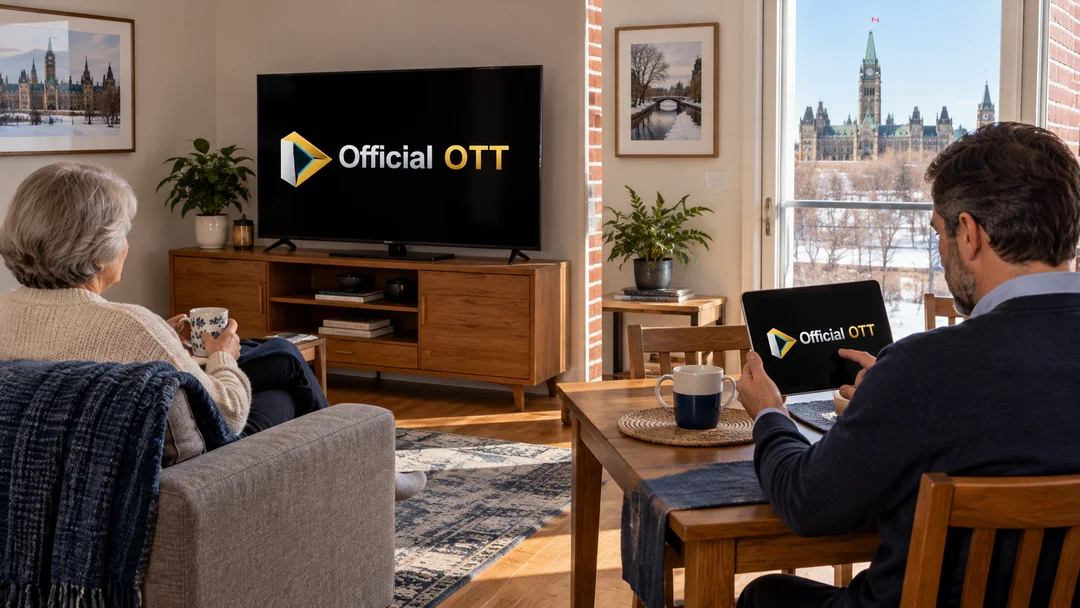
Choose a time when no one depends on the television. Confirm that your plan allows the intended test. One person uses the TV and another a compatible second device, with accessible content.
- Test each device alone for a few minutes.
- If permitted, start both streams together.
- Record an account-limit message, an interrupted stream or successful playback on both.
- Stop the second stream and observe whether the first returns to its usual behaviour.
- Confirm that profile preferences and protections remain as expected.
An explicit account-limit message calls for a plan check. Interruptions without that message call for a network comparison in the Advanced path. The exercise alone does not prove a cause.
Your household record
For each device, note the profile, app, language, favourites location, protections tested, the service’s stated simultaneous-stream limit and your observation. Review the record after a major app or plan change.
Self-check and answers
Do five profiles allow five simultaneous streams?
No. Profiles and concurrency are separate features. Check your plan’s terms.
Should one wrong programme title cause a global time change?
No. Investigate that channel’s mapping or data first.
Does the TV’s child profile protect every app?
Verify it. Test each app’s restrictions and the ability to leave the profile.
What completes this path?
You can find your lists, describe an EPG problem, test protections and explain your own plan’s playback limit.
Frequently asked questions
Do favourites always follow my account?
No. They may be local or synchronized. Check a second compatible device before relying on synchronization.
Why are French subtitles missing on one film?
Available tracks depend on the title and its distribution conditions. Check that film’s options in the official app.
Why does the channel play with an empty guide?
Video and schedule data are separate. Check the guide source and its refresh status.
Can I transfer favourites between apps?
Only when a documented mechanism supports it. One player’s backup is not necessarily compatible with another.
Should I buy another plan for a second device?
First check your existing terms, device compatibility and the observed message. A second screen alone does not establish a need to buy.
Conclusion: a setup suited to daily use
Shared viewing becomes easier when everyone can find content and understands the limits. Keep your household record. Continue to the Advanced path to investigate playback interruptions, picture and sound methodically.
Scope and limits of this guide
This path covers content organization and household use. Favourites, profiles, EPG, languages, restrictions and simultaneous streams depend on each app and service terms. A restriction verified in one app does not guarantee protection in another. Exercises are educational.
Sources and method
This original learning path draws on the official sources below, checked on October 11, 2026. Exercises, suggested durations and self-check criteria are an editorial teaching method, not laboratory tests or professional certification. Menus and features depend on the model, version and each service’s conditions.
- Formuler — missing EPG data
- Formuler — EPG offset
- Google TV — parental controls
- Google TV — favourites and watchlists
- Netflix — devices and simultaneous viewing
- Netflix — audio and subtitle languages
Photographs are AI-generated illustrations, separate from interface screenshots and measurement evidence. Equipment is generic. Diagrams are original OfficialOTT explanations.