

Quick answer
Start by describing the interruption precisely and recording the device, app, title and time. Then compare another playback session and, where possible, Ethernet with Wi-Fi. Change one variable at a time and keep the results to distinguish a network, device, app or service issue before resetting anything.
A frozen picture does not automatically mean that an Internet plan is too slow. The cause may be temporary congestion, weak Wi‑Fi, an overloaded device, a damaged cable, a remote service, or an app setting. The reliable approach is to isolate one variable at a time, record the result, and retain a rollback path.
1. Understand the four useful measurements
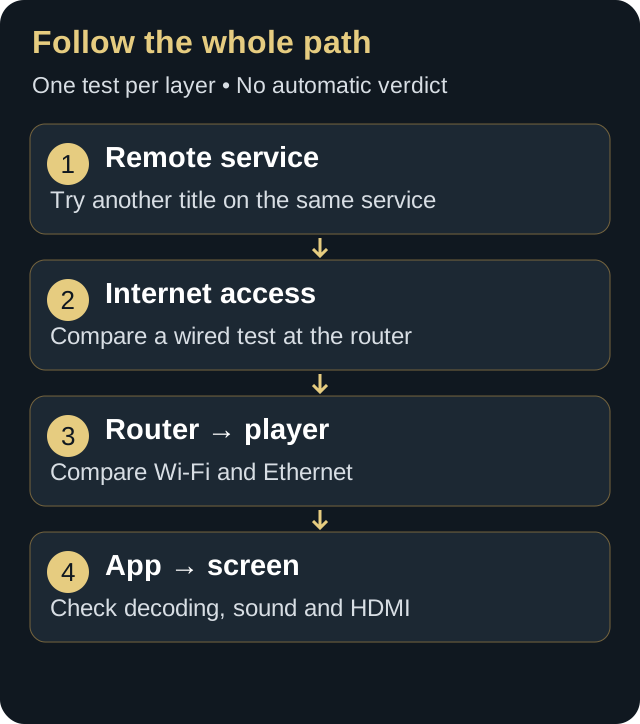
Download throughput
Download throughput is the amount of data that can reach the home each second. A high result helps, but it does not guarantee stable playback. A network can show a generous average while still suffering from large variations, packet loss, or high latency under load.
Latency
In most consumer speed tests, the displayed latency or ping is the round-trip delay to the selected test server. It becomes visible when commands respond slowly, playback takes a long time to start, or the network becomes unresponsive during a large download. The CRTC notes that latency depends on infrastructure and distance from the measurement server, so compare tests performed under similar conditions.
Jitter and packet loss
Jitter is the variation in delay. A reasonable average can hide disruptive spikes. Packet loss means some data never reaches its destination. Consistency often matters more to continuous playback than a single record-breaking speed result.
Throughput at the device
A test beside the modem is not the same as the connection behind the television. Walls, distance, radio channels, band selection, and the device’s Wi‑Fi capability can greatly reduce usable throughput. Measure where the device is actually used.
2. Build a baseline
- Record the context. Note the time, device, app, room, Wi‑Fi or Ethernet connection, and the material being tested.
- Restart only the app. Close it completely, reopen it, and see whether the issue returns. Do not restart the entire network yet.
- Test beside the router. On a recent phone or computer, take three measurements one minute apart. Use the median rather than the best result.
- Test at the television. Repeat the same series. A large drop points toward the home network.
- Test Ethernet where possible. A temporary connection with a known-good cable separates Wi‑Fi performance from Internet service.
The CRTC recommends measuring performance and identifies the modem, router, and number of connected devices as factors that can affect results. A test at the router helps separate the provider’s service from conditions inside the home.
Related guide: Prepare measurements and interpret them with the Internet for streaming in Canada guide.
3. Follow the decision tree
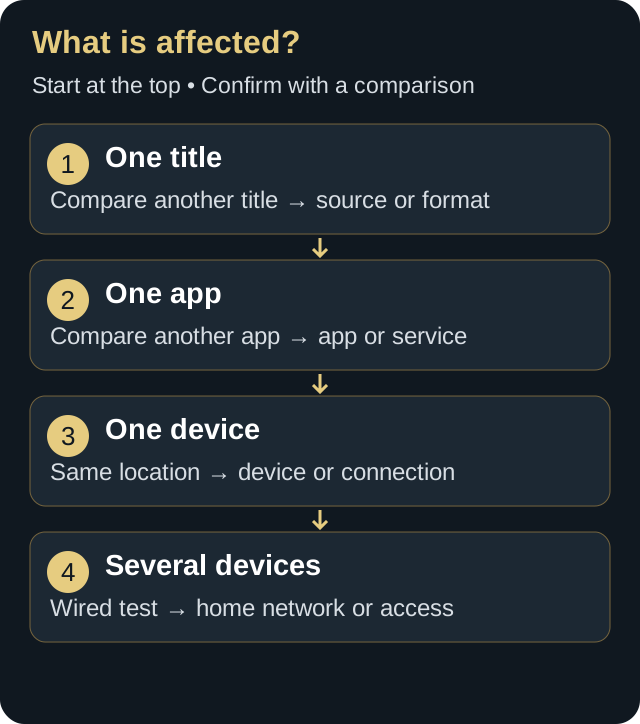
Only one title is affected
If other titles and apps work, do not reconfigure the router. The issue may belong to the source, format, or remote server. Wait, try another available quality level, and check service status. A remote incident is not fixed by changing DNS or resetting the device.
Only one app is affected
Check app updates, free storage, and system date. Close unused apps. If the platform allows it, clear only the app cache. Clearing all data or reinstalling can remove settings, so record them first.
Only one device is affected
Compare it with another device in the same location. Restart it, check for system updates, verify free storage, and look for overheating. A box trapped behind the television or powered by an underpowered USB port can become unstable. Use the manufacturer-recommended power supply.
Every device is affected
Test beside the router. Check modem lights, announced maintenance, outages, and large background transfers. If the issue appears mostly between 7 p.m. and 11 p.m., compare a quieter period to separate congestion from a permanent fault.
4. Improve Wi‑Fi without creating a new problem
The 2.4 GHz band travels farther and handles obstacles better, but it is often busier. The 5 GHz band typically provides more capacity at short or medium range. The 6 GHz band requires compatible equipment and handles obstacles less well. Choose based on the room and signal path, not simply the highest number.
Place the router in the open, above floor level, and away from metal cabinets, microwave ovens, and aquariums. Do not change the channel, channel width, DNS, and video quality at the same time. Change one variable, repeat the same ten-minute playback test, and then keep or reverse the change.
A repeater placed in an already weak zone repeats a weak signal. Position it where its link to the router remains strong. A mesh can improve coverage, especially with wired backhaul, but it cannot repair a failing Internet connection.
5. Know when Ethernet is useful
Ethernet is a strong choice for a fixed television or box when cabling is practical and consistency matters. It reduces radio interference and simplifies diagnosis. Check the maximum port speed, because some televisions have a limited Ethernet port even when their Wi‑Fi can peak higher. Stable capacity may still be preferable to a faster but variable wireless link.

6. Check the router and household load
Cloud backup, a console update, large uploads, or simultaneous video calls can saturate a connection. Latency under load exposes this problem: throughput may appear adequate while router queues become long. If the router offers traffic prioritization, document the original values and make only one change at a time.
Review router age, updates, and the number of connected clients. An occasional reboot can clear a temporary fault, but a router that must be restarted daily deserves investigation with the manufacturer or provider.
7. Check the device and app

- Install official system and app updates.
- Keep free storage for caches and updates.
- Close unused apps that consume memory or network capacity.
- Use the recommended power adapter.
- Check ventilation around the streaming box.
- Never install modified APK files or enter credentials into an unverified source.
Google’s official TV guidance recommends checking the selected network and band, moving the router closer or using a cable, and checking updates before destructive actions. The same principle is broadly useful: begin with reversible checks.
8. Adjust quality without hiding the cause
Buffering, live delay and frame judder are different
A loading spinner means playback is waiting, but does not identify the cause. Live delay is the gap between an event and its display; the broadcaster, CDN and player buffer all contribute. Increasing an app’s buffer may absorb brief variations but add live delay. It cannot sustain a stream whose bitrate exceeds the available throughput. Note the original value and avoid universal buffer settings.
Repeated motion judder without a loading spinner may involve frame rate, decoding or display processing. An HDMI blackout belongs to a different test path. Compare another known-good title before changing the network.
Lowering quality temporarily can suggest a capacity, decoding or source issue, but it is not always the final fix. If HD works and 4K does not, compare usable throughput, stability, and device capabilities. Check HDMI and display settings when the symptom is a black-screen interruption rather than a loading indicator.
| Symptom | First area to check | Safe test |
|---|---|---|
| Regular loading spinner | Variable throughput or remote source | Second title, then local speed test |
| Slow start only in the evening | Local or provider congestion | Compare peak and off-peak |
| Playback stops when an upload begins | Latency under load | Pause the transfer and repeat |
| Issue in only one room | Wi‑Fi coverage | Test beside router or use Ethernet |
| App closes | Memory, storage, or update | Restart app and check free space |
9. Contact the provider with useful evidence
Prepare dates, times, results beside the router, results at the TV, an Ethernet test, affected devices, and modem-light status. Ask whether an outage, maintenance window, or signal issue is known. Do not draw conclusions from a single Wi‑Fi test far from the router.
The CRTC states that providers should offer ways to measure current speeds and are responsible for their equipment, service quality, and support. Keep ticket numbers and communications if the issue persists.
10. Frequently asked questions
Will a faster plan always stop buffering?
No. It helps only when Internet capacity is the real constraint. It does not automatically repair Wi‑Fi, packet loss, an overloaded device, or a remote-source problem.
Will a VPN make streaming faster?
Sometimes. A VPN can improve the route to a service or avoid certain traffic-specific restrictions. It can also lower throughput or increase latency, depending on the server, protocol and device. Compare the same playback with and without it; an improvement alone does not prove ISP throttling. A VPN does not repair weak Wi-Fi and cannot guarantee stable streaming.
Should I change DNS?
DNS mainly affects initial name resolution. It does not magically add connection capacity. Record the original setting and reverse the change if it produces no measurable improvement.
When should I test?
Test while the problem is happening, then repeat during a quieter period. The comparison is more useful than a single number.
Final checklist
- The issue was reproduced with a precise scenario.
- A second title and second app were tested.
- Another device was compared at the same location.
- Three measurements were taken beside the router and beside the TV.
- A temporary Ethernet test was attempted where possible.
- Only one setting changed at a time.
- Official updates and free storage were checked.
- The original configuration was kept for rollback.
11. Build a repeatable test protocol
A useful diagnosis must be repeatable by another person under comparable conditions. Choose one reference scenario: the same device, legitimate app, title, quality setting, room, and a playback period of at least ten minutes. Record the start time, Wi-Fi band, Ethernet status, and major household activity. This prevents an evening 4K session from being compared with a short morning HD test.
Use a simple worksheet containing download and upload throughput, idle latency, latency under load, location, and the observed symptom. Take three measurements one minute apart, then retain the median and the range. A wide spread between results can be more informative than a high average because it reveals inconsistency.
Keep a useful log without collecting sensitive information
The log should not contain passwords, private URLs, full account identifiers, or complete MAC addresses. A generic label such as “living-room TV” is enough. Before sharing a screenshot, hide activation codes and private addresses. Technical information collected for troubleshooting should remain proportionate to the problem.
Define success before testing
Choose a success threshold in advance—for example, playback starts within ten seconds, continues for twenty minutes without interruption, and the remote remains responsive. A defined threshold prevents a setting from being accepted merely because the first attempt feels better. If the improvement cannot be repeated, treat it as unconfirmed.
12. Account for the real household
Available capacity is shared. Cloud backup, an uploading security camera, a console update, a video call, and several televisions may work individually yet create a problem when active together. After the isolated test, reproduce normal household use. A network that works only when every other device is stopped has not been fully stabilized.
Uploads deserve particular attention. When the upstream link is saturated, acknowledgements and control requests can wait in long queues. The interface may feel slow and playback may stop even when advertised download capacity looks generous. Latency-under-load testing and a controlled trial with the upload paused can identify this pattern.
Apartments, condos, and dense neighbourhoods
Many nearby networks can occupy adjacent radio channels. A “strong” signal indicator does not guarantee low interference. Compare available bands, move the router slightly, and measure at the actual viewing position. Avoid selecting the widest possible channel without evidence: greater width may add capacity in a quiet environment but overlap more networks in a crowded one.
Multi-storey homes
Floors, ducts, and reflective materials change radio propagation. Place the router near the centre of actual use instead of inside a closed basement cabinet. With a mesh system, check the link between nodes; a distant node with a weak backhaul does not create capacity. Wired backhaul can help where practical.
Older equipment and compatibility
End performance depends on the most limited link. A recent router does not upgrade an old Wi-Fi radio, and a damaged cable may negotiate a lower speed. Verify the television or box capabilities, Ethernet port rate, supported bands, and operating-system version. Do not replace a device based on age alone; confirm the limitation with a controlled comparison.
13. Interpret results without jumping to conclusions
High throughput with unstable playback
This pattern points toward variation, packet loss, latency under load, the playback device, or a remote source. Repeat playback on a second legal service and compare Ethernet with Wi-Fi. If interruptions appear at the same time across services, investigate the network. If only one source is affected, preserve local settings and check that source.
Good result near the router, weak result at the television
Internet service is probably reaching the home, while the indoor path reduces usable capacity. Work on location, band selection, obstacles, or a temporary cable. A repeater should not be installed where the connection is already poor; it needs a strong link before it can retransmit useful capacity.
Weak results everywhere
Connect a reliable computer directly to the router or modem according to provider instructions. Use a known-good cable and temporarily stop major transfers. When repeated wired results remain weak, document them and contact the provider. Do not simultaneously change DNS, radio channels, and video settings, because that would weaken the evidence.
An intermittent issue that is difficult to reproduce
Record the time, indicator lights, active devices, duration, and weather only as context. Weather may affect some wireless-access or satellite technologies, but it should not automatically be blamed for indoor Wi-Fi trouble. Look for a pattern across multiple occurrences before reaching a conclusion.
14. Advanced settings: when to intervene and when to stop
Quality of service, automatic channel selection, band steering, and prioritization may help, but names and behaviour vary by router. Export the configuration when possible and capture the original values. Apply one change, restart only when documentation requires it, then repeat the reference scenario.
Giving one television absolute priority can degrade calls or other devices. Prefer a measured policy that protects latency without starving the rest of the home. If the router interface does not explain an option, consult documentation for the exact model rather than copying a tutorial for different hardware.
DNS, VPNs, and other frequently overstated fixes
A different DNS resolver may affect initial lookup or the server selected by some services; it does not add capacity to a saturated link. A VPN changes the route and can help or hurt performance. Run a controlled comparison with the same device, title, quality and time window. Keep the original configuration and follow the applicable service terms. See the VPN publisher’s explanation of speed factors; this is not a recommendation to purchase a VPN.
When a factory reset is appropriate
A reset belongs at the end of the process—after backing up settings and confirming provider credentials, guest networks, home-automation devices, and security rules. It may be appropriate for corrupted configuration or when directed by the manufacturer, but it is not routine maintenance. Schedule a window when temporary loss of the network is acceptable.
15. Playback quality and accessibility
Playback is not truly successful if subtitles drift out of sync, dialogue is inaudible, or the interface is difficult to operate. Test audio tracks, captions, and accessibility settings with material that supports them. Changing tracks may trigger a short reload; distinguish that expected event from repeated interruption.
When a viewer relies on captions, record the delay, language, device, and app. Compare a second title with known captions. Television, operating-system, and app settings may overlap. Change one layer at a time so you know which one controls the display.
16. Prepare an effective support record
Download the blank diagnostic worksheet (fillable PDF)
Keep it locally and share only the useful rows with support. Do not enter account passwords, private playlist URLs or full MAC addresses. Include the local time zone when comparing Canadian peak periods.
A useful record fits on one page: symptom, first occurrence, frequency, affected devices, wired result, three measurements near the router, three at the television, attempted steps, and the result of each. Include version numbers without exposing private data. This summary lets support move beyond generic advice.
For an Internet-provider issue, ask whether signal levels, line errors, or modem events can be reviewed. For a manufacturer issue, provide the exact model, operating-system version, power supply, and free storage. If one app alone is affected, provide its version and test time without sending credentials.
17. Plan capacity instead of chasing a minimum number
The bandwidth consumed by a stream varies with codec, resolution, frame rate, compression decisions, and scene complexity. A theoretical minimum leaves no room for Wi-Fi variation, other users, or short bitrate peaks. Evaluate stability and available capacity during normal household activity, not merely whether a video can start.
When several screens are used, validate each separately and then test the normal combination. Include video calls, backups, and cameras that regularly upload data. The goal is not to manufacture a perfect laboratory score; it is to confirm that the connection supports the household’s ordinary schedule with reasonable headroom.
Estimate headroom with observations, not marketing labels
Advertised plan speed is a ceiling under defined conditions, while the device receives whatever remains after access-network conditions, router limits, radio conditions, and competing traffic. Record the median delivered result at the device and its variability. A lower but consistent measurement may support continuous playback better than a high peak followed by deep drops.
Do not assign a universal bitrate to labels such as HD, 4K, or 8K. Different services and codecs use different ranges, and live material can behave differently from on-demand material. Use provider guidance for the legitimate service being tested, then maintain additional capacity for variation and household use.
18. Canadian access technologies and local context
Canadian homes may receive service over fibre, cable, digital subscriber line, fixed wireless, or satellite. Each access type has different latency, congestion, and installation characteristics. The troubleshooting method remains the same, but the evidence sent to the provider should match the technology. For example, line levels may be relevant on cable, optical-terminal status on fibre, radio conditions on fixed wireless, and sky visibility or weather context on satellite.
Remote and northern communities can face longer routes, limited capacity, or weather-sensitive access. Do not interpret higher baseline latency as automatic failure. Compare the service with its own normal baseline, the provider’s current commitments, and the results at different times. A sudden change from the established baseline is more actionable than comparison with an unrelated urban fibre connection.
Provider equipment and customer-owned routers
Identify which device performs routing and Wi-Fi. Some homes have a provider gateway plus a second router, creating two layers of network address translation and two wireless systems. This arrangement can work, but it complicates diagnosis. Record how equipment is connected before changing bridge, access-point, or passthrough modes.
Begin with the provider-supported configuration. If a customer-owned router is used, compare the gateway’s direct wired result with the router’s wired result using the same computer and cable. A difference helps locate the bottleneck. Changing gateway mode can interrupt telephone, television, security, or smart-home services, so confirm dependencies and rollback instructions first.
19. Evaluate the quality of troubleshooting evidence
A screenshot of one speed test is weak evidence because it omits location, connection type, competing traffic, and repeatability. Better evidence includes three results, test conditions, a wired comparison, and the exact symptom. The best evidence connects a measurement to playback: for example, latency rises sharply when an upload begins and playback pauses at the same time.
Avoid crowdsourced fixes that do not explain the mechanism or the risks. Advice for a different router model, app version, or country can produce a new fault. Prefer manufacturer documentation, provider instructions, public-sector guidance, and repeatable local observations. When a community report is useful, treat it as a lead to test rather than a fact.
Know when the diagnosis is complete
The process is complete when the issue can be assigned to a likely layer, a corrective action is repeatably effective, and the original settings are documented. It is not necessary to optimize every number. Stop changing settings once the viewing scenario meets the success threshold and remains stable under normal household load.
If no layer can be isolated, preserve the evidence and escalate instead of continuing random changes. An unresolved case with a clean timeline and controlled tests is more valuable than a heavily modified network whose original state is unknown.
Repeat the final verification on two or three representative days when the original fault was intermittent. A single quiet evening may create a false sense of success. Limited follow-up is enough: confirm the same viewing scenario during ordinary peak use, verify that other household activities remain acceptable, and keep the final configuration with the test record.
Review the record again after any router, provider, device, or app update. A previously successful baseline makes future faults faster to isolate and prevents unnecessary changes to equipment that is still working correctly.
Keep the final worksheet with the router model and major software versions. When behaviour changes later, this baseline separates a genuine regression from a long-standing limitation. It also prevents a factory reset from becoming the first response to a fault that can be isolated with safer comparisons.
Prefer stable service over a record speed-test result. Useful quality is demonstrated by consistency, responsive controls, uninterrupted playback, and the household’s ability to continue its normal work while the viewing test succeeds.
20. Describe the symptom precisely
A loading spinner, black screen, crashing app, audio dropout, and slow guide are different failures. Record what appears, how long playback runs, how often the event returns, and which action restores service. Precise language prevents an HDMI problem from being treated as Internet congestion.
Separate slow startup, recurring pauses, and a complete stop. Slow startup can involve name resolution, authentication, or the remote server. Regular pauses can follow network variation, memory pressure, or a short application buffer. A stop at the same minute on several devices points more strongly to the source or remote service.
Compare live material, on-demand material, and an authorized local file. The local file removes Internet access from the path. If it also stutters, investigate the player, storage, format, decoder, and HDMI. If only live playback fails, network conditions, remote service, or simultaneous-use rules become more likely.
21. Build a controlled test matrix

A useful A/B test in 15–20 minutes
- Play one title on the same device and quality setting. Record the number and duration of interruptions.
- Change only the connection from Wi-Fi to a supported Ethernet adapter. Confirm that traffic actually uses Ethernet.
- Repeat the same passage for the same length of time. Keep the test server identical for separate speed measurements.
- Return to Wi-Fi once to see whether the symptom returns. A repeatable difference is stronger evidence than a single good run.
Run speed tests separately from playback unless deliberately measuring performance under load: a speed test itself consumes bandwidth. A phone at the TV position measures that phone’s radio, not the TV’s actual throughput. Keep Wi-Fi enabled/disabled and the selected network recorded for each test.
| Variable | Test A | Test B | Meaning |
|---|---|---|---|
| Network | Wi‑Fi | Ethernet | Difference suggests the inside network |
| Device | Main player | Second device | Difference suggests device or app |
| Content | Affected title | Known title | Difference suggests source or format |
| Time | Peak | Off-peak | Difference suggests load or congestion |
| Quality | Automatic | Lower level | Improvement suggests capacity or variation |
Change one row at a time and keep every other condition stable. Use the same location and a meaningful duration. A thirty-second trial will miss an interruption that returns every ten minutes. Record negative results because they prevent the same ineffective action from being repeated.
22. Observe latency under load
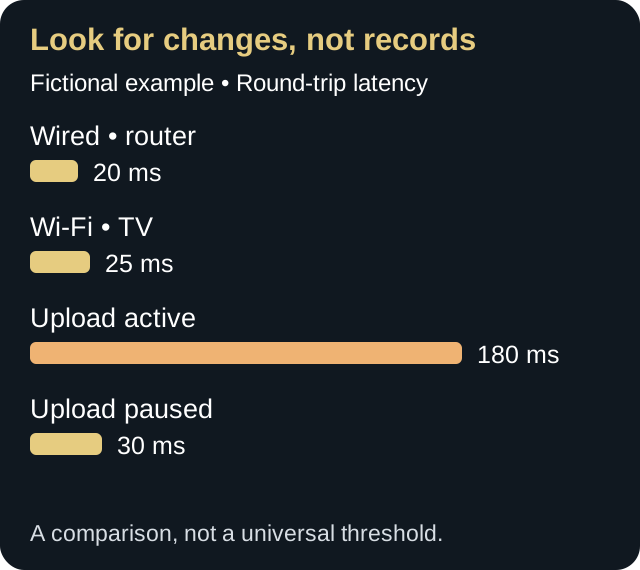
A household can show excellent idle speed and still feel slow when a backup fills the upstream link. Observe responsiveness during a controlled download or upload, then pause it and repeat. A large change reveals queueing without proving that the video service itself is at fault.
Queue-management or priority features may help when configured correctly, but can also throttle the wrong client. Save the initial state, change one rule, and test calls, browsing, and playback. Do not copy values intended for a different router or access technology.
23. Map Wi‑Fi through the home
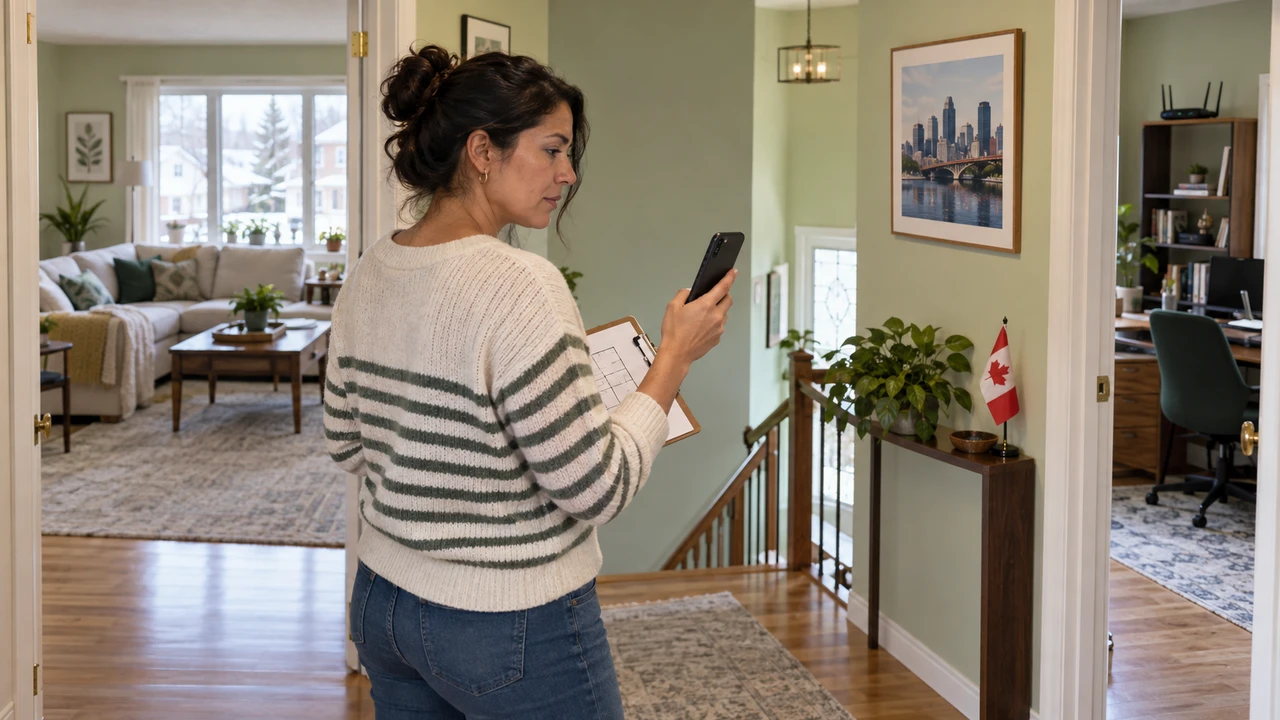
Choose five points: beside the router, midway to the television, at the television, in the farthest room, and near a mesh point. Use the same client, orientation, and three measurements at each place. Record the band and access point actually used, not only the network name.
Dense walls, metal, aquariums, appliances, and neighbouring networks can change performance. Moving a router higher and into the open can help more than adding a repeater. Google’s official guidance recommends testing mesh links and moving points closer when their connection is weak, because a weak backhaul can bottleneck every client attached to it.
24. Validate mesh and repeaters
A shared network name hides roaming between access points. A player can remain connected to a distant point. Reconnect its Wi‑Fi or move it temporarily, then use the manufacturer’s tool to confirm the serving point and backhaul quality.
Wired backhaul preserves radio capacity when supported. Verify ports, switches, and cables. With wireless backhaul, place a point between good coverage and the weak area, not inside the dead zone. Repeat the same measurements after every move.
25. Gateway, personal router, and double NAT
An ISP gateway may already route traffic while a personal router performs the same job. Double NAT does not cause every buffering event, but it can complicate local discovery, certain services, and support. Do not enable bridge mode until you know which device will provide Wi‑Fi, firewalling, and addresses.
Record cabling, network names, and administrative roles without publishing secrets. Ask the provider which functions must remain enabled. An orderly restart normally begins with the terminal or modem, followed by gateway, router, mesh points, and clients.
26. Power, heat, and cabling

A player powered from a television USB port may restart or slow down under load. Use the recommended adapter. Check for a pinched cable and whether the outlet turns off with the television. Remove non-essential hubs or accessories during diagnosis.
Compare behaviour when cold and after thirty minutes. Keep vents open and avoid stacking the router, player, and storage drive. A black dropout without a loading spinner can indicate HDMI, HDR negotiation, or unstable power rather than Internet buffering.
27. Cache, storage, and software versions
Begin with force stop and relaunch. Check free storage and the installed version. Clearing cache can remove temporary files; clearing data can remove accounts and preferences. Use the more destructive action only after confirming the sign-in method and preserving the required information.
After an update, test before changing quality, DNS, and network settings. Record the previous version when known. A repeatable regression across several titles and networks should be reported to the publisher with model, version, time, and steps, but without credentials.
28. Give the provider useful evidence
Prepare three groups: wired measurements near the gateway, measurements at the television, and playback observations. Add date, time, time zone, access technology, and case number. CRTC broadband measurement work examines download, upload, latency, and packet loss; these categories are more useful than a general statement that the Internet is slow.
Ask the provider to check signal, errors, provisioned profile, local outages, and supplied equipment. Avoid requesting several simultaneous changes. After an intervention, reproduce the original scenario and retain the result.
29. Seven-day protocol
- Day 1: wired and television baseline.
- Day 2: evening peak.
- Day 3: simultaneous devices.
- Day 4: Ethernet versus Wi‑Fi.
- Day 5: extended playback and temperature.
- Day 6: restart and recovery.
- Day 7: comparison and decision.
Use one worksheet and repeatable conditions. An improvement that appears once is not yet a correction. An acceptable solution should survive restart, peak time, and the household’s normal activity.
30. Diagnose without exposing the household
A test screenshot can reveal an IP address, city, server, Wi‑Fi name, or notification. Crop it before sharing. Never publish the router dashboard, MAC address, credentials, or a private URL. Public evidence should be aggregated or anonymized.
For remote help, prefer view-only screen sharing. When control is necessary, use a supervised temporary session, close personal apps, and revoke access afterward. No buffering diagnosis requires a payment password or one-time account code.
31. Complete rollback plan
- Photograph cabling without sensitive labels.
- Export configuration when the official tool supports it.
- Record every original value.
- Change one variable.
- Repeat the baseline test.
- Restore the value when there is no improvement.
- Reserve factory reset for the final step.
32. Adapt the method to housing type
A small apartment may suffer from neighbouring Wi‑Fi rather than distance. A multi-storey home may need a wired access point between floors. A long rural house can have a good outside connection but poor coverage at one end. Record construction, gateway location, and cable options before choosing mesh hardware.
In a rental, do not reset shared equipment or drill for Ethernet without authorization. In a condominium, ask about building cabling and provider access. In a seasonal property, review power interruptions, moisture, remote administration, and the need to revoke accounts between occupants.
33. Actions that create misleading results
Do not run many speed tests simultaneously, compare different devices without noting their Wi‑Fi capability, or select only the highest result. Do not test beside the router and claim it represents the television. Do not clear every app, reset every network setting, and change DNS in one operation.
A VPN or custom DNS changes the test conditions; neither is a neutral baseline. Developer mode and unofficial firmware introduce different security risks and should not be grouped with routine network comparisons. Start with supported settings, then test a justified change with a rollback.
Conclusion: confirm the cause through testing
Base the diagnosis on repeatable comparisons rather than a single speed test. Use the test matrix and seven-day protocol, keep the initial settings and share only useful details with support, without private credentials. Validate each correction with actual playback before moving to the next one.
Scope and limits of this guide
This guide provides a general troubleshooting method; it does not measure your setup or guarantee that every interruption will disappear. The network, service, title, app, device and HDMI chain can produce similar symptoms. Menus and reset effects vary by hardware and software. Consult official instructions and document the consequences before an action that clears data.
Technical review: September 16, 2026. Manufacturer documentation and published page checks; not a hands-on test of every device.
If playback no longer freezes but voices and lip movements remain out of sync, follow the audio/video sync diagnostic.
Sources and methodology
- Google — slow Wi-Fi, placement and Ethernet bottlenecks
- Google — double NAT and its actual scope
- Proton VPN — factors affecting VPN throughput
The diagrams, test protocol and fictional example are OfficialOTT explanations. They are not test results for a named provider and do not certify a minimum streaming speed.
This guide draws on the CRTC’s Internet performance and reliability guidance, the Measuring Broadband Canada project, and official Google TV troubleshooting guidance. Interfaces can change; check the manufacturer’s current documentation.
Editorial update and further reading: