


For a missing app or blocked installation, use the Samsung Tizen app troubleshooting guide.
The guide in video
Watch the video and read its transcript on a dedicated page →
Read the validated transcript
Before installing an app on your Samsung TV, record the model code and model year without showing the serial number. Confirm the Tizen generation and whether the app is actually available in Canada. Connect the television to Wi-Fi, or Ethernet when a LAN port is present. In Smart Hub, open Apps, search for the legitimate app, and verify its developer, permissions, and requested account information. Install available software updates with stable power. Then play authorized content and test picture, sound, captions, and the remote separately. If a problem remains, check the network, perform a soft restart, review storage, and use Device Care where available. Keep Smart Hub or factory reset for last, after recording the settings you may need to restore. Official OTT helps you validate the setup in the actual viewing room.
Alternative: YouTube player
Watch the guide on YouTube
Samsung TV and Smart Hub
YouTube stays disabled until you click. Loading the player allows a connection to YouTube, which receives information including your IP address.
Which device do you use, and what topic would you like next? Share your question in the YouTube comments. If the video helps, like it and subscribe to OTT Canada.
Quick answer
This guide covers the full TV setup, from connections to playback checks. For app installation, missing apps or Smart Hub account issues, see our Samsung Tizen and Smart Hub app guide.
Find the model code under Settings > Support > About This TV, without publishing the serial number. Connect the television through Wi-Fi or Ethernet when the model has a LAN port. Open Smart Hub or Apps, search on that exact television, verify the listed developer, and install the app. After opening it, use only connection information from an authorized source, then test picture, sound, captions, and remote control.
App availability depends on the model, model year, region, Tizen version, and current Samsung App Store catalogue.
1. Identify the exact model and year
The model code is not the serial number. It describes a product range, size, and generation; the serial number uniquely identifies the set and should remain private.
On newer models, open Settings > All Settings > Support > About This TV. Some older models use Settings > Support > About This TV. The rear label can also show the model code.
Record only what is needed:
- model code;
- model year or series;
- software version;
- presence of a LAN port on the television or One Connect Box.
Do not photograph the serial number, MAC address, or Samsung Account details.
Legacy platform2015
Tizen + legacy2016+
Tizen apps
2. Confirm the platform and software version
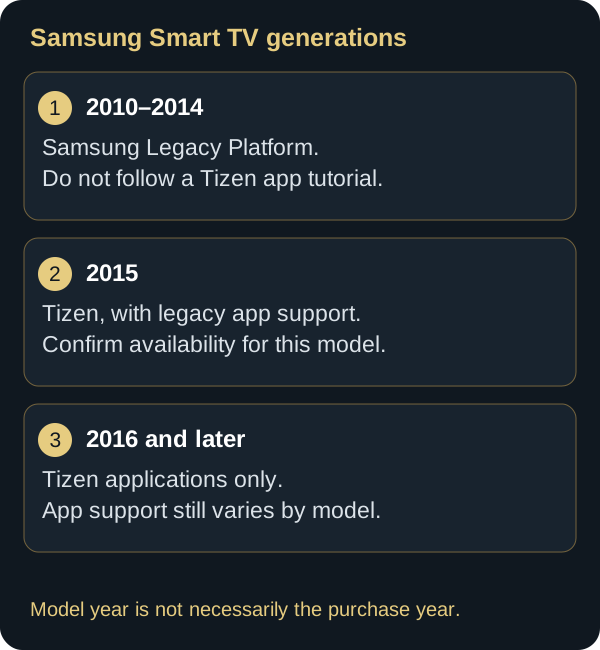
Reference : Samsung Developer — platforms by model year.
Samsung Developer specifies Tizen applications for 2015 models as well as later generations. The 2015 models also support legacy applications for backward compatibility; 2010–2014 models use the legacy platform. Tizen does not therefore begin in 2016. App support must still be checked for the exact model and publisher.
Check Settings > All Settings > Support > Software Update. The path can be shorter on older models. Install an available update only with stable power, then recheck picture and sound because Samsung notes that an update may reset some settings.
3. Choose Wi-Fi or Ethernet
2022 and newer models
Open Settings > All Settings > Connection > Network > Open Network Settings, then choose Wireless or Wired.
2021 and older models
Open Smart Hub with Home, then select Settings > General > Network > Open Network Settings.
For Ethernet, connect the cable to the LAN port on the television or One Connect Box when present. For Wi-Fi, select the network and enter the password privately. Some older televisions detect only 2.4 GHz networks.
A wired link can be more consistent but cannot fix slow Internet service. Test where the television is actually used and consult the Wi-Fi guide or buffering guide.
4. Prepare Smart Hub without exposing the account

Samsung states that 2023 and newer Smart TVs require a Samsung Account to use Smart Hub apps and services. Review the terms you accept and protect the account with a unique password and available security features.
Never expose:
- Samsung Account email;
- password or verification code;
- QR code;
- payment information;
- viewing history or personal recommendations.


5. Search for and install an app
From Home, open Apps, use Search, select the app page, and choose Install. Once installed, select Open and optionally Add to Home.
Before installing, check:
- exact app name;
- displayed developer;
- description and features;
- fees or trial shown;
- permissions and privacy policy;
- compatibility with the model and Canada.
Availability on a phone, Google Play, Fire TV, Apple TV, or another country's Samsung catalogue does not prove availability on a Canadian Samsung television. Use the compatible-app guide, but confirm the live catalogue on the television itself.
6. Open the app and use an authorized source
Open the installed app and follow its own setup flow. Enter only connection details supplied through an authorized source. Check an address before submitting it and never expose credentials in a photo, video, or public support message.
Media-player apps do not necessarily supply content. Their terms, capabilities, trials, and licences are separate from the television and may change.


7. Verify picture, sound, and captions
Start authorized content and test it for several minutes.
- Picture: complete frame, normal proportions, stable movement, and no persistent black screen.
- Sound: correct output, controllable volume, intelligible dialogue, and acceptable synchronization.
- Captions: available in the selected app or content, readable, and synchronized.
- Remote: navigation, Select, Back, play/pause, and seeking work correctly.
TV controls are generally under Picture, Sound, and General & Privacy > Accessibility. Some apps manage captions internally. Enabling TV captions cannot create a caption track the app or content does not provide.
Do not prescribe one universal picture mode or audio delay. The room, source, TV, and audio equipment all affect the result.


8. Manage storage and troubleshoot progressively
When available, open Settings > Support > Device Care. Manage Storage can show app size, data and cache, and can remove an installed app.
If an app closes or will not start:
- confirm the network works in another service;
- close and reopen the app;
- perform a soft restart by holding the remote's Power button for about five seconds until the TV restarts;
- check TV and app updates;
- free storage or reinstall the app when supported;
- run Device Care network, picture, sound, or Smart Hub tests;
- determine whether the problem affects one app or the entire TV.
Reset Smart Hub removes its settings, apps, and associated accounts. A full factory reset is more destructive. Keep either reset for the end and first record what must be configured again.
What should I check if TSN stops working?
First check that your exact model is still supported in TSN's official help and that the app is listed in the TV's Canadian app catalogue. A previous installation does not guarantee current support. If the model is supported, follow the troubleshooting sequence above and check whether other apps work. Before reinstalling, make sure you can sign back in. If only TSN remains affected, give TSN support the model, software version and error message, without sharing your password. Resetting the TV cannot restore discontinued compatibility.
Sources: TSN — official help · Samsung — app troubleshooting.
9. Complete the final four checks
Before considering setup complete, confirm:
- Picture — stable playback, correct proportions, no persistent fault.
- Sound — intended output, usable volume, acceptable synchronization.
- Captions — available track, controllable, readable, synchronized.
- Remote and playback — navigation, play/pause, Back, and seeking work.
Repeat the test in the real room under normal household network load. Record model, year, software, network type, and result. The Device Centre also compares Fire TV, Android TV / Google TV, and Apple TV.

Conclusion
A well-configured Samsung Smart TV starts with checking the exact model, year, and software version. Then confirm the network connection and app availability in the television’s Canadian catalogue, and use an authorized content source.
Setup is complete when picture, sound, available captions, and the remote work correctly in your viewing room. If a problem persists, check the network, app, and updates before considering a reset. Keep your configuration notes without exposing account credentials.
FAQ
Do all Samsung TVs use Tizen?
No. The 2010–2014 models use the legacy platform. Tizen applications are already present on 2015 models, with legacy backward compatibility for that generation. Verify the exact model and current app support.
Why is an app missing?
Model, year, region, Tizen version, and the current catalogue can all affect availability. Also check connectivity, Samsung Account status, and TV software.
Can I install an Android app on a Samsung TV?
Not as a normal Tizen app. Look for an officially offered version in Apps on the exact television.
Must I use Ethernet?
No. Use Ethernet when a LAN port exists and wiring is practical. Stable Wi-Fi can work well; some older models support only 2.4 GHz.
Should reset be the first troubleshooting step?
No. Start with the network, app, soft restart, updates, and Device Care. A reset removes settings and may remove apps or accounts.
Technical review: September 16, 2026. Manufacturer documentation and published page checks; not a hands-on test of every device.
Scope and limits of this guide
This guide covers preparation, installation and common troubleshooting for Samsung televisions. Menus, platform, apps and availability in Canada vary by exact model, year, software version and account region. Consult Samsung and the app publisher for your device. This guide is not a test of every model or a compatibility guarantee. Installing a player does not provide a subscription, content or access rights.
Main official sources
Samsung Developer — platforms by model generation (including 2015)
- Understand the model code — Samsung Canada
- Connect the TV to the internet
- Install an app
- Smart Hub and Samsung Account
- Update TV software
- Use Device Care
- Reset a Samsung TV
Editorial update and further reading: