

The guide in video
Read the transcript
Before buying or setting up a Fire TV, identify the exact model. Older devices use Fire OS, which is derived from Android, while some newer models use Vega OS. An Android app that works on an older Stick is therefore not automatically compatible with a Vega model. Start with the physical setup: the correct power supply, HDMI connection, matching television input and corresponding remote. Then update the system, check the network and look for the legitimate app in the store available on that model. Amazon controls the store, updates and application-execution policies. The company has disabled selected apps it described as malicious and can limit apps that violate its policies, including some installed outside its store. Legitimate services and applications remain distinct from these restrictions. For that reason, OfficialOTT no longer recommends Fire TV as the first choice when a long-term setup depends on one specific third-party player or an Android APK. Even if a setup works today, Amazon can delist it, block it or make it incompatible. Prefer a device where the legitimate app you need is officially available and maintained.
Watch the video and read its transcript on a dedicated page →
Alternative: YouTube player
Watch the guide on YouTube
Fire TV: Fire OS and Vega OS
YouTube stays disabled until you click. Loading the player allows a connection to YouTube, which receives information including your IP address.
Which device do you use, and what topic would you like next? Share your question in the YouTube comments. If the video helps, like it and subscribe to OTT Canada.
Quick answer
Identify the exact model and its operating system first—Fire OS or Vega OS depending on the device—then follow that model’s power method, matching HDMI input, remote pairing, network and updates. Do not automatically apply an older Fire TV procedure to a 2025 or 2026 model.
Key takeaways before choosing Fire TV
- Compatibility depends on the model, operating system and app; the Fire TV name alone is not enough.
- An app that works today is not guaranteed to remain available indefinitely.
- A subscription or player licence does not make an unsupported app compatible with the device.
- When troubleshooting, preserve the original settings and test one change at a time.
Identify the real model before following any procedure


1. Prepare the installation
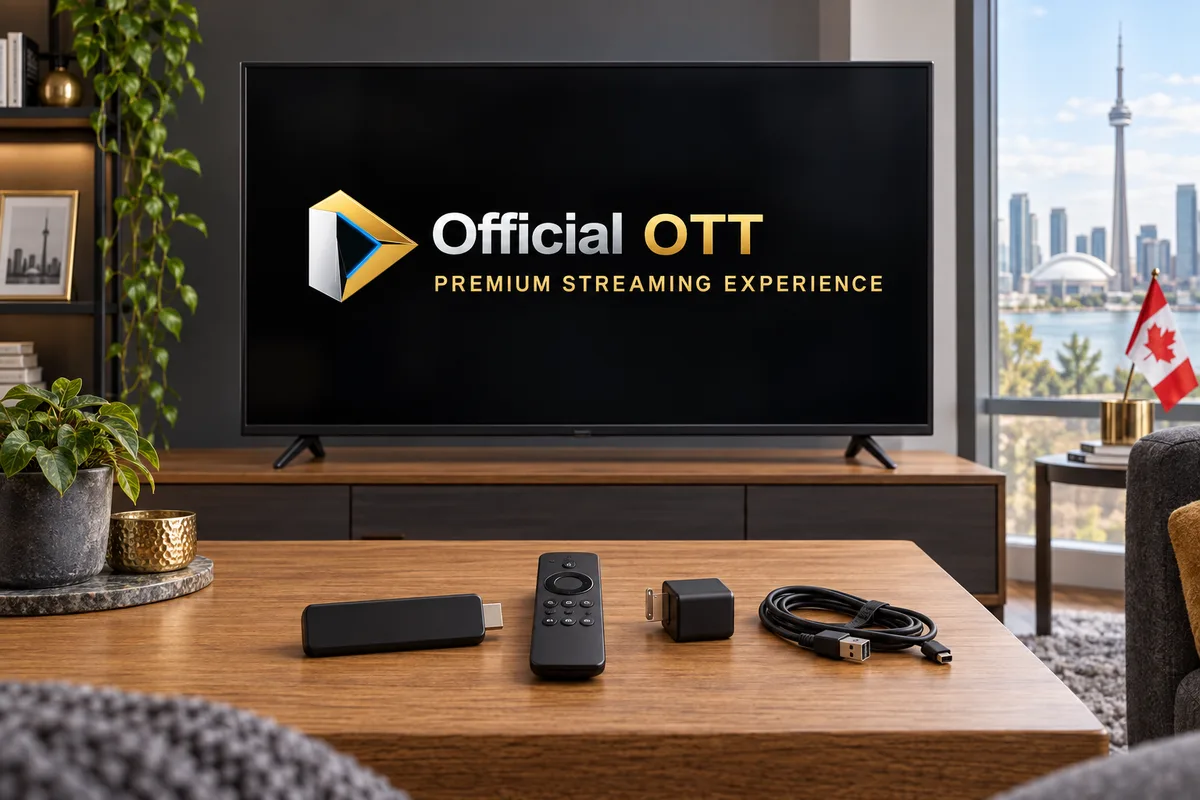
- A compatible Fire TV device and remote with working batteries.
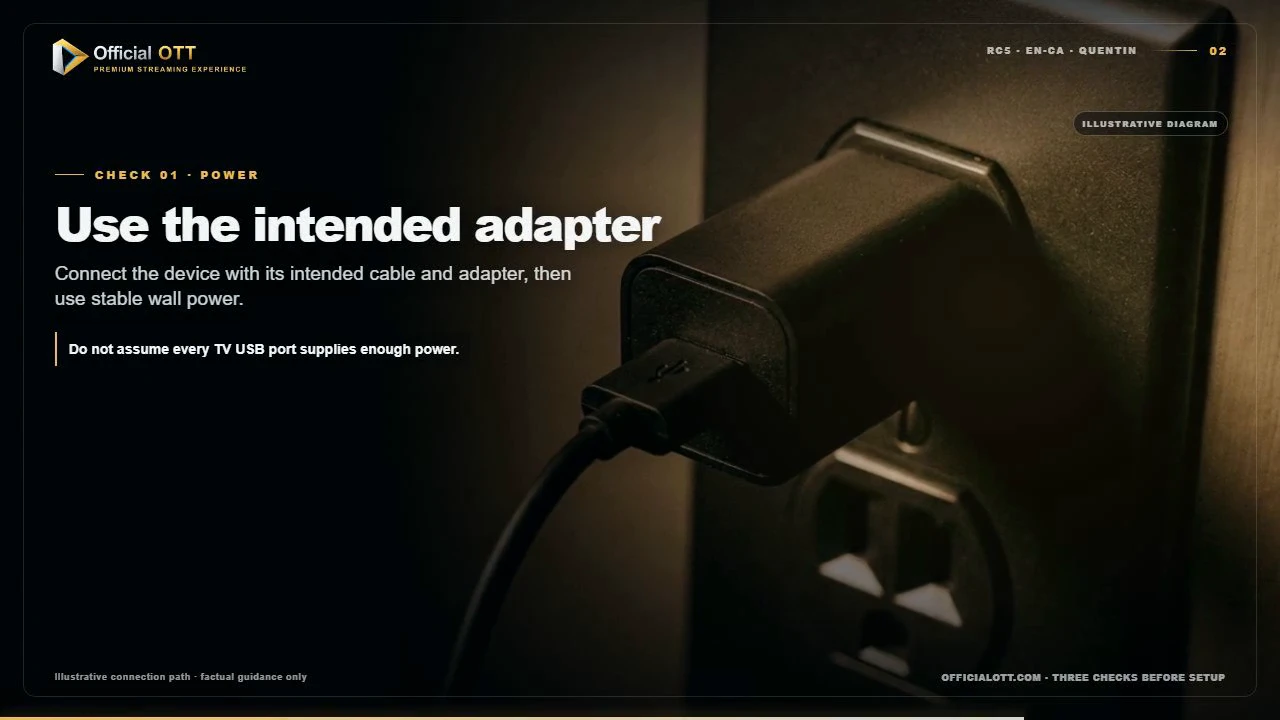
- The power method specified for the exact model: its recommended adapter, or Direct Power through a suitable TV USB port where Amazon supports it.
- An available HDMI port and the matching television input.
- Wi‑Fi credentials or a compatible Ethernet adapter.
- The platform account and a compatible app from an official source.
Leave space around the device for airflow. A stick trapped behind the television can become hot and slow down. If Wi‑Fi is weak behind the screen, use the HDMI extender supplied with some models to reposition the device slightly.
2. Connect and complete initial setup
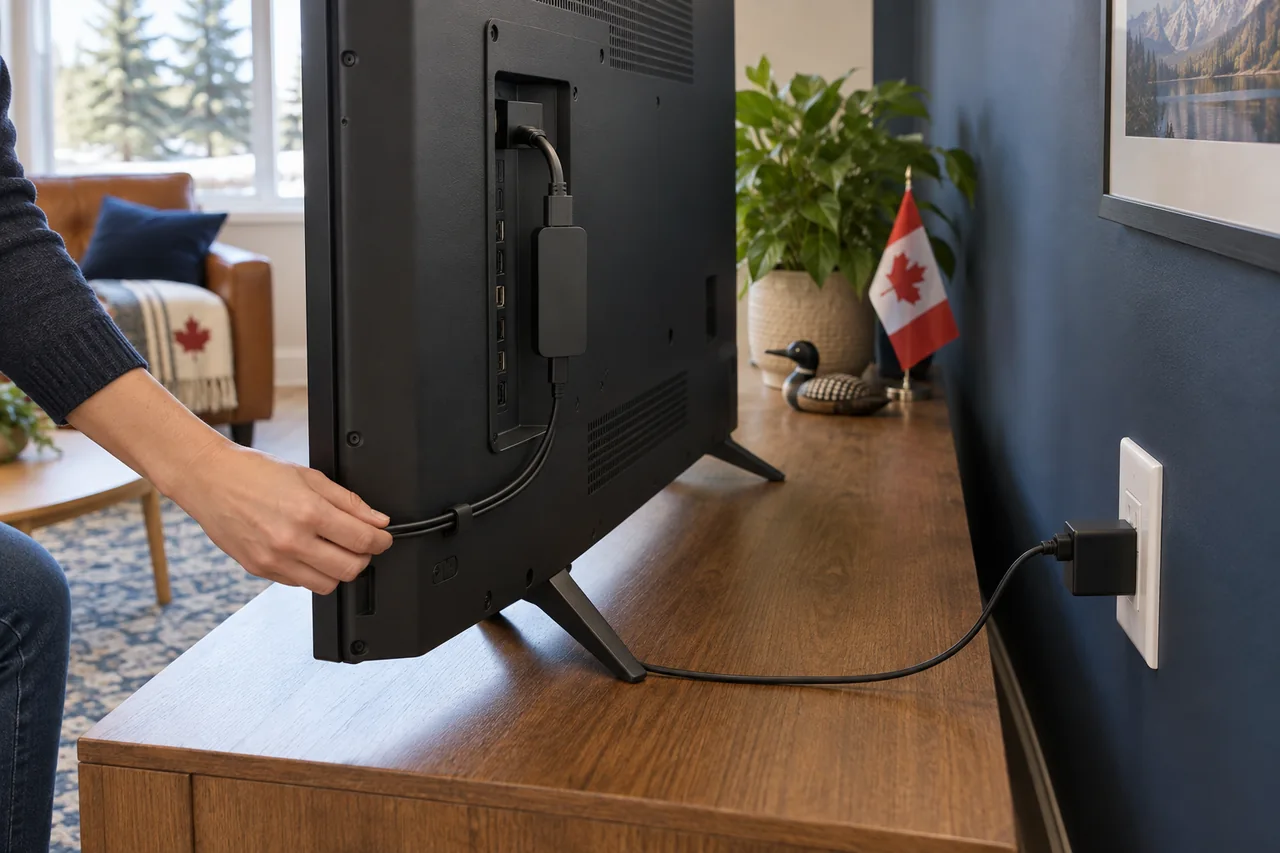
- Connect Fire TV to the television’s HDMI port.
- Connect power as specified for the model. Use a wall adapter when required, or the documented Direct Power connection on a supported model.
- Select the corresponding HDMI input.
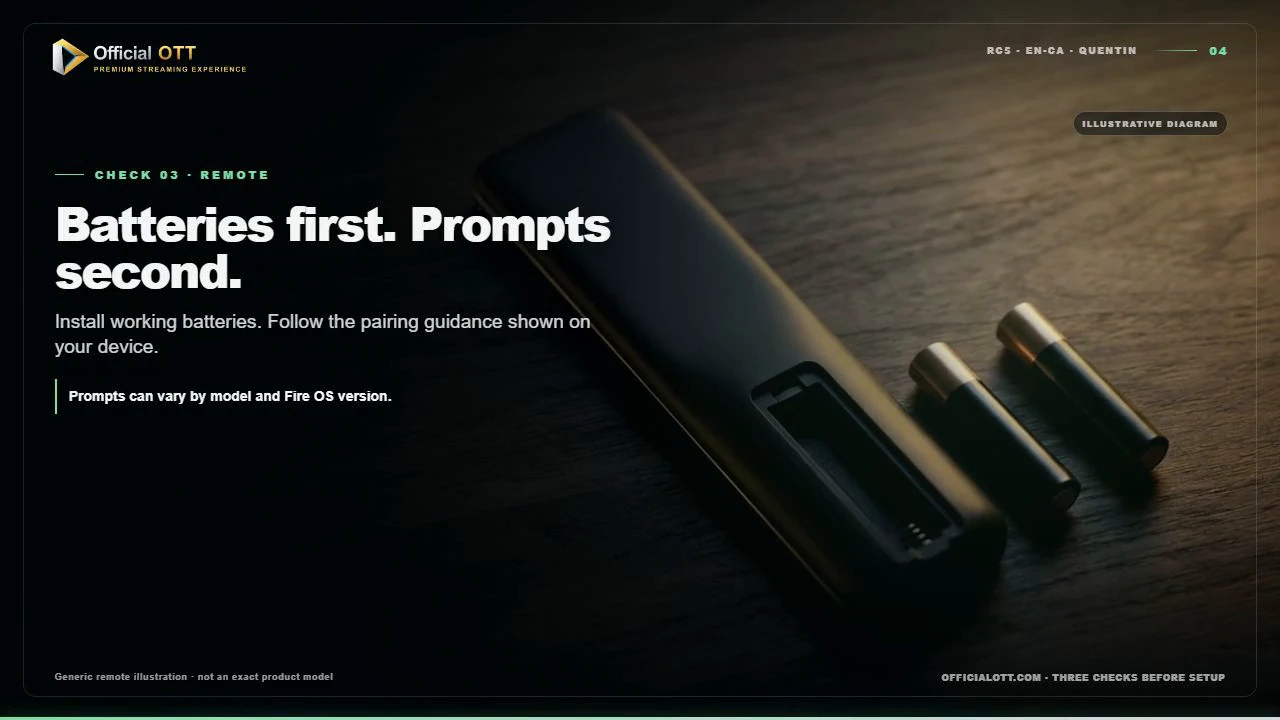
- Pair the remote if prompted.
- Select language, region, and network.
- Complete available updates before installing apps.
Do not interrupt power during an update. System updates depend on the exact model and operating system; release timing can vary.
Verify the connections and remote
3. Choose Wi‑Fi or Ethernet
Ethernet can provide a more consistent link for a stationary television. On Wi‑Fi, try 5 GHz at short or medium range and 2.4 GHz through multiple obstacles. Do not assume the higher band is always better; measure at the actual device location.
Before installing another app, play material from a legitimate service already available on the device. This baseline prevents an existing network problem from being blamed on the new app.
Measure the network, then verify the app on the real screen

4. Install a compatible app
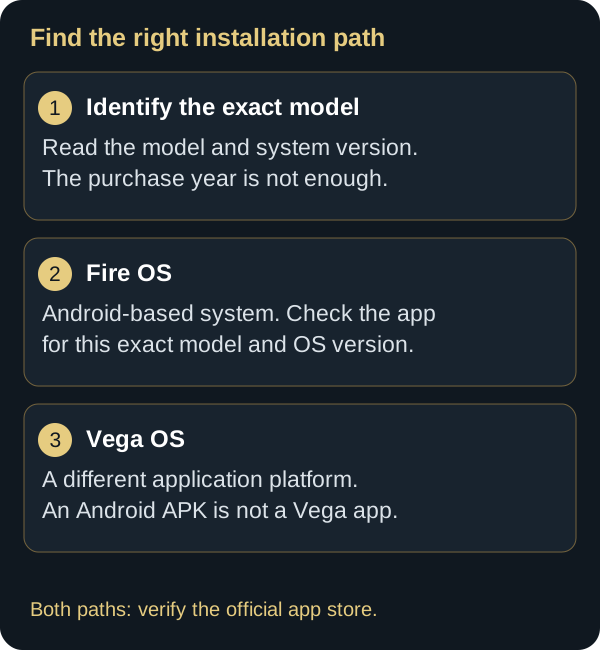
Fire OS is Android-based; native installation on Vega OS requires a Vega-compatible application. An APK cannot become a Vega app by renaming the file. For everyday use, verify the app in the store on the actual device. Developer installation procedures are not a consumer compatibility guarantee.
For selected apps, Amazon also offers the Amazon Cloud App Program: a wrapper app on Vega connects to the Fire OS app running in the cloud. Its Appstore listing displays “Amazon cloud-hosted app”. This does not enable unrestricted APK installation or guarantee that a particular player is available in Canada. Check the listing on your device.
Search the Amazon Appstore first. Check the publisher name, permissions, update date, and device compatibility. OfficialOTT supports IBO Player, IBO Player Pro / IBO Pro, IBO Pro TV, HOT Player, TiviMate, IPTV Smarters Pro, XCIPTV, OTT Navigator, Televizo, VLC, Kodi, and SmartOne IPTV, subject to actual availability on the device.
Included app activation remains limited to IBO Player, IBO Player Pro / IBO Pro, IBO Pro TV, and HOT Player. Compatibility does not automatically mean activation is included.
5. Enter connection information
Open the selected app and use only the information issued for your account. Depending on the app, the form may request a profile name, portal address, or supported sign-in method. Enter the details with the remote or a manufacturer-supported input method.
Never publish a screenshot showing a full MAC address, credentials, private URL, or activation code. When requesting support, hide information that is not required for diagnosis.
6. Verify quality after setup
- Start material with known stable playback.
- Check startup, sound, picture, and remote response.
- Try a second title before drawing conclusions.
- Test for ten minutes before changing a setting.
- Record changes to quality, frame rate, or network configuration.
If the picture is cut off at the edges, check television display settings before changing the app. If the screen goes black without a loading indicator, investigate HDMI, the selected input, HDR mode, and television capabilities.
Troubleshoot one variable at a time
7. Troubleshoot in the right order
| Problem | First action | Next action |
|---|---|---|
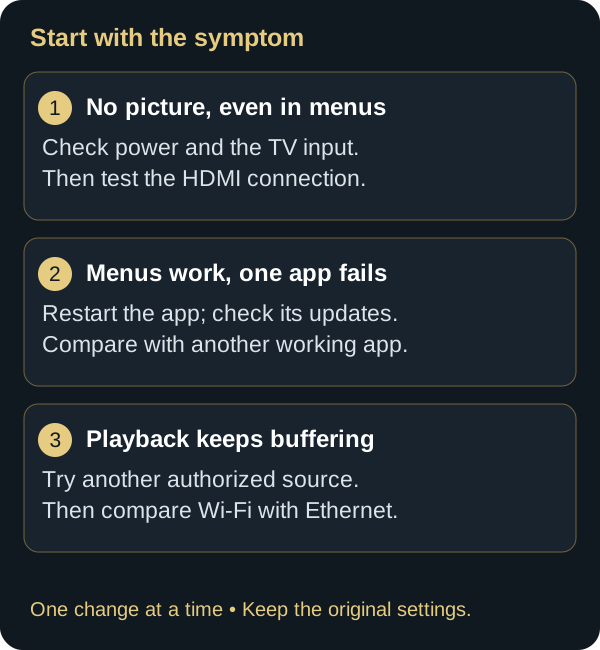
| App does not open | Force stop and relaunch | Check update and free storage |
| Playback stops | Try another title | Compare Wi‑Fi and Ethernet |
| Wi‑Fi missing | Check the correct network and restart Fire TV | Restart router |
| Remote does not respond | Replace batteries | Repeat pairing using Amazon guidance |
| Device feels slow | Close unused apps | Free storage and restart |
Force stop or clear cache
In application settings, select the affected app. Begin by forcing it to stop. Clearing cache is generally less destructive than clearing data. Clearing data can remove credentials and preferences; preserve them first.
Restart Fire TV
Use the restart command in settings when available. Removing power during an update can damage the installation. Amazon also documents restarting Fire TV as a troubleshooting step when network communication fails.
Check the network
Compare measurements beside the router with the device location. Amazon also provides a Network Advisor in some tool and OS combinations for checking connection strength and channel conditions. For a complete process, use our buffering and lag guide.
8. Monthly maintenance
- Check updates for the installed system (Fire OS or Vega OS) and for your apps.
- Remove unused apps instead of leaving storage full.
- Inspect power, HDMI extension, and ventilation.
- Use a strong network password and supported encryption.
- Do not leave developer features active unless needed.
9. Rollback procedure
Before changing a setting, photograph or record its current value. If playback becomes worse, restore the value, restart the app, and repeat the same test. If a new app creates problems, uninstall only that app. Factory reset is a last resort because it removes accounts and configuration.
Current products and interfaces confirm the platform shift


Fire TV in 2026: what actually changed
| Verified fact | Practical consequence |
|---|---|
| Amazon confirmed in June 2025 that it disabled several third-party apps for malicious behaviour. | An already-installed app can become unusable remotely. |
| In November 2025, Amazon announced with ACE that it would block apps identified as providing access to pirated content, including apps installed outside its store. | External installation no longer guarantees that the app can be launched. |
| Amazon documentation lists the 2025 Fire TV Stick 4K Select and 2026 Fire TV Stick HD as Vega OS 1.1 devices. | An APK built for Fire OS/Android is not automatically compatible with these models. |
| Detailed criteria and a complete public list are not transparently available. | OfficialOTT cannot guarantee continuity for one specific third-party player after an update or platform decision. |
Fire OS is derived from the open-source Android project, but the consumer Fire TV platform remains controlled by Amazon. Vega uses a separate architecture. Reporting from Android Authority, TechRadar, PCWorld, iGeneration, Ars Technica and Cord Busters confirms both targeted app blocking and the shift of newer Sticks to Vega, while also showing why this should not be described as a blanket ban on IPTV.
OfficialOTT editorial conclusion: Fire TV remains suitable for legitimate services officially available on the exact model. We no longer recommend it as the first choice when a long-term setup depends on one particular third-party IPTV player, an Android APK or external installation. A working solution can later be delisted, blocked or made incompatible.
Do not circumvent a block. Defeating a blocklist, preventing updates or weakening security offers no continuity guarantee. Prefer hardware where the legitimate app is officially available and maintained.
- Amazon — Appstore Content Policy
- Amazon — Fire OS and Vega OS devices
- Amazon — authenticated Vega Developer Mode
- Android Authority — Amazon-confirmed disabling, June 2025
- TechRadar — Amazon statement on the ACE program, November 2025
- PCWorld — scope and uncertainty
- iGeneration — observed Fire OS behaviour, February 2026
- Ars Technica — newer Vega Sticks, April 2026
- Cord Busters — Vega transition and app availability, April 2026
10. Adapt Fire TV to the household
A successful installation should remain easy for the people who use it every day. Keep essential apps in a predictable order, remove unnecessary shortcuts where the system permits, and explain the difference between the Fire TV home screen, the playback app, and the television menu. Many support requests begin with an accidental HDMI-input change rather than an app failure.
Profiles, parental controls, and purchases
Configure profiles and restrictions with the account owner. Use a PIN that is different from the main password and store it securely. Review purchase controls and age ratings appropriate to the household. Parental controls do not replace supervision and may behave differently across apps.
Accessibility
Review caption, screen-reader, contrast, and display-size options available on the installed version. Test them in the app that will actually be used because an app may maintain its own settings. For captions, verify language, synchronization, size, and contrast on more than one title.
11. Secure the device and account
Install apps from the official store when possible and verify the publisher. A permission request unrelated to the app’s purpose deserves scrutiny. Do not leave developer options or installation from unknown sources enabled merely because a tutorial requested it.
The wireless network should use supported encryption and a unique password. Avoid entering account credentials while connected to a public network. When asking for help, never share the Amazon password, a verification code, a private service URL, or a complete screenshot containing account data.
Recognize a suspicious support request
Legitimate support does not need the password for the primary account. Treat requests for remote-control software, urgent payment, or disabled protections as warning signs. Use contact details published on the official website and verify the domain before opening a file.
12. Maintain performance
Keep free space available for updates and caches. Remove unused apps instead of indiscriminately erasing all data. A monthly restart is not mandatory, but a clean restart can help after an update or when abnormal behaviour is confirmed. A device that requires frequent restarts needs diagnosis for storage, power, heat, app, or network problems.
Check ventilation behind the television. Very hot surfaces, strained cables, and inadequate power can produce slowdowns or restarts. Use an approved HDMI extender when the device is compressed between the screen and wall. Do not place the power adapter on a heat source.
After an update
Menus and permissions may change. Review official release information first and restart cleanly. Test a known app before changing several settings. If a fault begins immediately after an update, record the version and check manufacturer notices; a factory reset does not necessarily restore an older release.
13. Picture, sound, and HDMI
For a black picture, flicker, or missing sound, separate HDMI problems from network problems. Confirm the selected input, try another compatible port, and inspect the cable or extender. HDR modes, frame rates, and resolutions must be supported by the television, the selected port, and the material.
Begin with a manufacturer-recommended automatic mode. If you force a resolution or frame rate, record the original value. A screen that disappears after a change may require an Amazon-documented recovery method. Do not try undocumented button combinations from an unverified source.
Missing or delayed sound
Test the television speakers first, followed by the soundbar or receiver. Check automatic audio format and HDMI ARC/eARC connections when present. If one app alone is affected, compare another track and title before altering television-wide settings.
14. Fire TV support record
Prepare the exact model, system name and version (Fire OS or Vega OS), app and version, free storage, connection type, power method, and time of the problem. Describe what appears on screen rather than writing only “it does not work.” A photograph can help if it contains no private information.
15. Identify the exact model and operating system
“Fire TV” describes a product family, not one fixed configuration. Two sticks that look similar can use different hardware, remotes, video capabilities, and system versions. Amazon documents multiple generations of Fire OS as well as some recent devices that use Vega OS. Before following a tutorial, open the device information and record the model name, software version, and available storage. Instructions written for another generation may show a menu that does not exist or a feature that is unsupported.
Do not infer 4K, HDR, Dolby Vision, or Wi‑Fi support from the enclosure. Check the official specifications for the model and the television’s capabilities. The complete chain must be compatible: player, HDMI port, television or receiver, content format, and settings. Before buying hardware, also verify that required apps are available in the Amazon Appstore associated with the account region.
| Information | Why record it | Decision it supports |
|---|---|---|
| Exact model | Features and limits vary | Video and accessory compatibility |
| System version | Menus can change | Update or support procedure |
| Free storage | Apps and caches depend on it | Targeted cleanup before installation |
| Network type | Wi‑Fi and Ethernet isolate different causes | Stability test |
| Power source | A television USB port may be inadequate | Use of the recommended adapter |
16. Choose from the compatible applications
Use the compatible app guide to compare players, then verify availability for your exact Fire TV model. Compatibility with OfficialOTT does not mean that an app is offered on every Fire OS or Vega OS device. Confirm the publisher, region and current listing before installation.
Included activation applies only to IBO Player, IBO Player Pro / IBO Pro, IBO Pro TV, and HOT Player. Other apps may require a separate licence, purchase, or activation from their publisher. Check the publisher’s licence terms before purchasing. Retain the receipt and the identity of the purchasing account, but never place a password in the support record.
Official store first
Search the device’s Amazon Appstore first. Several apps can use similar names or icons, so always confirm the publisher. If a compatible app is not offered for the model, do not automatically bypass the store. Request a documented method and verify the file’s authenticity, origin, and necessity. Amazon describes sideloading mainly as a development and testing mechanism; it is not a safety guarantee for a file found on the Web.
Before entering information
Confirm that the screen belongs to the expected app and that the network is private. Do not send a photograph containing a full URL, username, password, MAC address, or activation code. If support needs to see an error, mask secrets and show only the message, time, model, and reproduced step. A MAC address can identify a device in a setup process and should be handled as operational information with limited access.
17. Installation checklist: verify the completed setup
- Photograph the connections. Keep a local image of HDMI, power, and networking without exposing secrets.
- Update cleanly. Check for an official update, allow the restart, and wait for the home screen to stabilize.
- Measure storage. Remove only apps confirmed as unnecessary; do not erase all data.
- Install one app. Use the official store and verify the publisher before confirming.
- Open before configuring. Check orientation, readability, remote control, and system errors.
- Enter the minimum. Add only the information required by the approved method.
- Test for ten minutes. Verify launch, navigation, picture, sound, captions, and resume.
- Document. Record the installed version and outcome so the change can be reversed.
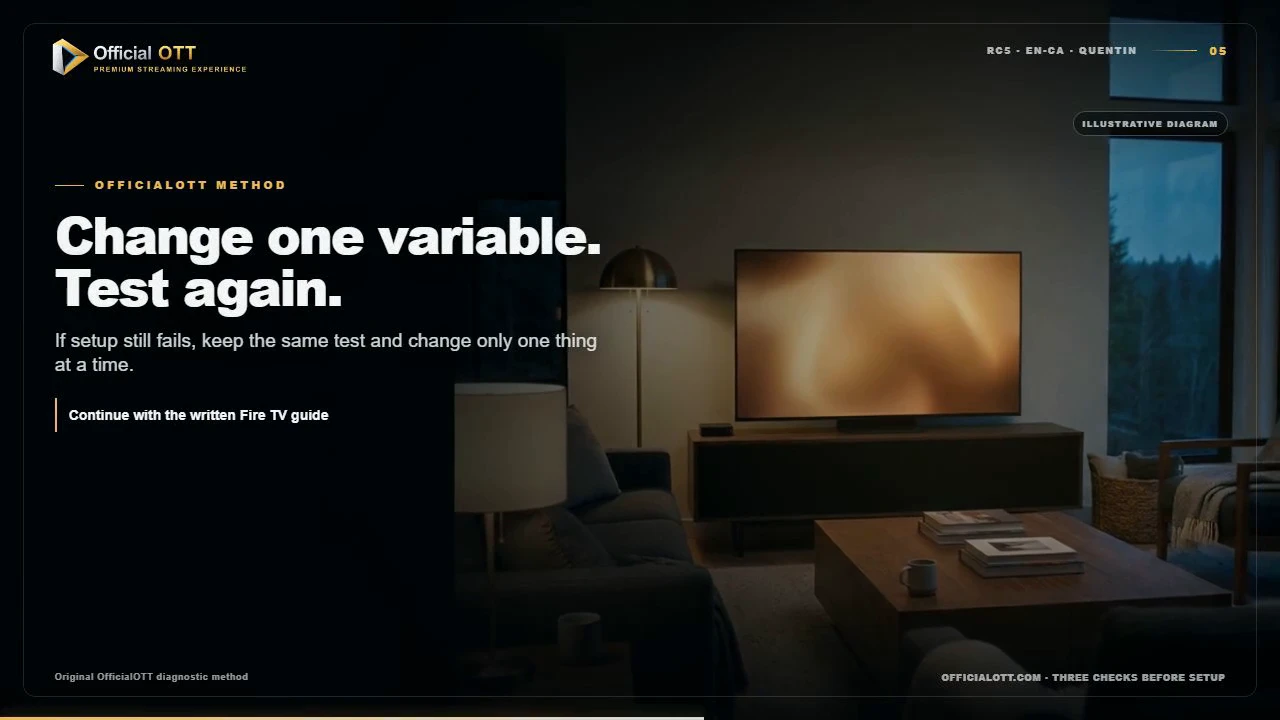
Do not change DNS, router settings, video mode, and app data at the same time. When several variables move together, neither an improvement nor a failure can be attributed. A sound procedure turns each action into a reversible experiment: initial state, one change, test, result, and decision.
18. Remote control, navigation, and text entry
Before deciding that Fire TV is frozen, check the batteries, line of sight when external equipment uses infrared, and remote pairing. Distinguish Fire TV navigation from television power and volume control. A remote can navigate the interface while failing to change volume when the equipment profile is not configured.
When entering a long address, use an Amazon-approved method and verify every character. Frequent errors include inserted spaces, confused letters, wrong capitalization, and dashes. Do not use a public keyboard or shared device to enter a secret. After setup, close every screen that displays connection information.
Keep household navigation simple
Place the primary app in a stable location and demonstrate how to return home with the remote. Create a very short household card: choose the correct HDMI input, open the app, resume content, change captions, and exit. A viewer should not need to understand routing, DNS, or developer menus to watch authorized material.
19. Diagnose the network at the television
A quick phone test beside the router does not necessarily describe the connection behind the screen. The television panel, wall mount, closed cabinet, and distance can weaken radio performance. Measure at the Fire TV location, then compare with a measurement beside the router. Use the same test server, three trials, and the median. Record the time because intermittent congestion may disappear in the morning.
The 2.4 GHz band generally offers more range, while 5 GHz can provide more capacity at shorter distances. The correct choice depends on walls, interference, and the device. A repeater placed in an already weak area does not create a good link. On a mesh network, examine the connection between the secondary point and the primary point as well.
Temporary wired test
When compatible adapters and cabling are available, a temporary Ethernet test separates Wi‑Fi from the Internet service. Do not assume that Ethernet will always produce the highest speed: the port or adapter can be limited. Its main value is consistency and the ability to isolate radio conditions. If the problem remains over a known-good cable, investigate the service, app, player, and remote source.
Use integrated diagnostics carefully
Amazon documents a Network Advisor in certain developer environments that can examine network strength and channel information. Availability depends on the system. A missing tool is not evidence of a fault. Do not leave ADB, a network proxy, or developer options enabled on a household device after testing; these are specialized diagnostic features that can expose additional data.
20. Separate picture, sound, and playback faults
A loading spinner suggests a different path from a black screen. For loading, compare a second title and a second legitimate app. For black video, check the HDMI input, port, resolution, and HDR chain. For missing sound, begin with the television speakers before the soundbar. For audio delay, determine whether every app is affected or only one.
| Symptom | Most discriminating test | Action to avoid first |
|---|---|---|
| Frequent loading | Second title and measurement at the TV | Factory reset |
| Black screen | Another compatible HDMI port | Change the router |
| No sound | Television speakers | Erase app data |
| App closes | Free storage and version | Change DNS |
| Partial remote control | Batteries, pairing, and equipment profile | Reinstall the app |
After each trial, return to the same title, passage, and quality level. Ten minutes of stable playback provides more information than a few seconds after launch. When the fault is intermittent, record three occurrences before making a persistent change.
21. Common Canadian household scenarios
Dense apartment building
Many neighbouring networks can share the same channels. Keep the router in the open, compare bands, and avoid buying a repeater immediately. A short Ethernet connection can be the simplest answer when the television is close to the router.
Multi-storey home
A basement router must cross floors, ducts, and appliances. Test each level. A mesh point with a strong backhaul or a wired access point may improve coverage, but it needs to sit before the dead zone.
Rural or fixed-wireless connection
Capacity can vary with load, weather, or radio visibility depending on the technology. Compare peak and off-peak hours. Retain a wired measurement at the gateway and a measurement at Fire TV to distinguish the outside link from the home network.
Shared residence or rental
Obtain permission before changing the router or drilling for a cable. Use an appropriate profile, protect purchases with a PIN, and sign out before returning a device. A final reset may be appropriate after backup, but only when the account owner confirms that useful data is no longer required.
22. Escalate with an actionable record
A useful support record contains the exact model, software version, app and version, connection type, date and time zone, exact message, completed tests, and their results. Add a photograph only when it reveals no identifier. State whether the issue affects one title, one app, one device, or the entire household.
Use official Amazon support for account, system, remote, or hardware issues. Give the app publisher its version and a reproducible behaviour. Give the Internet provider wired and Wi‑Fi measurements from several times. Contact OfficialOTT only through official details and never transmit the primary Amazon account password.
23. Acceptance and rollback plan
- Confirm the model, version, and expected capabilities.
- Verify power, ventilation, HDMI, and remote control.
- Confirm the network at the real viewing location.
- Install one app from a verified source.
- Confirm that the activation rule matches the selected app.
- Test navigation, playback, picture, sound, and captions.
- Restart and confirm that configuration persists.
- Remove every temporary diagnostic tool.
- Retain original values and the support record.
Rollback means restoring the recorded network, video mode, and app preferences, then uninstalling only the newly added app if it is the confirmed cause. Factory reset remains a last step: it removes accounts, profiles, and settings and does not guarantee a return to an older system release.
Additional sources
Distinctions among Fire OS, Vega OS, and models come from Amazon’s official Fire OS overview and Fire TV resources. App testing procedures and the role of sideloading are described in Install and Run Your App. Network Advisor and developer functions appear in the Developer Tools Menu. Interfaces change, so always check documentation for the exact model before an irreversible action.
24. Validate the setup after an update
System and app updates can change menus, permissions, media behaviour, and compatibility without altering the household’s Internet service. After an update, begin with observation rather than a reset. Record the new version, restart once, wait for background activity to settle, and test the same known title used during initial acceptance. Confirm remote navigation, picture, sound, captions, and resume before changing any advanced option.
If only one app fails, check its official listing and publisher notices. If every app fails to reach the network, compare another household device and then inspect Fire TV network status. If the interface works but the display goes black when playback starts, investigate resolution, HDR, and the HDMI chain. This division prevents a recent update from becoming an excuse to alter unrelated router settings.
Do not expect a factory reset to reinstall an older operating system. Amazon distributes system updates over the air, and reset behaviour varies by device. Preserve account recovery methods, purchase records, app names, and the original equipment configuration before any destructive action. When a support agent recommends a reset, ask what evidence indicates that local configuration rather than an external incident is the cause.
25. Design for household continuity
A technically successful installation can still fail if only one person understands it. Leave a concise, non-secret operating card near the television or in the household’s private documentation. It should identify the correct HDMI input, the primary app, the Home and Back buttons, caption access, and the official support route. It must not contain passwords, private URLs, activation codes, or complete MAC addresses.
For households with children, visitors, or older adults, test the workflow with the people who will actually use it. Confirm that text is readable from the seating position and that important controls are not hidden beyond several unfamiliar menus. Enable only the accessibility features needed by the viewer and document how to disable them. Protect purchases with an appropriate PIN and explain that this PIN is not the main account password.
Keep one recovery path that does not rely on memory: the account owner’s verified email or telephone, the official Amazon support address, the device model, and the OfficialOTT support contact. When the household changes router, television, or account, repeat the acceptance checklist. This small discipline reduces emergency resets, duplicate purchases, and accidental disclosure while keeping the experience predictable.
26. Frequently asked questions about Fire TV in Canada
How do I know whether my Fire TV runs Fire OS or Vega OS?
Record the exact model and system version from the device information, then compare them with Amazon’s official table. Similar names can use different systems: Fire TV Stick 4K Plus (2025) runs Fire OS 8, while 4K Select (2025) runs Vega OS 1.1. Identify the model.
Will an app that works on an older Fire TV work on every model?
No. Check the operating system, app version, publisher and availability in the exact device’s store with your Canadian region. An Android APK does not become compatible with Vega OS simply because it works on Fire OS. Check the application.
Can I power my Fire TV from the television’s USB port?
It depends on the model. Use the power method in its official Amazon specification. Some models support Direct Power; others must use their documented power arrangement. Do not generalize instructions from a different Stick. Check the connections.
Is Ethernet required for stable playback?
No. A sufficiently stable Wi-Fi connection can work. An Ethernet test with a compatible adapter mainly helps isolate wireless problems. Compare at the television’s actual location, using the same content under similar conditions. Compare Wi-Fi and Ethernet.
Should I factory-reset Fire TV when an app stops working?
No. First isolate the app, check its version and free storage, and compare another playback session. A factory reset removes accounts and settings; keep it as a last step after preserving the information you need. Follow the troubleshooting steps.
What information should I send to support?
Provide the model, operating system and version, app, exact message, time, connection type and tests already completed. Redact credentials, verification codes, private addresses and account information from screenshots. Prepare a support record.
Answers added and Amazon references checked on September 21, 2026.
Conclusion: validate a maintainable setup
Confirm the exact model and operating system, then check app availability on that device. Finish with an authorized playback test covering picture, sound, subtitles, remote control, and wake from sleep. Keep the accepted settings and support record. If a problem occurs, change one variable at a time and follow the documented rollback plan.
Compare devices · Check apps · Support
Scope and limits of this guide
This documentation-based guide is not a test of every model or a guarantee of future compatibility. Apps, menus, and platform rules may vary by model, operating system, region, and updates. Check the official information applicable to your device. A successful installation supplies neither content nor access rights; use only your authorized sources.
Technical review: September 16, 2026. Manufacturer documentation and published page checks; not a hands-on test of every device.
Sources
- Amazon — exact models and Fire OS / Vega OS
- Amazon — Fire TV Stick HD and Direct Power (regional announcement; check Canadian model)
The historical app-blocking chronology above cites press reports quoting Amazon. It is separate from the manufacturer specifications verified here and does not establish that a particular customer app is blocked.
Sources reviewed include Amazon’s official documentation covering Fire OS versions and updates, application management, and network diagnostic tools. Menu names can change.
Editorial update and further reading: