

An IPTV setup can run out of storage for an app update or file download even when Internet access works well. Internal storage is not RAM and does not describe network speed. Before removing anything, identify what occupies the space and what the household wants to keep.
1. Quick answer
Check storage in settings, identify genuinely unnecessary apps and files, and remove them selectively. Check each action’s effects on accounts and settings. Do not format an existing drive to expand space without confirming compatibility and backing up its contents.
Five key points
- Insufficient storage differs from a bandwidth problem.
- Unused apps are a starting point to examine.
- Cache may be recreated after clearing.
- A USB drive does not automatically expand app storage.
- Keep room for updates according to the device’s needs.
2. Read the storage status
Open the model’s storage section and note the available space. Look at the categories offered: apps, files, downloads or temporary data. Menus and units can vary; compare values on the same screen before and after your intervention.
Do not conclude that a TV is slow solely because it has little free space. A specific update or storage error is a better starting point. If the message mentions the network, investigate that too instead of deleting apps without a reason.
Documentation: Google — free up streaming-device storage
3. Take an inventory with the household
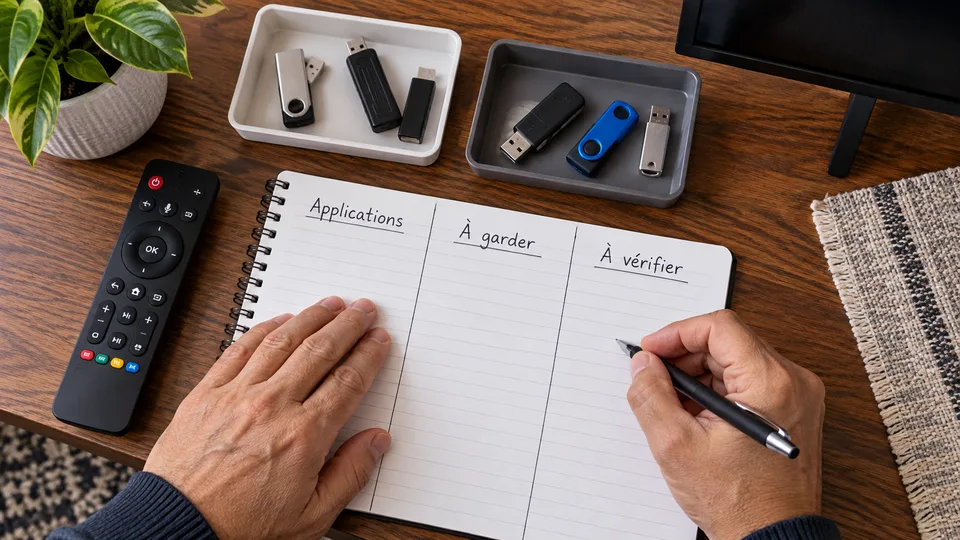
Identify apps actually used and those installed for an old trial. Ask others before deleting a player, game or download. An app opened infrequently may contain important configuration.
Record the account access and licence references needed for a possible reinstall. For personal files, verify that another copy exists before removing them. Do not delete unfamiliar system components just because they occupy space.
| Item | Check before removal |
|---|---|
| Unused app | Account access and reinstall are possible |
| Download | Whether it is wanted and can be recovered |
| Personal file | Verified backup copy |
| Cache | Documented effect and temporary nature |
| App data | Local settings and restoration |

4. Remove only identified items
For its documented streaming devices, Google recommends clearing cache or uninstalling unused apps. Apply the options available on your model and check the space recovered after each limited group of changes.
Clearing cache can temporarily free space, but some files will be recreated during use. If storage fills again quickly, examine growing apps and downloads. Repeated cleaning without an inventory does not necessarily address capacity needs.
Keep essential household apps and avoid unfamiliar cleaning tools that request broad permissions. Native settings offer a more understandable starting point.
Documentation: Google — distinguish Android storage, cache and data

5. Examine external storage carefully
Check whether the manufacturer supports an external drive for apps, files or only certain uses. A USB port alone does not answer that question. Drive type, power and preparation method may also matter.
Formatting can erase a drive. Do not connect a USB drive containing the only copy of documents and accept a preparation prompt without reading it. Back up the contents first and check the official procedure.
Fictional example: a family plans to use its photo drive to expand TV storage. The menu proposes formatting. They cancel, preserve the photos and check a compatible solution before continuing.

6. Validate the maintenance and keep free space
After the selected removals, check space and repeat the update or action that failed. Open important apps to verify access. Keep a note of removed items so the household understands the change.
If space remains insufficient, give the manufacturer the model, displayed capacity and occupied categories. Another device can sometimes be considered for an identified need, but a temporary storage shortage does not automatically justify replacing the TV.

7. Frequently asked questions
Are storage and RAM the same?
No. Storage holds items such as apps and files; RAM serves ongoing operations. They are not diagnosed in the same way.
Does a USB drive work with every TV?
No. Check the model’s compatible uses and procedure.
Can I remove system apps?
Avoid removing components whose role you do not understand. Use the manufacturer’s supported options.
Why does space freed from cache fill again?
Apps can recreate temporary files during use. Other stored items also need examination.
8. Conclusion and limitations
Expansion capabilities and removal effects vary by model. Formatting is not proposed as an automatic step. Personal files must be backed up before an operation that erases them.
9. Method and sources
Documentary research completed on October 12 and 13, 2026 using the primary sources below. The procedures and examples are an original editorial synthesis. Household examples and illustrations are fictional. No purchase, service trial, private-account inspection or performance measurement was conducted for this article.
Menus, features and terms can change. Check your model documentation and the service terms when making your decision.
Editorial update and further reading: