
Quick answer
First-time TV setup? Follow the complete Samsung TV setup guide. For an app problem, select the symptom below before changing settings. If the app is visible and supported, continue to installation in Smart Hub.
| Symptom | First checks | Escalation |
|---|---|---|
| App missing | Model, software, Canada region, publisher listing | Publisher or Samsung support |
| Install unavailable | Account, agreements, network, storage, update | Exact displayed error |
| One app fails | Close/reopen, update, publisher status, reinstall consequences | App publisher |
| All apps fail | Network Status, account, time, software, restart | Samsung support |
| Playback interrupts | TV-to-router path, temporary Ethernet, competing traffic | Measured network or publisher incident |
This guide applies to Samsung TVs running Tizen and Smart Hub, not older legacy models. They are not Android TV devices. Confirm the full model code, sign in where required, then open Search or Apps and check the publisher before installing. Availability depends on the model, country, software and publisher.
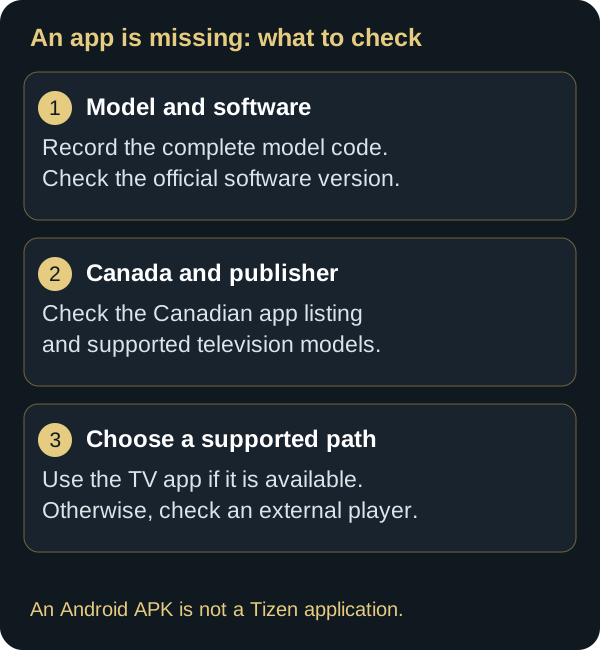
If an app is missing, do not assume that a phone APK or an application for another television platform can be used. Confirm the full model and current Samsung Canada guidance, then consider a supported external player if the integrated TV is outside the publisher’s support.

1. Identify model, year and software
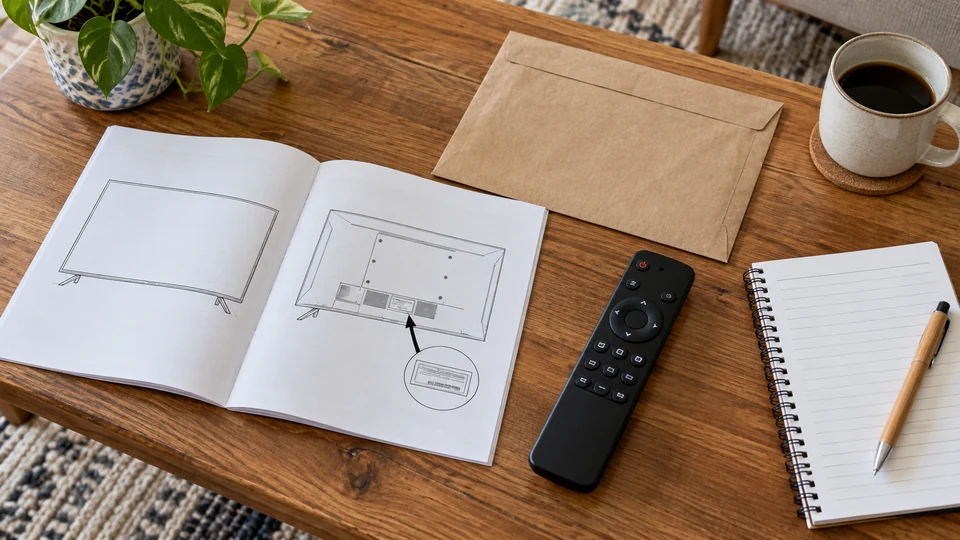
Open Support and About This TV to record the complete model code and software version. The retail name alone is insufficient because similarly named televisions can differ by year, region and hardware. Samsung’s interface and Settings paths also change across generations.
Tizen and Smart Hub own the Samsung-specific experience. For cross-brand selection, use the compatible-device guide. For player choice and account concepts, use the compatible-app guide.
2. Prepare Smart Hub and the Samsung account

Samsung Canada states that a Samsung account is required for Smart Hub apps and services on current supported models, including account setup introduced for recent televisions. Read the Smart Hub terms and privacy notice before accepting them. Use an account you are authorized to manage and protect it with current verification options.
- Connect the television to a stable wired or wireless network.
- Confirm the TV date, time and region are legitimate.
- Install the current software offered to the exact model.
- Check storage before adding applications.
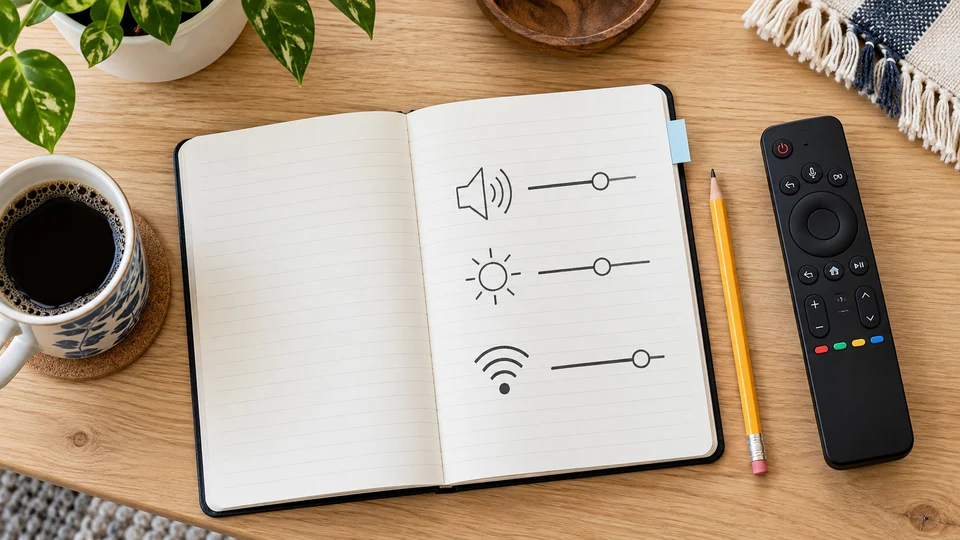
- Record picture, accessibility and network choices before a major reset.
3. Search and install in Smart Hub
- Press Home and expand the current Smart Hub menu.
- Select Search or Apps according to the interface.
- Enter the exact app name and review the suggested result.
- Confirm the publisher and that the listing applies to the TV.
- Select Install, then Open.
- After successful validation, select Add to Home and position the shortcut.
Samsung notes that a missing application can indicate that the TV model or hardware does not meet current requirements. App listings also vary by country and can change. An absent app is a compatibility signal, not proof that the store is broken.
4. Validate remote navigation and media
Test directional controls, Select, Back, Home, playback, text entry and focus visibility. Confirm sign-in, profile switching, captions, audio tracks, parental controls and return to Smart Hub. A supported TV app should not require touch gestures.
Do not confuse SmartThings phone control with app compatibility. A mobile remote can assist setup but does not transform a mobile application into a Tizen TV application.
5. Keep TV and apps current
Samsung Canada documents automatic software updates and manual Update Now under Support. A model-specific USB update is another official option when downloaded from Samsung’s Download Center. Never install a firmware file for a similar-looking model. Keep power stable during an update and recheck picture, audio and accessibility afterward because settings can change.
Enable app auto-update when it suits the household’s change-control needs. When diagnosing, note the previously working version and change one layer at a time.

6. Use Network Status before resetting
Samsung’s Network Status screen distinguishes the connection between television and router from the connection between router and Internet. If another household device also fails, investigate the router or service first. If other devices work, compare the TV’s signal, restart the TV and router safely and check software.
Older televisions may support only 2.4 GHz Wi-Fi. Use the exact model documentation rather than forcing a network mode. For measured Wi-Fi and Ethernet comparisons, follow the buffering diagnostic guide.
7. Accounts, privacy and safe support
Use unique passwords and two-step verification when offered. Review app permissions and Smart Hub privacy choices, restrict purchases with a changed PIN when appropriate and sign out before transfer. Never publish QR codes, account email, activation information, serial number or Wi-Fi credentials in a support screenshot.
Use official Samsung or application-publisher support channels. The security and privacy guide owns deeper account, router, payment and incident guidance. Tizen, IPTV and IPTV premium are technology terms; none proves content rights or provider legitimacy.
8. Troubleshoot without losing state
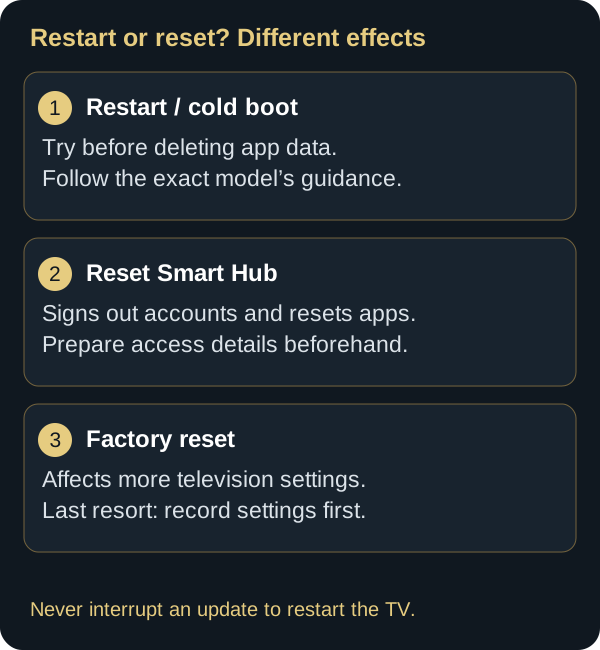
Samsung documents the effects of each option : restart and reset guidance.
Reset Network only after documenting the Wi-Fi name and settings. Reset Smart Hub later still: Samsung warns that it signs out accounts and removes Smart Hub application state. A full TV reset has even broader consequences. Preserve a recovery path before any of these actions.
9. When to use an external player
A supported external HDMI player can extend the useful display life when an integrated Tizen generation is no longer supported by the required publisher. Verify Canadian app availability, HDMI and audio capabilities, power and remote integration before purchase. The external device still needs lawful content access, current updates and secure accounts.
Frequently asked questions
Is Samsung Tizen the same as Android TV?
No. Tizen is Samsung’s television platform. Android phone and Android TV packages are not Tizen applications.
Why can’t I find an app in Smart Hub?
The model, year, software, country or publisher requirements may exclude it. Confirm the exact code and current Canadian listing.
Do I need a Samsung account?
Samsung Canada says current Smart Hub apps and services require account sign-in on supported recent models. Requirements vary by model generation.
Should I reset Smart Hub first?
No. Verify the single app, account, network, updates and storage first. Smart Hub reset removes account and app state.
Conclusion: validate your setup
Start with the exact model, its software and the apps actually offered in Smart Hub. After installation, check remote navigation, picture, sound and playback stability. If a problem persists, isolate the app, account and network before resetting anything, then keep useful support details without exposing your credentials.
Scope and limits of this guide
This guide covers common checks for Samsung Tizen televisions in Canada. Menus, account requirements, apps and updates vary by model, year, software and region. It is not a test of every television or a guarantee of availability or future compatibility. Consult Samsung Canada and the app publisher for your exact model. Installing an app does not provide a subscription, content or access rights.
Technical review: September 16, 2026. Manufacturer documentation and published page checks; not a hands-on test of every device.
Primary sources
Samsung Developer — Tizen and legacy model generations
Verified August 10, 2026.