

Comparing offers instead? Use the household decision guide.
Alternative: YouTube player
The guide on YouTube
Watch this video on YouTube.
The player stays disabled until you click. Loading it connects to YouTube, which receives information including your IP address.
Watch the guide
Separate the service, player and device. Check compatibility, your connection and the terms before committing. · 1:41
Open the dedicated video page →
Read the transcript
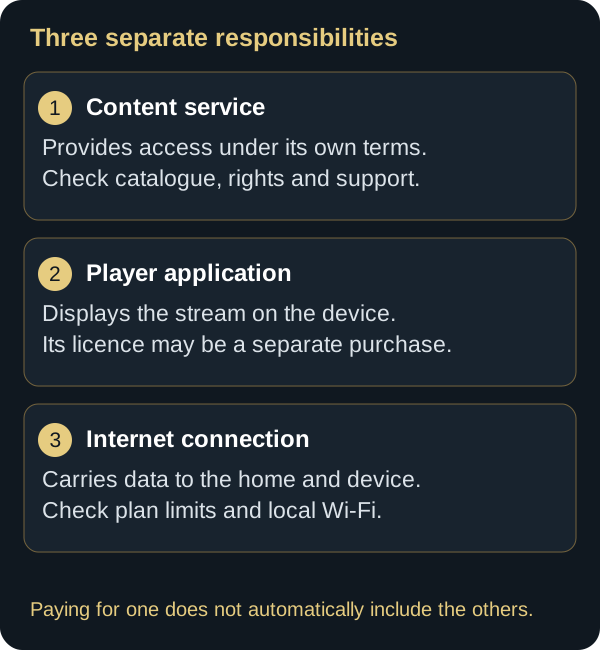
The evening is planned. The television is ready, but is installing an app enough to watch your programs? Before choosing IP television in Canada, separate three things. First, your internet connection. Next, the video player and any license it requires. Finally, the service that provides the content. Paying for an app does not automatically give you access to programs. These are different things, each with its own terms. Start with your device. Check the full model, installed operating system, and whether the player is actually available in its Canadian store. Two televisions from the same brand can have different capabilities. Then consider the people who will use it. Is navigation straightforward with the remote? Can you read the text from the couch? Are the audio tracks, captions, and accessibility features you need available? The Official OTT approach: Test at home at your usual viewing times. Check startup, stability, sound, and synchronization. If something goes wrong, record the time, device, and symptom before changing a setting. Also check simultaneous streams. Three registered devices do not necessarily mean three programs playing at once. Read the rules for your chosen plan. Before paying, review the total cost, renewal terms, refund conditions, and the provider's identity. Also check that the content being offered is authorized. An attractive catalog does not replace these checks. Remember three steps. Identify your device, test how you watch, and read the terms. Our IP television in Canada guide brings the full checklist together to help you decide.
1. Quick answer
To prepare a streaming setup, distinguish the service, playback app and device. Identify the provider and offer terms, check your equipment’s compatibility, then test the network and playback in your household. Keep the results and change one setting at a time if a problem appears.
“IPTV” is used in Canada for several different things. In CRTC material, Internet Protocol television refers to subscription television delivered over an IP network, typically with the access and set-top box supplied by the distributor. In everyday use, people may use the same term for any app that plays channels or video through the public Internet. Those are not automatically the same service category. The distinction affects contracts, consumer protections, troubleshooting, and the evidence a buyer should request.
2. What IPTV can mean in Canada
Managed IPTV from a television distributor
The CRTC describes IPTV as digital television channels delivered through a high-speed connection, with the distributor providing the required access and set-top box. The provider may manage traffic inside its network and bundle television with Internet or phone service. CRTC monitoring reports distinguish this category from Internet-based services. That distinction is useful when comparing contracts or looking for the consumer code that may apply.
For a focused explanation of that delivery distinction, see the OTT vs IPTV technical comparison.
Online video services
Online services deliver audiovisual content over the public Internet. They may be subscription-funded, transactional, advertising-supported, or free. They often work across several platforms and depend on the path between a remote server and the household. Performance can vary with server capacity, peering, region, time of day, home Wi‑Fi, and the decoding limits of the device.
Player applications
A media player can be separate from the company supplying the catalogue. It may organize a playlist, portal, or files supplied by the user or another service. Always identify the app developer, the service seller, the payment processor, and the entity claiming authority to distribute the content. Availability in an official app store does not establish that every source entered into a general-purpose player is authorized.
3. Assess content rights and business transparency
Canadian copyright law gives rights holders exclusive rights that include reproducing works and communicating them to the public. Canada’s Notice and Notice regime requires Internet intermediaries to forward compliant notices alleging that an account has been linked to infringement. A notice is not a court judgment, and the Government of Canada notes that only a court can decide whether infringement occurred. Consumers should therefore avoid unsupported legal conclusions while still performing careful due diligence.
Evidence to request before paying
- The legal name and country of the contracting entity.
- Current terms, privacy policy, refund policy, and support contact.
- A credible explanation of the catalogue and the territories in which it is offered.
- The complete price, taxes, mandatory charges, term, and renewal behaviour.
- A durable order confirmation or invoice.
- A clear process to cancel, obtain support, and request deletion of personal information.
Signals that warrant deeper review include an extraordinary catalogue at a price far below comparable authorized services, no verifiable business identity, pressure to use irreversible payment, or absolute claims that cannot be checked. No single signal decides the legal question. A pattern of missing answers, however, should reduce confidence. OfficialOTT cannot certify a third party solely from a website, app listing, or sales message.
Advertised price versus attainable price
The Competition Bureau explains that advertising a price consumers cannot actually obtain because of mandatory fixed charges raises concerns under the Competition Act, apart from certain government-imposed amounts such as sales tax. Compare the total cost for the full term, including required applications, hardware, activation, device charges, and renewal. A low monthly headline is meaningful only when the payable total is clear.
4. Follow the stream from source to screen
Playback starts with a source that prepares video segments and selects a codec, resolution, bitrate, frame rate, and any applicable protection. Data then travels through transit networks and the ISP, reaches the modem and router, crosses Wi‑Fi or Ethernet, enters the streaming device and app, and finally passes through HDMI or an integrated display path. A fault at any stage can create buffering, a blank screen, reduced quality, or audio problems.
- Source and distribution. The provider encodes and delivers the content.
- Internet path. Routing, congestion, and distance affect delivery.
- Home network. Every active device shares finite capacity.
- Player hardware. Processing, memory, storage, heat, and codec support affect decoding.
- Display chain. HDMI, HDCP, HDR, refresh rate, and audio formats must agree.
This is why buying a faster Internet plan is not a universal fix. If Wi‑Fi is weak behind the television, the power supply is unstable, or the device cannot decode the format, additional speed at the modem may not change the symptom.
5. Size Internet service for the household
There is no single speed requirement for every streaming service. Required throughput varies with compression, codec, resolution, frame rate, and HDR. As a product-specific reference, Google states that its compatible streaming devices need at least a 20 Mbps high-speed connection for 4K content. Treat that as a baseline for those devices, not a universal guarantee. The household needs headroom for variation and concurrent use.
| Question | Why it matters | Useful check |
|---|---|---|
| How many screens play at once? | Concurrent streams add demand. | Test during normal household use. |
| Does the plan have a data allowance? | Video can consume substantial data. | Review the ISP usage meter. |
| Does performance change in the evening? | Congestion may be time-dependent. | Compare peak and off-peak results. |
| Does Ethernet show the same issue? | The comparison separates Wi‑Fi from access. | Use a known-good temporary cable. |
| Does latency rise during uploads? | A saturated connection may still test “fast.” | Measure idle and loaded latency. |
Run three tests near the router and three at the television. Keep the median and range, not just the highest value. Record startup time, interruptions, connection type, and competing activity. A single speed result has little diagnostic value without context.
6. Build a stable home network
Use Ethernet when practical
A fixed player can benefit from Ethernet because a cable avoids radio interference and creates a clean diagnostic comparison. Confirm the port speed and cable condition. Some TVs have relatively slow Ethernet ports, yet the consistency of that port can still be preferable to unstable Wi‑Fi.
Select Wi‑Fi by room conditions
The 2.4 GHz band generally reaches farther and passes through some obstacles more effectively, but it offers less capacity and faces more interference. The 5 GHz band often provides more capacity at short or moderate range. The 6 GHz band requires compatible equipment and loses strength more quickly through obstacles. Measure performance where the device is used rather than choosing only by the newest label.
Place access points deliberately
Keep the router elevated, in the open, and reasonably central to the devices it serves. Avoid metal cabinets, the floor, aquariums, microwave ovens, and tight spaces directly behind a large display. Mesh can improve coverage when nodes maintain a strong backhaul. A node installed where the original signal is already poor may simply repeat a weak connection.
7. Choose hardware by compatibility and support

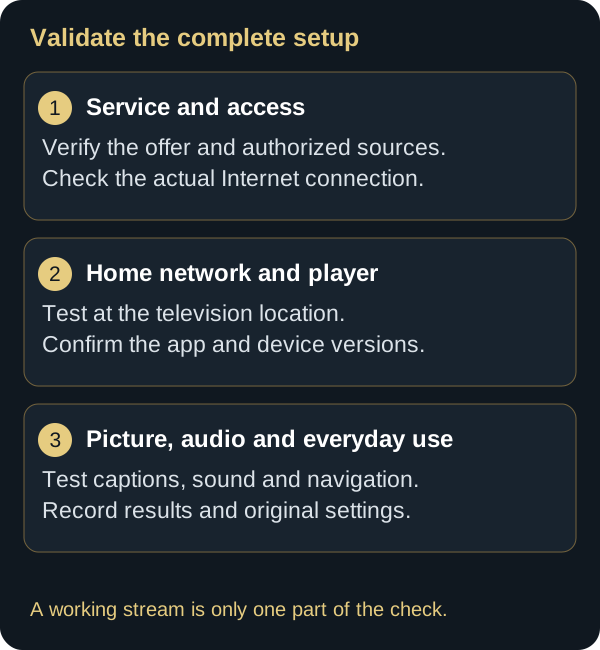
The best device is the one that matches the display, required applications, accessibility needs, remote-control preferences, audio system, and expected support life. Check the manufacturer’s documentation and the platform’s Canadian app store before purchase rather than assuming that an app shown for another region is available locally.
- Display path: resolution, HDR, refresh rate, HDMI inputs, and HDCP.
- Network: supported Wi‑Fi bands, Ethernet, and approved adapters.
- Decoding: video and audio codecs, subtitle formats, and frame-rate matching.
- Storage: usable space, update size, and safe cache management.
- Accessibility: screen reader, magnification, contrast, captions, and voice controls.
- Lifecycle: security updates, warranty, documentation, and Canadian availability.
Google’s requirements, for example, specify HDCP 1.3 or later, HDCP 2.2 for 4K, and a 4K-capable display for 4K playback on supported models. Requirements vary across manufacturers. A “4K” logo on one component does not guarantee an end-to-end 4K result; source, service, app, device, HDMI path, and display all participate.
8. Install applications with minimum exposure
- Start in the official store. Check the developer name, privacy information, and update history.
- Verify the publisher’s source. If manual installation is genuinely required, use a URL published by the developer and verify a provided checksum.
- Review permissions. A player should not request unrelated access without a clear reason.
- Protect credentials. Never expose them in screenshots, public comments, or unverified forms.
- Keep a rollback. Record settings before clearing data or reinstalling.
A portal address, device identifier, username, password, or activation code can grant account access. Treat these as confidential. For support, mask unnecessary portions and send only the minimum information through the official channel.
9. Tune picture and audio one variable at a time

Begin with the automatic mode recommended by the manufacturer. If the screen goes black when content changes, check HDMI input, cable, HDCP, resolution, HDR, and frame-rate switching before blaming the network. A visible loading indicator usually points toward delivery or buffering; a brief instantaneous black screen may come from video-mode negotiation.
For audio, map the complete path: app, streaming device, TV, soundbar, or receiver. Test stereo first, then enable advanced formats individually. Missing dialogue can occur when a multichannel format is passed to equipment that is not reproducing the centre channel correctly. Record the original setting before each change.
10. Secure connected TVs and players
The Office of the Privacy Commissioner of Canada recommends asking what a smart device collects, whether the collection is necessary, who receives the information, how long it is kept, and how it can be deleted. Get Cyber Safe advises changing defaults, using strong passwords, applying updates, and considering a separate network for smart devices.
- Enable automatic updates when they come from the official vendor.
- Use unique account passwords and multi-factor authentication where available.
- Disable optional microphone, location, advertising, or diagnostic collection that is not needed.
- Erase accounts and device data before sale, return, or recycling.
- Do not reuse the Wi‑Fi password for apps or service portals.
- Review the router’s connected-device list periodically.
11. Compare an offer and preserve the record
Before checkout, save the page describing the offer, price, term, supported devices, limits, and refund conditions. Confirm whether renewal is automatic, whether a trial becomes paid, how cancellation works, and whether the payment method provides a dispute mechanism. Never send a full payment-card image.
Managed television and Internet services may be subject to CRTC consumer codes. Online services do not all fall into the same category. Read the specific agreement rather than assuming that a protection for one type of provider automatically applies to another.
12. Turn a trial into a structured test

Define success before starting. Test the actual device, actual home network, and usual viewing hours. Check startup, at least twenty minutes of uninterrupted playback, navigation, captions, alternate audio, and support. Avoid changing several network settings during the trial, because the result will no longer identify the cause.
Record the delivery time, expiry time, information submitted, and whether payment or renewal is involved. A trial described as having no automatic payment should remain distinct from a subscription. Keep delivery messages and remove device access if you decide not to continue.
13. Troubleshoot by symptom
| Symptom | First check | Reversible action |
|---|---|---|
| App does not open | Update, free space, system date | Restart the app, then the device |
| Loading spinner | Second title and test at TV | Compare temporary Ethernet |
| Black screen without loading | HDMI input, cable, HDCP, resolution | Use a known port and automatic mode |
| Audio but no picture | Video codec and HDMI negotiation | Temporarily reduce resolution or HDR |
| Picture but no dialogue | Multichannel audio format | Test stereo output |
| Issue mainly at night | Congestion or household load | Compare an off-peak measurement |
Do not factory-reset the router or player as a first step. A reset can erase networks, passwords, accessibility settings, and provider configuration. Complete reversible checks and preserve a backup before destructive troubleshooting.
14. Account for Canadian regions, languages, and access types
Available access technologies differ between dense urban areas, suburbs, rural communities, the North, and the territories. Fibre, cable, fixed wireless, and satellite have different latency and stability characteristics. Start with what is actually offered at the service address rather than a generic national ranking.
Canada also spans several time zones and supports English and French services. Verify device time zone, interface language, audio preferences, captions, and regional catalogue availability. An incorrect system date can disrupt authentication or guide data. A feature shown in another country may not be available in Canada.
15. Frequently asked questions
Does IPTV mean an illegal service?
No. IPTV describes delivery using Internet Protocol. Canadian television distributors use that technology. Rights and legality depend on the specific service, not the protocol alone.
Does an official app-store listing guarantee the catalogue?
No. A general player may connect to separate sources. Assess the catalogue provider independently.
Is a VPN required?
A VPN is not inherently required for IPTV. It can improve a particular route or avoid some traffic restrictions, but may also reduce throughput or add latency. Test with and without it on the same device and content, within the service terms. Improvement alone does not prove ISP throttling, and a VPN does not confer content rights.
How much speed does 4K need?
It varies by service and format. Google identifies at least 20 Mbps for 4K on compatible Google streaming devices. Add headroom and check the requirement of the service being used.
Is Ethernet always faster?
Not necessarily; some device ports are limited. Ethernet is often more consistent. Compare it in the actual installation.
What should a support request contain?
Device model, system and app versions, time, exact symptom, Wi-Fi or Ethernet and comparison results. Add a receipt or reference only if one was supplied. Mask passwords, private URLs, tokens and the full MAC address.
16. Validate a service before making it permanent
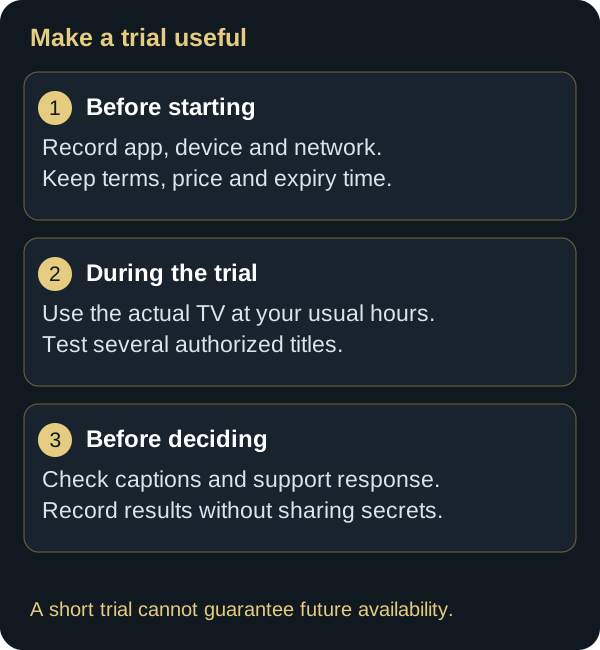
A useful evaluation separates business evidence from technical evidence. Smooth playback does not establish content rights, and complete terms do not guarantee good Wi‑Fi in the living room. Build a dated record and repeat the same tests on the same device so that each conclusion can be traced to an observation.
- Document check. Save the offer, legal name, terms, privacy information, refund rules, and support channel.
- Payment check. Confirm amount, currency, tax, renewal, billing descriptor, and invoice availability.
- Device check. Install from the official source and record version, permissions, free space, and compatibility.
- Network check. Measure near the router and at the TV, then compare temporary Ethernet where possible.
- Playback check. Test content you are authorized to access at different times, including captions and audio tracks.
- Support check. Ask one precise question without disclosing a secret and assess the accuracy and traceability of the answer.
- Exit check. Confirm how to remove access, delete information, cancel, and use the stated refund process.
Write observations instead of impressions
Record “started in 4.2 seconds,” not “very fast”; “no interruption during thirty minutes,” not “perfectly stable”; and “support replied in two hours,” not “amazing service.” Measurements make later comparisons possible and reduce the risk of judging an entire service from the first few minutes.
17. Estimate data use and shared capacity
Adaptive video changes bitrate as conditions and scenes change. For a rough calculation, multiply average megabits per second by time and convert bits to bytes. As a mathematical example, 10 Mbps sustained for one hour is about 4.5 gigabytes before certain overhead. This is not a usage promise: the app may switch quality and transfer additional data.
| Household scenario | Likely pressure point | Verification |
|---|---|---|
| One TV and light browsing | Coverage at the display | Measure at the TV |
| Two streams plus a video call | Shared capacity and loaded latency | Reproduce all three together |
| Console update or cloud backup | Download or upload saturation | Pause temporarily and compare |
| Fixed wireless access | Radio variation and congestion | Keep a time-based log |
| Satellite access | Latency and data policy | Review contract and usage meter |
Upload traffic matters. Cloud backup or a camera can fill router queues and delay control packets even while video travels downstream. If streaming fails during uploads, compare idle and loaded latency. Queue management may help on some routers, but preserve the original settings before experimenting.
18. Accessibility, language, and family controls
Evaluate captions for synchronization, size, contrast, and language selection. Check audio description where needed, the platform screen reader, visible keyboard or remote focus, and whether controls can be reached without precise pointer movement. Availability can depend on the title, application, device, and region.
In a bilingual household, test interface language, metadata, audio, and captions separately. A translated title does not guarantee a French audio track. For children, review profiles, purchase PINs, maturity controls, viewing history, and the information used to generate recommendations.

19. Maintain the setup without constantly resetting it
- Install official system and application updates.
- Review free space and remove only identified downloads or caches.
- Check ventilation, power supply, and cable condition.
- Remove obsolete devices from the router and account.
- Review permissions after major application updates.
- Retest captions, audio, and parental controls after changes.
- Keep invoices and support records for an appropriate period.
An occasional restart may clear a temporary state. A device that must be restarted every day likely has a power, heat, software, or network problem that should be isolated. Scheduled factory resets are not maintenance.
20. Common mistakes that hide the real cause
Changing everything at once
Changing DNS, Wi‑Fi band, HDMI cable, and resolution together makes the outcome impossible to attribute. Change one variable, repeat the same test, and revert when there is no improvement.
Treating peak speed as stability
A high download result does not describe jitter, packet loss, or latency under load. Look at variation and behaviour during actual use.
Sharing an unredacted screenshot
App screens can reveal a username, server, private URL, MAC address, IP address, or activation token. Crop and redact before sharing. Support does not need a plaintext password to begin diagnosis.
Installing a modified application
An unofficial build can include added code, stop receiving updates, or capture credentials. Use the publisher’s source and verify the exact developer identity.
Assuming a VPN is a universal repair
A VPN does not fix weak Wi‑Fi, incompatible HDMI, or an overheating player. It adds another route and can complicate support. Evaluate the requirement separately and follow applicable law and service terms.
21. Prepare a privacy-conscious support record
Include device model, system and app versions, connection type, time, exact symptom, troubleshooting already attempted, and the result. Add a short recording only if it does not expose private content. Use the last few characters of a device identifier when that is enough to distinguish it.
Request a case number and preserve the proposed solution. Before a reset, ask what will be erased and how to back up. After resolution, remove uploaded files that are no longer needed and change any secret that may have been exposed.

22. Final decision grid
| Dimension | Healthy evidence | Clarify before purchase |
|---|---|---|
| Identity | Consistent entity, documents, and contact | Brand name with no verifiable entity |
| Rights | Credible explanation of offers and territories | No answer about catalogue authority |
| Price | Total and renewal shown before payment | Mandatory charges appear late |
| Privacy | Data, purposes, retention, and rights explained | Missing or generic policy |
| Security | Official app and maintained platform | Modified app or excessive permissions |
| Technical | Repeatable test on the real installation | Decision based on one short playback |
| Support | Official channel and traceable answer | Unjustified request for secrets or remote access |
Do not average away a serious weakness. Missing identity, rights information, or basic security is not offset by sharp video. Conversely, measured Wi‑Fi weakness says nothing by itself about a provider’s content rights. Keep the dimensions separate, document uncertainty, and seek qualified advice when a legal or contractual question cannot be resolved from reliable information.
23. Conclusion: validate the full setup
Use this guide’s decision checklist and test protocol to document your setup. Check each part: service, Internet access, home network, device, app, picture and sound. Once testing is complete, keep your settings and a support record without sensitive data so you can compare results during an incident.
24. Scope and limits of this guide
This guide provides a general preparation and troubleshooting method. It is not a test of every service or device, a provider certification or a guarantee of availability, compatibility or quality. Offers, interfaces and terms change; consult the official sources applicable to your situation. Passages about rights and rules are informational and do not replace advice tailored to an individual case.
25. Sources and editorial method
Editorial and technical review: September 16, 2026. Source-based review and web checks; no household field measurements or provider certification are claimed. New photographs are AI-generated illustrations.
Primary references reviewed August 4, 2026: CRTC — Options to Watch TV; CRTC — Television Service Provider Code; CRTC — Internet Code; Office of Consumer Affairs — notices to Canadian Internet subscribers; Competition Bureau — drip pricing; Office of the Privacy Commissioner — smart devices; Get Cyber Safe — TVs and smart devices; and Google — streaming-device requirements. Interfaces and policies change; confirm current manufacturer instructions and applicable agreements.
Editorial update and further reading: