
Quick answer
In the demonstrated channel list, Blue changes favourite status and Yellow changes the lock state. Select the correct channel first, then check its star or padlock. If a PIN prompt appears, enter the code already configured for that access; the prompt does not create a new PIN.
Watch the tutorial
MYTVOnline2: favourite or lock a channel on Formuler
Open on YouTubeBefore you start
- Start in MYTVOnline2 with an available channel. Identify whether the list uses Normal or Classic, then follow the matching part of the video.
- Only change protected access when you are authorized to do so and know the configured PIN. Do not assume a factory code still applies.
Useful IR1 controls

Add or remove a favourite
Handle the lock separately
Alternative route: Actions

The steps
Select the channel
From live TV, press OK and use Up or Down to highlight the channel. Check its name before acting. Local Channel 2 is the example in the recording, not a channel you must find in your own list.
Add or remove the star
Press Blue and look for the star beside the name. Pressing the button again removes the favourite in this workflow. Do not press repeatedly without checking: a second press can undo the first.
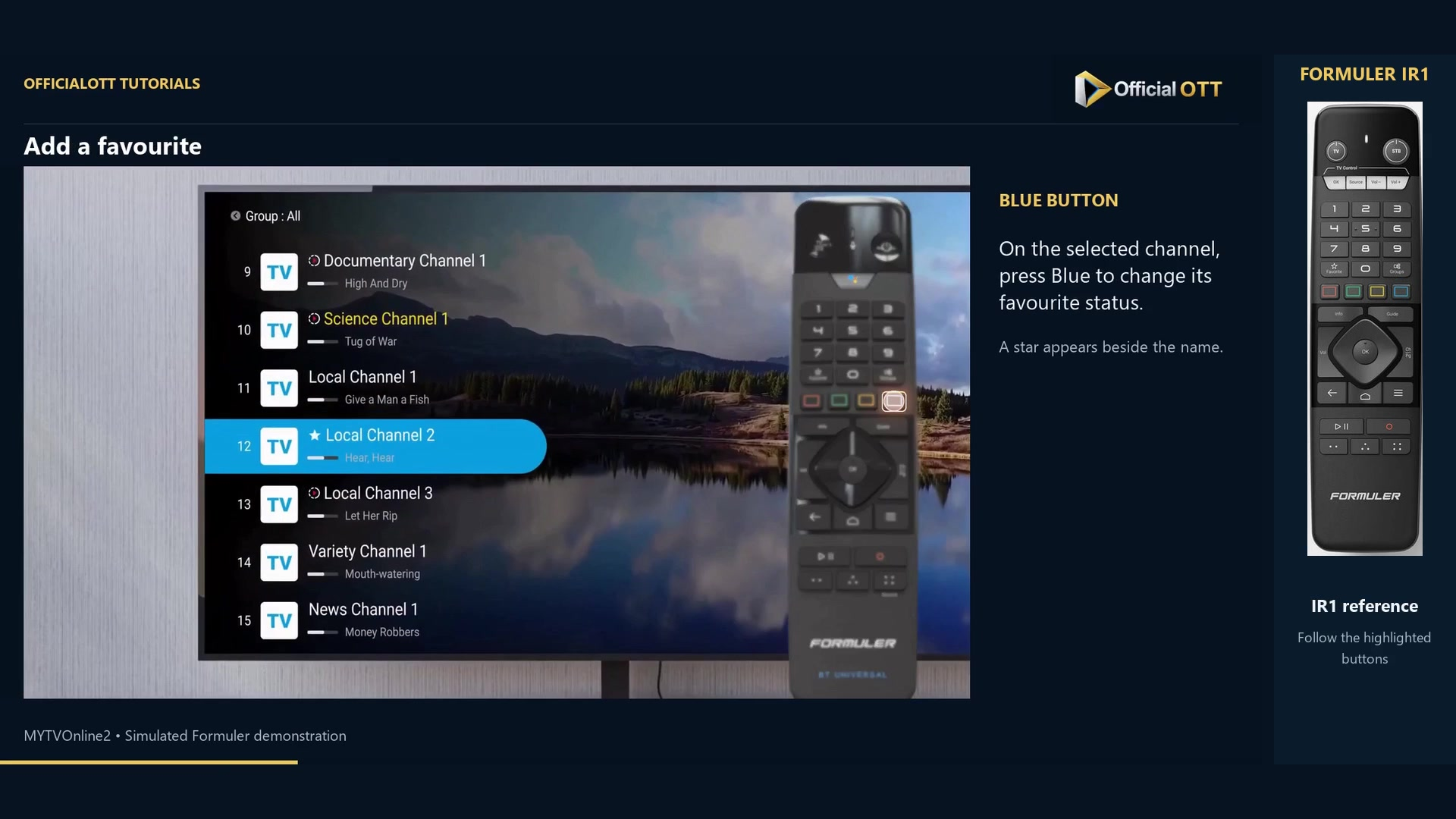
Frame from the simulated Formuler demonstration · 00:33 — Selected channel marked with a star in the add-to-favourites example. Handle the lock separately
With the channel selected, use Yellow for the lock action. Follow any PIN prompt and inspect the padlock afterwards. Adding a star does not automatically lock the channel.
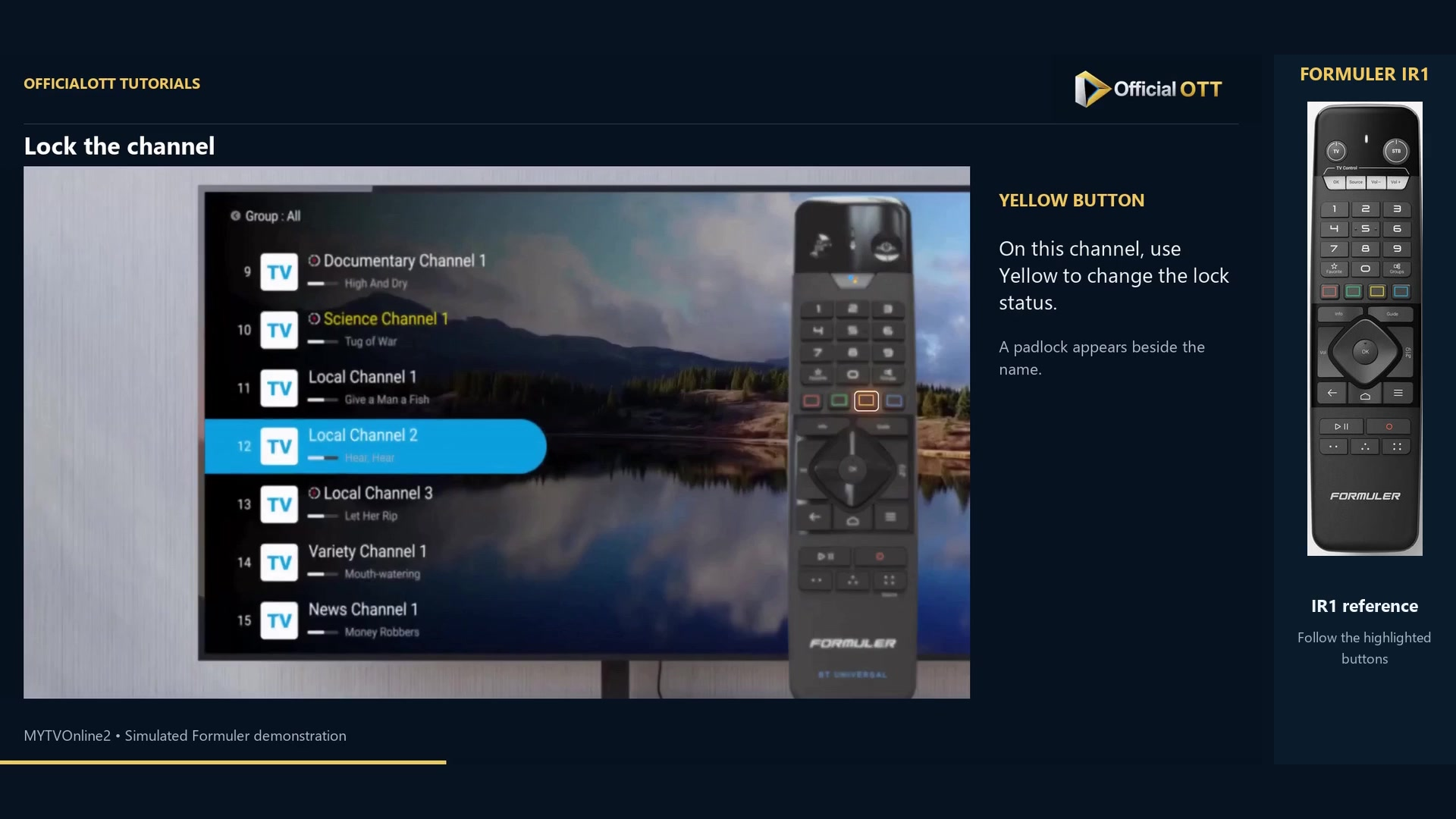
Frame from the simulated Formuler demonstration · 00:53 — Channel-locking step with the yellow-button reference. Use the Actions bar as an alternative
From live TV, press Info and then Down. Select Favorite or Lock and confirm with OK. The video also shows the actions in Classic. Choose the route that matches your current screen rather than performing every alternative.
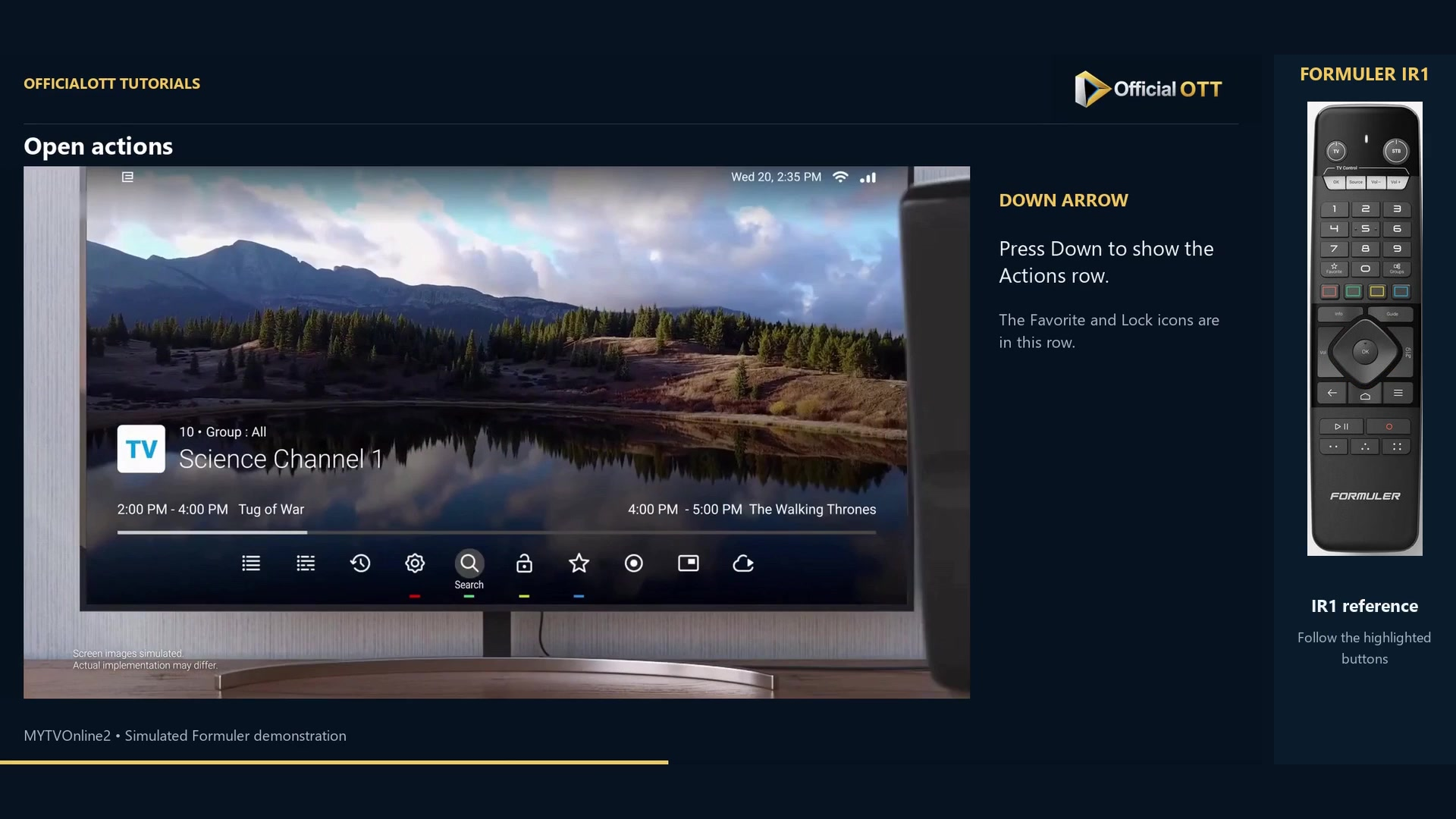
Frame from the simulated Formuler demonstration · 01:23 — Actions row below the channel information, including favourite and lock controls.
Check the result
Return to the list and inspect the symbol on the correct channel. For a lock, also test the access behaviour on your device. A channel padlock is not a complete test of restrictions across the entire box, other apps or other profiles.
If your result differs
The favourite disappears after two presses
The command can toggle the star on and off. Press once and inspect the result before pressing again.
A PIN is requested
Enter the PIN already configured for this access. If you do not know it, use the official support process rather than guessing codes.
The coloured keys behave differently
Check that you are on the demonstrated list or Actions screen. Their function depends on context.
Frequently asked questions
Is a favourite automatically protected?
No. The star and padlock are separate states. Check each independently.
Must I change the list style first?
The tutorial includes Normal, Classic and the Actions bar. Use the route available in your installed version.
What to do next
Use the symbols as your check: a star for easy retrieval, a padlock for access. Continue with the favourite manager when you want to organize several channels into a personal group.
Scope and limitations
This tutorial is based on the published OfficialOTT video and cited Formuler sources. It is not a hardware test on your device. Menus, data and capabilities depend on version, hardware and your source. Steps identify examples and limits of the excerpts.
Sources and method
The associated video narration and primary documentation consulted on October 30, 2026. Captures come from that video’s source file and include their timestamps.
- MYTVOnline2: favourite or lock a channel on Formuler — OfficialOTT
- Formuler — official MYTVOnline2 tutorial
Official tutorial links rechecked on November 1, 2026.