
Quick answer
From live TV, press OK to open the channel list, then Left twice to reach My Groups. Use Add Group, open Add Channels, select the channels and finish with Complete. Reopen the saved group to check its contents.
Watch the tutorial
MYTVOnline2: create a personal favourite-channel group
Open on YouTubeBefore you start
- Choose a name that makes sense for your household, such as a theme or use. A is only the demonstration name.
- Identify a few channels already available in your access. A personal group collects existing channels; it does not unlock additional content.
Useful IR1 controls

Find My Groups
Select channels for the group
Confirm, then reopen the group

The steps
Open My Groups
While watching live TV, press OK and then Left twice. The video demonstrates this starting point in both Normal and Classic. Locate My Groups before proceeding: your own groups are distinct from those supplied by the service.
Name and confirm the group
Select Add Group, enter a name, close the keyboard and confirm with OK. Open the new group. It now exists, but it remains empty until channels are added.
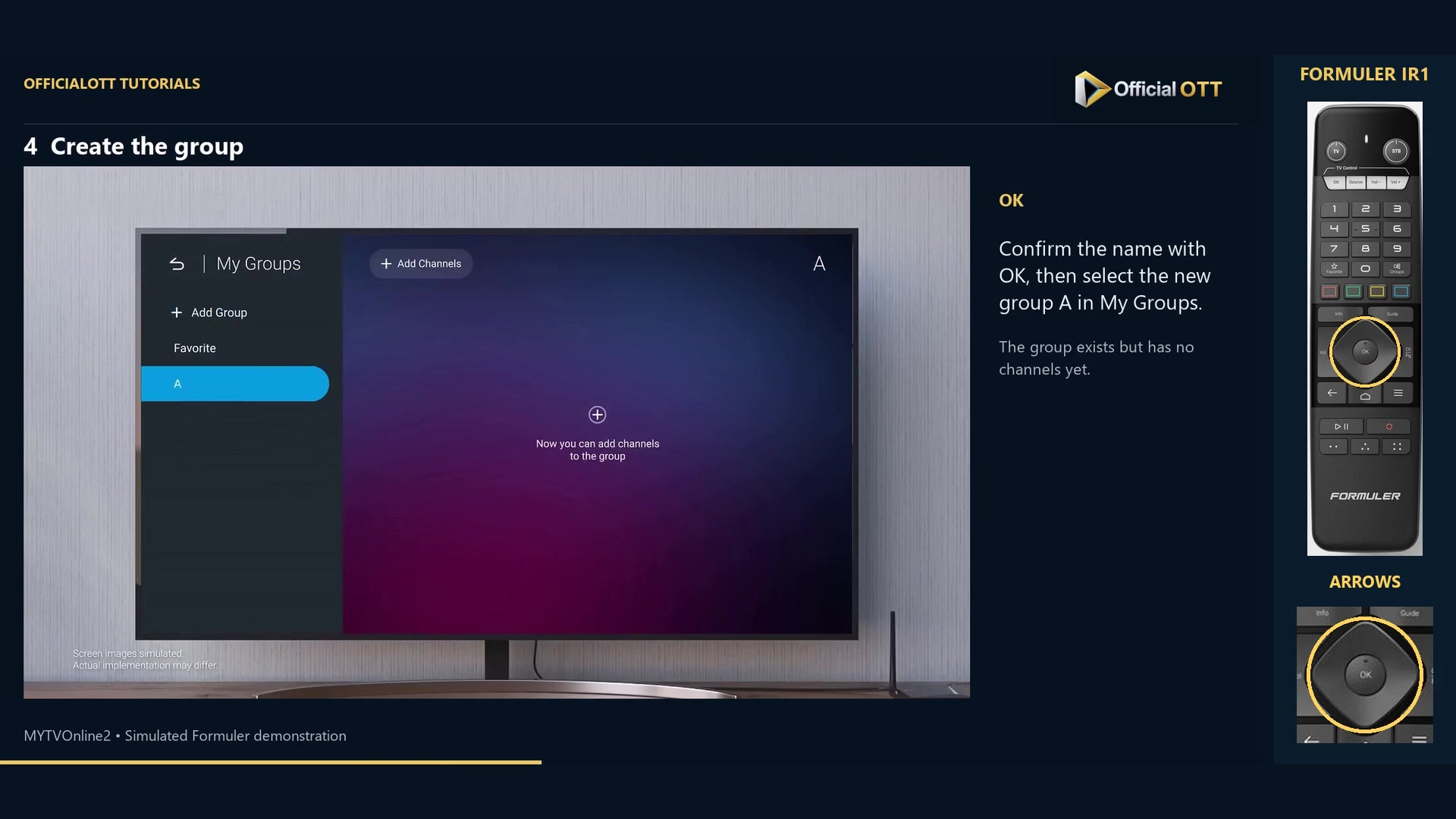
Frame from the simulated Formuler demonstration · 00:59 — Group A created and still empty in My Groups. Build the selection
Choose Add Channels and use Select Category to display a category’s channels. Select the ones you want with the arrows and OK. Watch the selected-channel column on the right to catch accidental additions.

Frame from the simulated Formuler demonstration · 01:32 — Add Channels screen: the first checked channel appears on the right. Search, remove and finish
Use Search channels to find another name. Confirm the chosen results, then remove unwanted items from the selection on the right. Finish with Complete. Simply backing out is not confirmation that the intended group has been saved.
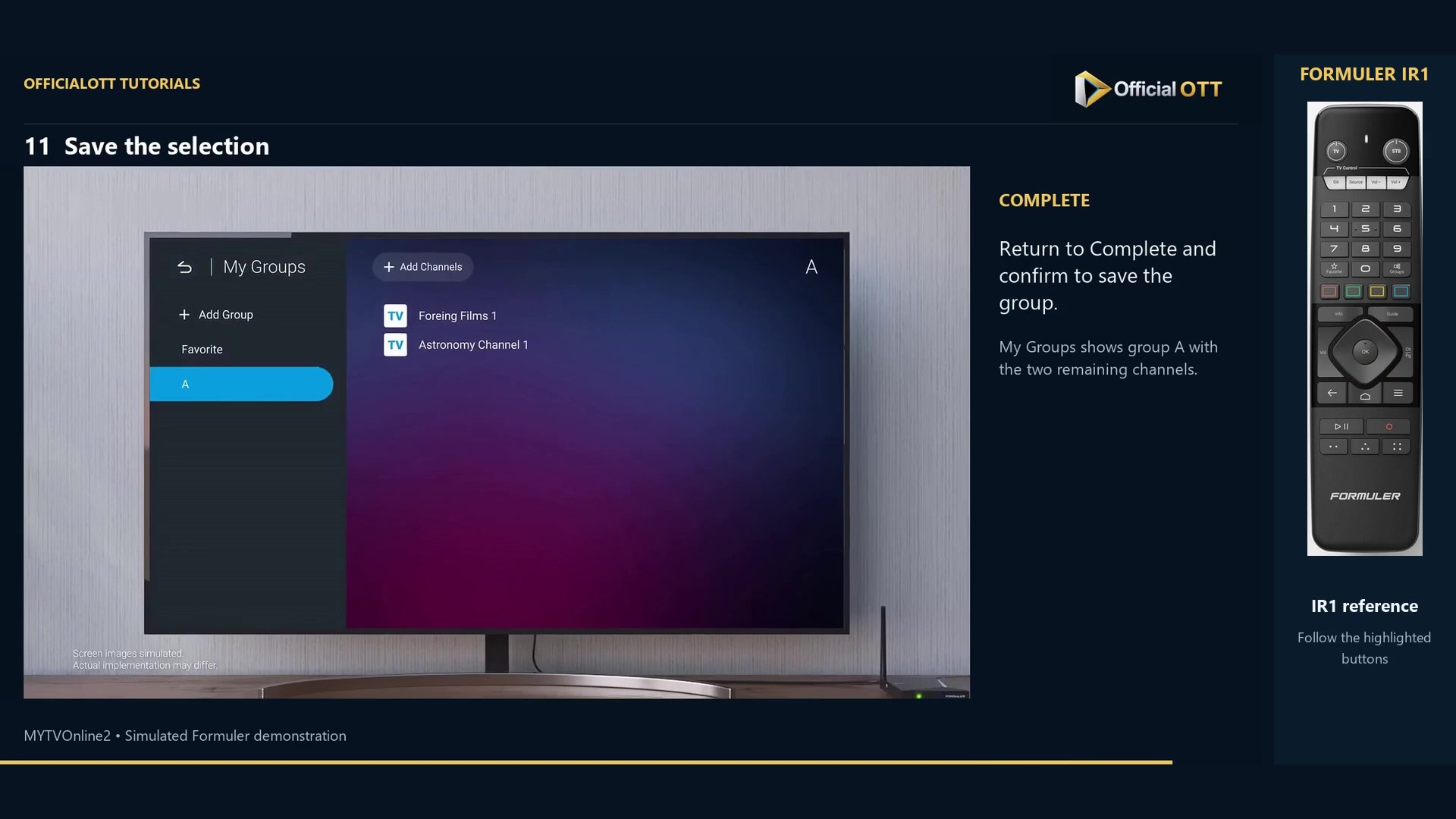
Frame from the simulated Formuler demonstration · 02:18 — Group A displays the two retained channels after the Complete step.
Check the result
Reopen the group in My Groups and check the retained channel names. The demonstration selects four channels and removes two before finishing with two; that is an example of correcting a selection, not a target count. Open one of your retained channels to test the practical result.
If your result differs
My group exists but is empty
Confirming its name is only the first step. Open Add Channels, choose the channels and finish with Complete.
A channel is missing afterwards
Check that it was in the retained-channel column before final confirmation. Finding a search result is separate from selecting it.
I want to remove a channel
Remove it from your personal selection. This is not the same as deleting it from the service’s catalogue.
Frequently asked questions
Does this edit the provider’s original list?
No. This workflow creates a personal group; it does not replace the source list or the service-managed groups.
Why reopen the group after Complete?
It confirms the saved composition, including any channels removed before final confirmation.
What to do next
Start with a small group you can easily check. Once its contents are confirmed, it gives you a more direct route to the channels you actually use.
Scope and limitations
This tutorial is based on the published OfficialOTT video and cited Formuler sources. It is not a hardware test on your device. Menus, data and capabilities depend on version, hardware and your source. Steps identify examples and limits of the excerpts.
Sources and method
The associated video narration and primary documentation consulted on October 30, 2026. Captures come from that video’s source file and include their timestamps.
- MYTVOnline2: create a personal favourite-channel group — OfficialOTT
- Formuler — MYTVOnline2 favourite channel manager
Official tutorial links rechecked on November 1, 2026.