
Quick answer
From live TV, use CH +/− to move to neighbouring channels, Groups to browse a category, the number keys when you know the channel number, or the green button to search by name. These are four alternative methods, not a sequence you must repeat.
Watch the tutorial
MYTVOnline2: four ways to change channels on Formuler
Open on YouTubeBefore you start
- Open a live channel from your authorized source in MYTVOnline2. This tutorial does not configure a portal or add content to your access.
- Find the controls on your remote. The OfficialOTT video uses an IR1 reference; another remote may put the same functions elsewhere. Follow the function name rather than relying only on a button’s position.
Useful IR1 controls

Browse neighbouring channels
Open channel groups
Known number or name search

Four alternative methods
Choose one method based on what you know: the channel’s position, group, number or name. These are alternative routes, not four steps to perform in sequence.
Browse neighbouring channels
From live TV, press CH + or CH − once. Let the next programme load, then read its name and number in the information bar. This is useful when the channel you want is nearby; repeated presses can take you past it.
Choose a group
Press Groups, select a category with the arrow keys, then move right into its channel list. Select a channel and confirm with OK. All is the example group in the video; your source determines the groups you actually receive.
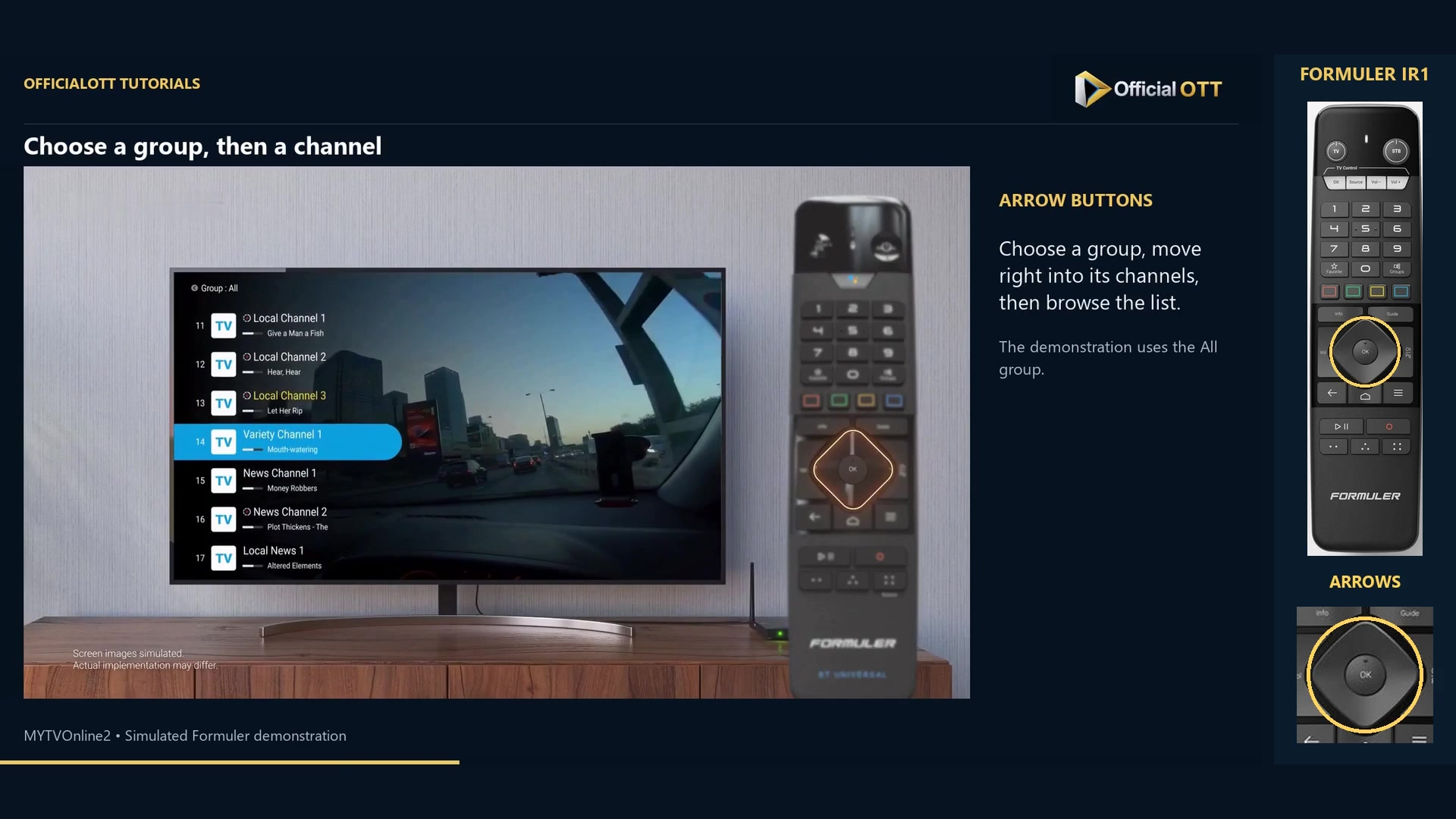
Frame from the simulated Formuler demonstration · 00:39 — Channel list open in the All group, with one channel highlighted. Enter a known channel number
Use the number keys and check the resulting information bar. The video’s number 115 is only an example, not a universal channel reference. If a different channel opens, check your list’s numbering before changing any connection settings.
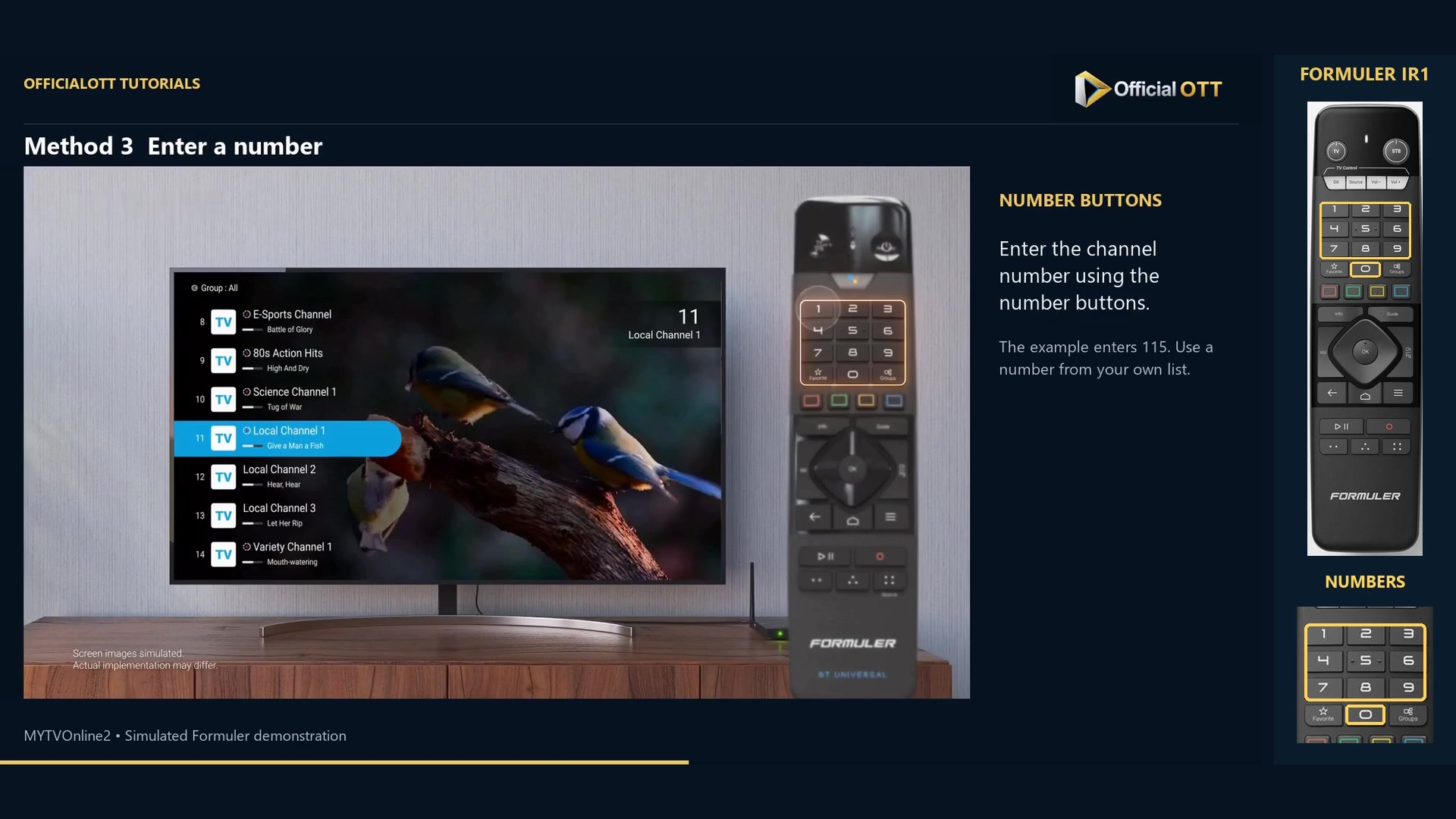
Frame from the simulated Formuler demonstration · 00:59 — Number keys highlighted while the demonstration enters a channel number. Search for a channel name
From live TV, press Green to open search. Enter part of the name using the keyboard, choose Search, then browse the results with the arrows and OK. A distinctive word is usually easier to check than a broad term that matches many channels.
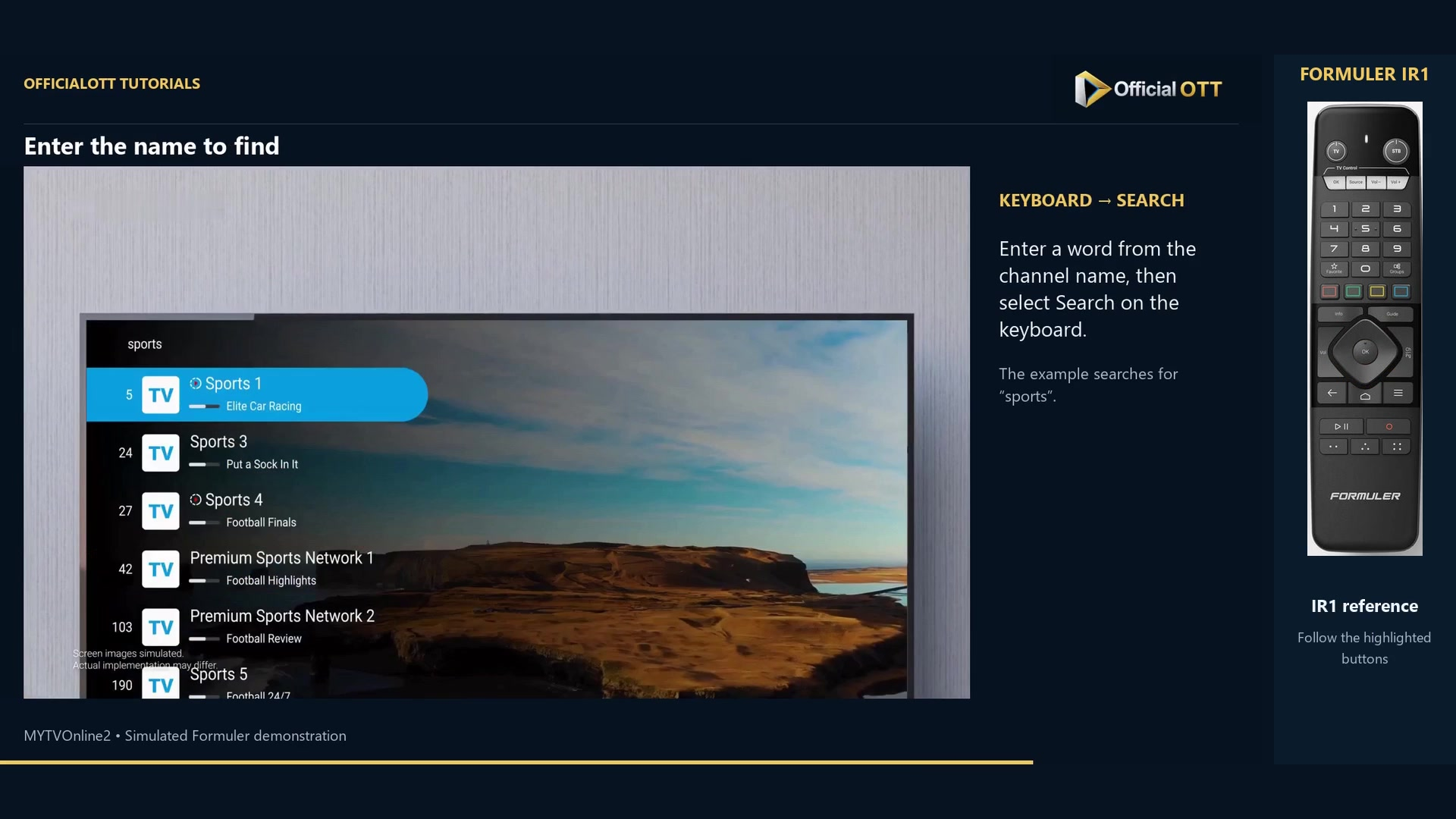
Frame from the simulated Formuler demonstration · 01:29 — Results for the search “sports”; the keyboard is no longer visible.
Check the result
Check the identity of the channel that actually opens, together with its picture and sound. A search result alone does not demonstrate working playback. Keep the route that suits your task: groups for browsing, a number for a known destination, or search when you remember the name.
If your result differs
Green does not open search
Return to live TV first. A coloured button can perform a different action in the programme guide or another menu.
The channel is missing
Try a shorter part of its name and check the selected group. Search cannot create a channel that your source does not supply.
The name is right but playback fails
Channel selection worked. Check connectivity and the availability of that stream separately.
Frequently asked questions
Do I have to use all four methods?
No. Each method selects a channel. Choose according to what you already know: its position, group, number or name.
Are channel numbers the same for everyone?
No. The demonstration shows how number entry works; the list supplied to your device determines its available names and numbers.
What to do next
Choose one method, open a channel and check its identity. If the list itself is hard to read, continue with the Classic and Normal channel-list tutorial.
Scope and limitations
This tutorial is based on the published OfficialOTT video and cited Formuler sources. It is not a hardware test on your device. Menus, data and capabilities depend on version, hardware and your source. Steps identify examples and limits of the excerpts.
Sources and method
The associated video narration and primary documentation consulted on October 30, 2026. Captures come from that video’s source file and include their timestamps.
- MYTVOnline2: four ways to change channels on Formuler — OfficialOTT
- Formuler — official MYTVOnline2 tutorial
Official tutorial links rechecked on November 1, 2026.