
Quick answer
Open Menu → Settings → Channel List Style, select Classic or Normal and confirm with OK. Return to live TV and press OK to inspect the list. This changes its presentation, not the channels included in your access.
Watch the tutorial
MYTVOnline2: choose the Classic or Normal channel list
Open on YouTubeBefore you start
- Make sure the app is MYTVOnline2. A similarly named setting in MYTVOnline3 or 4 may live elsewhere.
- Note the current style so you can return to it. There is no need to delete a portal or reset the device to compare these layouts.
Useful IR1 controls

Open Settings
Choose Classic or Normal
Return to live TV and compare

The steps
Look at your current list
While watching live TV, press OK. The Classic example shows a list with a preview on the right. Notice where the names, selection and groups appear; those landmarks make the comparison useful.
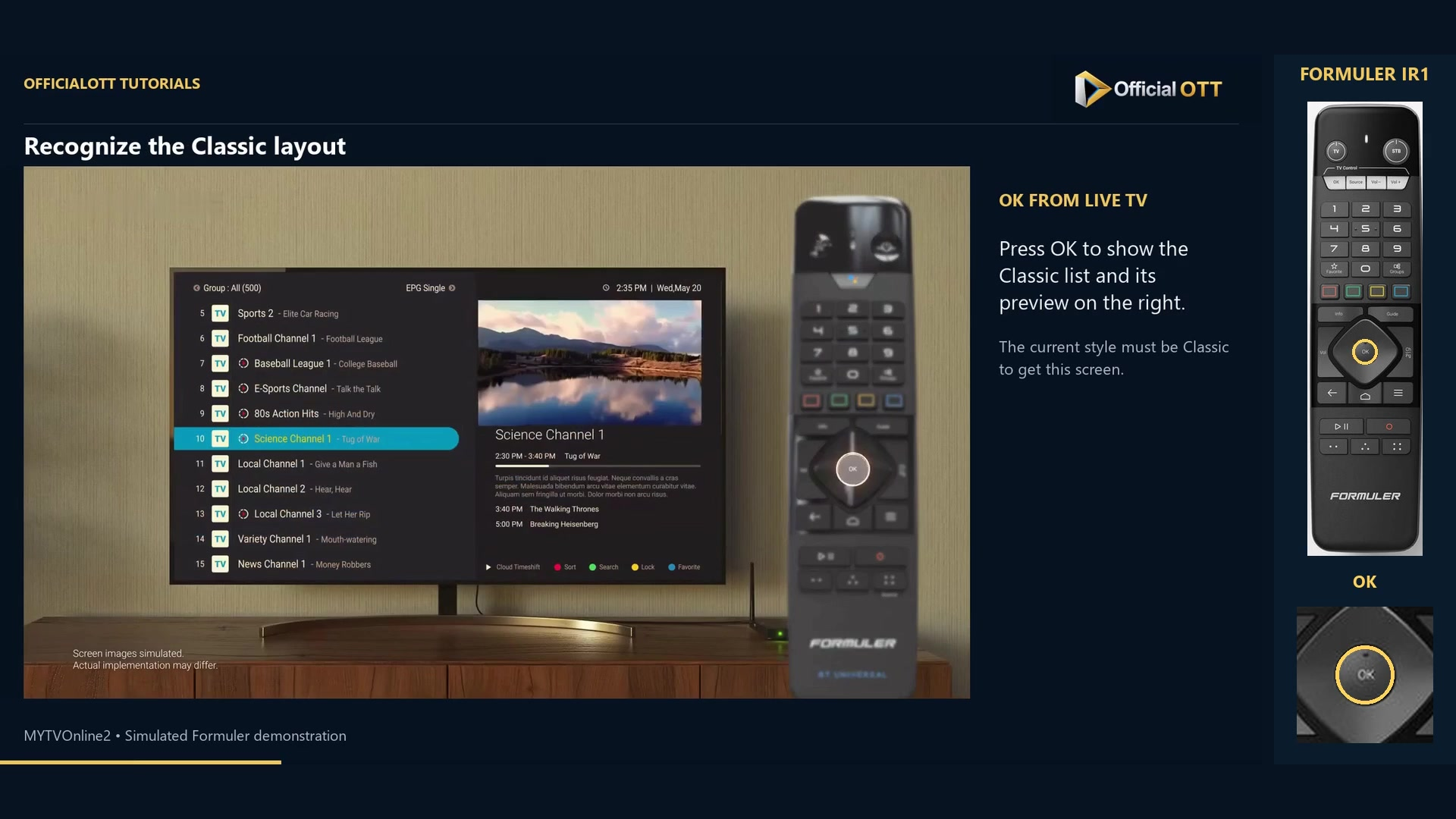
Frame from the simulated Formuler demonstration · 00:16 — Classic layout: channel list on the left and programme preview on the right. Find the setting
Return to live TV, open Menu and choose Settings. Move to Channel List Style and read the current value before pressing OK. This is separate from playback options and menu language.
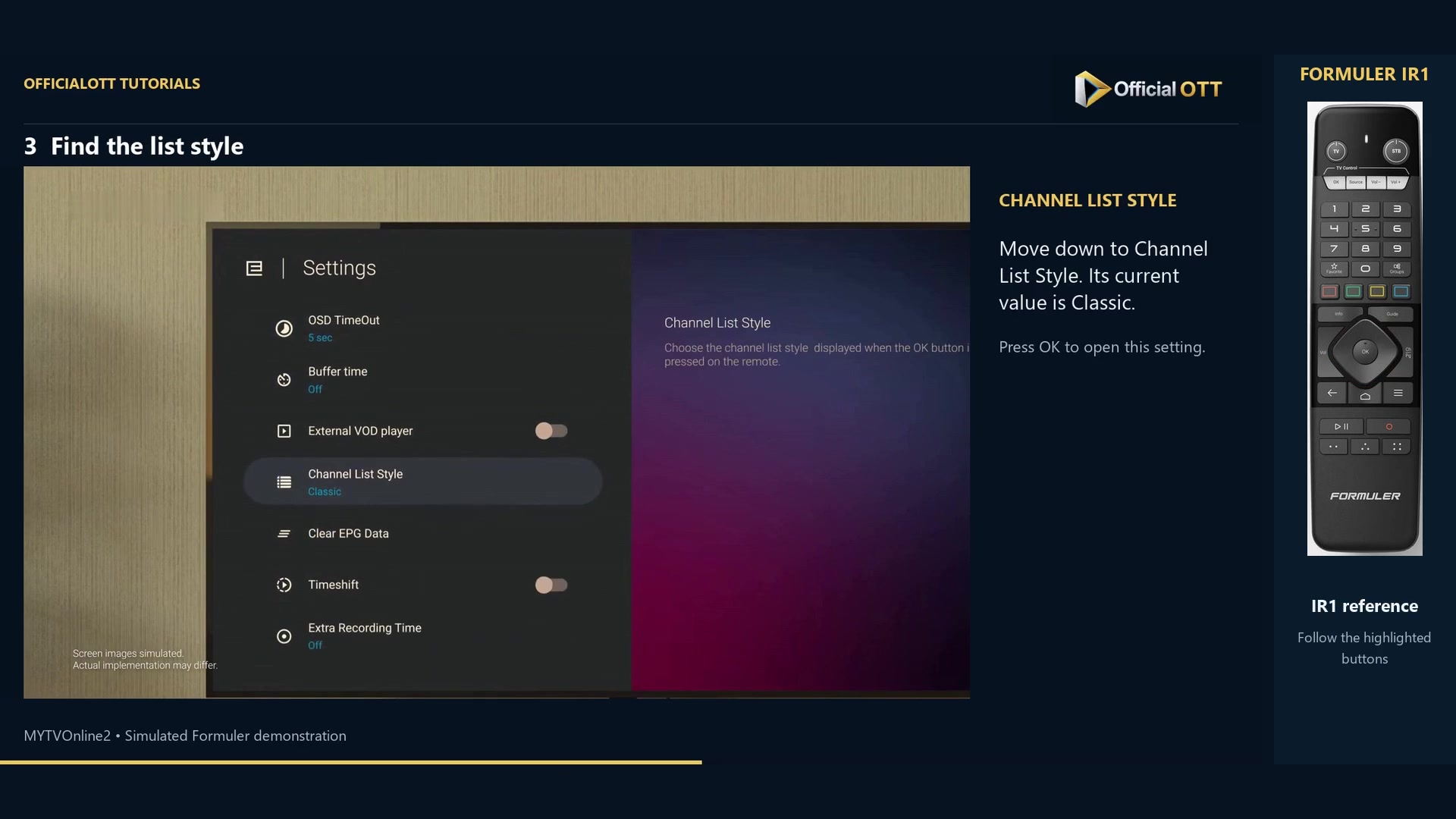
Frame from the simulated Formuler demonstration · 00:44 — Channel List Style selected in Settings; the displayed value is Classic. Select and confirm
Choose Normal or Classic with the arrows and confirm with OK. The chosen name should appear in the setting. Moving the highlight over an option is not the final confirmation.
Compare it while watching
Press Back to return to the channel, then OK to reopen the list. In the Normal demonstration the list overlays the picture; Left opens the groups. Try finding a familiar channel to judge the layout in a real task.
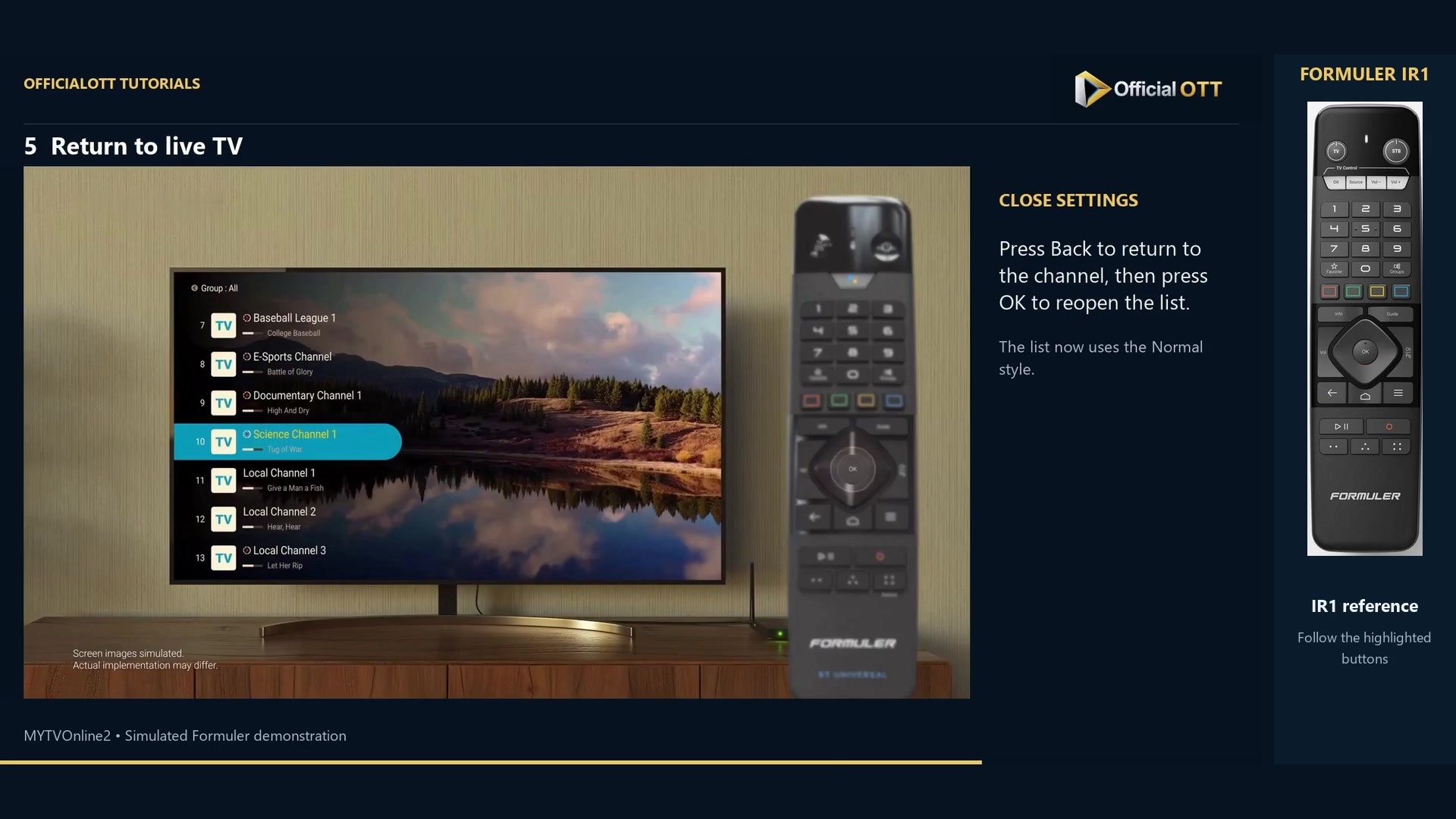
Frame from the simulated Formuler demonstration · 01:05 — Normal list open over the programme after returning to live TV.
Check the result
Check both the Channel List Style value and the list opened from live TV. To undo the change, return to the same setting and choose the previous style. This reversible comparison is enough; neither layout is automatically better for every viewer.
If your result differs
The appearance has not changed
Close the list, return to live TV and open it again. Check that you confirmed the new value with OK.
I cannot find the setting
Check the app generation and installed version. Labels and menu locations can change between versions.
Some channels seem to be missing
The layout does not replace the content source. Check the group currently displayed and the supplied channel list first.
Frequently asked questions
Does changing the style change my subscription?
No. This tutorial changes the list presentation, not the service or access rights.
Can I return to Classic after trying Normal?
Yes. Choose Classic in the same setting, confirm, then check the list from live TV.
What to do next
Keep the style that makes channels and groups easiest to recognize. You can then work on favourites without configuring the portal again.
Scope and limitations
This tutorial is based on the published OfficialOTT video and cited Formuler sources. It is not a hardware test on your device. Menus, data and capabilities depend on version, hardware and your source. Steps identify examples and limits of the excerpts.
Sources and method
The associated video narration and primary documentation consulted on October 30, 2026. Captures come from that video’s source file and include their timestamps.
- MYTVOnline2: choose the Classic or Normal channel list — OfficialOTT
- Formuler — Manufacturer video demonstration
- Formuler — official MYTVOnline2 tutorial
Official tutorial links rechecked on November 1, 2026.