
Quick answer
From live TV, press Guide. Use the arrows to select an event and check its channel, date and time. In the demonstrated grid, Red goes back a day, Blue advances a day, Yellow returns to now and Green controls the reminder. REC concerns recording schedules.
Watch the tutorial
MYTVOnline2: use the TV guide, reminders and programme times
Open on YouTubeBefore you start
- Your source must supply programme information. An empty grid cannot be populated merely by trying a different button.
- Before recording, prepare compatible storage and check what your source supports. A scheduling marker is not proof of a completed recording.
Useful IR1 controls

Open the programme grid
Previous day / next day
Reminder and recording: separate actions

The steps
Read the grid before selecting
Open Guide. Channels appear on the left and times across the top. Move the selection with the arrows and check the actual channel and programme, especially when events have similar names.
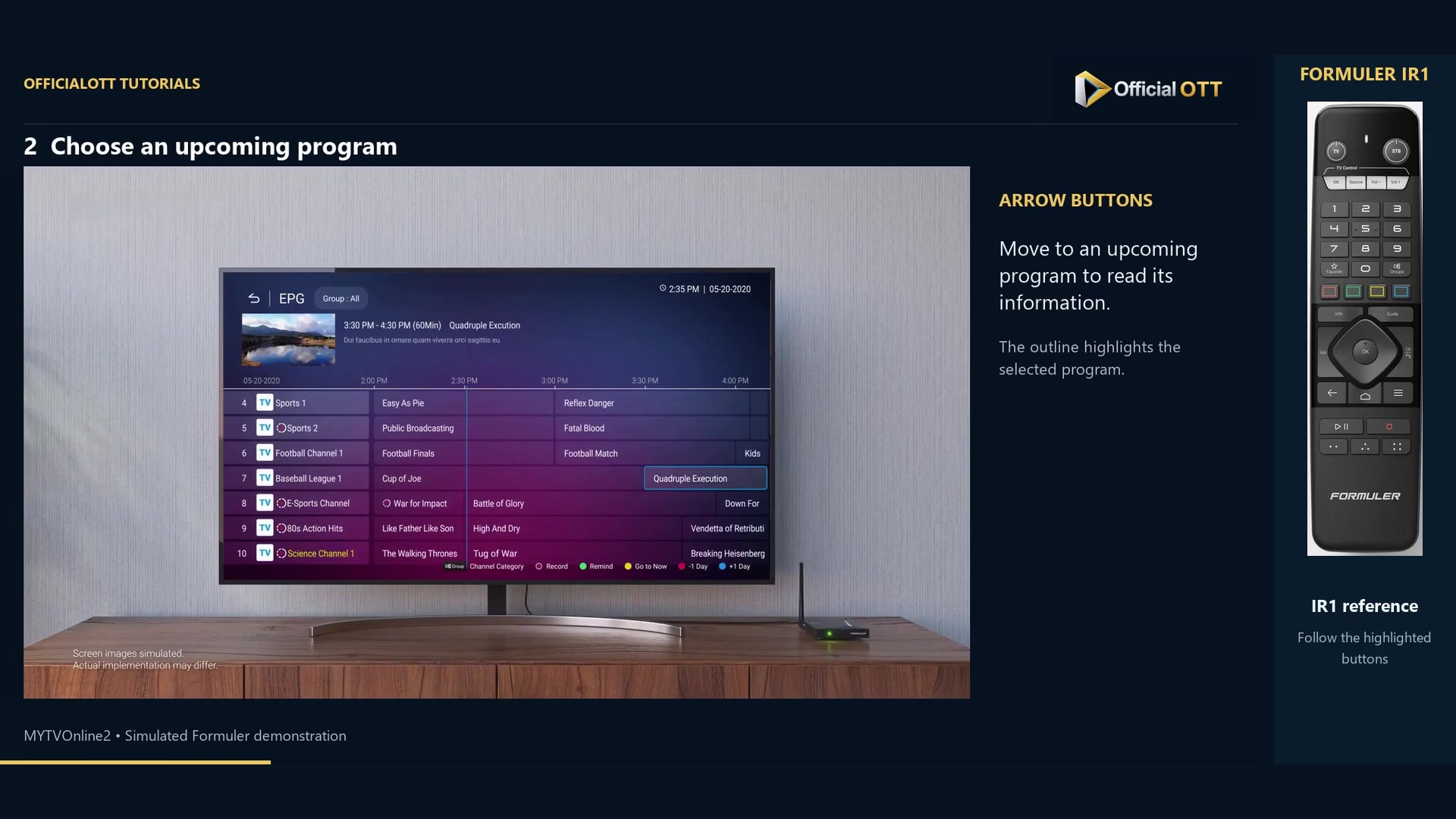
Frame from the simulated Formuler demonstration · 00:26 — Programme guide with an upcoming programme outlined. Move between days
On this screen, Red goes back one day and Blue advances one day. Check the displayed date after moving. Yellow, labelled Go to Now, returns the grid to the current time. These colour-key functions belong to this screen.
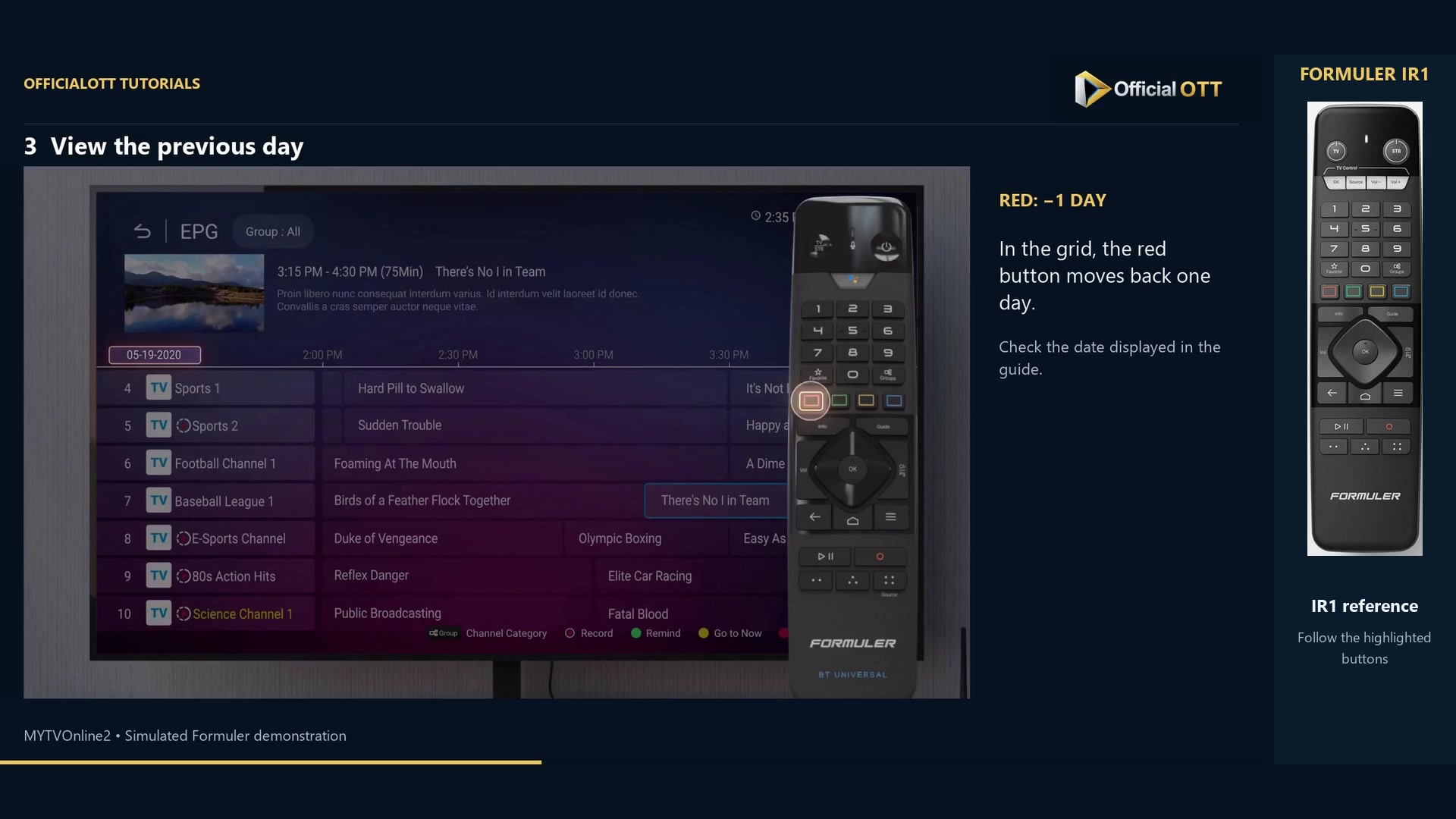
Frame from the simulated Formuler demonstration · 01:00 — Previous-day guide with the red-button reference. Choose a reminder or recording
For a future event, Green adds or removes its reminder in the demonstrated workflow. REC adds or removes its recording schedule. Press once and inspect the marker. A reminder draws your attention to the event; it does not record it.
Use a single-channel guide
With Classic, press OK to open the list, then move right to EPG Single. Wait for that channel’s programme list. Select a future event and check its time again before using the available actions.
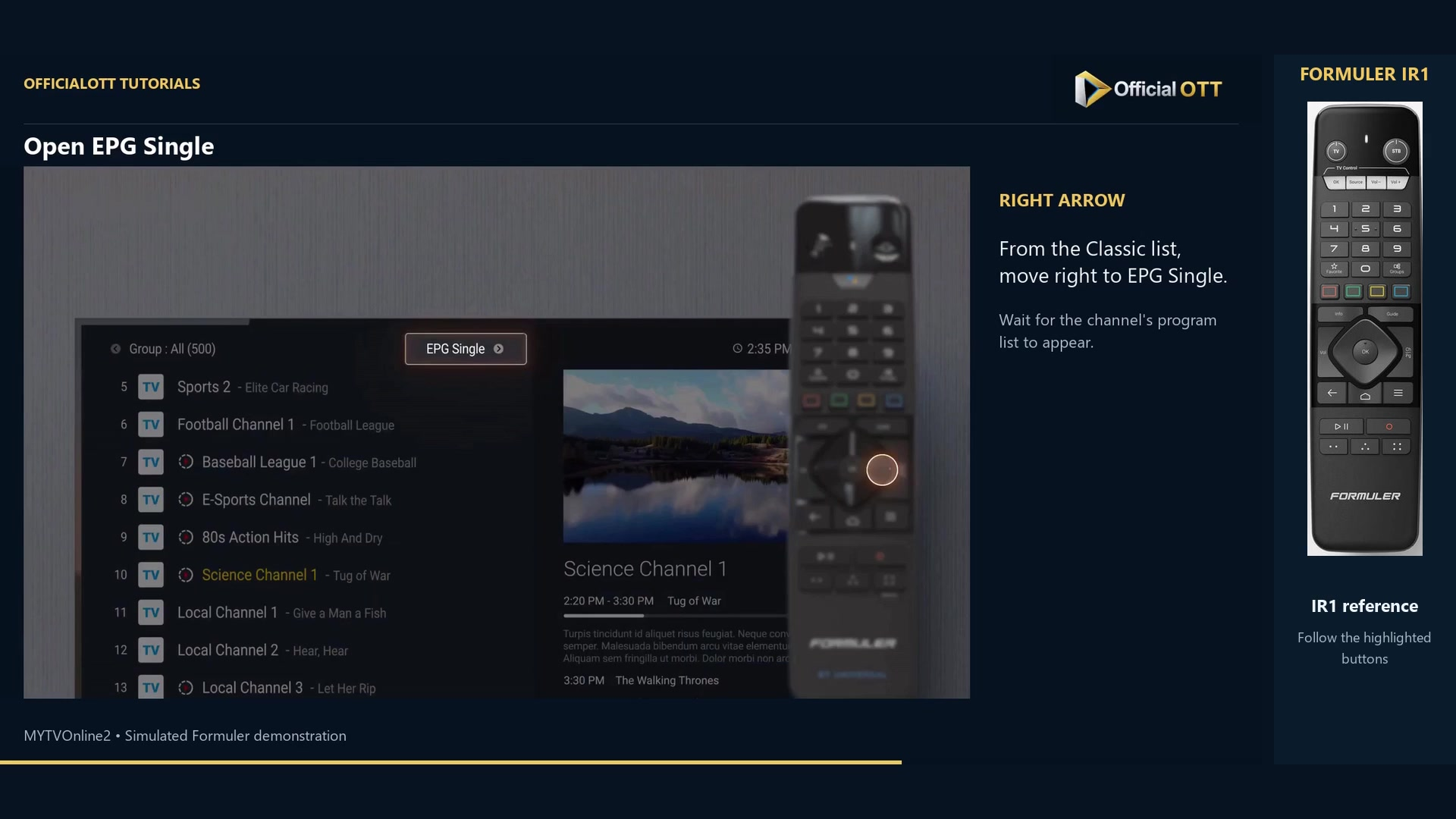
Frame from the simulated Formuler demonstration · 01:40 — EPG Single highlighted from the Classic list; the detailed programme list is not yet open.
Check the result
Revisit the selected event and inspect its marker, date and time. For a recording schedule, verification continues after the broadcast by opening and playing the resulting file. The video demonstrates guide actions; it cannot guarantee a complete recording on your installation.
If your result differs
The guide is empty
Check the EPG data supplied by your source. Working live channels do not guarantee available programme listings.
I am looking at the wrong day
Read the date and use Go to Now to return to a clear starting point.
A marker disappears after another press
The demonstrated actions can add and then remove a reminder or schedule. Check before repeating the command.
Frequently asked questions
Does a reminder create a video file?
No. Reminders and recordings are separate functions.
Does a visible schedule guarantee success?
No. It shows that a task is planned. Storage, stream availability and playback of the completed file also need checking.
What to do next
Check channel, date and time before every action. This prevents scheduling the right programme at the wrong time.
Scope and limitations
This tutorial is based on the published OfficialOTT video and cited Formuler sources. It is not a hardware test on your device. Menus, data and capabilities depend on version, hardware and your source. Steps identify examples and limits of the excerpts.
Sources and method
The associated video narration and primary documentation consulted on October 30, 2026. Captures come from that video’s source file and include their timestamps.
- MYTVOnline2: use the TV guide, reminders and programme times — OfficialOTT
- Formuler — Set up scheduled recording
- Formuler — EPG mode and time offset
- Formuler — official MYTVOnline2 tutorial
Official tutorial links rechecked on November 1, 2026.