
Quick answer
During live TV, open Info → Down → Settings to reach Option. Audio Track chooses an available track; Subtitle manages the offered subtitles. In the demonstration, Red also opens Option directly from live TV. No setting creates a translation missing from the source.
Watch the tutorial
MYTVOnline2: adjust audio, subtitles and player options
Open on YouTubeBefore you start
- Start a programme that already plays correctly. This makes it easier to distinguish a track change from a general playback problem.
- Note the existing values and change one option at a time. Tracks and some navigation features depend on the received content.
Useful IR1 controls

Open Actions, then Settings
Option shortcut from live TV
Choose an available track

The steps
Open options while watching
Press Info and then Down to display Actions. Select the Settings gear and confirm with OK. From live TV, Red offers a shorter route to the same Option menu. Read the on-screen legend before assuming that shortcut works elsewhere.
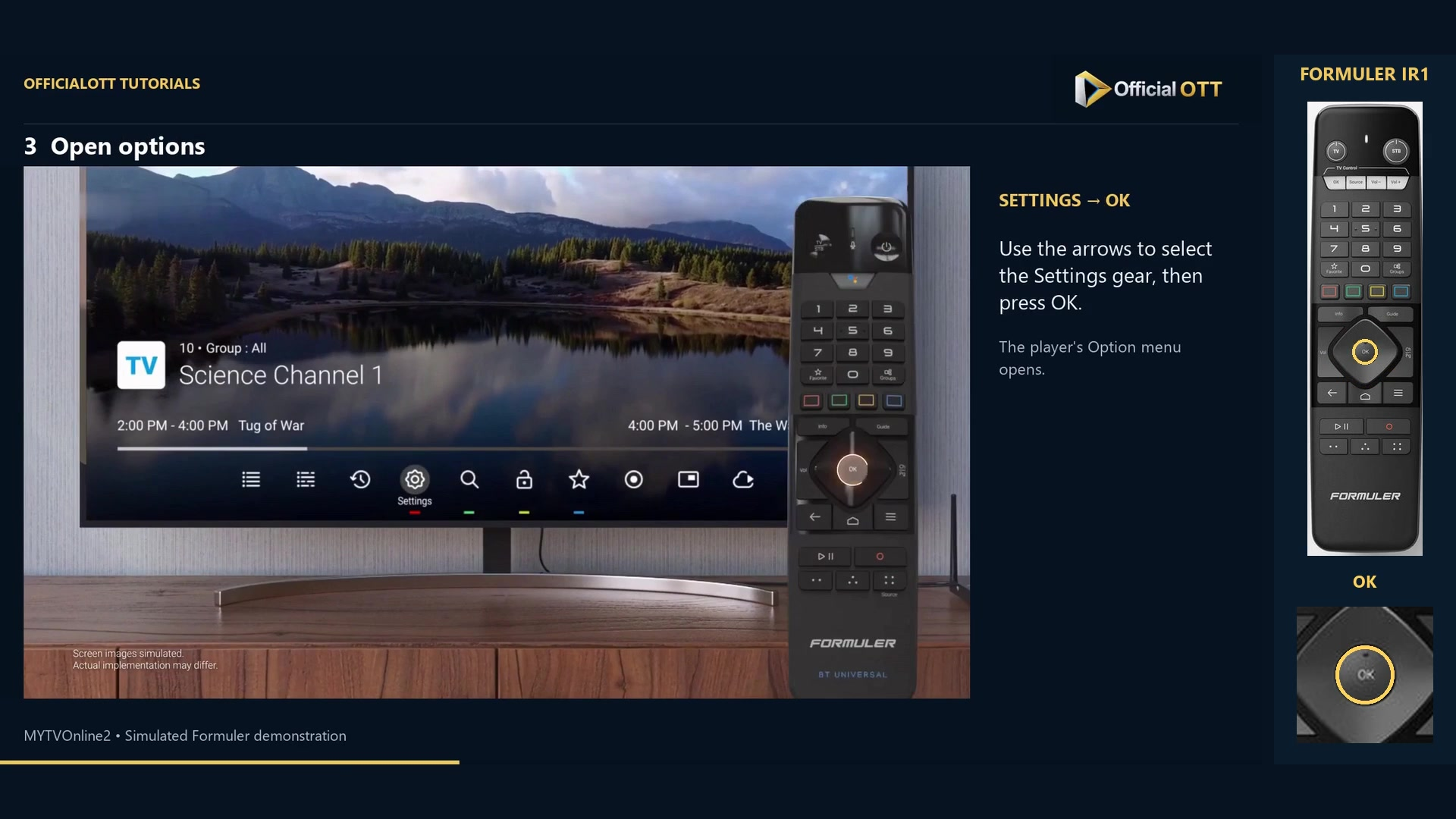
Frame from the simulated Formuler demonstration · 00:35 — Settings gear selected in the Actions row. Choose an audio track and mode
Open Audio Track, browse the offered tracks and confirm your choice. Auto leaves selection automatic. Audio Mode is separate: the video shows Stereo, Mono, Left and Right. It is not the same as choosing an audio language.
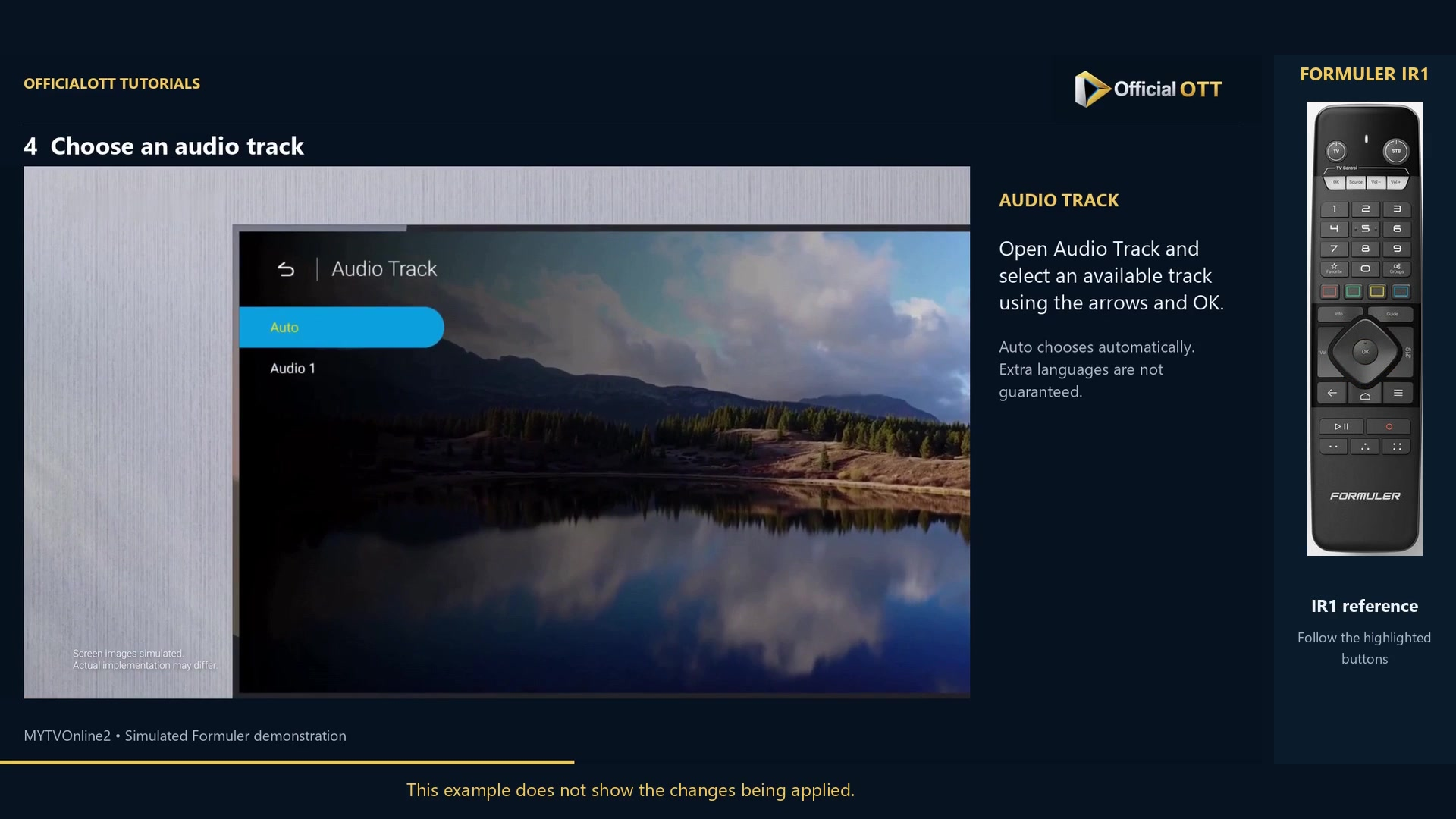
Frame from the simulated Formuler demonstration · 00:47 — Audio Track menu with Auto highlighted; this excerpt does not confirm a new track being applied. Select available subtitles
Open Subtitle and choose an offered track. Closed Captions Off disables these subtitles in the demonstrated menu. Test during a scene with speech; a moment without text alone does not establish failure.
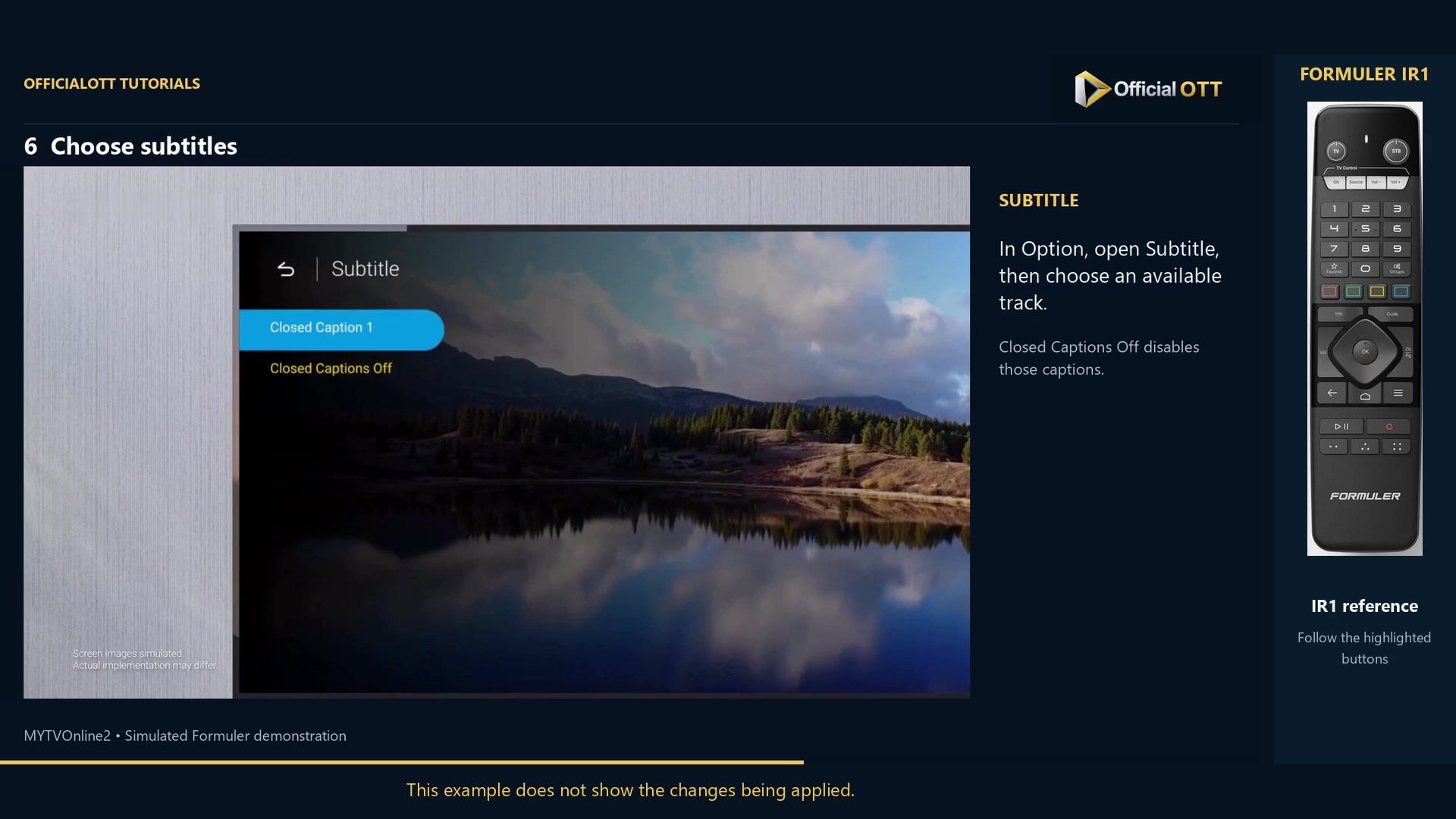
Frame from the simulated Formuler demonstration · 01:09 — Subtitle menu with Closed Caption 1 highlighted; actual activation is not shown. Understand Jump Interval and Sleep
Jump Interval sets the length of skips where the content supports them. Sleep sets a timer, with Off disabling it. The video browses Sleep values without showing the timer expiring, so verify its behaviour on your device.
Check the result
Return to the programme after each change and check what you hear or read. If a French track is unavailable, selecting French elsewhere will not create it. The CC subtitles on the OfficialOTT YouTube tutorial are also separate from the subtitles of a programme playing inside MYTVOnline2.
If your result differs
My preferred language is not listed
Check the programme’s tracks and ask your source what it supplies. The player does not automatically translate a missing track.
Sound seems unusual after a change
Check Audio Track and Audio Mode separately, then return to the previous value if needed.
Playback skips do not work
Changing the skip interval cannot make non-seekable content support skipping.
Frequently asked questions
Are Audio Track and Audio Mode the same?
No. One selects a track; the other controls the playback mode offered by the player.
Do YouTube captions change subtitles on my TV?
No. YouTube’s CC button controls the tutorial on YouTube, not the programme inside MYTVOnline2.
What to do next
Change one option, return to playback and check its effect. This separates a missing track, an incorrect selection and a stream problem.
Scope and limitations
This tutorial is based on the published OfficialOTT video and cited Formuler sources. It is not a hardware test on your device. Menus, data and capabilities depend on version, hardware and your source. Steps identify examples and limits of the excerpts.
Sources and method
The associated video narration and primary documentation consulted on October 30, 2026. Captures come from that video’s source file and include their timestamps.
- MYTVOnline2: adjust audio, subtitles and player options — OfficialOTT
- Formuler — official MYTVOnline2 tutorial
Official tutorial links rechecked on November 1, 2026.