
Quick answer
Open Guide, select a future program, press OK and choose Add to Watchlist. Review events in Menu → Schedule → Watchlist. At airtime, the Watchlist group brings together the relevant channels. EPG information is required.
Watch the tutorial
MYTVOnline3: plan upcoming programs with Watchlist
Open on YouTubeBefore you start
- Check that the guide contains programs and times. Without EPG information, this workflow cannot schedule Watchlist items.
- Choose a future event and distinguish your goal: finding it at airtime or recording it with the separate recording function.
- The separately documented Watchlist Timeshift feature is outside this guide, which covers scheduling and the dynamic group.
Useful controls · IR1
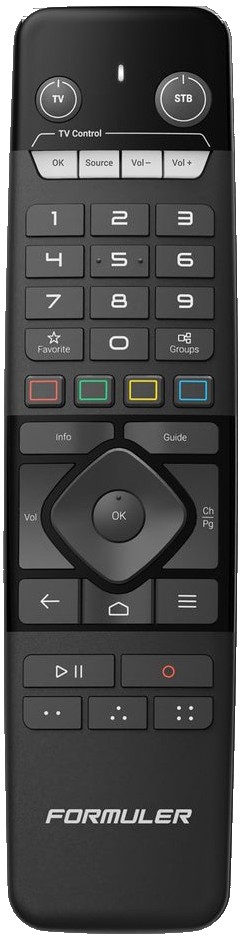
Add a future program
Shortcut within the guide
Check scheduled times

The steps
Add from the guide
From live TV, press Guide. Select an upcoming program with the arrows, then OK and Add to Watchlist. Check the marker in the guide.
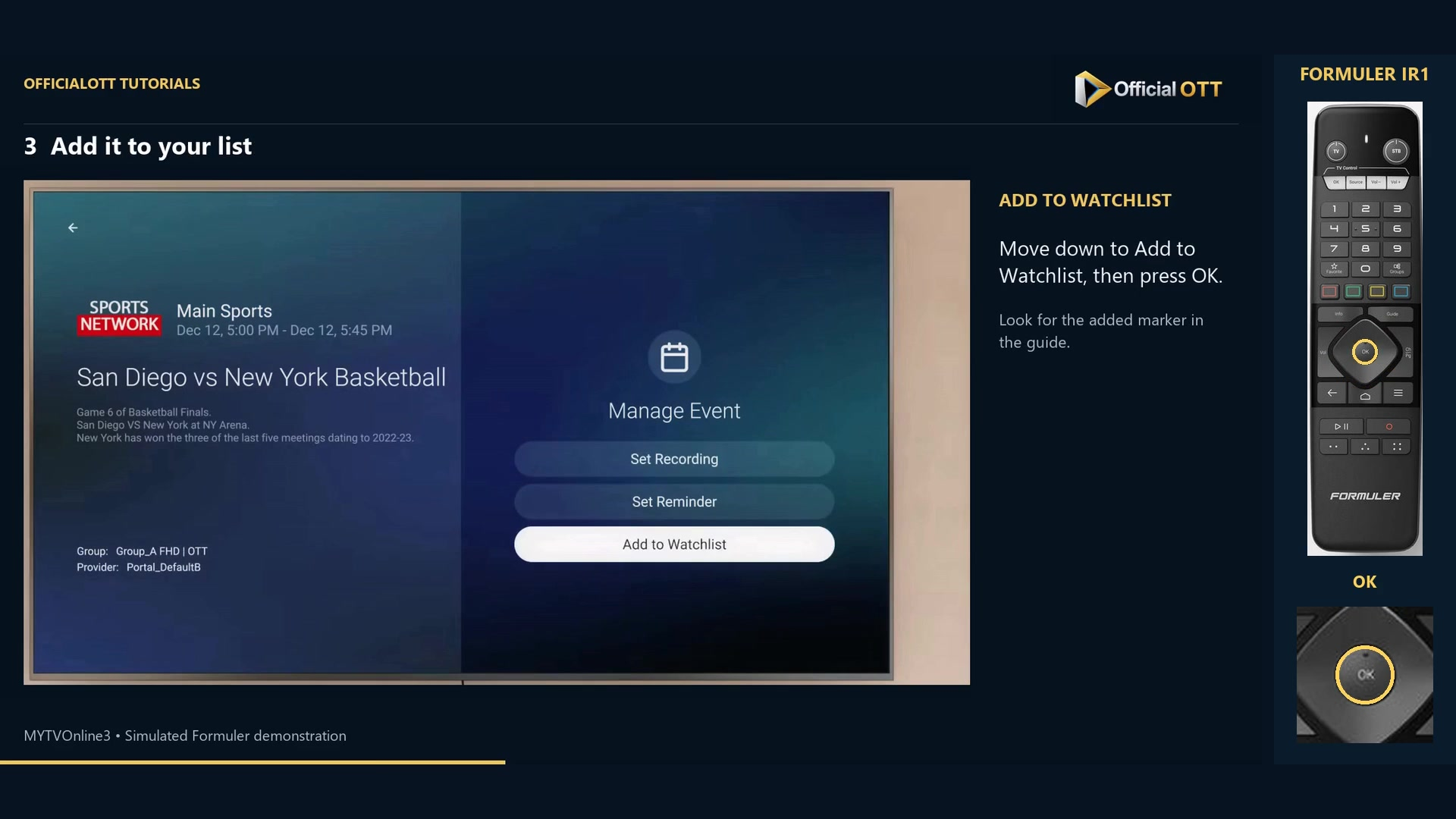
Frame from the simulated Formuler demonstration · 00:34 — Add to Watchlist highlighted in Manage Event. Understand the Green shortcut
Within the guide, Green also adds a future program in the demonstration. From live TV, the same button opens search. Check the active screen before pressing it.
Review planned items
Open the main menu, Schedule and the Watchlist tab in Schedule Manager. Check the added titles and times. The demonstrated start alerts depend in part on notification settings.
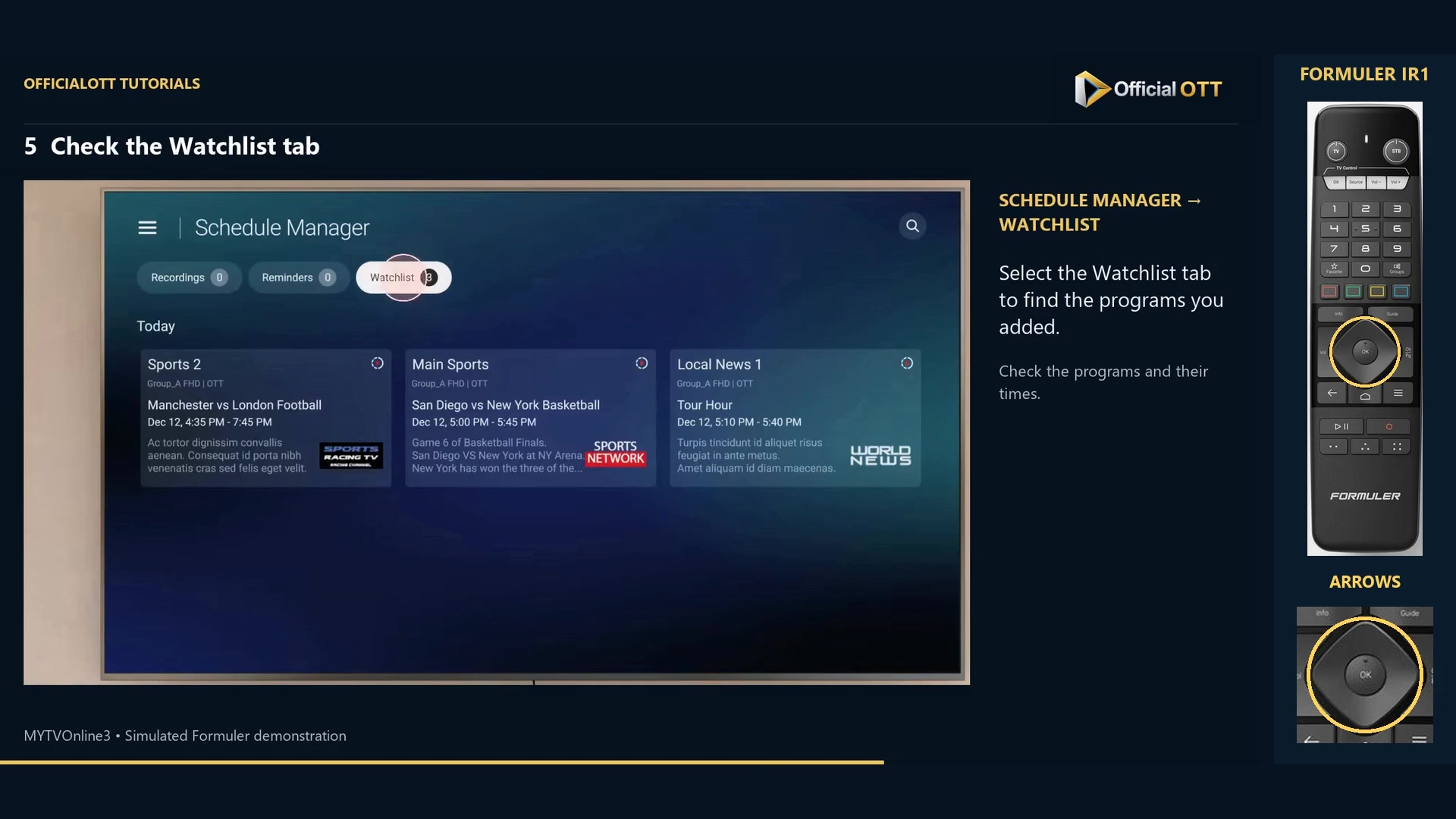
Frame from the simulated Formuler demonstration · 01:05 — Watchlist tab in Schedule Manager with three programmes and their times. Find or remove an event
In channel groups, open Watchlist to find channels currently airing selected events. To remove an event, open its actions with OK and choose Remove from Watchlist. Removal is documented but is not performed in the excerpt.
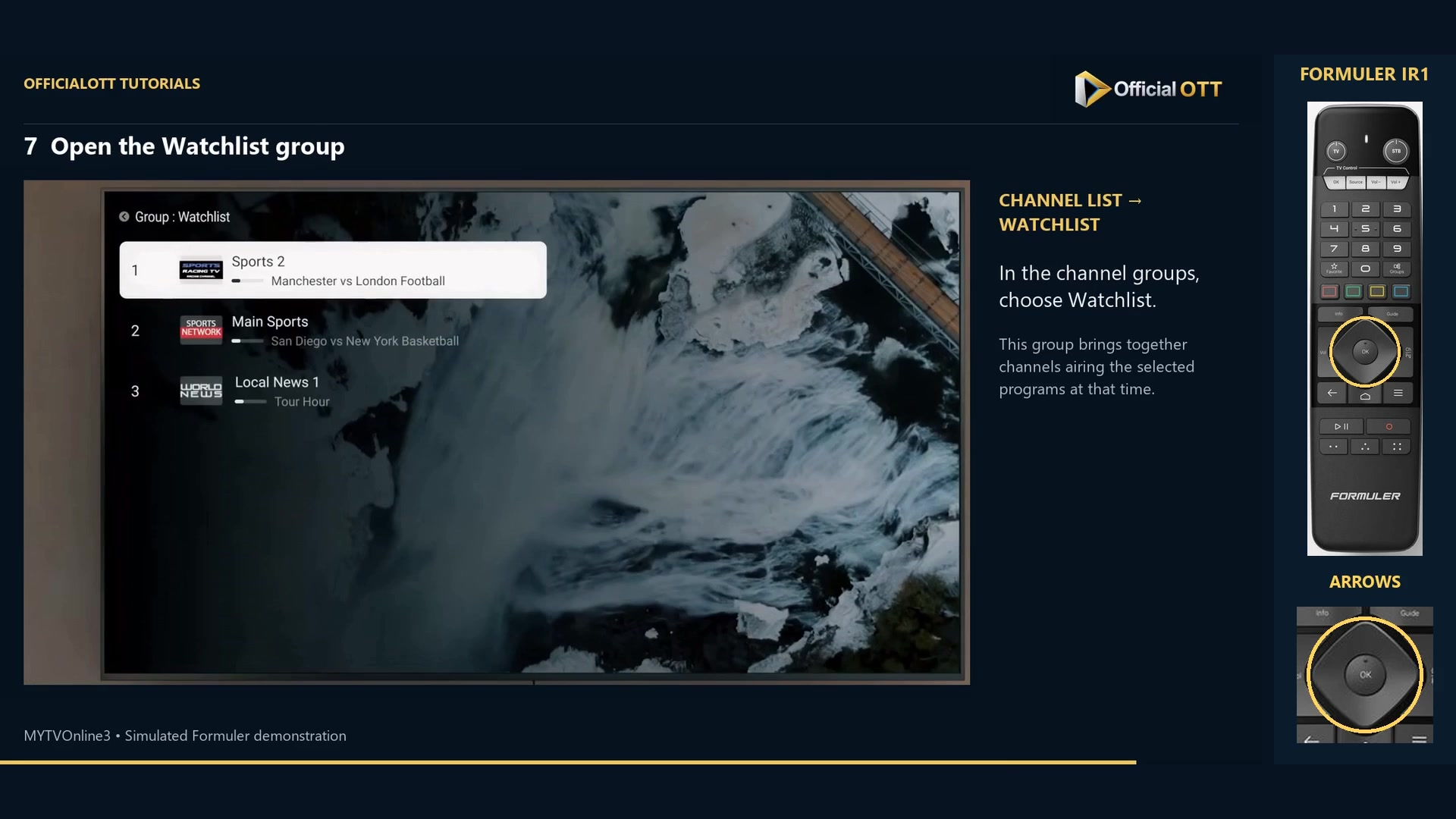
Frame from the simulated Formuler demonstration · 01:24 — Channels in the Watchlist group, with Sports 2 selected.
Check the result
Check the event in Schedule first, then inspect the group at airtime. Do not treat a Watchlist entry as evidence of a recorded file.
If your result differs
A program cannot be added
Check for program data and select a future event.
The expected channel is not in the group yet
Check the time: the dynamic group concerns selected programs currently on air.
No popup alert appears
Check notification settings and review the schedule. An absent popup does not establish that the planned item has disappeared.
Frequently asked questions
Does Watchlist replace Set Recording?
No. Follow the recording tutorial for that purpose and inspect the resulting file.
Why does Green do something else in live TV?
Shortcuts depend on context. The add command here is used inside the guide.
What to do next
Add a few programs, verify their times and find them when they air. Use the recording tutorial when you need a saved file.
Scope and limitations
This tutorial is based on the published OfficialOTT video and cited Formuler sources. It is not a hardware test on your device. Menus, data and capabilities depend on version, hardware and your source. Steps identify examples and limits of the excerpts.
Sources and method
Associated video narration and Formuler documentation rechecked on November 1, 2026. Each excerpt includes its timestamp; diagrams are identified.