
Quick answer
In the guide, select a future program, press OK for Manage Event and choose Set Recording. Check the date, start, end and frequency, then Save. To edit it, open Menu → Schedule → Recordings, hold OK on the event and choose Edit.
Watch the tutorial
MYTVOnline3: schedule and edit a recording
Open on YouTubeBefore you start
- Connect suitable storage, check free space and confirm that your stream can be recorded. Your service’s capabilities remain relevant.
- Choose a future program with guide information. Keep the device powered and storage connected during recording.
Useful controls · IR1
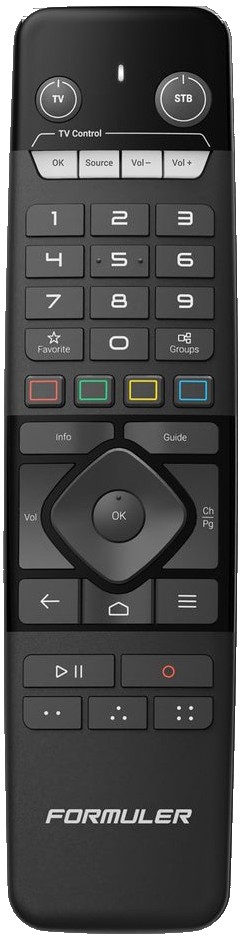
Choose a future program
Save the schedule
Event options in Schedule

The steps
Choose a guide event
From live TV, press Guide. Use the arrows to select an upcoming program, then press OK for Manage Event. Choose Set Recording; Set Reminder and Watchlist serve different purposes.
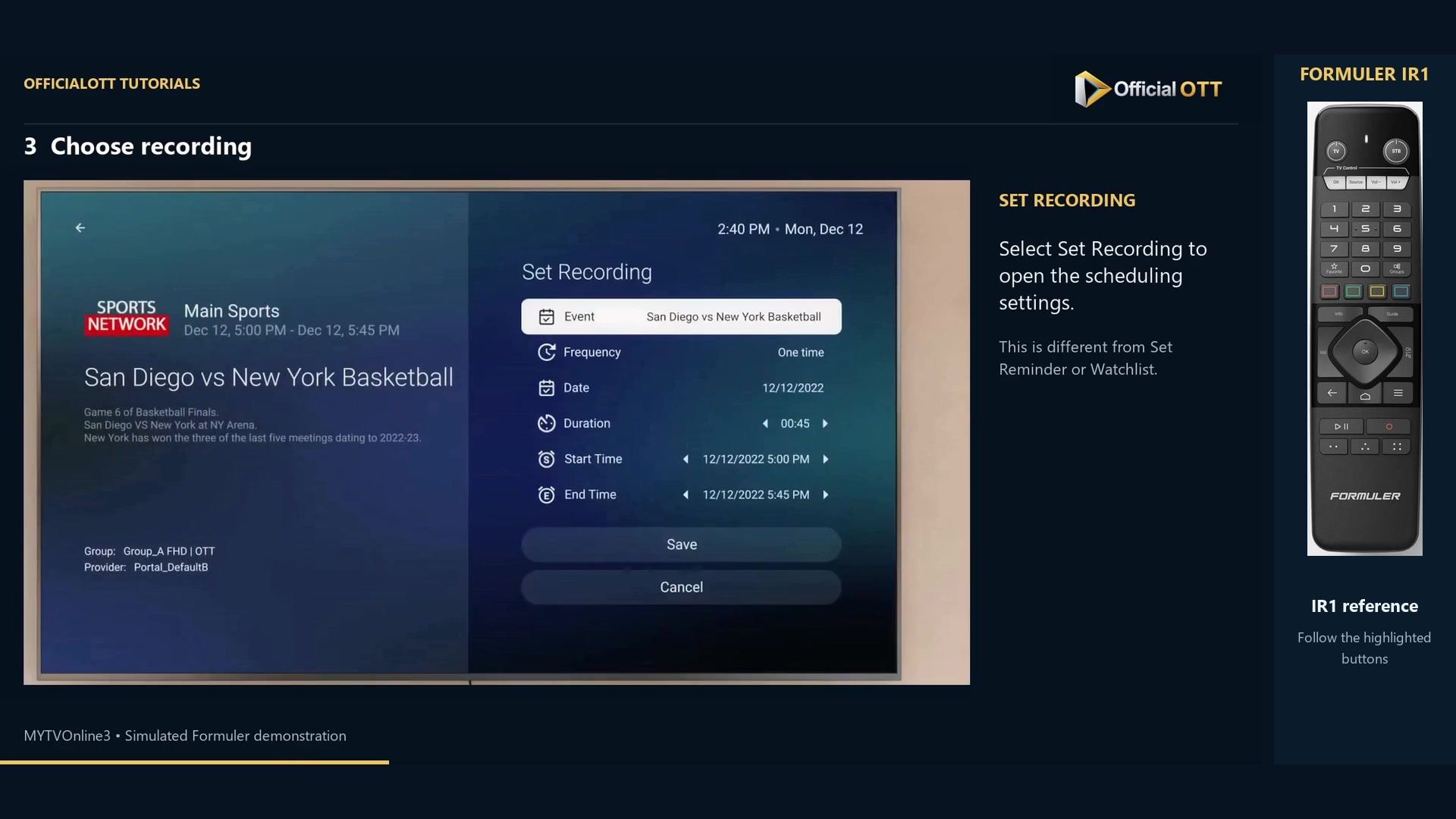
Frame from the simulated Formuler demonstration · 00:36 — Set Recording form with Event selected and the example times. Check before saving
Review the date, start time, end time and frequency. Set them for your program instead of copying the example. Choose Save and look for the marker in the guide.
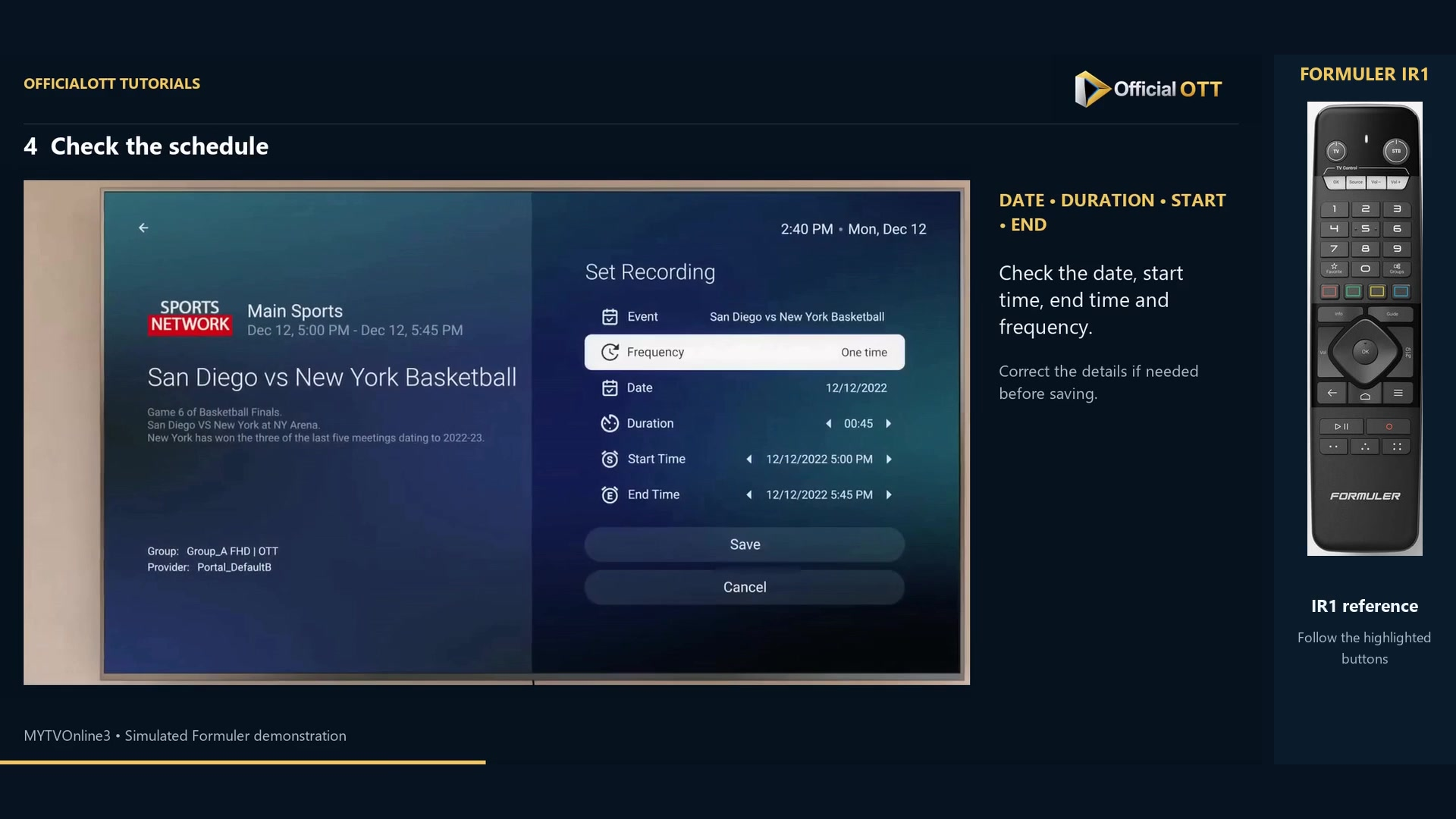
Frame from the simulated Formuler demonstration · 00:45 — Frequency selected in the scheduling form, with One time displayed. Edit an existing item
Open Menu, Schedule and Recordings. Select the scheduled recording and hold OK for its options. Choose Edit, not Delete. Change the necessary fields, choose Save and check that the event remains listed.
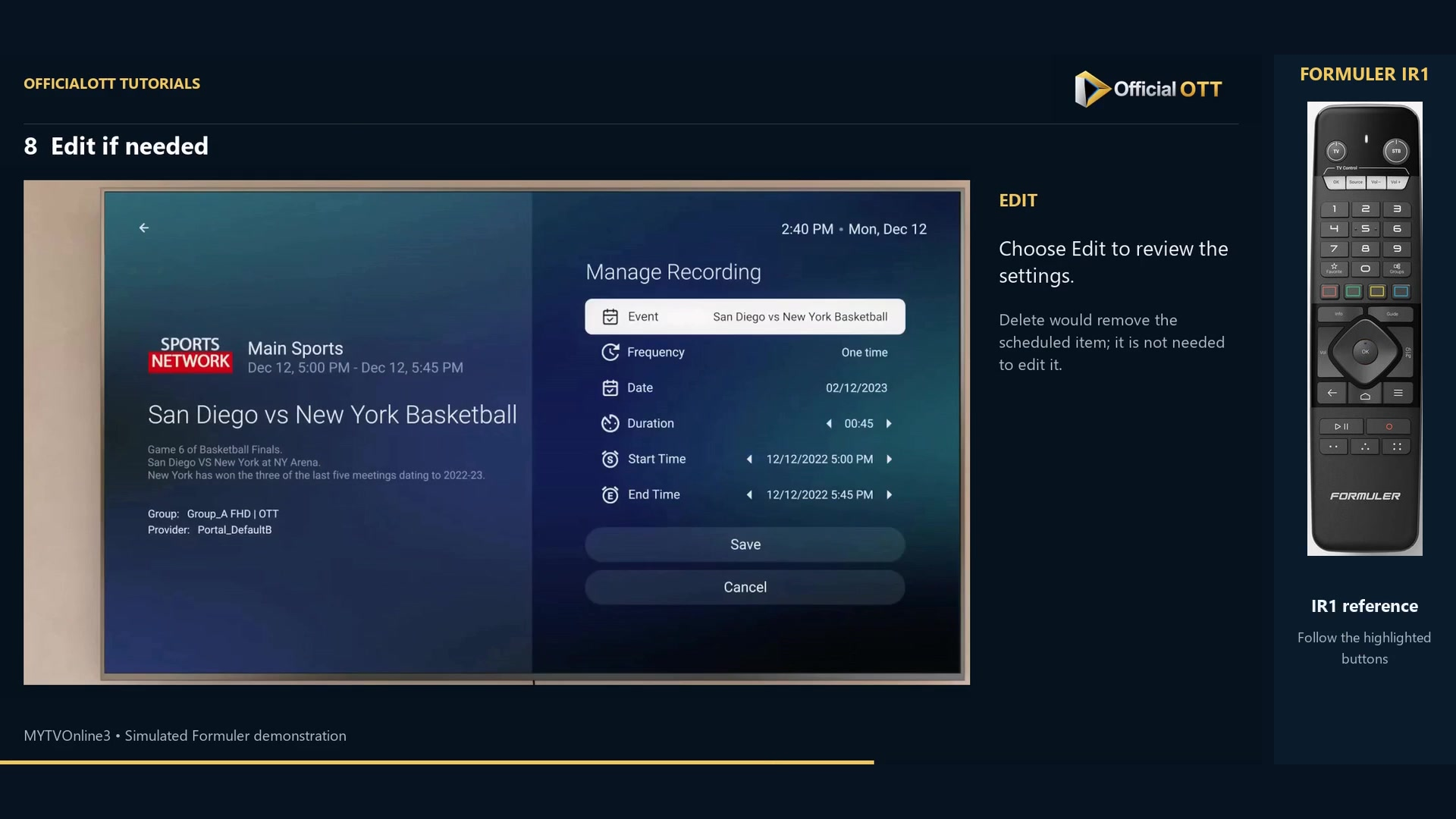
Frame from the simulated Formuler demonstration · 01:27 — Manage Recording form open for editing; this view does not prove that a recording file was created. Check after the broadcast
The example jumps to a recording-start announcement. It does not show a complete successful recording. After the end time on your setup, open the resulting file and test playback, picture, sound and the expected portion of the program.
Check the result
Separate the stored schedule, the announced start and the finished file. An entry in Schedule establishes only that the event is planned. A start notification proves neither completion nor file integrity.
If your result differs
The program is missing from the guide
Check your source’s program information. This workflow starts from a future EPG event.
The times are wrong
Reopen the event with Edit, correct the fields and save. Check the stored values afterward.
An alert appeared but the file is unusable
Check storage, free space, continuous power and stream capabilities. Keep the error message for diagnosis.
Frequently asked questions
Does Watchlist record the program too?
No. This tutorial uses Set Recording; Watchlist and Set Reminder are separate.
Should I unplug the box when the screen goes black?
No. A black screen does not mean it is safe to unplug during recording. Keep power and storage connected.
What to do next
Try a short recording on your setup first. Verify a playable file before relying on an important scheduled event.
Scope and limitations
This tutorial is based on the published OfficialOTT video and cited Formuler sources. It is not a hardware test on your device. Menus, data and capabilities depend on version, hardware and your source. Steps identify examples and limits of the excerpts.
Sources and method
Associated video narration and Formuler documentation rechecked on November 1, 2026. Each excerpt includes its timestamp; diagrams are identified.