
Quick answer
Open Menu → Notifications. All shows every message; Unread limits the list to unread ones. Read the title, identify the event and check its result in the relevant section. In the demonstrated workflow, Red marks all messages as read.
Watch the tutorial
MYTVOnline3: read notifications and understand alerts
Open on YouTubeBefore you start
- Keep three things separate: a message in the history, its read/unread state and a popup displayed over playback.
- For a recording, plan to inspect the file; for Watchlist, check the program and time. Alert text does not replace those checks.
Useful controls · IR1
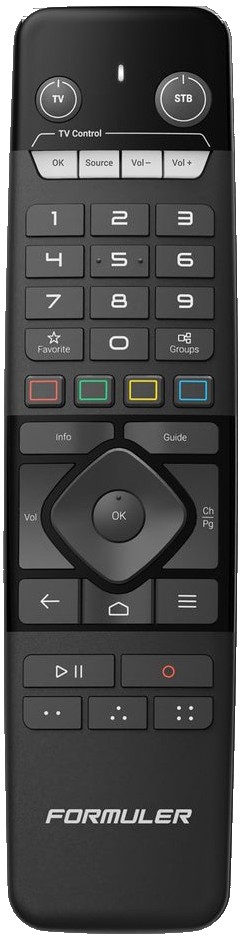
Open Notifications
Choose the message filter
Mark all messages as read

The steps
Open your messages
In the MYTVOnline3 menu, move to Notifications and press OK. The badge indicates messages to review.
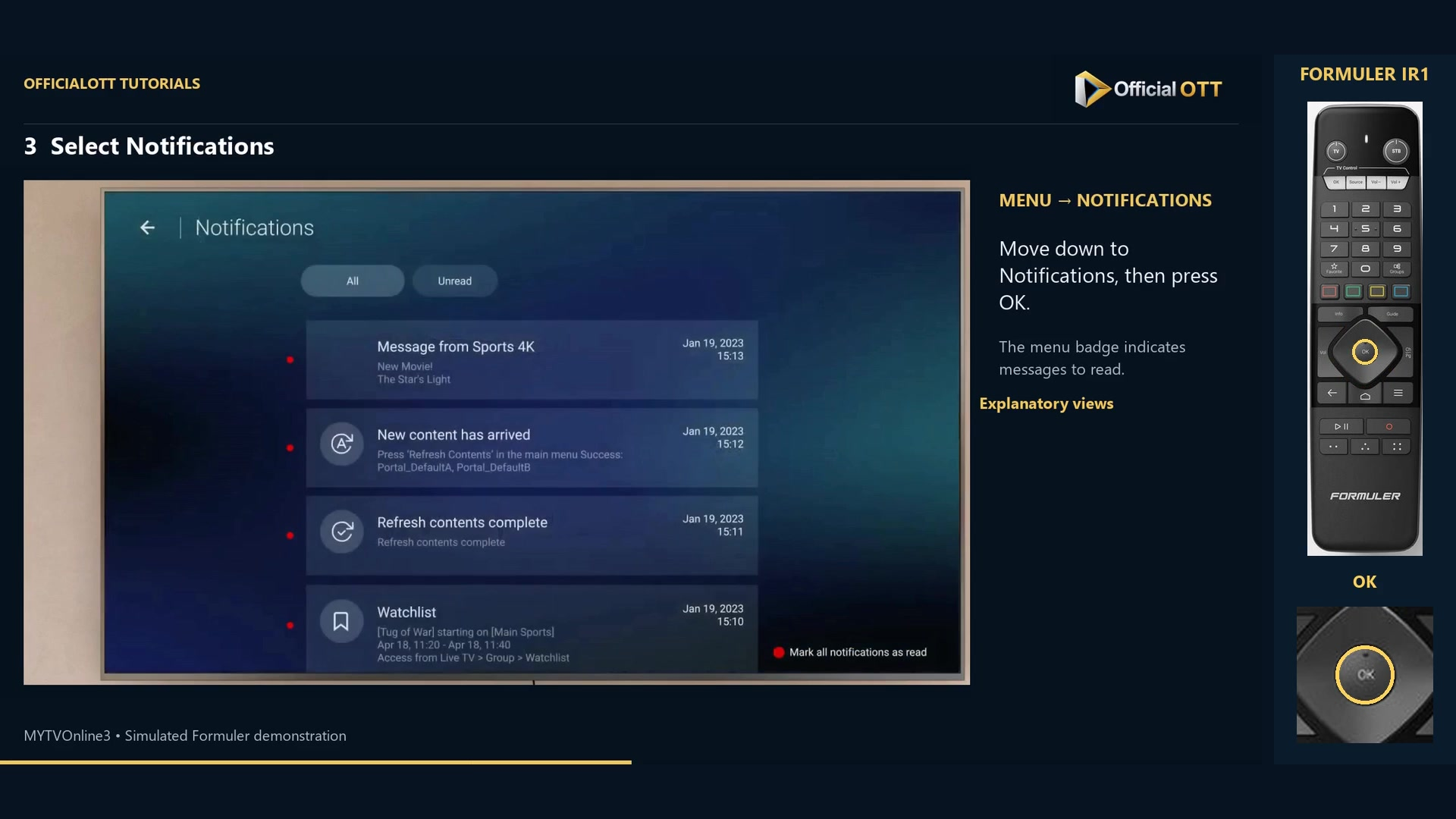
Frame from the simulated Formuler demonstration · 00:33 — Notifications list already open, showing example messages. Choose all or unread messages
Use All for the complete list and Unread for unread items, shown with a red dot in the demonstration. Navigate to a message with the arrows.
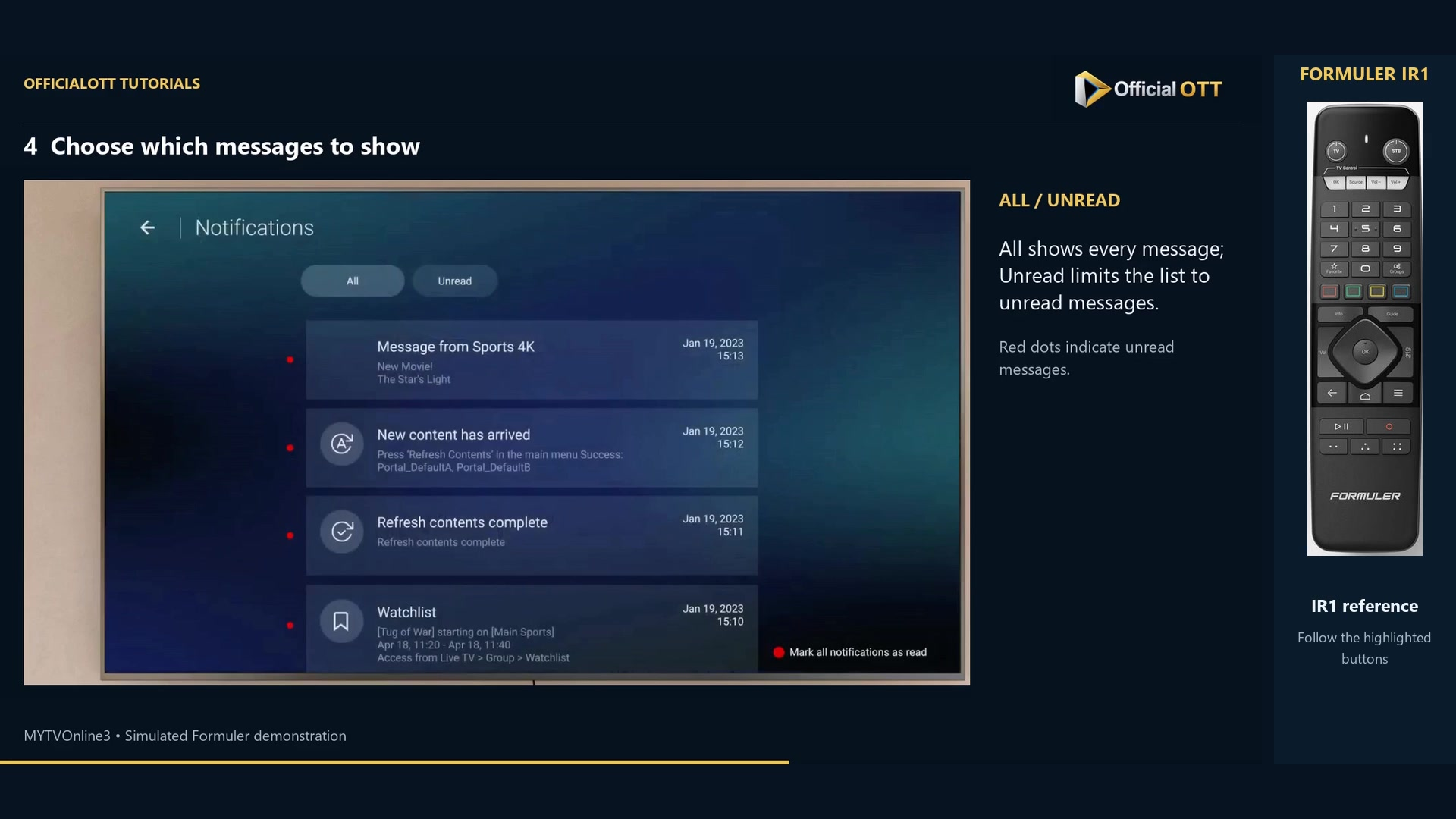
Frame from the simulated Formuler demonstration · 00:42 — Notifications list with All, Unread and red unread markers. Identify the event
New content has arrived announces added content. Distinguish recording start, recording end and Watchlist alerts. Return to the relevant function to check what actually happened.
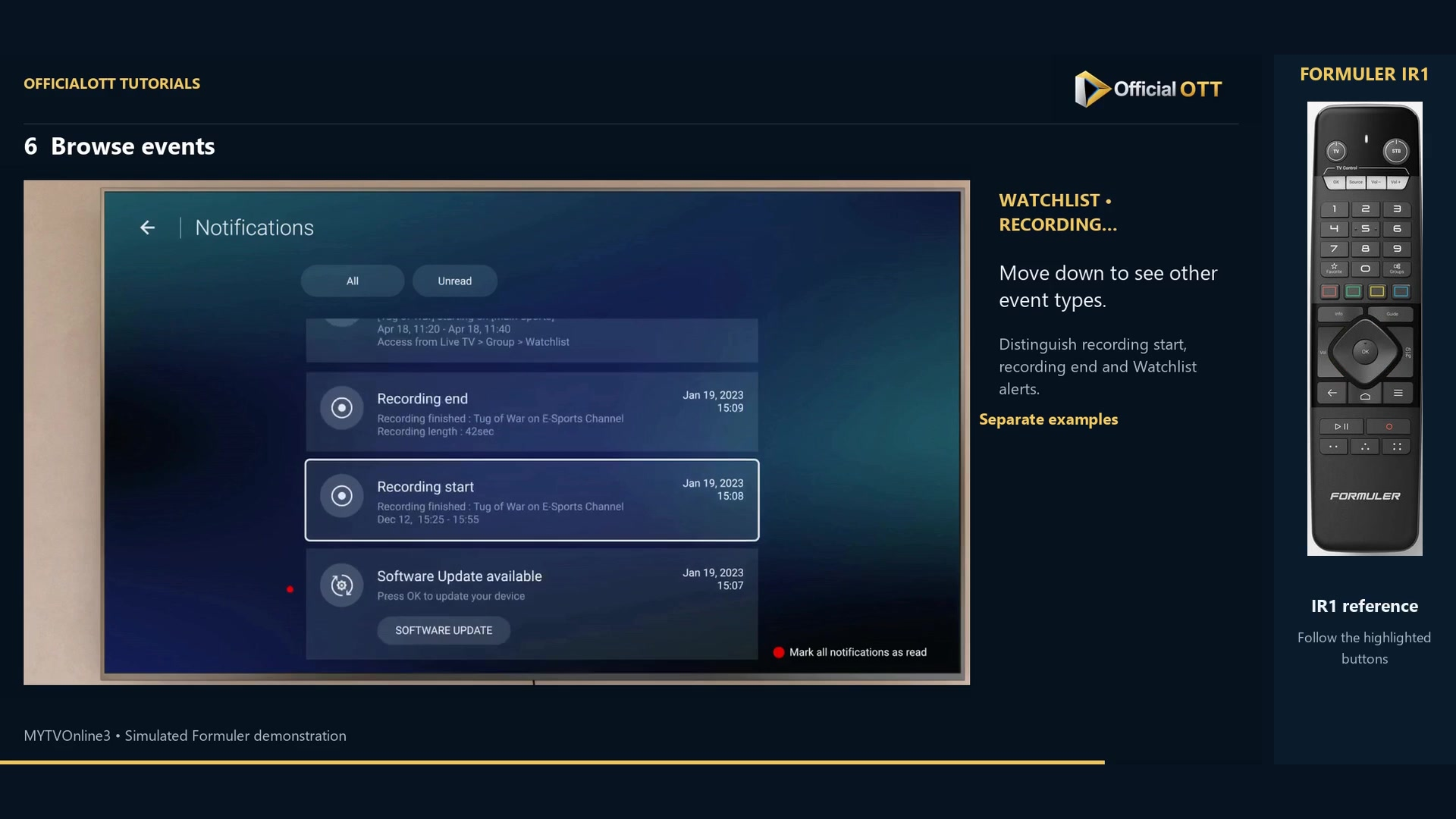
Frame from the simulated Formuler demonstration · 01:01 — Example Recording end and Recording start notifications; these are separate events. Manage read status and popups
Red marks everything as read and applies to the entire set of messages. To hide popup windows, the documentation points to Settings → Notification popups. That setting change is not performed in the excerpt.
Check the result
After marking messages as read, inspect their state in the filters. After a recording alert, open the file and test playback. A start or end announcement is not proof of a complete usable file.
If your result differs
Unread looks empty
Check All: the messages may already be marked as read.
An alert says a recording finished
Inspect the resulting file and useful duration before treating the operation as successful.
Popups interrupt viewing
Check Notification popups. The video mentions this setting without changing it; verify the stored state yourself.
Frequently asked questions
Does marking a message as read run its action?
In this workflow, it changes message state. It does not launch content or validate a recording.
Do all alerts mean the same thing?
No. Read the title: content, updates, Watchlist and recording alerts refer to different events.
What to do next
Use notifications to decide where to look next. Verify the actual outcome in the relevant content, schedule or file.
Scope and limitations
This tutorial is based on the published OfficialOTT video and cited Formuler sources. It is not a hardware test on your device. Menus, data and capabilities depend on version, hardware and your source. Steps identify examples and limits of the excerpts.
Sources and method
Associated video narration and Formuler documentation rechecked on November 1, 2026. Each excerpt includes its timestamp; diagrams are identified.