
Quick answer
From live TV, press Green, enter a word and choose the relevant category. Open the result with OK. You can reuse a term from Search history. Results depend on accessible sources and the information they provide.
Watch the tutorial
MYTVOnline3: search for a channel, program or movie
Open on YouTubeBefore you start
- Choose a word from the name you want. The video uses sport as an example; use a term suited to your search.
- Check your starting screen: Green opens search from live TV but performs other actions elsewhere, including in the guide.
Useful controls · IR1
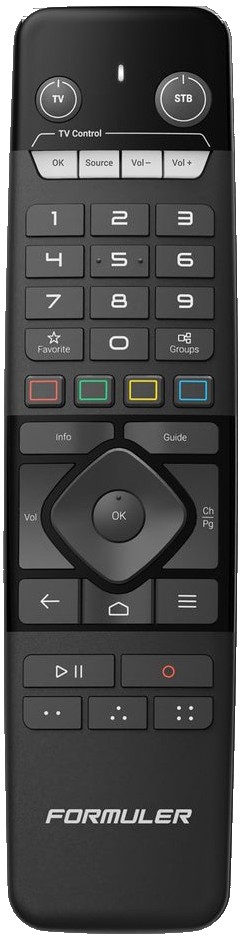
From live TV: search
Choose category and result
Reuse a previous term

The steps
Enter a word from live TV
Press Green to open the search field and keyboard. Enter a relevant term and examine the results. Check the category before concluding that a title is absent.
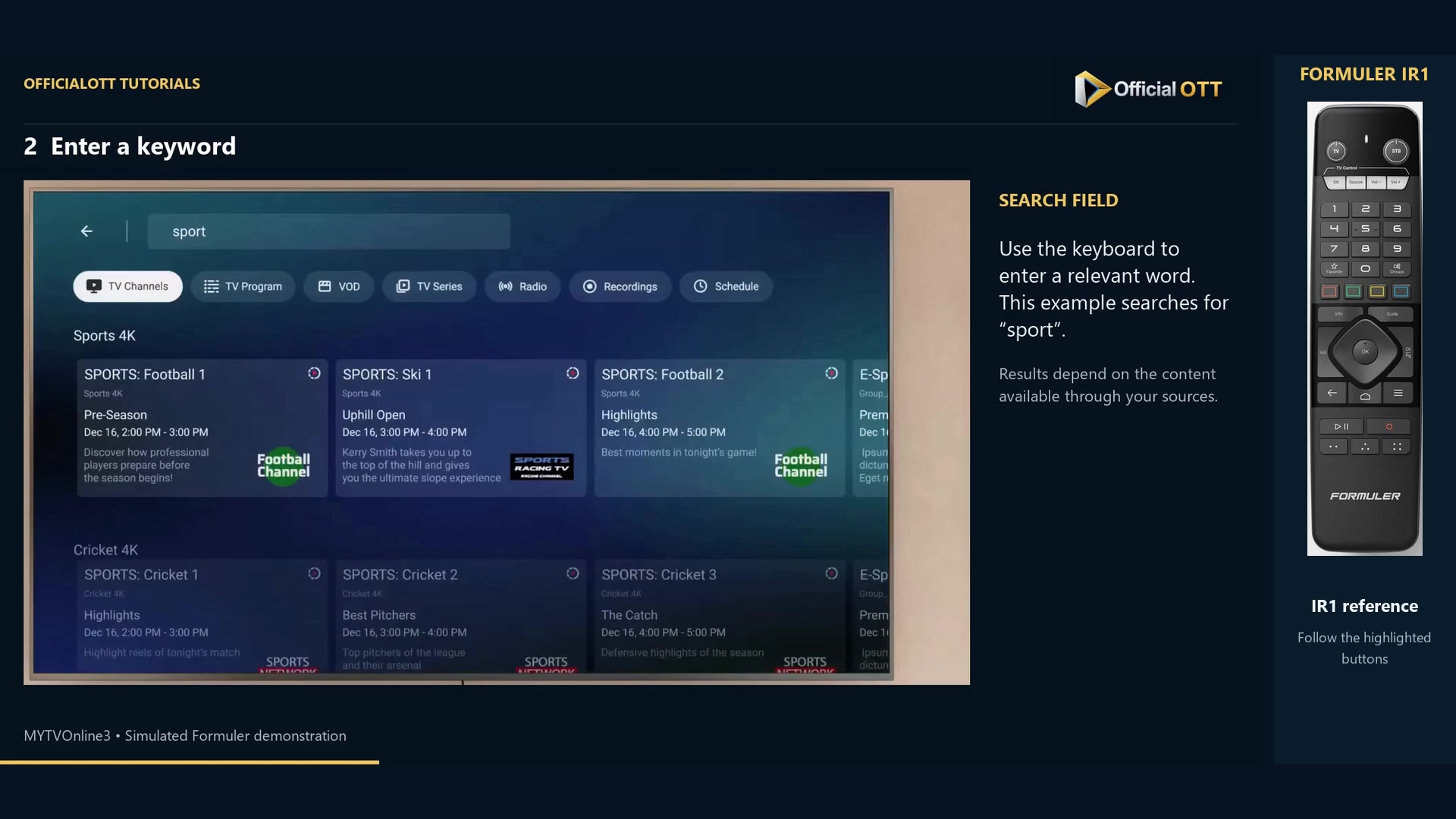
Frame from the simulated Formuler demonstration · 00:23 — Results for “sport” are already displayed; the keyboard is no longer visible. Choose the result type
Browse the categories above the results. Channels, programs, movies and series are distinct searches. For a channel, select its card: OK shows a preview in the demonstrated workflow. Then open the channel you want to watch.
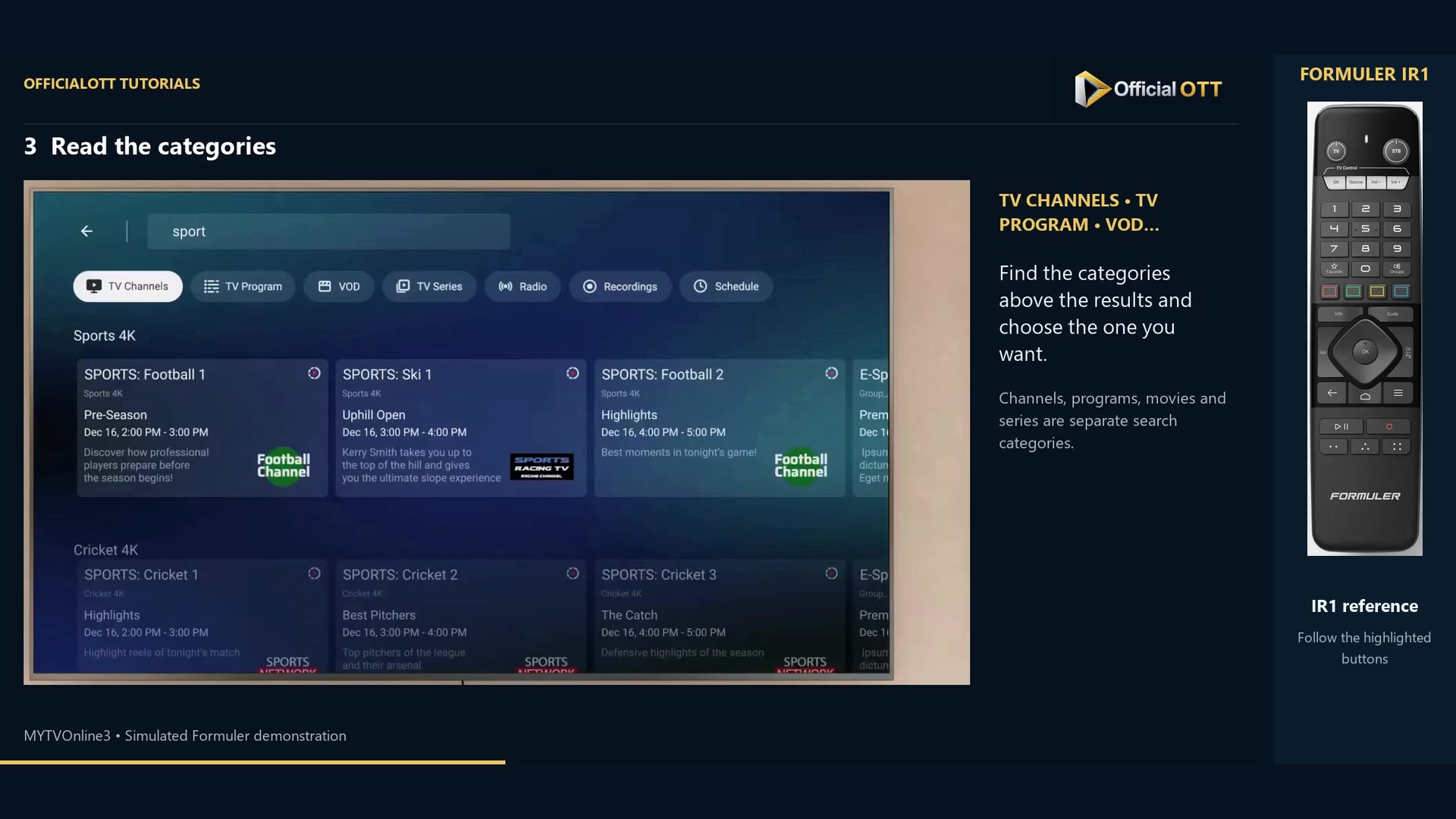
Frame from the simulated Formuler demonstration · 00:32 — Search results and categories, including TV Channels, TV Program and VOD. Reuse a previous term
Reopen search and go to Search history. Select your word and press OK to bring its results back. This avoids typing a recurring search again.
Inspect a movie and refine the search
Switch to VOD for movies, then open a poster with OK to read its details. If it is not the desired result, change the word or category. A poster appearing does not guarantee available playback.
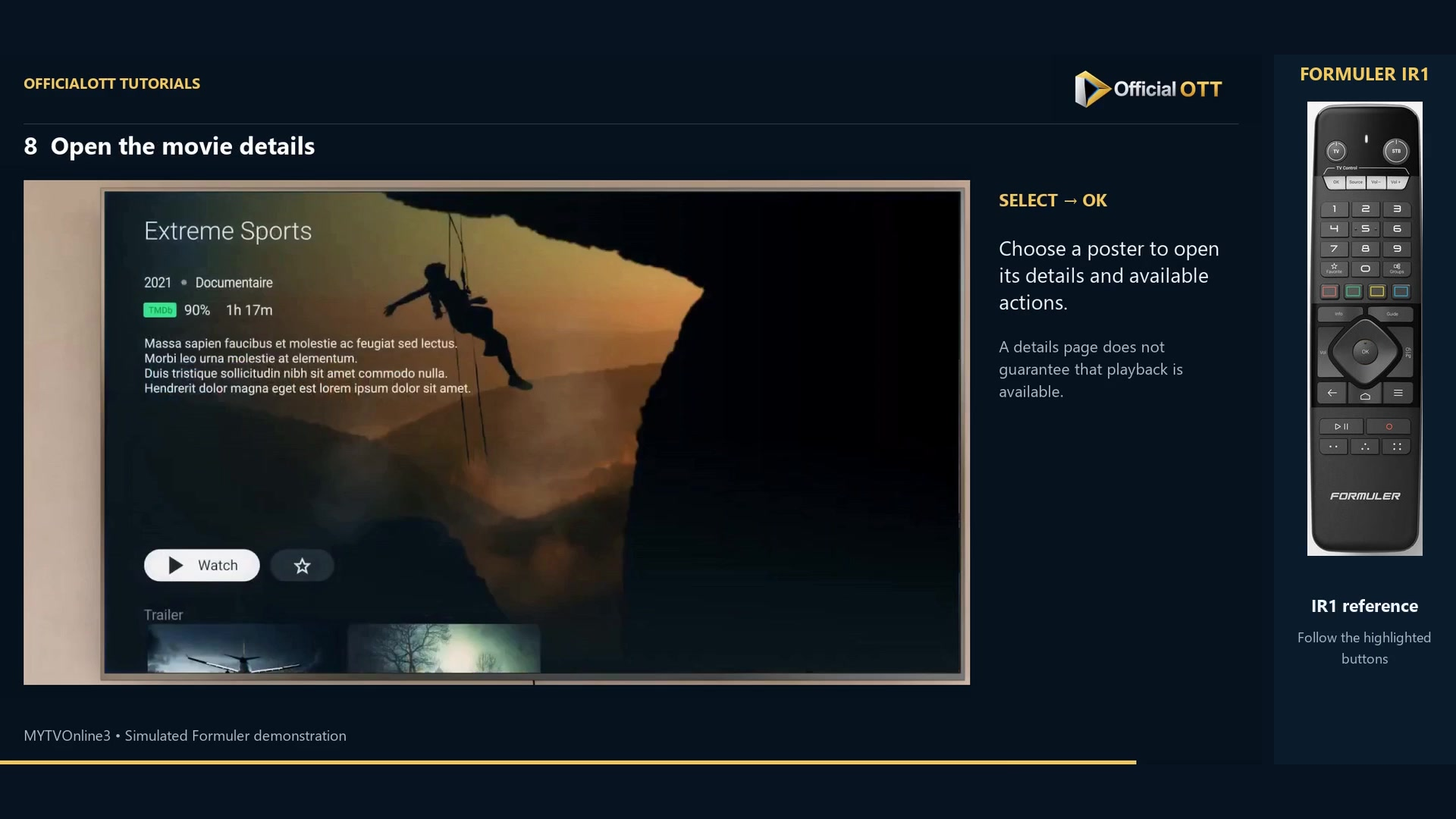
Frame from the simulated Formuler demonstration · 01:19 — Example Extreme Sports details with a Watch button; this frame does not demonstrate playback.
Check the result
Check that the title, category and details match what you wanted. To watch, open the content and check playback separately; a search result is not a playback test.
If your result differs
A category returns no results
Try another term or the appropriate category. A source may lack that content type or the required information.
Green does not open search
Return to live TV. The button’s action depends on the current screen.
A poster appears but the movie does not start
A catalogue entry and playable access are different. Note the playback message and check access with your service if needed.
Frequently asked questions
Does search add content?
No. It helps locate content described by your accessible sources.
Must I type the same term every time?
The tutorial shows how to reuse it in Search history while it remains listed.
What to do next
Choose the right result type first, then refine your term. For upcoming programs in the guide, continue with Watchlist.
Scope and limitations
This tutorial is based on the published OfficialOTT video and cited Formuler sources. It is not a hardware test on your device. Menus, data and capabilities depend on version, hardware and your source. Steps identify examples and limits of the excerpts.
Sources and method
Associated video narration and Formuler documentation rechecked on November 1, 2026. Each excerpt includes its timestamp; diagrams are identified.