
Quick answer
In Content Manager → Manage Groups → TV Groups, use Show and Hide Groups for visibility, Pin Groups for priority placement and Reorder Pinned Groups for ordering. Check each result in the channel list.
Watch the tutorial
MYTVOnline3: show, pin and reorder channel groups
Open on YouTubeBefore you start
- Choose groups that are useful in your own source. Sports, Music, World and Local are video examples, not a required list.
- These steps concern TV Groups. Movies and series have separate sections. Follow the command names available in your MYTVOnline3 version.
Useful controls · IR1
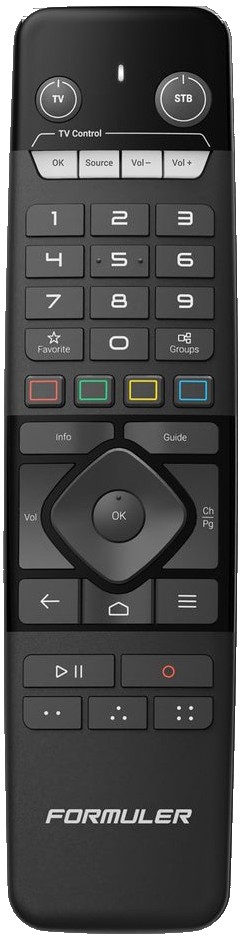
Check or pin
Bulk selection: check the marks
Move, then confirm

The steps
Choose visible groups
Open Content Manager, Manage Groups, TV Groups and Show and Hide Groups. A check mark means a group is visible. Select a row and press OK to change its mark. Return to the channel list and check the result.
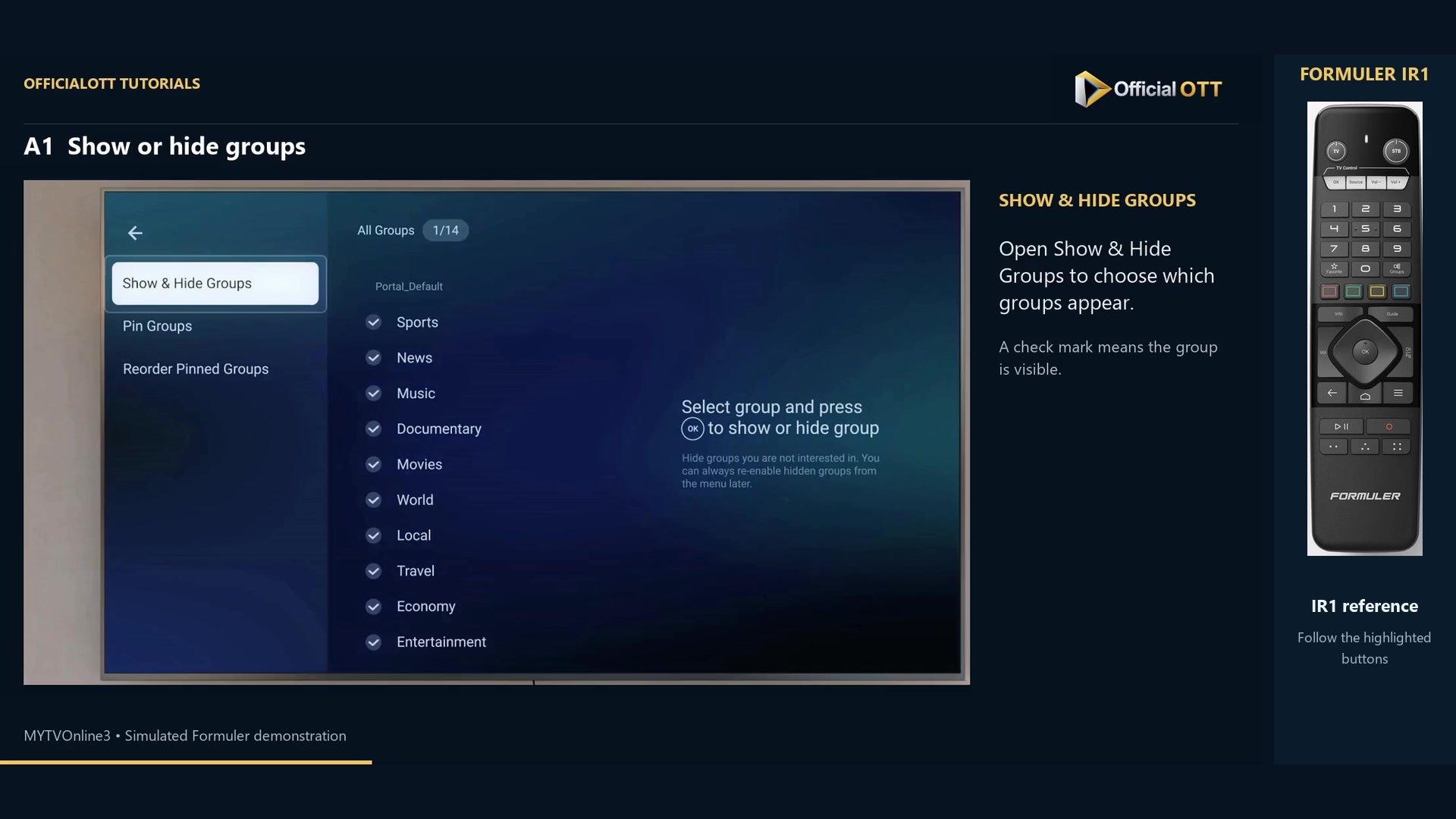
Frame from the simulated Formuler demonstration · 00:41 — Show & Hide Groups: visible check marks beside the displayed groups. Use the bulk command carefully
In the example, the red button changes all groups. It is different from pressing OK on a single row. Check the marks afterward; you can show a hidden group again in this menu.
Pin useful groups
Open Pin Groups. Select a group and press OK to toggle its pin, then inspect the icon. Back in the channel list, pinned groups appear together at the top. This part of the video starts with all groups visible again: pinning does not restore hidden groups.
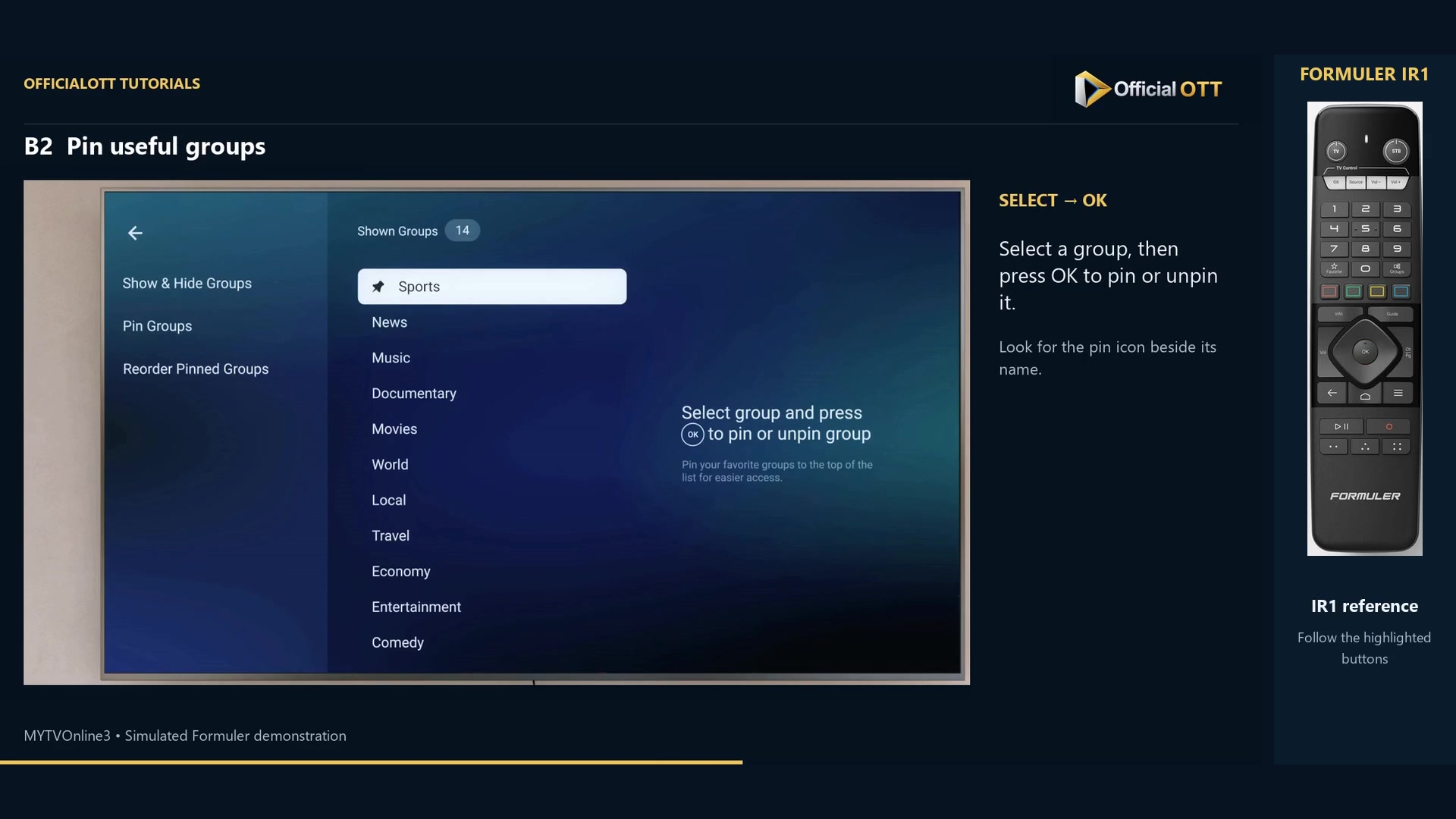
Frame from the simulated Formuler demonstration · 01:35 — Sports selected in Pin Groups, with a pin icon. Arrange pinned groups
Open Reorder Pinned Groups, select a row and press OK. When movement arrows appear, use Up or Down. Press OK again to set the position. Check that the arrows disappear, then inspect the order in the channel list.
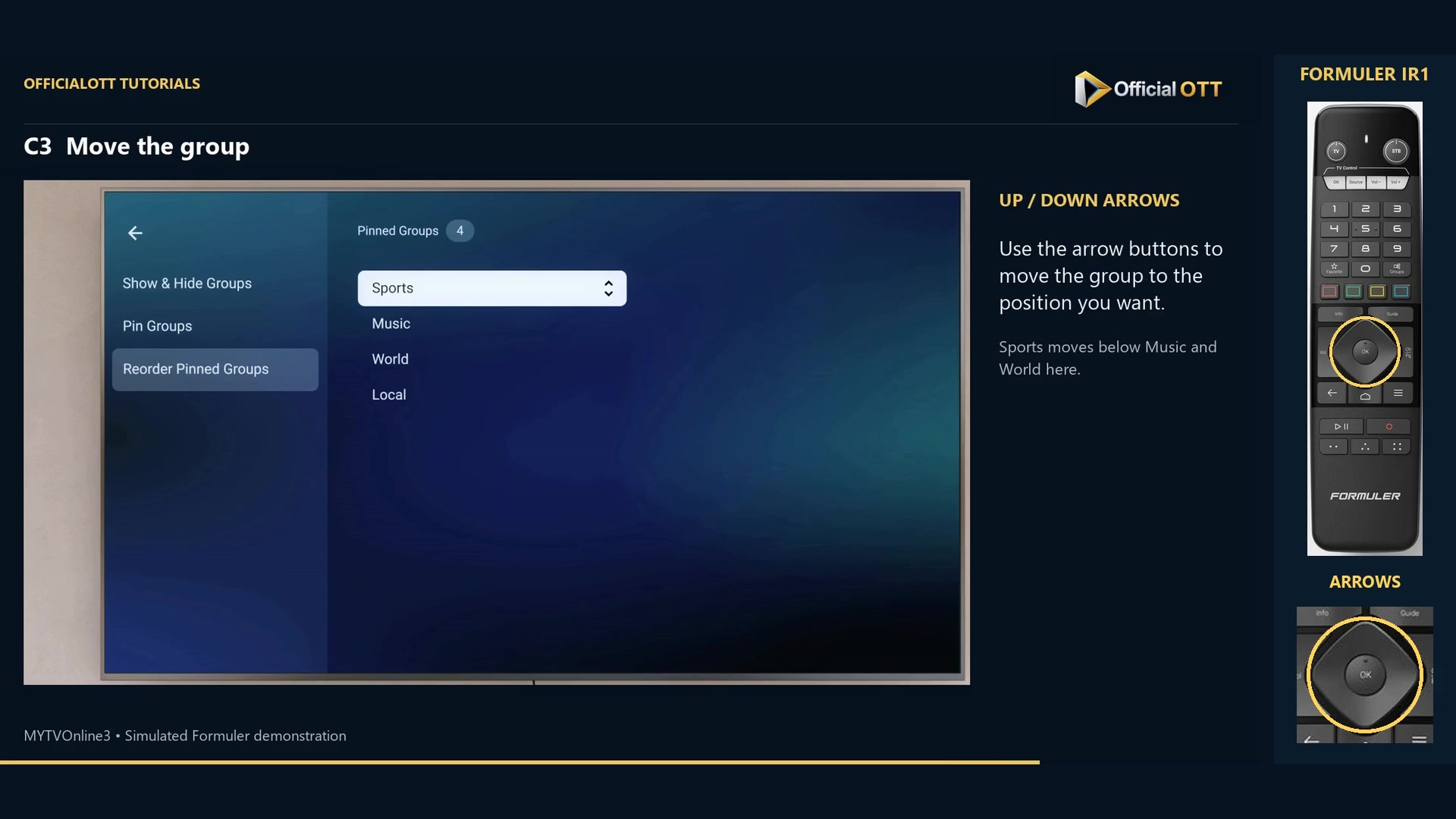
Frame from the simulated Formuler demonstration · 02:17 — Sports selected for reordering pinned groups; this frame precedes its movement.
Check the result
A useful group should be visible, pinned if wanted and in the intended position. Verify these properties separately. The sequence in the video is only an example.
If your result differs
A pinned group is missing
Check its mark in Show and Hide Groups first. Pinning does not replace visibility.
Several groups disappeared together
Check whether you used the red bulk command. Restore the required check marks.
A move looks unfinished
Confirm the new position with OK and check that the movement arrows disappear before leaving.
Frequently asked questions
Does hiding a group remove the source?
The demonstrated workflow changes visibility. You can enable its check mark again in the same menu.
Does this ordering screen include unpinned groups?
The demonstrated menu is Reorder Pinned Groups and concerns groups already pinned.
What to do next
Start with a few groups, check their visibility and order, then extend your arrangement. Use search afterward when you need a particular title.
Scope and limitations
This tutorial is based on the published OfficialOTT video and cited Formuler sources. It is not a hardware test on your device. Menus, data and capabilities depend on version, hardware and your source. Steps identify examples and limits of the excerpts.
Sources and method
Associated video narration and Formuler documentation rechecked on November 1, 2026. Each excerpt includes its timestamp; diagrams are identified.