
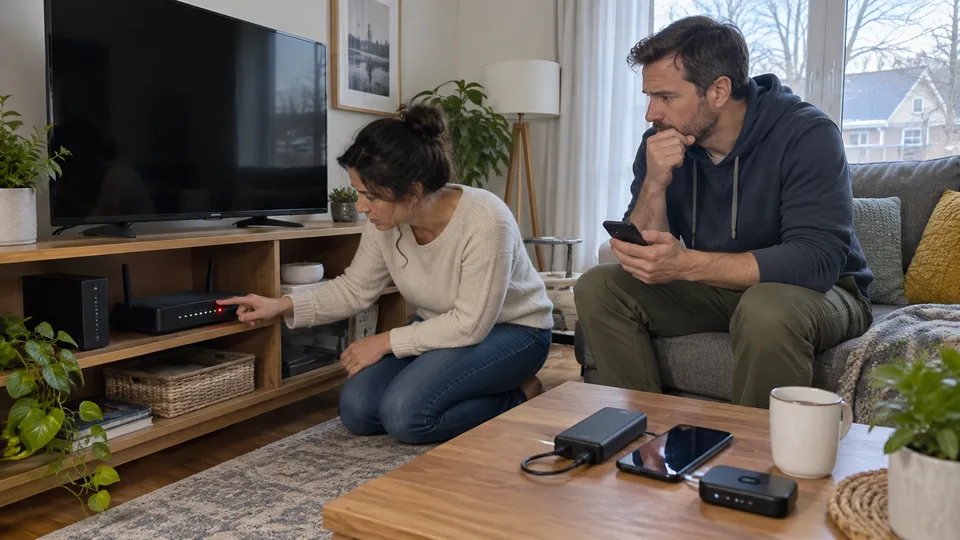
A backup connection may support some uses during an Internet outage, but it does not resolve every interruption. A power failure, a video-service incident and a loss of fixed Internet access need different responses. For an IPTV setup, prepare a simple plan before an incident and check the mobile plan’s limits.
1. Quick answer
First confirm what has failed. If fixed Internet is unavailable but the mobile network works, a compatible hotspot can be tried within your plan’s and service’s limits. Monitor usage and return to the usual network when the problem is resolved.
Five key points
- The outage may affect power, fixed Internet or the video service.
- Mobile tethering depends on the plan and coverage.
- Mobile access may have different data allowances or conditions.
- The TV and box still need suitable power.
- Check the return to fixed Internet to stop mobile-data use.
2. Identify the extent of the interruption
Check whether several devices have lost Internet access. If only one app fails while others work, a backup connection is not automatically useful. Consult official information from the provider or service through a working connection.
During a power outage, a mobile hotspot does not restore power to the TV and router. Adapt usage to available devices and their battery life. Avoid buying backup equipment before defining what needs power and the related safety constraints.
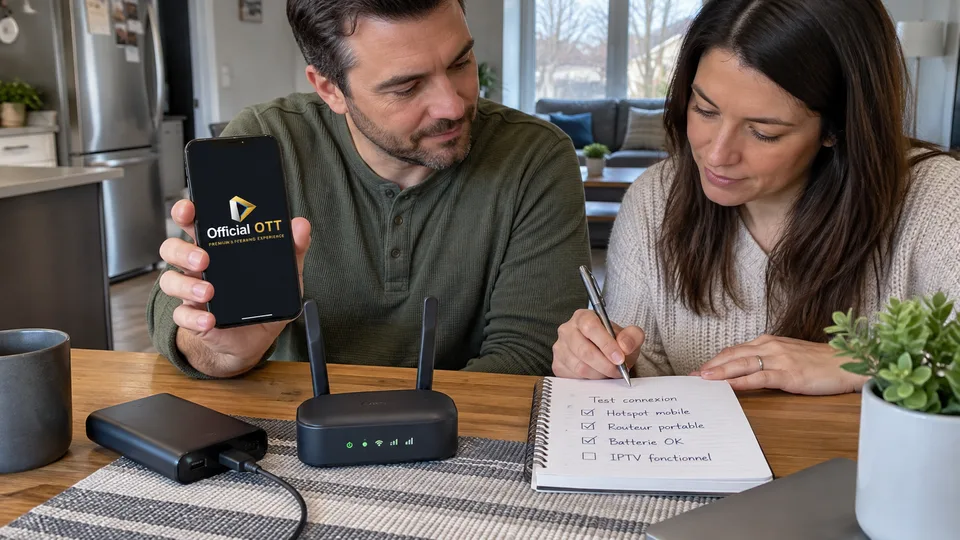
3. Prepare mobile tethering before you need it
Check that the plan permits tethering and which limits apply. Apple explains that iPhone Personal Hotspot uses its cellular connection; it is not a general relay for Wi-Fi the iPhone is connected to. Check other systems in their own documentation.
Set a suitable password and test one authorized device. Note how to return to the fixed network afterwards. If tethering does not appear in settings, consult the carrier rather than installing an unfamiliar app.
| Condition | Check before testing |
|---|---|
| Mobile network | Coverage and data access |
| Plan | Permitted tethering, data allowance and possible fees |
| TV device | Compatibility with the shared network |
| Video service | Authorized use on that connection |
| Power | Battery life or planned power supply |
Documentation: Apple — share the iPhone cellular connection · Apple — connect a device to Personal Hotspot
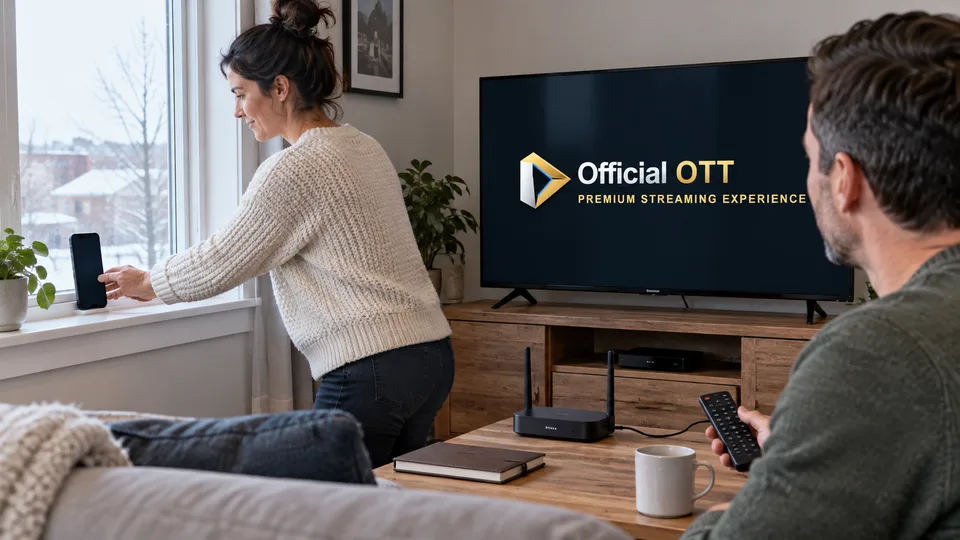
4. Keep the test limited and watch data use
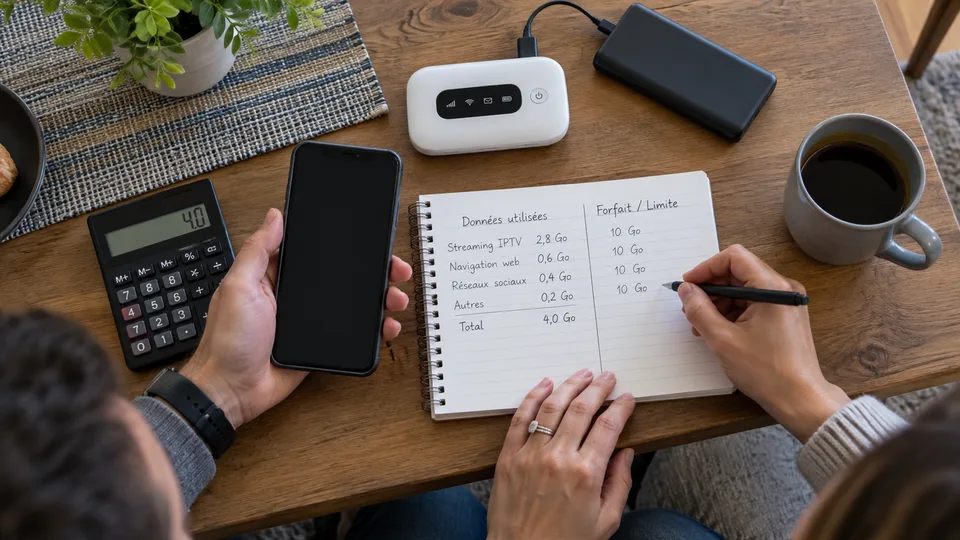
Start with a short authorized programme or excerpt. Check playback and the available data counter, remembering that the carrier’s figures may update with a delay. Do not assume a plan advertised as unlimited operates without conditions for every use.
When the app allows it, choose quality appropriate to the need and available data. Avoid letting several devices use the hotspot unnecessarily, especially for background downloads or updates. The aim is to preserve useful access during the incident.
Mobile speed can vary with coverage and network activity. One successful playback does not guarantee the same quality throughout the outage.
Documentation: Apple — Personal Hotspot conditions and limitations
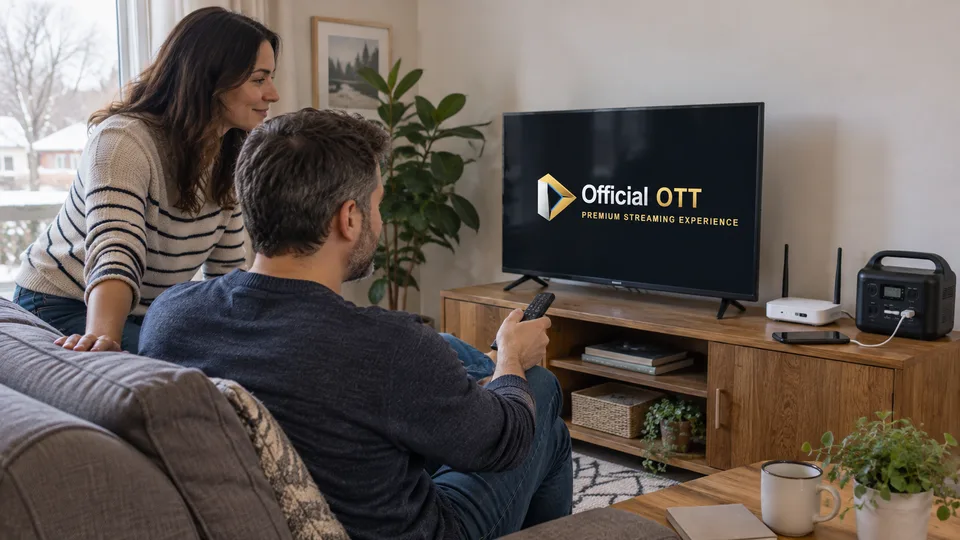
5. Interpret the result without overclaiming
If the service works on mobile but not on fixed Internet, record that difference for the provider. It helps guide the investigation but does not by itself prove that a particular piece of equipment is faulty. The network route and conditions have changed.
Fictional example: a home loses fixed Internet, but the phone remains connected to the cellular network. The household briefly uses a hotspot for a specific need, monitors data and waits for restoration. It does not make this a permanent solution without reconsidering the plan.
If the same app fails on both connections, also examine the account, content and service. Trying more networks does not replace diagnosing the displayed error.
6. Return to normal operation
After restoration, reconnect the TV or box to the fixed network and confirm the selected network name. Stop the mobile hotspot when it is no longer useful. Check that other devices do not remain connected to it.
Record what worked, observed data use and encountered limits. This note will make the next interruption easier to manage. A realistic backup plan also identifies uses you choose to postpone.

7. Frequently asked questions
Does mobile tethering fix every IPTV outage?
No. It does not automatically correct an account, content, app or power problem.
Can I share iPhone Wi-Fi as though it were cellular?
The Personal Hotspot feature described by Apple uses cellular data. Check your device’s exact capabilities.
Does an unlimited plan eliminate the need to check?
No. Read the plan’s tethering, speed and usage conditions.
How do I avoid using mobile data after Internet returns?
Reconnect devices to the fixed network, verify their connection and disable the hotspot when no longer needed.
8. Conclusion and limitations
Mobile availability and plan conditions vary. No universal data allowance or service continuity is guaranteed. This guide does not size backup power supplies or replace equipment electrical instructions.
9. Method and sources
Documentary research completed on October 12 and 13, 2026 using the primary sources below. The procedures and examples are an original editorial synthesis. Household examples and illustrations are fictional. No purchase, service trial, private-account inspection or performance measurement was conducted for this article.
Menus, features and terms can change. Check your model documentation and the service terms when making your decision.
- Apple — share the iPhone cellular connection
- Apple — connect a device to Personal Hotspot
- Apple — Personal Hotspot conditions and limitations
Further reading added:
Editorial review: