
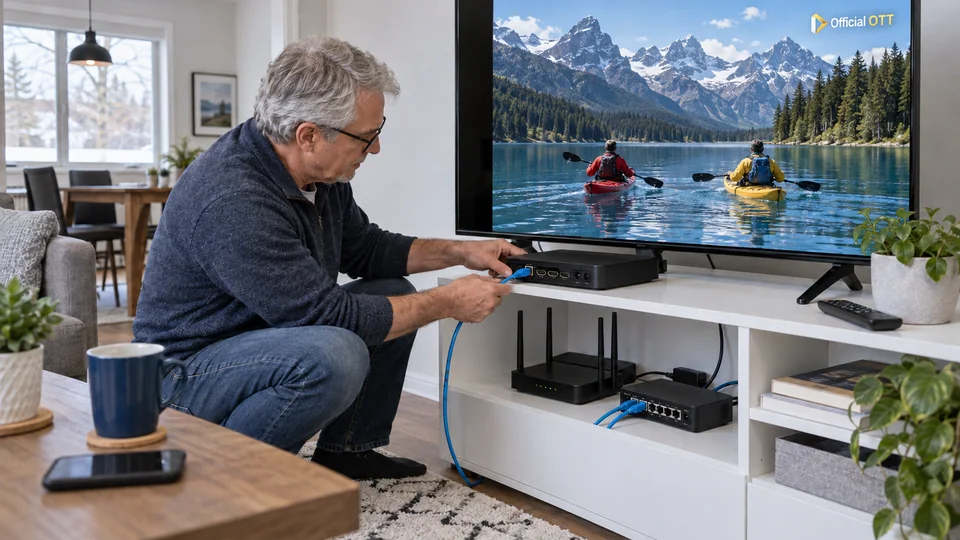
Your Internet plan advertises a high speed, but the TV may have a slower Ethernet port. That does not immediately establish that the port causes IPTV interruptions. Separate the equipment’s advertised capacity, the link actually established and the content’s requirements. This method explains what a cable can test and when a limit deserves investigation.
1. Quick answer
Read the exact model’s specifications, check the cable and router port, then observe playback. A 100 Mbps port is not automatically inadequate, and a Gigabit port does not guarantee a stable stream. Compare one variable at a time before buying equipment.
Five key points
- Your Internet plan and the TV-to-router link are different segments.
- The exact model’s capacity matters more than the product-family name.
- A damaged cable or intermediate port can limit the link.
- A speed test does not measure every aspect of video-service quality.
- Content requirements should come from its documentation, not a universal number.
2. Read the numbers in context
100 Mbps and 1 Gbps describe theoretical link rates. In this notation, one gigabit equals one thousand megabits. Measured usable throughput can be lower because transmission involves overhead and depends on the equipment. Do not confuse megabits per second with megabytes per second either.
A fast Internet plan reaches the home network, after which devices use their own connections. A TV, switch or adapter may have a different limit. Sketch the router, intermediate equipment and playback device to understand the path.

3. Identify the exact model’s ports
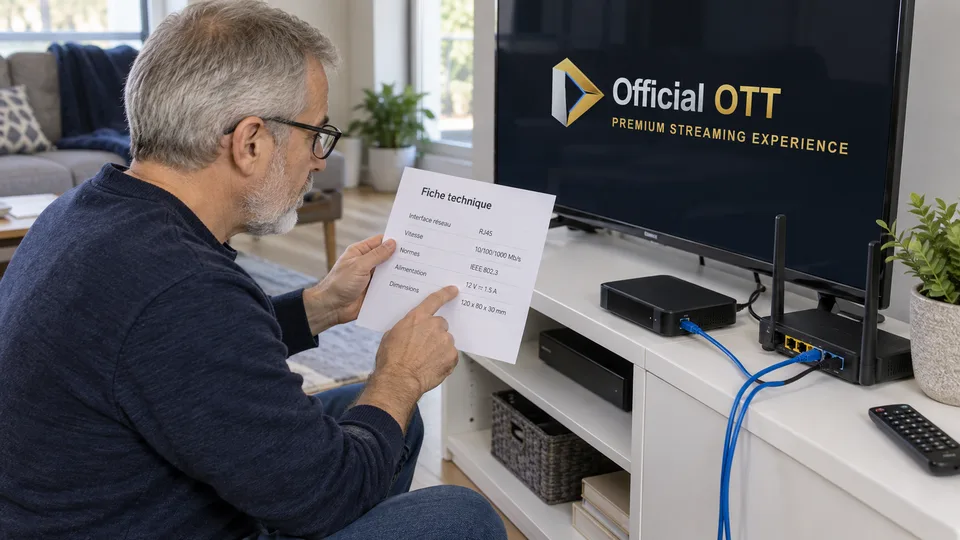
Find the complete model reference in the device information and read its official specifications. A product family can include several variants. For example, Apple distinguishes a Wi-Fi model from a Wi-Fi + Ethernet model with a Gigabit port in the third-generation Apple TV 4K range. The name Apple TV 4K alone therefore does not describe its connections.
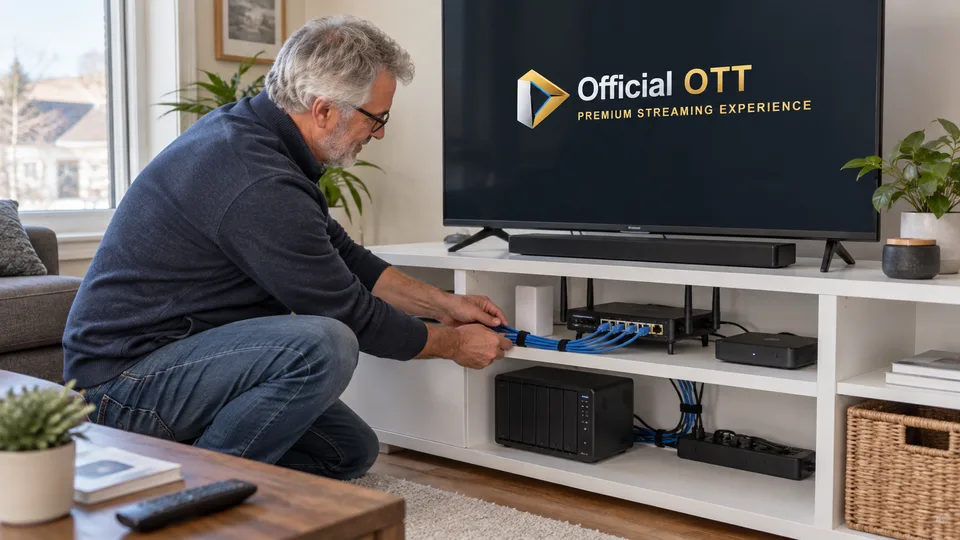
Also check the port at the other end of the cable. Add any switch, USB adapter or wall socket to the inventory. Do not automatically attribute a limit to the TV when other equipment sits in the path.
| Segment | Record |
|---|---|
| Playback device | Model and advertised Ethernet capacity |
| Cable | Connector condition and route |
| Intermediate equipment | Switch or adapter used |
| Router | Selected LAN port and available link status |
| Internet | Provider connection and service status |
Documentation: Apple — third-generation Apple TV 4K specifications

4. Check connections before changing settings
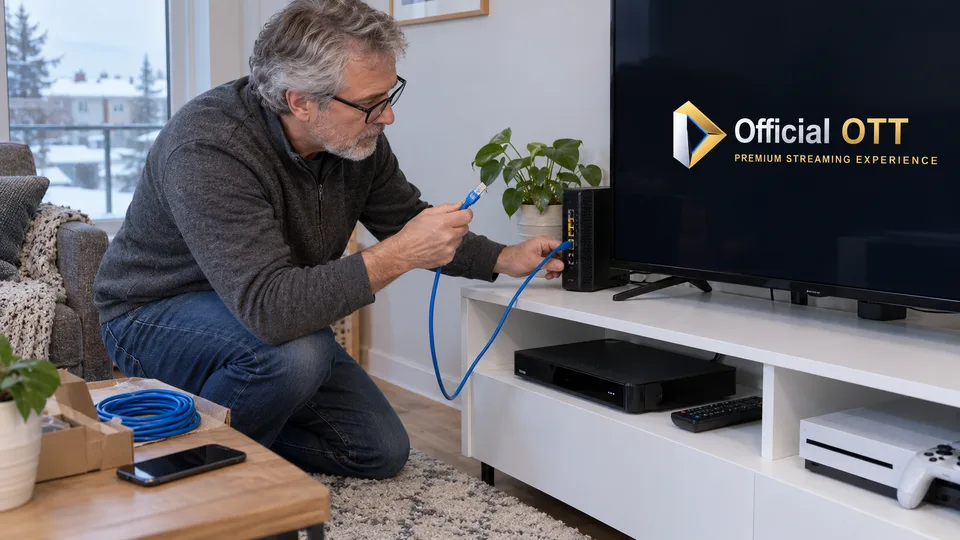
Make sure connectors are fully inserted and the cable is not crushed or sharply bent. If you have a known-good cable, try it temporarily without moving everything else. Where possible, a direct connection to the router helps isolate an intermediate device.
Check connection status in the available menus. Some devices or routers show the negotiated speed; others show only an active connection. Do not infer a precise speed from an indicator’s colour without reading the manual.
Do not arbitrarily force a speed or duplex mode. Manufacturer-provided automatic settings are generally the starting point; an advanced setting needs a specific reason and an appropriate procedure.
Documentation: Apple — Apple TV network setup
5. Connect measurements to the playback problem
Test the affected content on the usual device, then another authorized item. If only one app has trouble, port speed does not necessarily explain everything. Record interruptions and their context instead of keeping only the highest number from a speed test.
Compare the requirements published by the service for your intended quality. Avoid assuming that all 4K requires Gigabit: streams do not all use the same bitrate. Conversely, stable playback does not prove that the link reaches its maximum capacity.
Fictional example: a TV has a 100 Mbps port and plays the household’s content correctly. Upgrading the Internet plan to Gigabit does not require replacing that TV. If a specific use encounters a limit, reproduce and measure it first.
6. Decide after a useful comparison
Keep a record of the cable tested, port used and result. If the link remains unexpectedly limited compared with both endpoints’ specifications, contact the manufacturer with the detailed path. If the link is normal but one app stops, continue investigating the service or player.
A purchase becomes justified when it addresses an identified limit and a real need. Gigabit provides greater link capacity, but does not by itself fix an unstable app, unavailable content or provider problem.
7. Frequently asked questions
Is 100 Mbps always too slow for IPTV?
No. Compare content requirements and observed quality. The port rating alone cannot identify a fault.
Does a new cable guarantee Gigabit?
No. Both ports and any intermediate equipment must support it, and the link must be established correctly.
Why is my test slower than my Internet plan?
The result depends on the path, device and test server. A slower local link can also limit it.
Is Ethernet always preferable to Wi-Fi?
Compare them in your setup. Ethernet is useful for isolating Wi-Fi, but its capacity and condition also need checking.
8. Conclusion and limitations
This article sets no universal video-speed requirement and does not certify any cable or adapter. Confirm capacities for the exact models. The word Gigabit alone is not a reason to buy equipment.
9. Method and sources
Documentary research completed on October 12 and 13, 2026 using the primary sources below. The procedures and examples are an original editorial synthesis. Household examples and illustrations are fictional. No purchase, service trial, private-account inspection or performance measurement was conducted for this article.
Menus, features and terms can change. Check your model documentation and the service terms when making your decision.
Editorial update and further reading: