
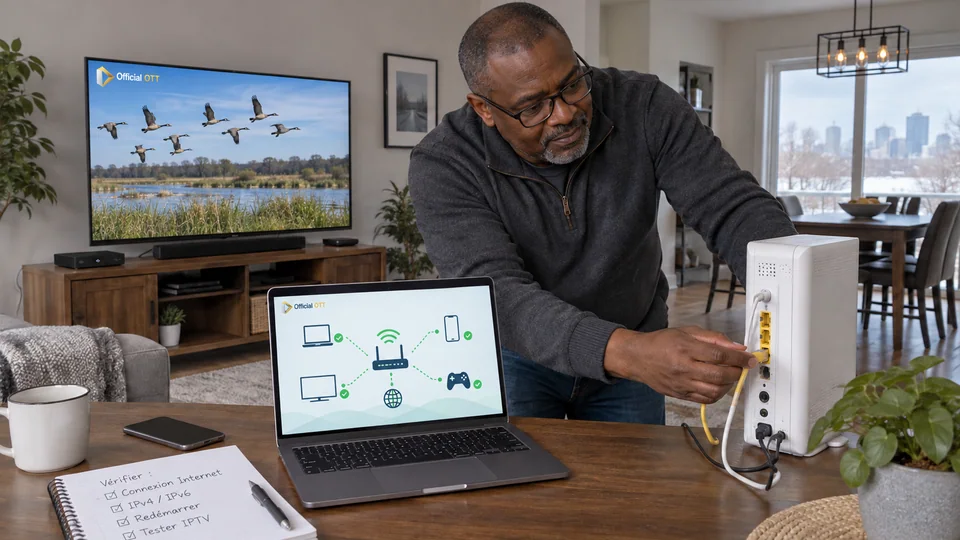
A router page may display IPv4 and IPv6 even if you have never needed to choose between them. These protocols concern network addressing and communication; they are not IPTV quality levels. When troubleshooting in Canada, knowing what is enabled and supported helps, but disabling IPv6 across the network should not become a reflex.
1. Quick answer
Check support from the provider, router and devices. If an incident seems connected to a network change, record the configuration and ask support for an appropriate test. Do not assume IPv6 is always responsible or that IPv4 guarantees better playback.
Five key points
- IPv4 and IPv6 can coexist on one network.
- The provider and equipment must support the mode being used.
- A displayed IPv6 address does not prove the entire path works.
- Changing the router can affect other household services.
- Plan the return to the original configuration before testing.
2. Understand how the two protocols coexist
IPv6 greatly expands the address space available compared with IPv4. Both can be present in a dual-stack configuration. The app and operating system then use the available capabilities according to how they work; the user does not necessarily select a protocol for each video.
Google documents this coexistence for Nest Wifi and Google Wifi and explains that several components must support IPv6, including the provider, devices and their software. These characteristics apply to the documented product; do not copy them as universal settings for every router.
Documentation: Google — IPv6, dual stack and Nest Wifi requirements
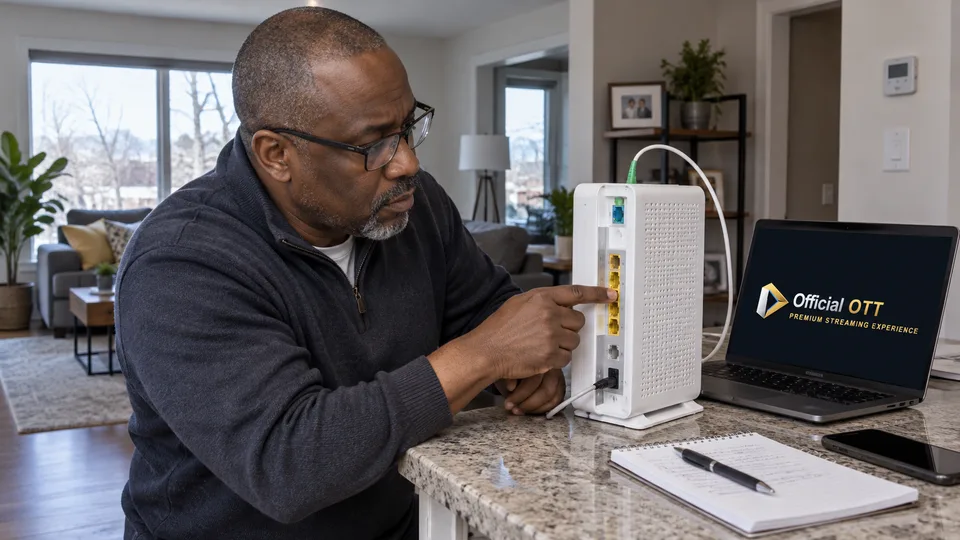
3. Identify a real reason to investigate
An incident following a router or provider change can justify recording network information. Note the date, affected devices and apps that still work. One service being inaccessible on one TV does not prove a general protocol problem.
Start with simple checks: selected network, connection status, error message and software version. An authentication failure or content not included in the offer should not be renamed an IPv6 problem without further evidence.
| Information | Value for support |
|---|---|
| Provider and router | Identify the supported configuration |
| Recent change | Place the start of the incident |
| Affected devices | Define its scope |
| Working apps | Keep a comparison point |
| Displayed network mode | Describe the state without changing it |
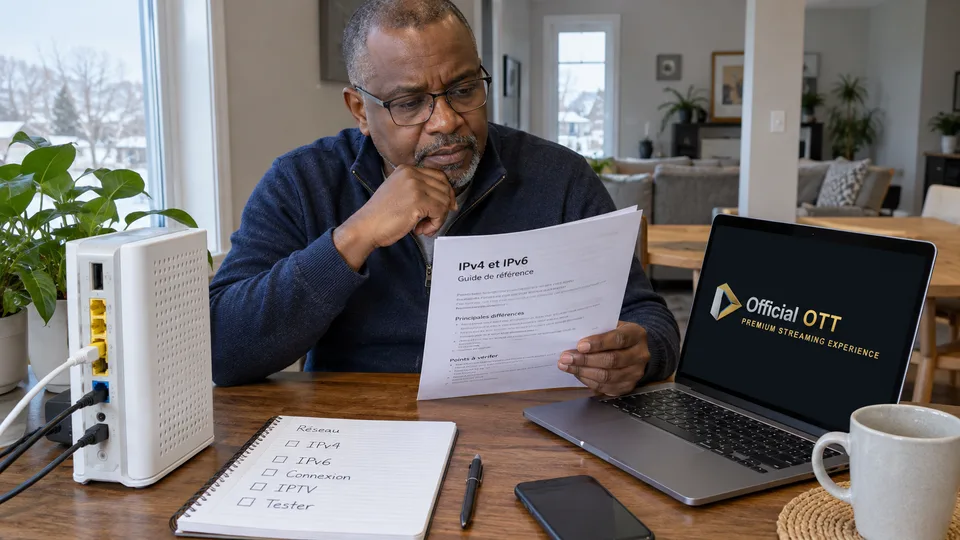
4. Read the menus without changing protections
Use official procedures to inspect router and device information. Record the enabled mode and information requested by support. Do not post the complete configuration on a forum; some details can identify your connection or devices.
IPv6 being present does not mean you should open ports or remove the firewall. A video service’s requirements should be confirmed in its documentation. A vague instruction to disable several protections simultaneously is not a precise diagnosis.
Also avoid confusing DNS with the IP protocol. They operate at different levels, although DNS settings can contain IPv4 and IPv6 addresses.
Documentation: Google — separate DNS settings
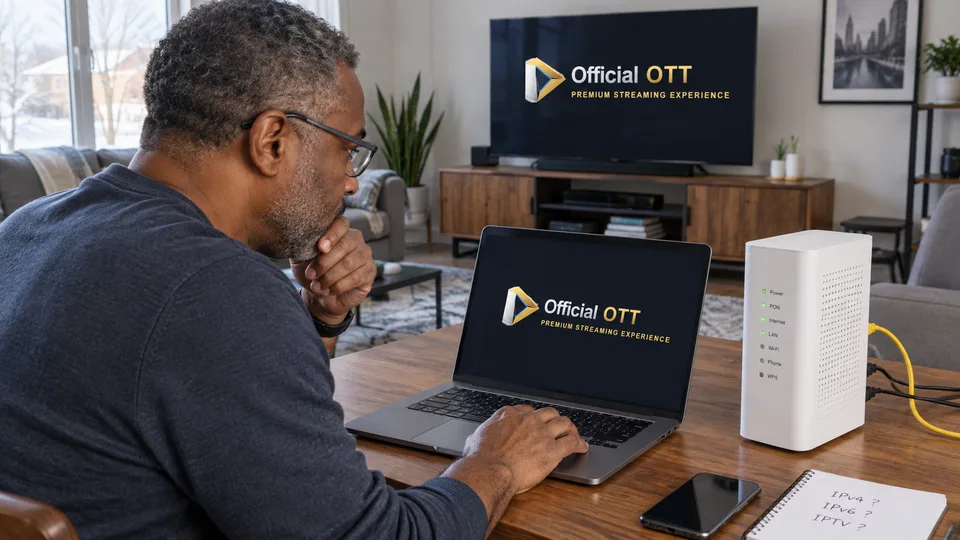
5. Perform only a controlled test
If the provider or manufacturer recommends a test, clarify its scope, duration and restoration procedure. Warn the household if a router restart or interruption may occur. Keep a private copy of the relevant settings before proceeding.
Repeat the same playback scenario and record the result. Improvement after several changes cannot identify which one mattered. If nothing changes, restore the intended configuration and report that observation to support.
Fictional example: a player fails after a router change while other apps work. Support requests a targeted comparison and discovers a software-version compatibility issue. Randomly disabling a protocol permanently would have obscured that lead.
6. Keep a configuration you can maintain
Ask for a clear conclusion: a temporary setting, an expected software fix or the recommended configuration for your connection. Record the date and reason for any change you retain. After a later update, you can check whether it remains necessary.
IPTV quality depends on several components. Understanding IPv4 and IPv6 helps you ask better questions, but does not replace observing the network, player and service. Use advanced settings to address an identified problem.
7. Frequently asked questions
Does IPv6 necessarily make IPTV faster?
No. Observed quality depends on the path, equipment and service. The protocol alone guarantees no particular result.
Should I disable IPv6 when playback stops?
Not as a general first step. Record the symptom and consult the provider or manufacturer about a justified test.
Can IPv4 and IPv6 work together?
Yes, in a configuration that supports both. Details depend on the network and devices.
Must I open ports to watch video?
Do not do so without a precise official requirement. IPv6 being present is not, by itself, a reason to change the firewall.
8. Conclusion and limitations
This introduction does not provide a universal router configuration. Provider and equipment mechanisms vary. It recommends neither permanently disabling a protocol nor making broad changes to network protections.
9. Method and sources
Documentary research completed on October 12 and 13, 2026 using the primary sources below. The procedures and examples are an original editorial synthesis. Household examples and illustrations are fictional. No purchase, service trial, private-account inspection or performance measurement was conducted for this article.
Menus, features and terms can change. Check your model documentation and the service terms when making your decision.
Further reading added:
Editorial review: