

Moving changes several things at once: your home, Internet connection, television position and sometimes your provider. To restore an IPTV Canada setup, separate these changes. A device that worked yesterday may still be configured correctly while the new Internet connection awaits activation. This guide follows three useful stages: before packing, on arrival and during your first verification session.
1. Quick answer
Before unplugging anything, photograph the connections and identify how you access your accounts. In the new home, check Internet access first, then the device network connection, then playback. Keep settings and evidence of the working setup until each stage is confirmed.
Five key points
- Confirm the Internet activation date at the new address.
- Pack each power supply with the device it belongs to.
- Record models, apps and connection methods before leaving.
- Test the TV in its final position, with doors normally kept closed.
- Check the service rules for households and devices.
2. Before leaving: keep your setup identifiable
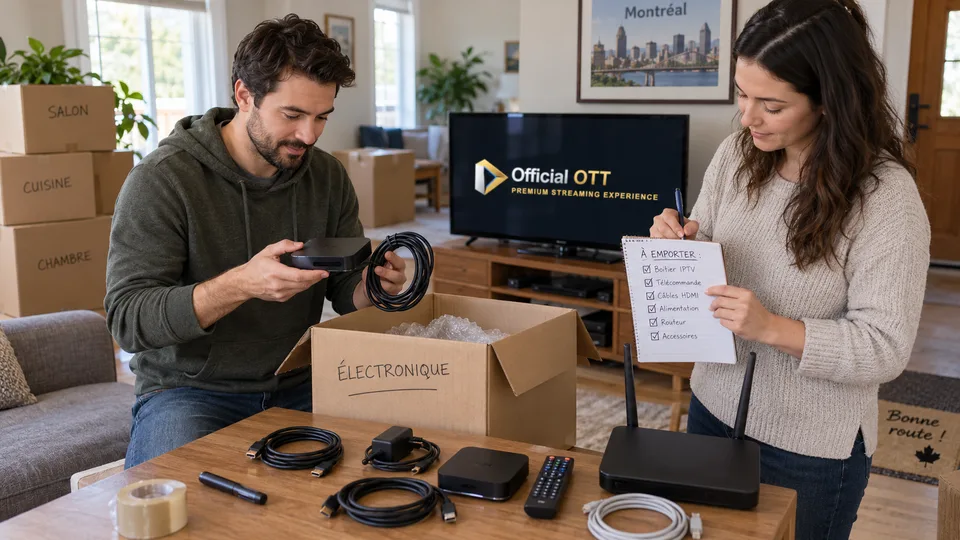
Start with a wide photograph of the back of the television, then photograph the ports in use. A simple label such as “TV HDMI 2” or “living-room network” is often enough to identify a cable later. Keep these photographs private: a settings screen may display a connection address, activation code or account identifier.
Make a short record: TV model, streaming-box model, exact app name, Wi-Fi or Ethernet connection, and the person who manages access. A backup is useful only if the player actually supports exporting and restoring it. Check its official procedure before relying on that option; a photograph of favourites is not a technical backup.
Pack remotes and power supplies in separate bags. Two similar-looking power adapters are not necessarily interchangeable. Keep the original with its device and avoid sharply bending cables near their connectors.
3. Prepare Internet access at the new address
Ask your provider for the confirmed activation date, equipment to bring or return, and whether an appointment is required. Service at your old address does not establish the technology or installation available at the new one. Bell’s moving checklist illustrates this preparation; your own provider’s conditions remain decisive.
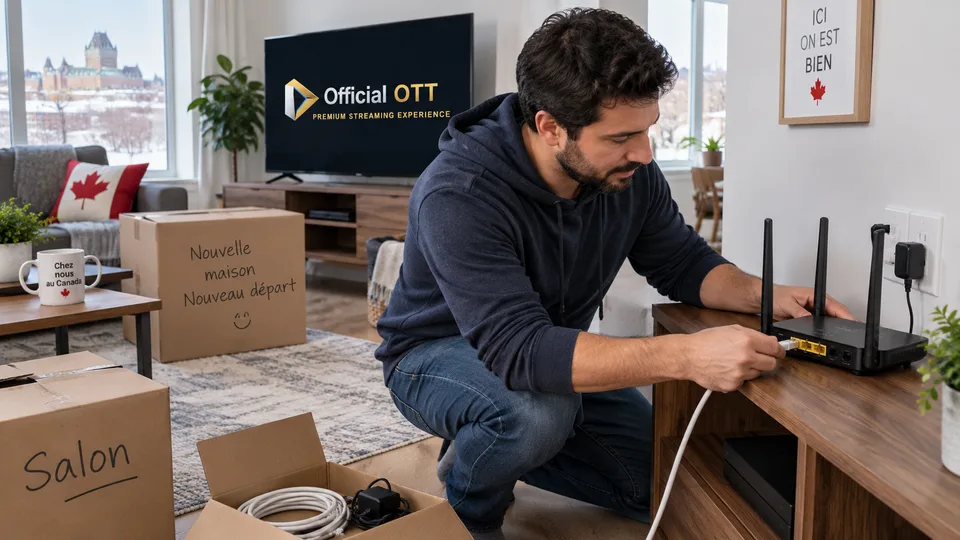
Plan the router position before closing up furniture. Keep it accessible and ventilated. Locate a power outlet and the connection entry point; do not mistake a wall Ethernet socket for a connection already linked to the router. If the home’s wiring is unfamiliar, identify the sockets before concluding that the television is faulty.
| Check | Useful evidence |
|---|---|
| Activation | Provider confirmation and expected date |
| Equipment | List of devices kept and returned |
| Living-room network | Router location and any cable route |
| Service access | Account used and official household-change procedure |
Documentation: Bell — moving preparation checklist
4. On arrival: reconnect in the right order
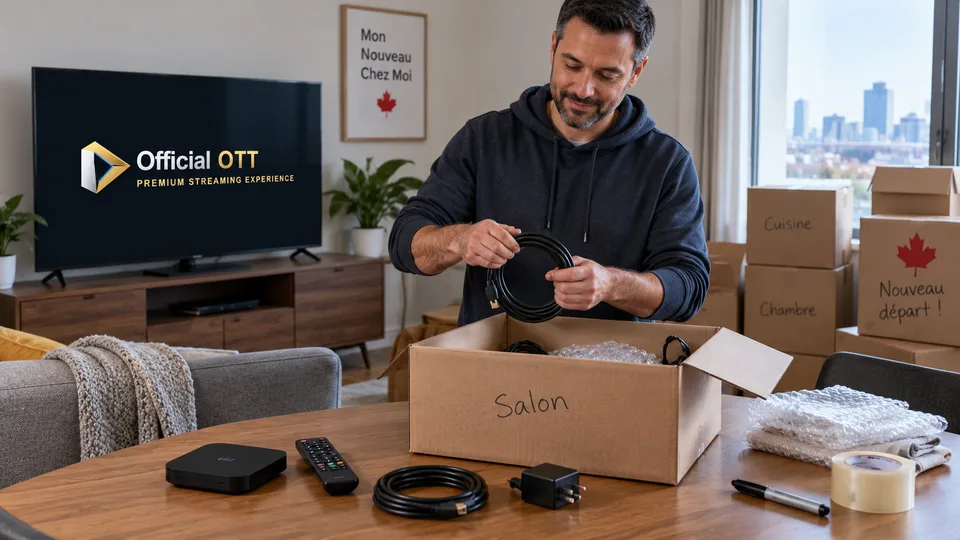
Wait until Internet access is working, then test it on a familiar device. Reconnect the television and streaming box using your photographs. Select the correct HDMI input. If the box menus appear, the video path works at least for those menus; this does not yet prove that the streaming service is accessible.
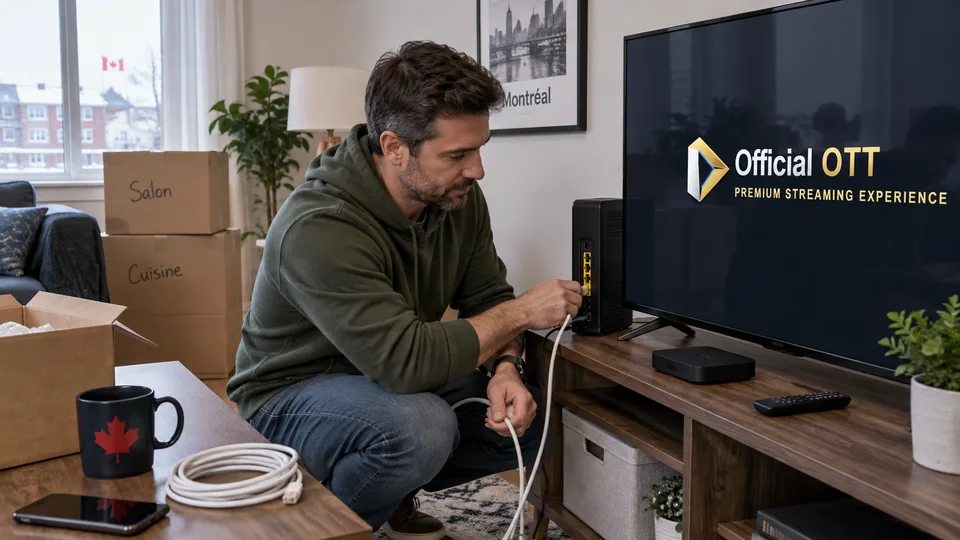
The new Wi-Fi network may have a different name or password. Follow the network-change method for your model. Google documents different procedures for different streaming devices: do not turn a Chromecast-specific instruction into a rule for every TV. On an Ethernet device, check the cable and connection status in the network menu.
Keeping the same Wi-Fi name does not guarantee a complete reconnection: the password, security mode or isolation settings may have changed. Check which network is actually selected without deleting all the device’s content.
Documentation: Google — change a streaming device’s Wi-Fi network · Apple — troubleshoot Wi-Fi connectivity
5. Verify a normal evening in the new living room
Open your usual app and content you are authorized to watch. Then test sound, subtitles, changing programs and resuming after a pause. Do this from the sofa, with normal lighting and household activity. A few seconds beside the router do not represent living-room conditions well.
Separate your observations: “no HDMI picture,” “connected to Wi-Fi but the app is inaccessible,” and “playback stops after a few minutes” point towards different causes. Record the time and what still works. If another app plays correctly on the same TV, that information is more useful than a series of resets.
Fictional example: Camille gets the menus and sound back, but streaming becomes unstable behind a closed cabinet. A temporary Ethernet test improves playback. This comparison supports examining the Wi-Fi path; it does not prove that the IPTV plan or the entire Internet connection is responsible.
6. Complete the move without leaving access behind
Once the new setup works, remove devices you no longer use through the account tools, where that feature exists. If you leave a television behind, sell it or return a box, follow the manufacturer’s procedure to remove accounts and data. Do so after preserving the information needed on the new equipment.
Also check the service rules: primary household, connection limits and temporary travel are different concepts. Do not try to bypass geographic checks. If an address or household update is required, use the official process and keep the confirmation.
A moved setup is ready when playback, controls and account access work under real conditions. Keep your connection record: it will help with future troubleshooting even if you do not move again.
7. Frequently asked questions
Should I reset the box after moving?
Not automatically. Start by checking Internet access, the selected network and cables. A reset can erase useful settings without fixing an Internet connection awaiting activation.
Can I reuse my old router?
That depends on compatibility with the new connection and the provider’s conditions. Confirm the equipment required before returning or replacing anything.
Will the same IPTV subscription work at every address?
Check your service terms. Moving home may require an account procedure, and content or feature availability may vary.
What should I keep after installation?
Device references, the connection diagram, transfer confirmations and a secure way to recover access. Avoid putting passwords in a shared record.
8. Conclusion and limitations
This guide organizes the transfer of a home setup; it does not confirm Internet availability at an address or a subscription’s travel rights. Menus and procedures depend on the equipment. For a persistent fault, send your observations to the relevant provider or manufacturer.
9. Method and sources
Documentary research completed on October 12 and 13, 2026 using the primary sources below. The procedures and examples are an original editorial synthesis. Household examples and illustrations are fictional. No purchase, service trial, private-account inspection or performance measurement was conducted for this article.
Menus, features and terms can change. Check your model documentation and the service terms when making your decision.
- Bell — moving preparation checklist
- Google — change a streaming device’s Wi-Fi network
- Apple — troubleshoot Wi-Fi connectivity
Further reading added:
Editorial review: