
Quick answer
Open Settings → Profile Settings. Menu Language controls menus; Audio and Subtitle contains audio and subtitle preferences; Start Screen chooses the launch section. Confirm each choice with OK and check the stored value.
Watch the tutorial
MYTVOnline4: set language, subtitles and the start screen
Open on YouTubeBefore you start
- Choose your interface language, then your content language. A program must offer the corresponding audio or subtitle track.
- The excerpt does not show every confirmation: French is only highlighted in the menu-language screen, and audio and subtitle lists are not filmed. The VOD selection is visible under Start Screen.
Useful controls · GTV-BT3
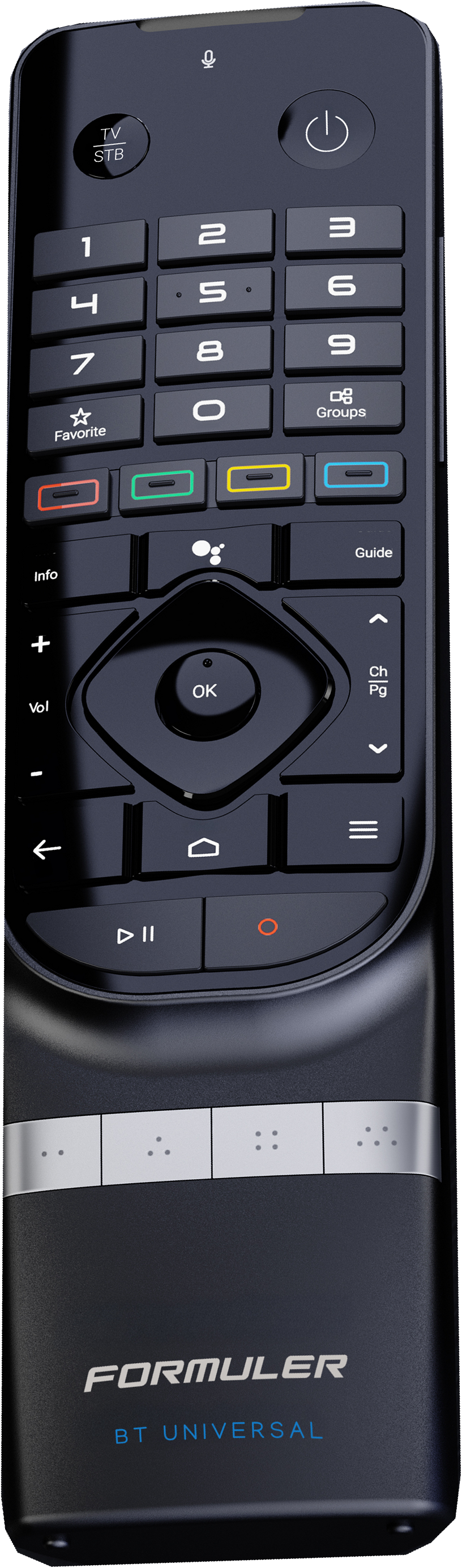
Open Profile Settings
Choose and confirm language
Choose the start screen
The steps
Choose the menu language
Open the side menu, Settings and Profile Settings. Select Menu Language with OK, choose your language and confirm on your device. Return to the menus to inspect the outcome. Interface language does not automatically change movie language.
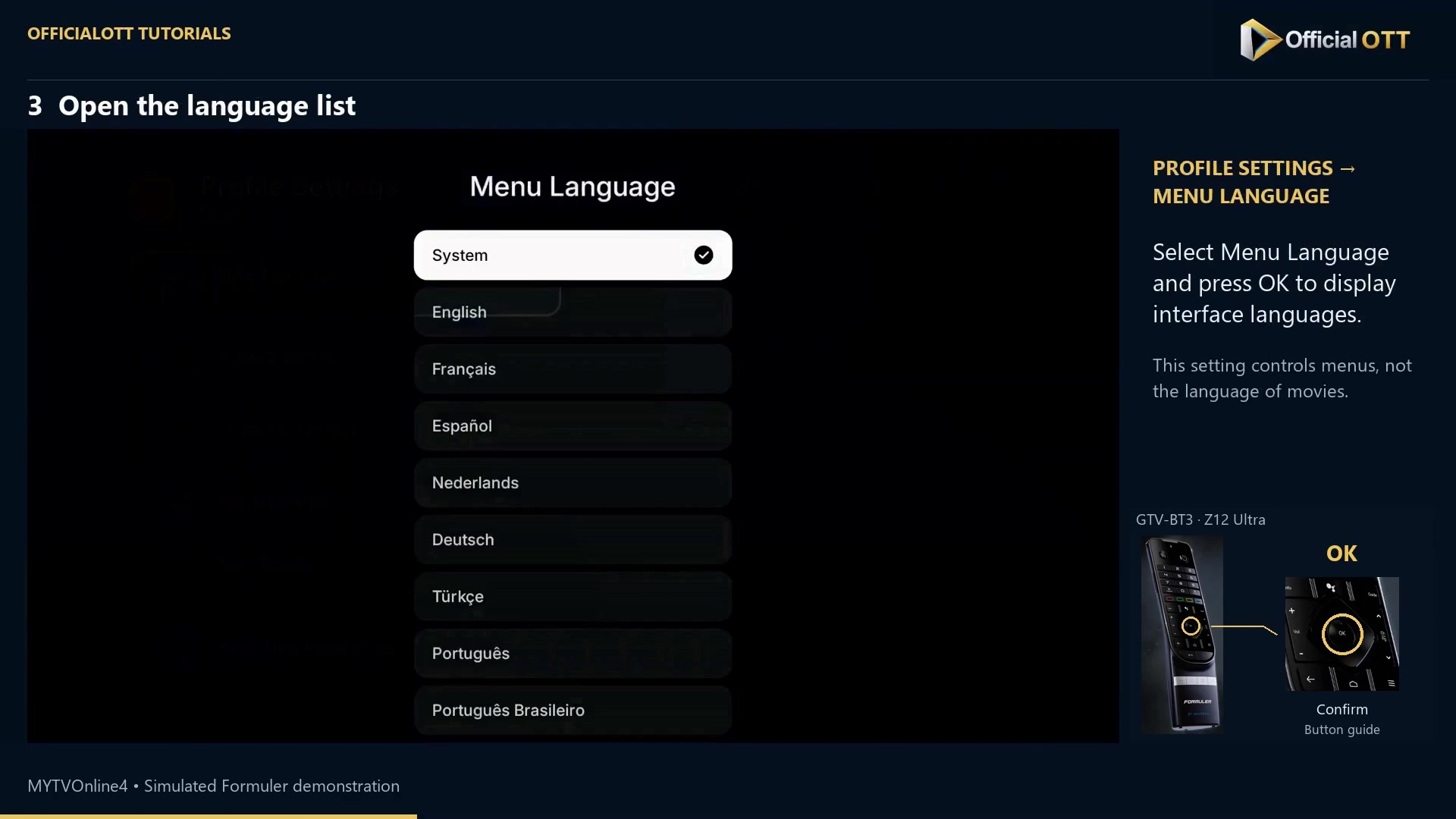
Frame from the simulated Formuler demonstration · 00:35 — Menu Language list with System checked. Set the audio preference
Press Back to return to Profile Settings and open Audio and Subtitle. Choose Audio Language, select the desired language and confirm. Then test a program that actually offers that track.
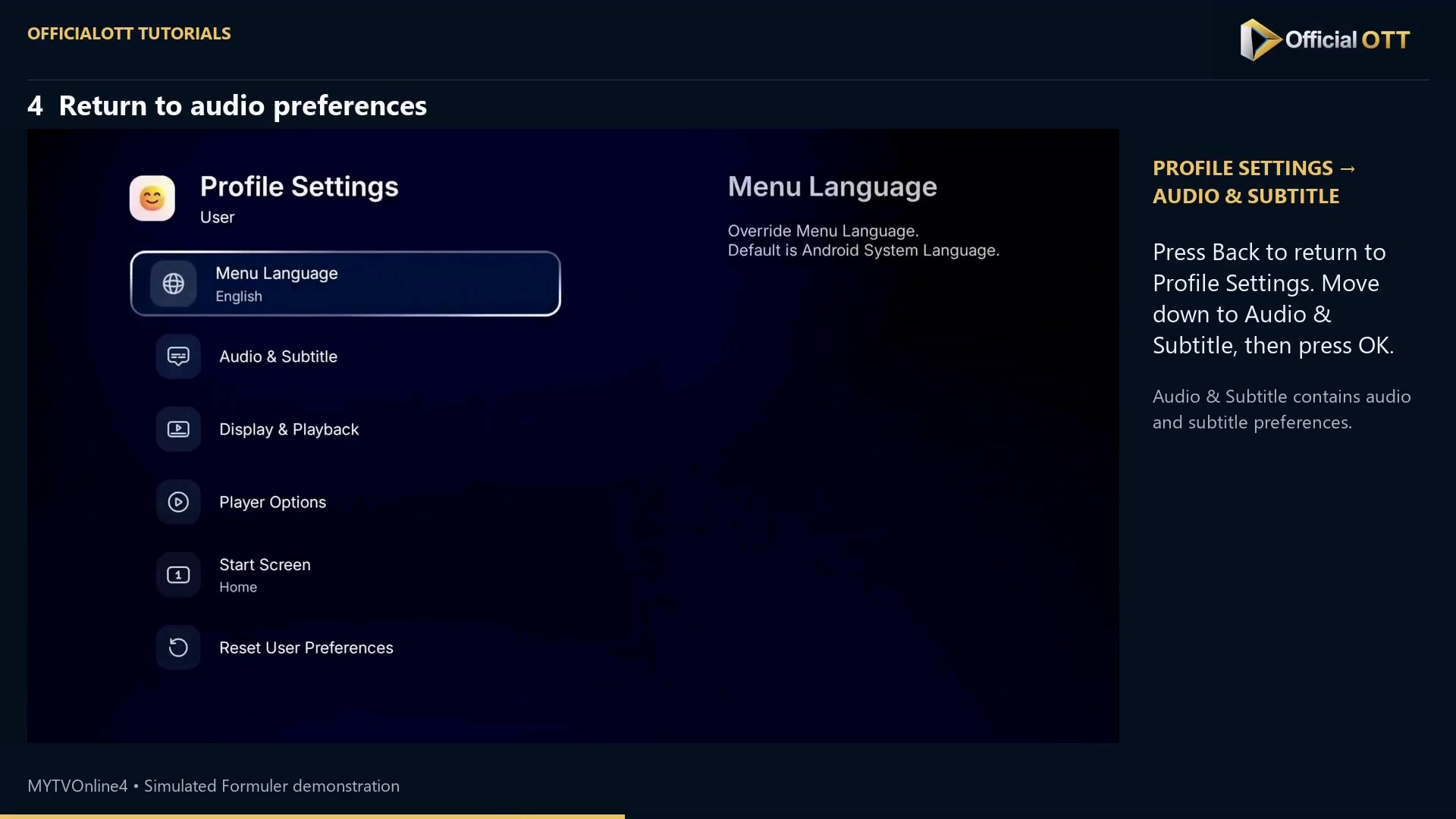
Frame from the simulated Formuler demonstration · 01:00 — Back in Profile Settings: Menu Language shows English and Audio & Subtitle is visible below. Set subtitles
Off in Subtitle Language disables subtitles. To enable them, choose an available language and confirm. Check a program offering the corresponding subtitles; a preference does not create a missing track.
Choose the launch section
Return to Profile Settings and open Start Screen. Browse with Left and Right: Home for the home page, Live for live TV and VOD for movies; the demonstrated carousel also includes series and radio. Confirm with OK and inspect the value under Start Screen. VOD is the example’s choice, not a requirement.
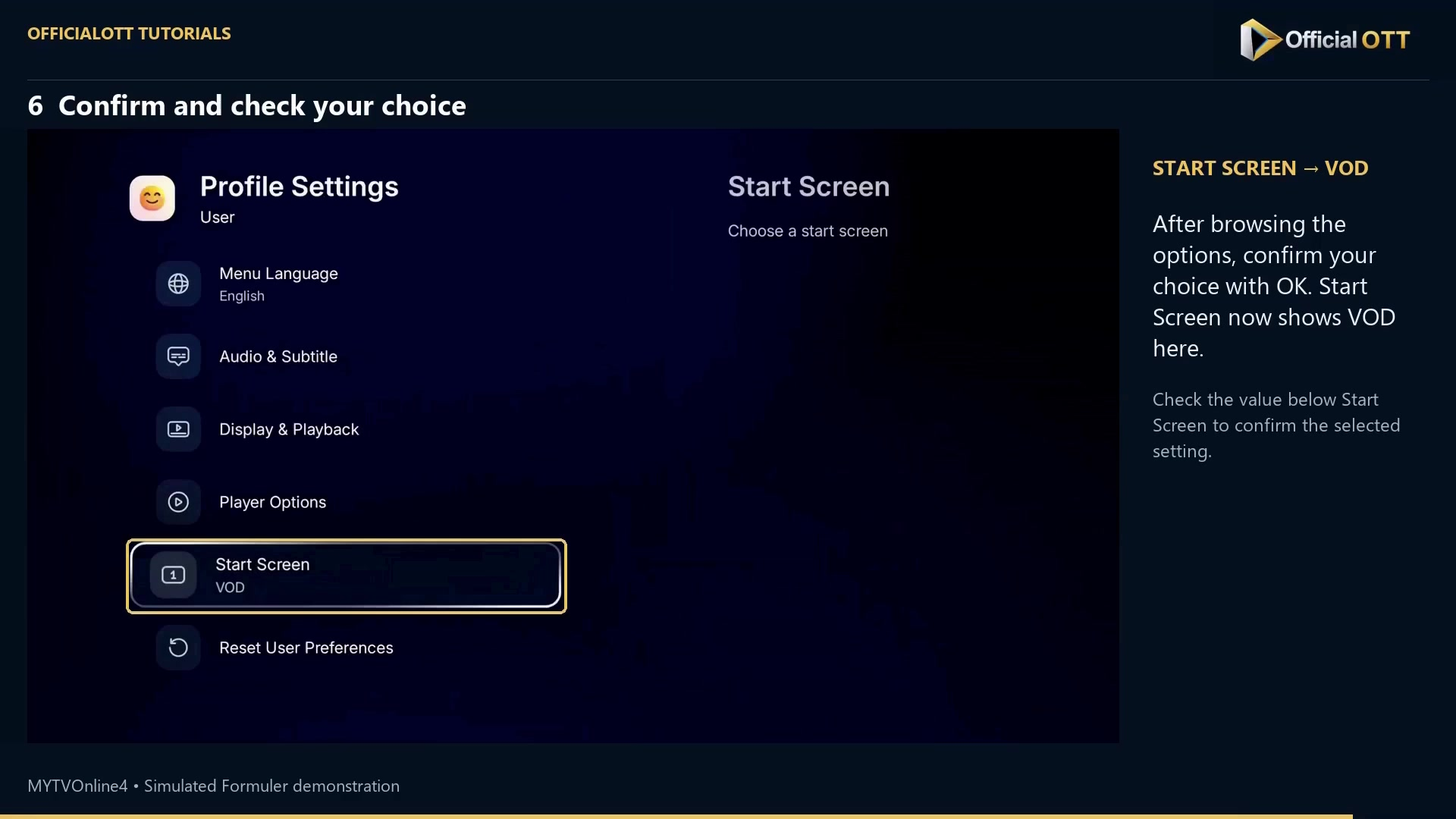
Frame from the simulated Formuler demonstration · 02:30 — Start Screen shows VOD after the confirmation shown in the demonstration.
Check the result
Inspect menus after changing language, then test audio and subtitles on suitable content. For Start Screen, read the stored value first and check the section at the next app launch.
If your result differs
Movies still use another language
Menu Language controls the interface only. Check Audio Language and the tracks offered by the program.
No subtitles appear
Check that the preference is not Off and that the program offers the selected language.
The launch section differs from the intended choice
Read the value under Start Screen after confirming with OK. Distinguish browsing a card from saving the choice.
Frequently asked questions
Must I choose VOD as in the video?
No. Choose the section you want at launch.
Does selecting French translate all content?
No. Menu language and available content tracks are separate.
What to do next
Check one preference at a time. This makes it easier to identify whether a difference comes from menus, program tracks or the launch-section setting.
Scope and limitations
This tutorial is based on the published OfficialOTT video and cited Formuler sources. It is not a hardware test on your device. Menus, data and capabilities depend on version, hardware and your source. Steps identify examples and limits of the excerpts.
Sources and method
Associated video narration and Formuler documentation rechecked on November 1, 2026. Each excerpt includes its timestamp; diagrams are identified.