
Quick answer
Check the device–tuner combination and local broadcast standard first. In MYTVOnline2, open Connections → Add Terrestrial → Scan, choose the correct country and start the scan. In Canada, do not automatically copy a European DVB-T example: check the manufacturer’s ATSC compatibility list.
Watch the tutorial
MYTVOnline2: set up a USB tuner and scan antenna channels
Open on YouTubeBefore you start
- Identify the exact box and tuner model, including the hardware ID where needed. The demonstration uses a Z8; it does not establish universal compatibility.
- Prepare a suitable antenna and cable. Choosing a country in a menu cannot convert an incompatible tuner into one that supports the required broadcast standard.
Useful IR1 controls

Open Connections
Add Terrestrial → Scan
Scan, then verify actual reception

The steps
Connect suitable hardware
The demonstrated sequence connects the tuner to USB and the antenna to the tuner before booting the box. Follow the instructions for your own hardware and check the connections without forcing them. Allow startup to finish.
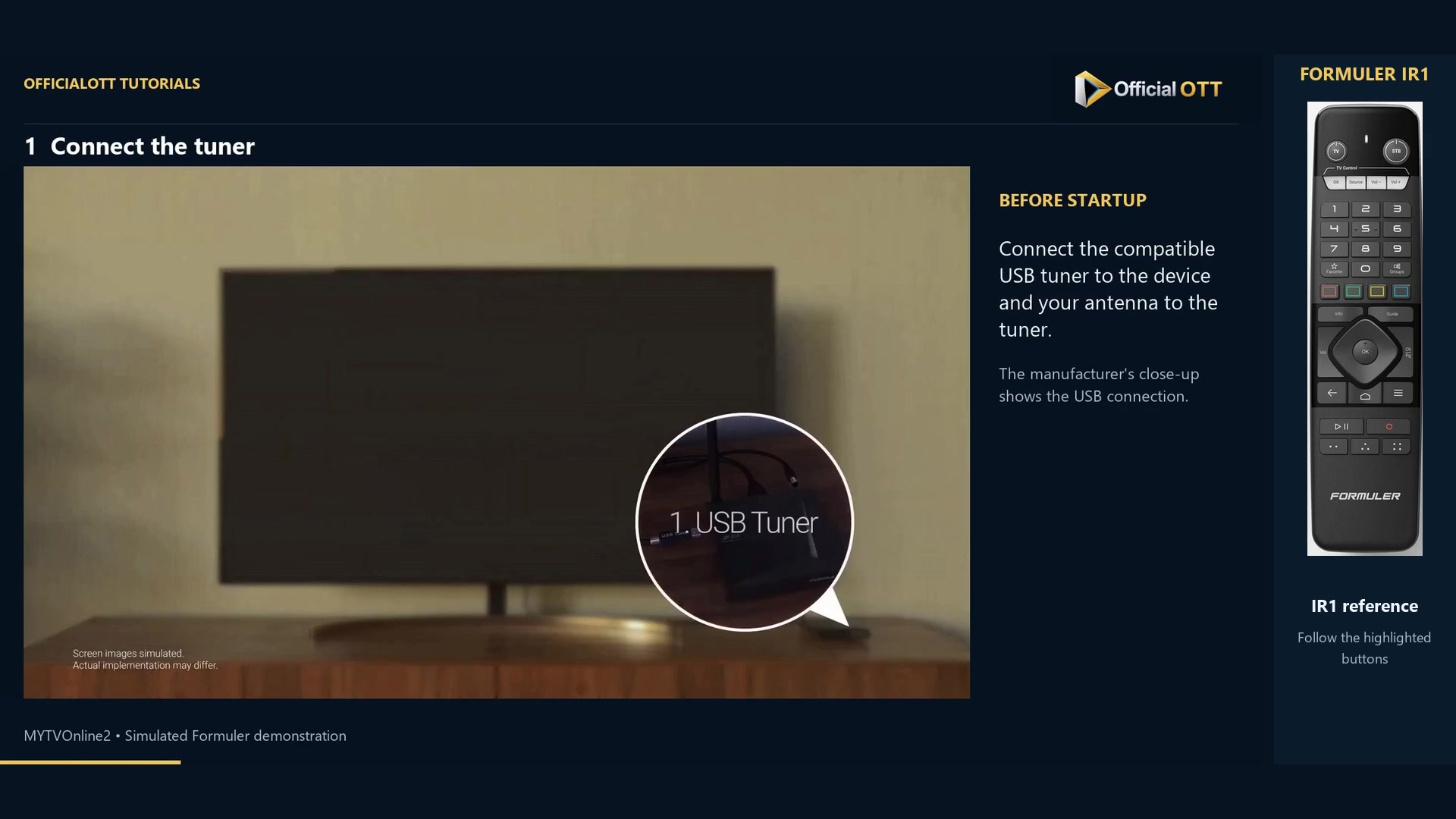
Frame from the simulated Formuler demonstration · 00:17 — Manufacturer’s inset illustrating the USB tuner connection before startup. Add terrestrial reception
Open MYTVOnline2 and Connections, using Menu if the app is already running. Select Add Terrestrial and then Scan to reach Tuner Scan. If the tuner is not recognized, check the hardware before trying random settings.
Check country and scan mode
Choose the installation country in Select Country. The demonstrated Auto Full mode performs a full search within the available setup. A frequency-specific search requires the appropriate frequency information. The countries browsed in the video are only examples.
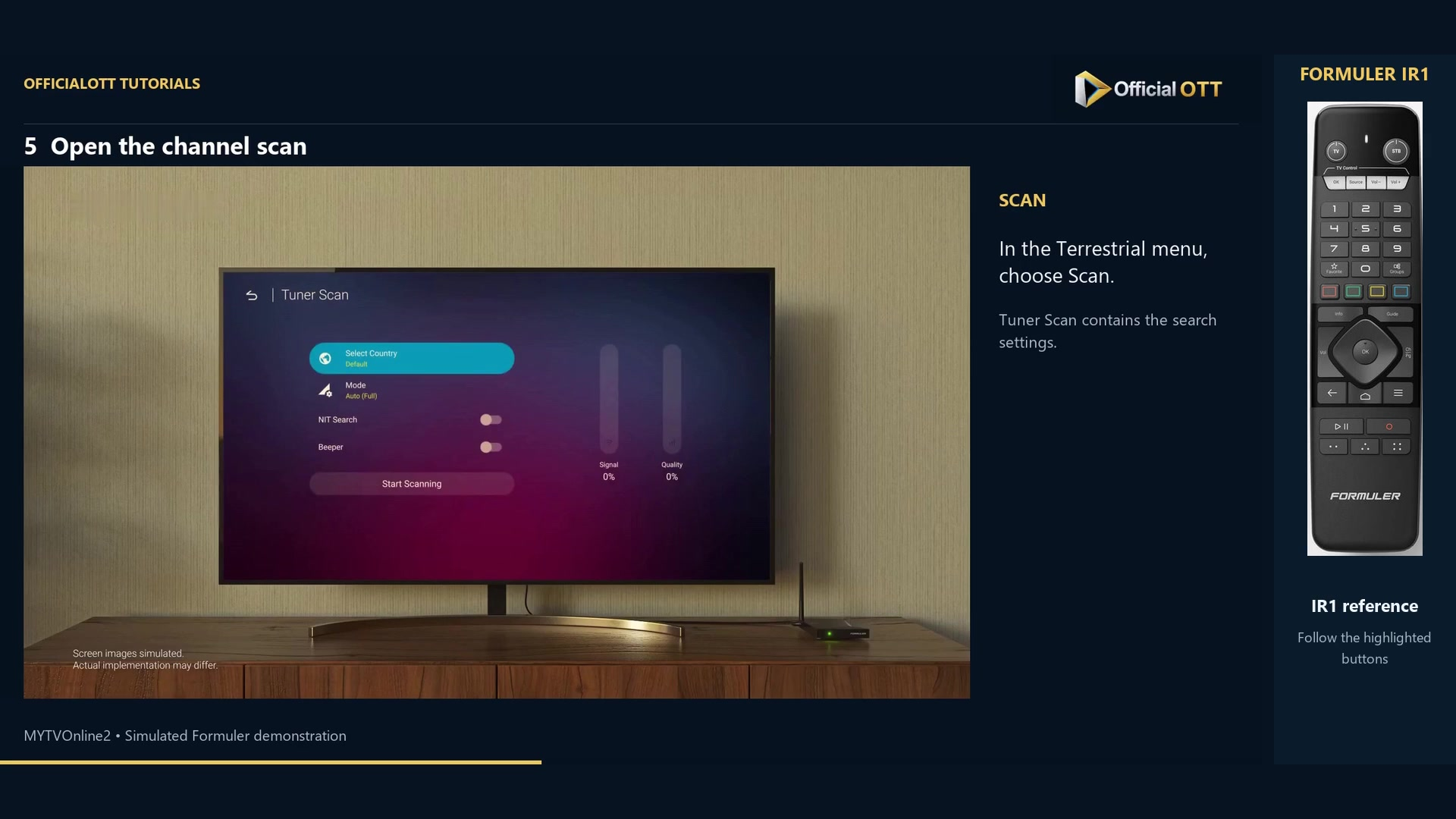
Frame from the simulated Formuler demonstration · 01:00 — Tuner Scan screen with country and scan mode. Scan and test reception
Choose Start Scanning and let the scan finish. Inspect the TV/radio totals, then open Watch DVB Live Channels in the example interface. Select a received channel and test picture and sound on your installation.
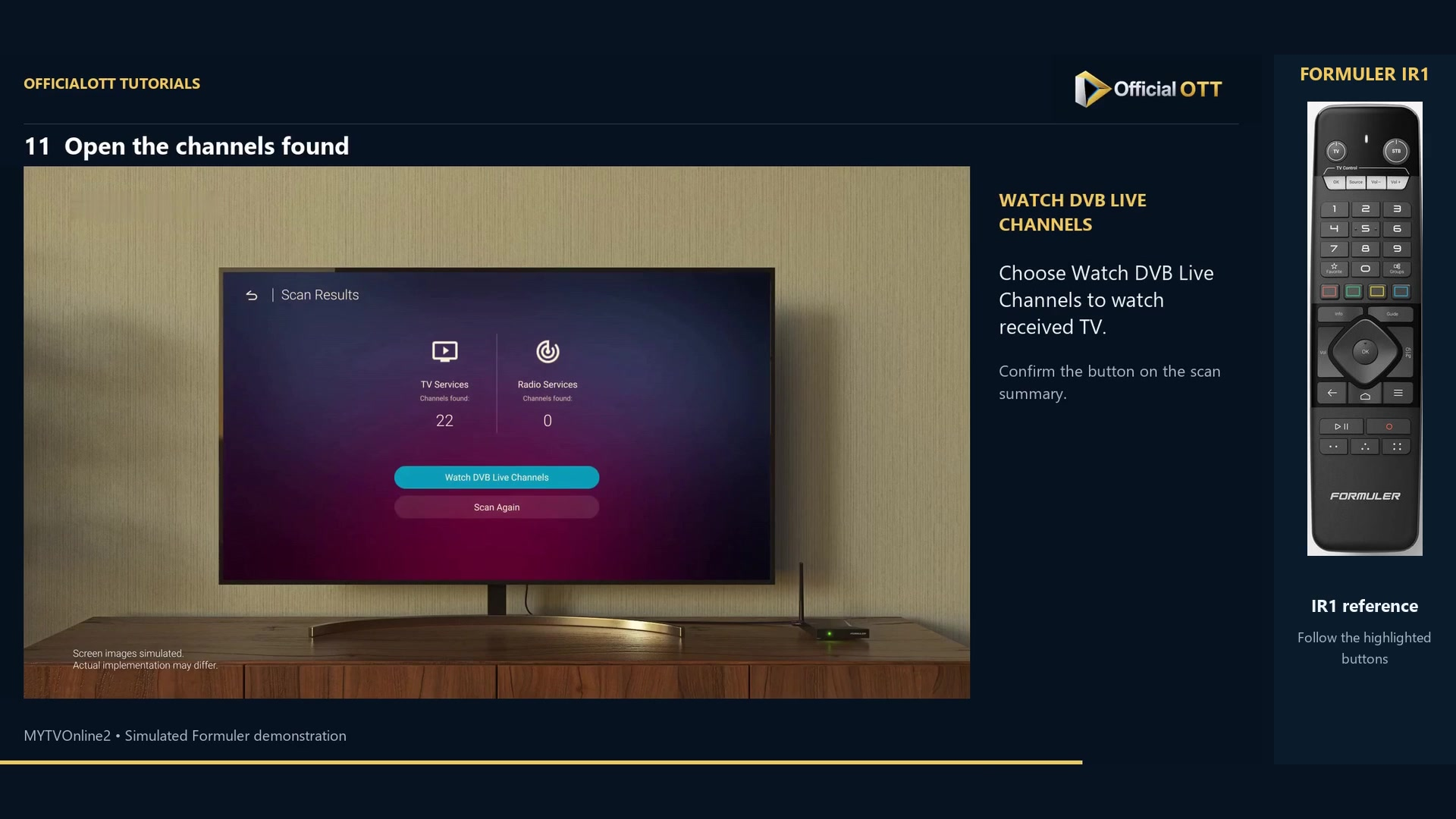
Frame from the simulated Formuler demonstration · 02:08 — Example scan summary: 22 TV services and no radio services, with Watch DVB Live Channels highlighted; these counts do not guarantee your reception.
Check the result
A received, playable channel is the useful result, not just a scan total. The demonstration’s 22 TV channels are not a promise: results depend on the standard, antenna, signal and local coverage.
If your result differs
The tuner or Add Terrestrial is missing
Check the exact model and device ID against the official list, then inspect the connections. Appearance alone does not establish compatibility.
The scan finds no channels
Check the reception standard, antenna, country and mode before scanning again.
Internet portals work but antenna reception does not
They are separate sources. One working does not validate the other’s hardware or signal.
Frequently asked questions
Will a DVB-T tuner automatically work in Canada?
No. Formuler distinguishes North American ATSC tuners from European DVB terrestrial tuners. Verify the exact model for your installation.
Does the tuner add a subscription?
No. It receives available compatible antenna signals; it does not create a subscription or portal access.
What to do next
Check compatibility before purchasing, then verify actual playback after scanning. Keep the exact tuner model with your configuration notes.
Scope and limitations
This tutorial is based on the published OfficialOTT video and cited Formuler sources. It is not a hardware test on your device. Menus, data and capabilities depend on version, hardware and your source. Steps identify examples and limits of the excerpts.
Sources and method
The associated video narration and primary documentation consulted on October 30, 2026. Captures come from that video’s source file and include their timestamps.
- MYTVOnline2: set up a USB tuner and scan antenna channels — OfficialOTT
- Formuler — USB tuner compatibility
- Formuler — official MYTVOnline2 tutorial
Official tutorial links rechecked on November 1, 2026.