
Quick answer
Check the tuner model and reception standard, connect compatible hardware and its antenna, then open Content Manager → Content Sources. Select the tuner, choose the appropriate country and mode, then Scan. Test a received channel afterward.
Watch the tutorial
MYTVOnline3: add a USB tuner and scan antenna channels
Open on YouTubeBefore you start
- Check the official list using the exact tuner model. Formuler distinguishes ATSC and DVB devices; a matching USB connector does not establish compatibility.
- Prepare the antenna and connections. Choosing a country in the menu does not change the tuner’s hardware standard.
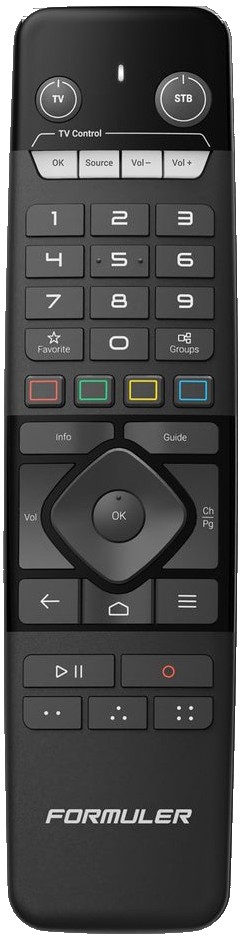
Useful controls · IR1
Choose the detected tuner
Check country and scan mode
Scan, then test a channel

The steps
Connect compatible hardware
Connect the USB tuner and antenna according to their instructions, then open MYTVOnline3. Inspect connections without forcing them.
Open the tuner source
Choose Content Manager and Content Sources in the menu. Select the recognized tuner. Its name and available options can vary with hardware and standard.
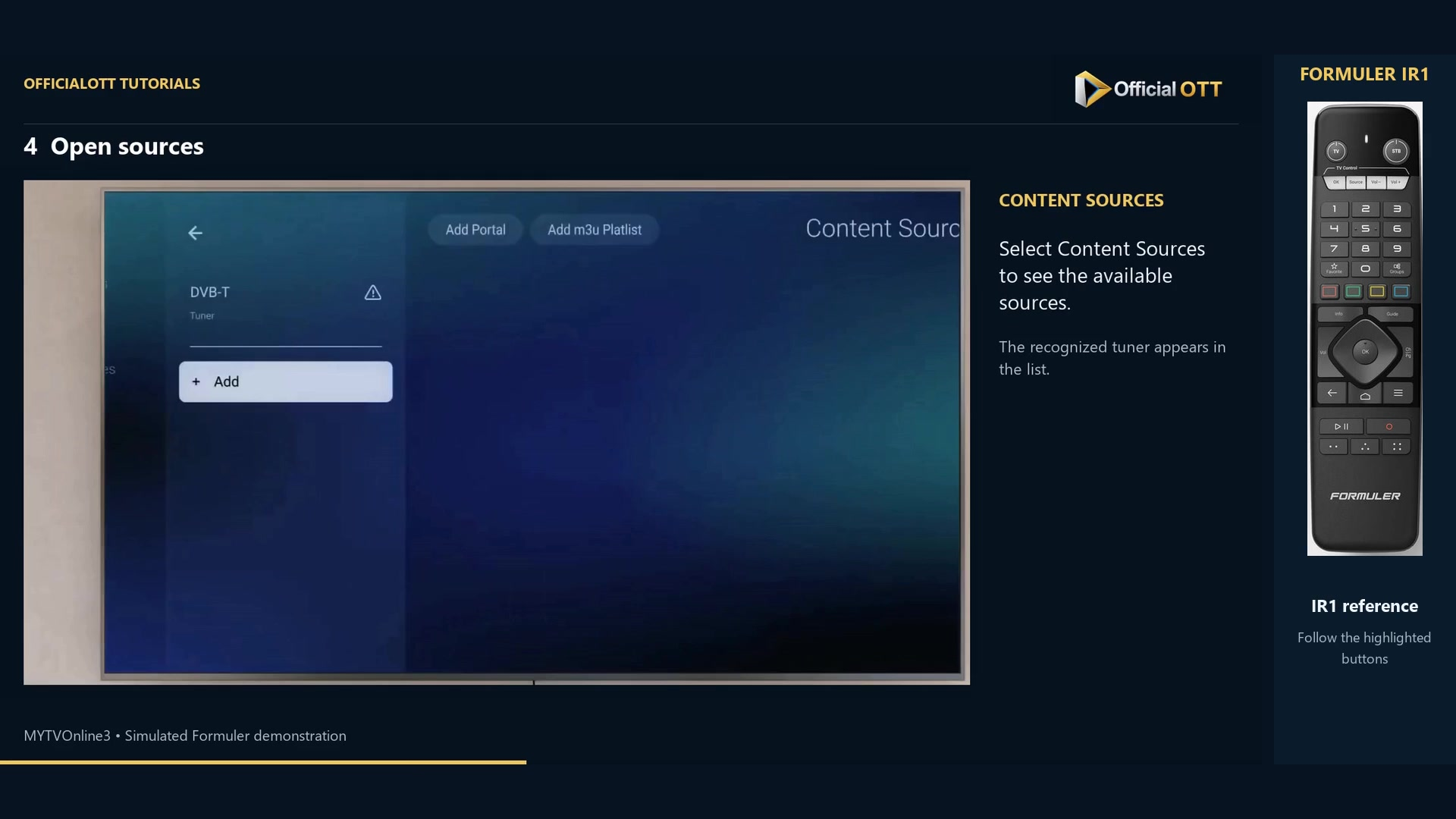
Frame from the simulated Formuler demonstration · 00:49 — DVB-T source visible in Content Sources, with a warning icon. Check country and scan mode
Choose the installation country in Select Country. Auto Full performs a complete search in the example. Use a frequency-specific search only with the appropriate reception information.
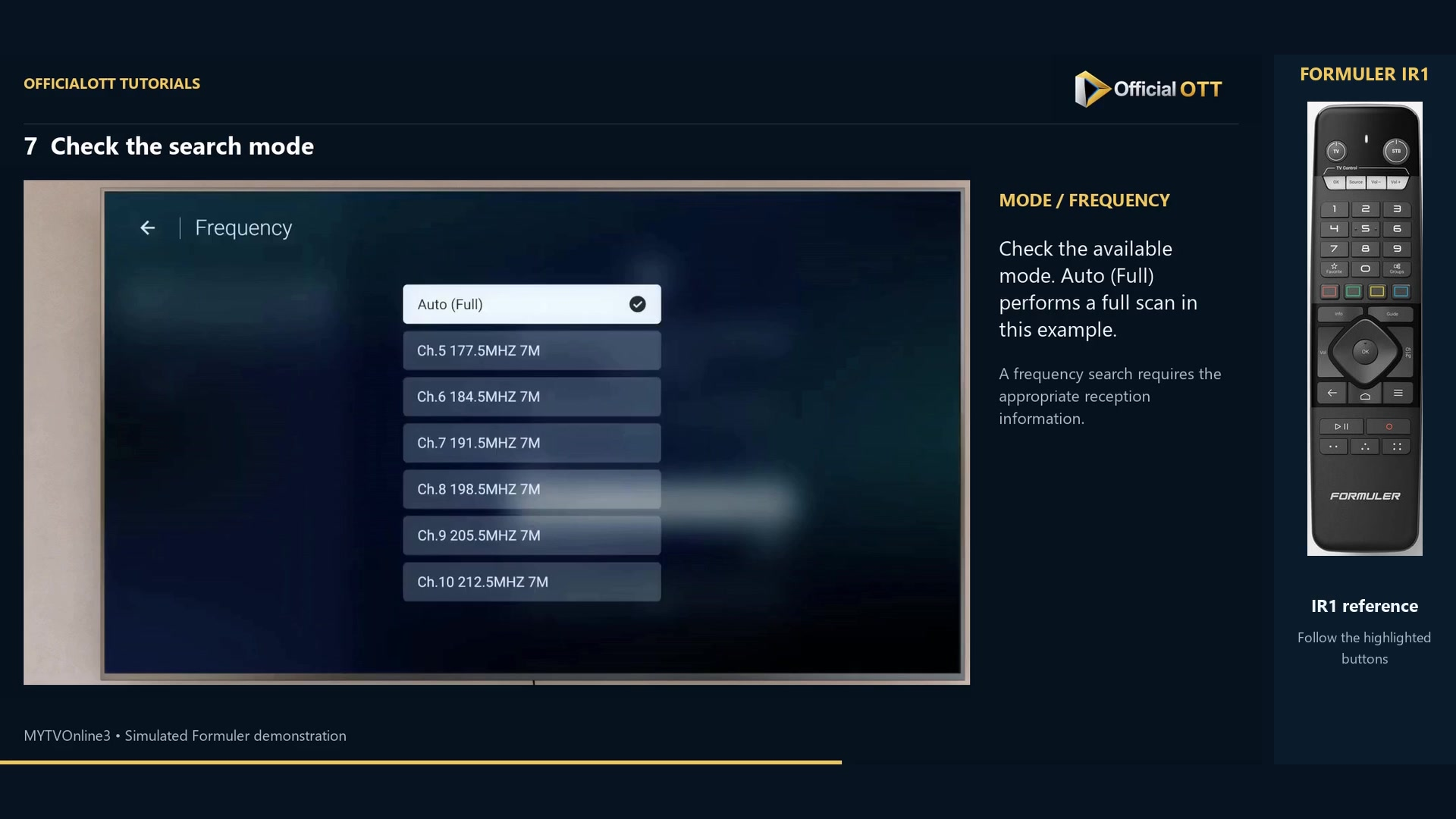
Frame from the simulated Formuler demonstration · 01:20 — Frequency list with Auto (Full) checked. Scan and test
Choose Scan and wait for completion. Inspect the found services, then choose Watch Live Channels. Open the tuner group in the list and select a channel to check picture and sound. Displayed totals belong to the demonstration only.
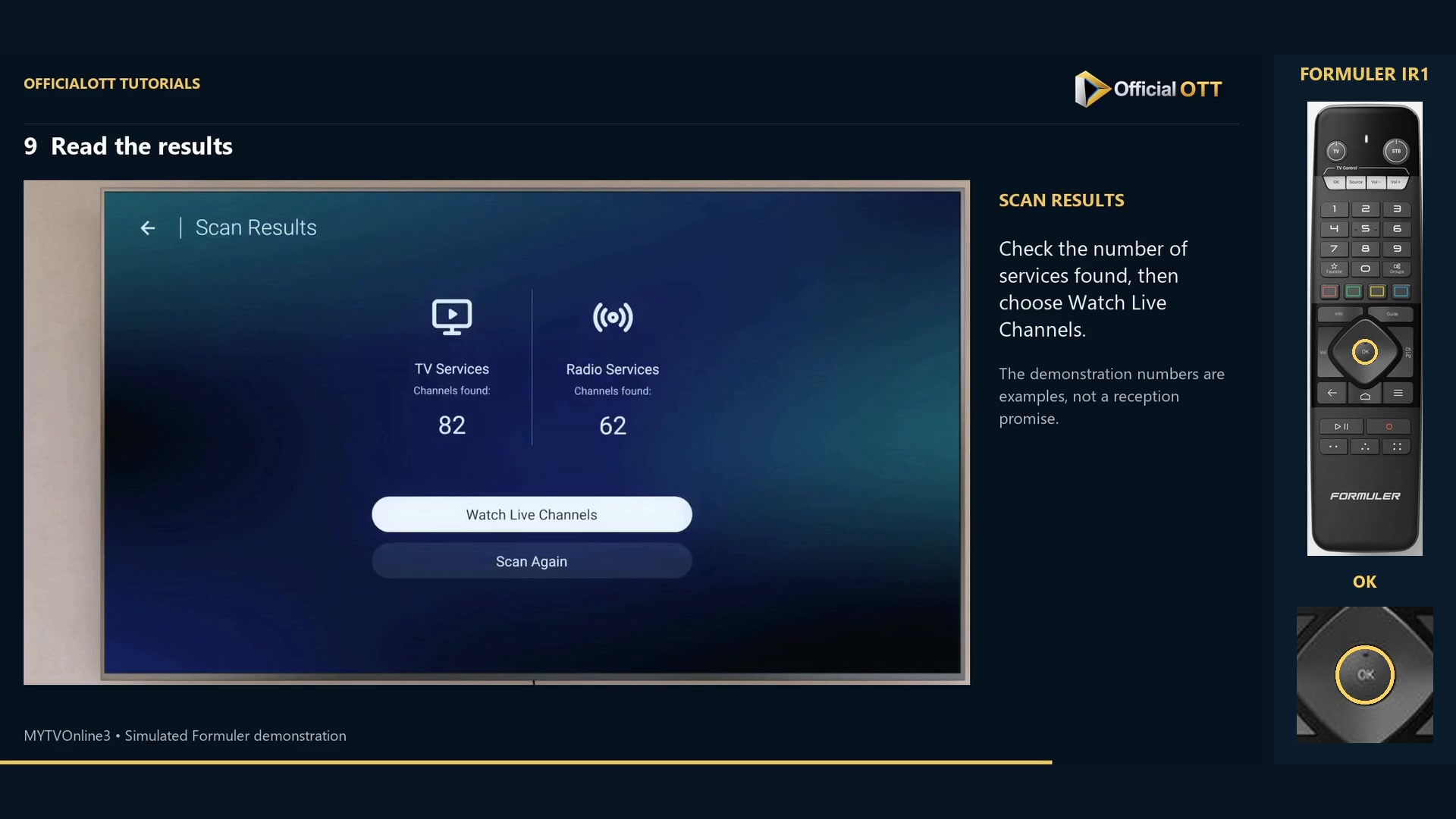
Frame from the simulated Formuler demonstration · 01:42 — Example summary: 82 TV services and 62 radio services; these figures do not guarantee your reception.
Check the result
The useful outcome is a received, playable channel on your installation. A service count guarantees neither reception quality nor the same result elsewhere.
If your result differs
The tuner is missing
Check its exact model against the compatibility list and inspect connections before repeating scans.
No channels are found
Check standard, antenna, signal, country and mode. Software settings do not fix incompatible hardware.
You are setting up in Canada
Check local reception compatibility and the listed ATSC models; do not automatically copy a DVB-T example.
Frequently asked questions
Does the tuner create portal access?
No. It receives compatible terrestrial signals; this workflow does not add a subscription or network access.
Will I receive the video’s channel count?
No. Results depend on factors including antenna, signal and local coverage.
What to do next
Verify hardware first, scanning second and playback last. Keep the exact tuner model with your setup information.
Scope and limitations
This tutorial is based on the published OfficialOTT video and cited Formuler sources. It is not a hardware test on your device. Menus, data and capabilities depend on version, hardware and your source. Steps identify examples and limits of the excerpts.
Sources and method
Associated video narration and Formuler documentation rechecked on November 1, 2026. Each excerpt includes its timestamp; diagrams are identified.