
Quick answer
Open Menu → Content Manager → Content Sources → Add → Add Portal. Enter a name and the portal address. For MAC-ID access, confirm device registration and leave Login required off. For username-based access, enable it and fill in User ID and Password. Connect, then test actual playback.
Watch the tutorial
MYTVOnline3: set up a portal with login details or MAC-ID
Open on YouTubeBefore you start
- Have the exact address and details from your authorized service ready. The portal nickname is a personal label; it is not the server address.
- Check the box’s Internet connection. Do not copy demonstration addresses or credentials. Keep your own login information private.
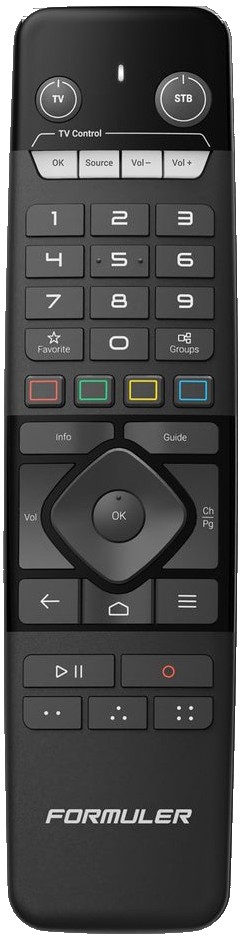
Useful controls · IR1
Open content sources
Choose the supplied method
Then test playback

The steps
Open the correct form
From live TV, open the menu, Content Manager and Content Sources. Choose Add to reach Add Portal. This is separate from adding a playlist. Enter a recognizable Portal Nickname.
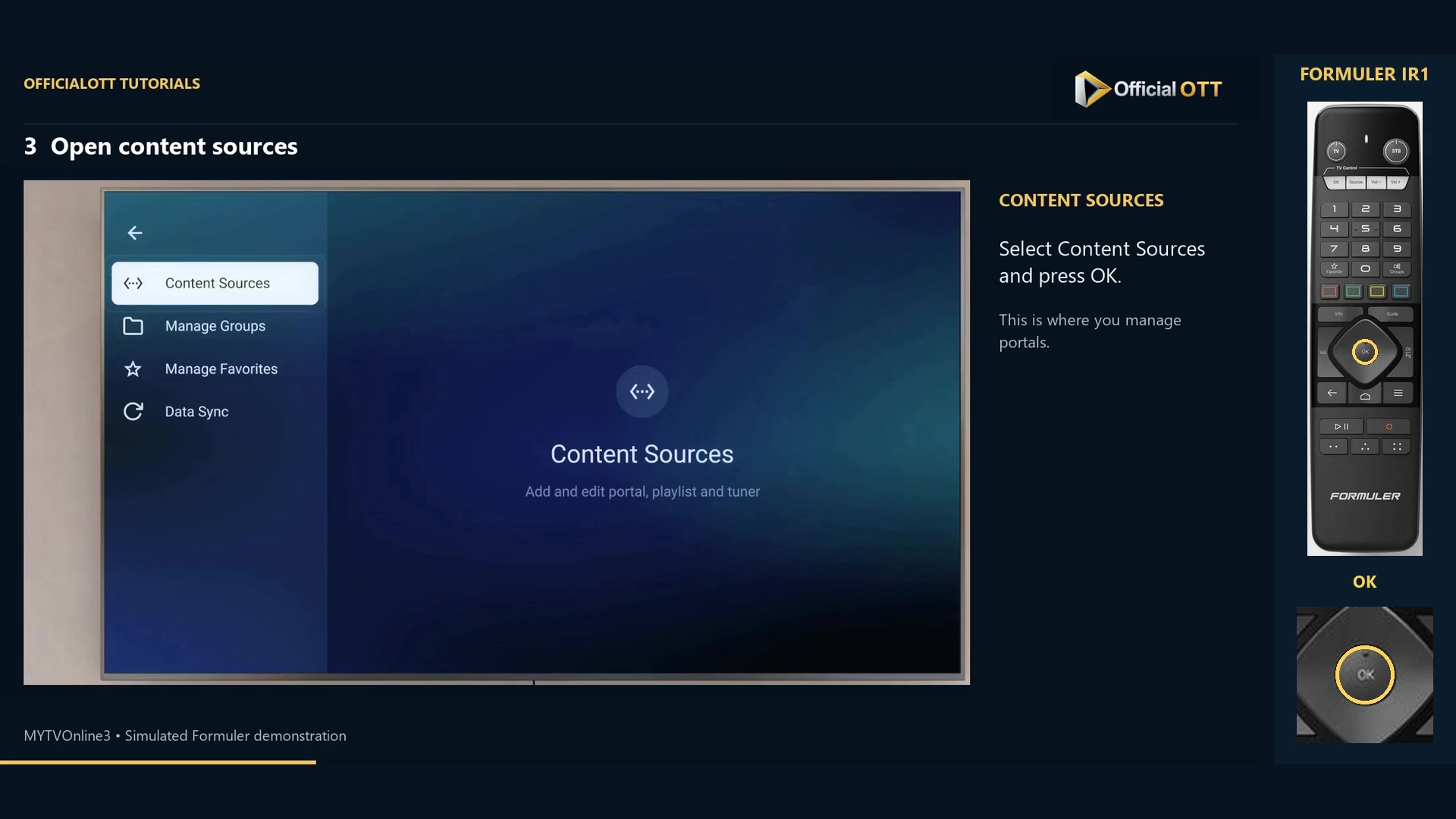
Frame from the simulated Formuler demonstration · 00:39 — Content Sources selected in the management menu. Copy your service address
In Portal URL, retain the supplied protocol, port and path. Check characters and accidental spaces. An address resembling the video example is not enough: it must belong to your access.
Use the appropriate branch
For MAC-ID access, have your service confirm registration of the displayed identifier and leave Login required off. For username and password access, enable Login required, then fill in User ID and Password. The username is not necessarily your email address. These methods are alternatives.
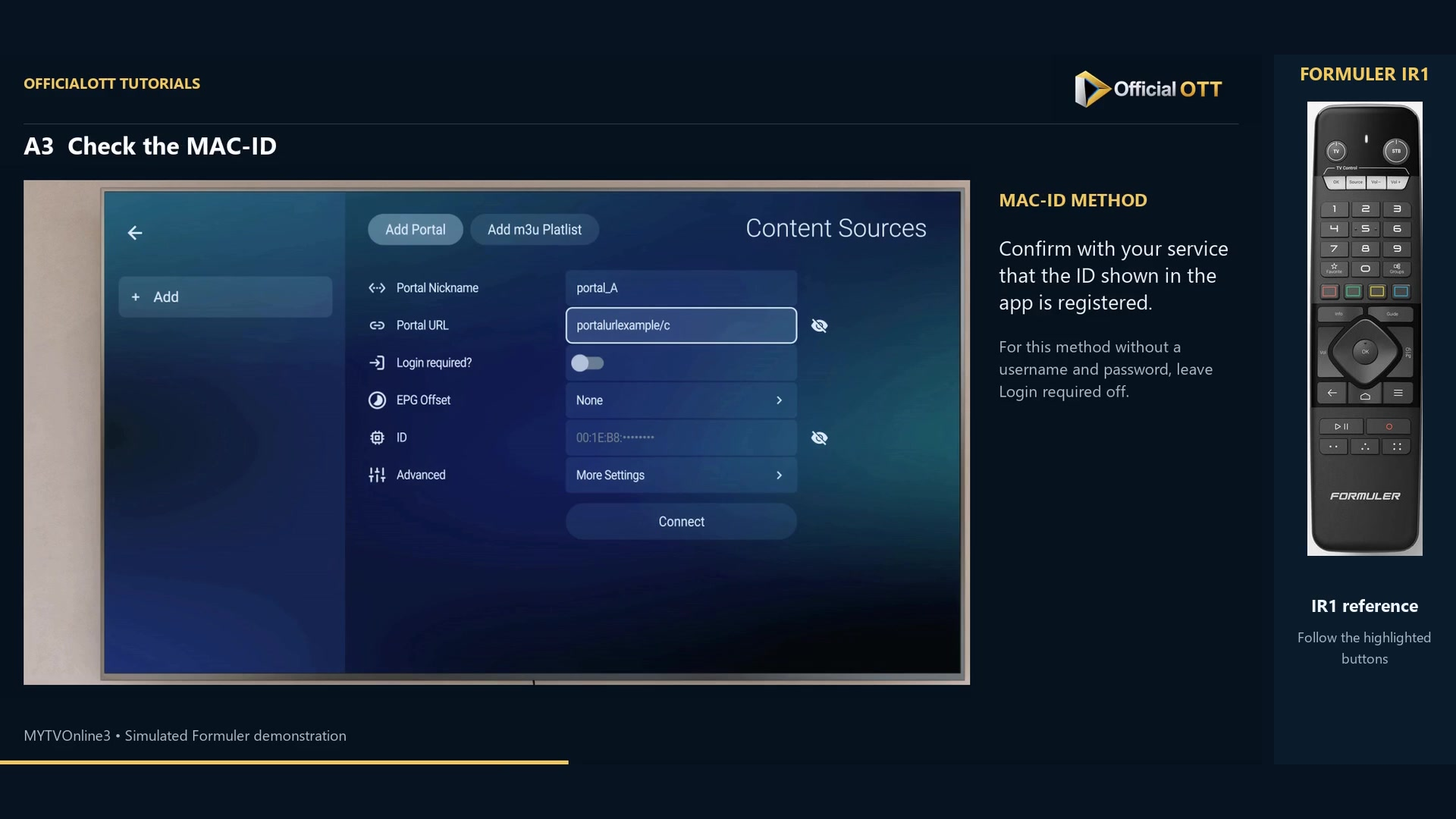
Frame from the simulated Formuler demonstration · 01:18 — MAC-ID portal example: Login required is off and the source partially masks the identifier. 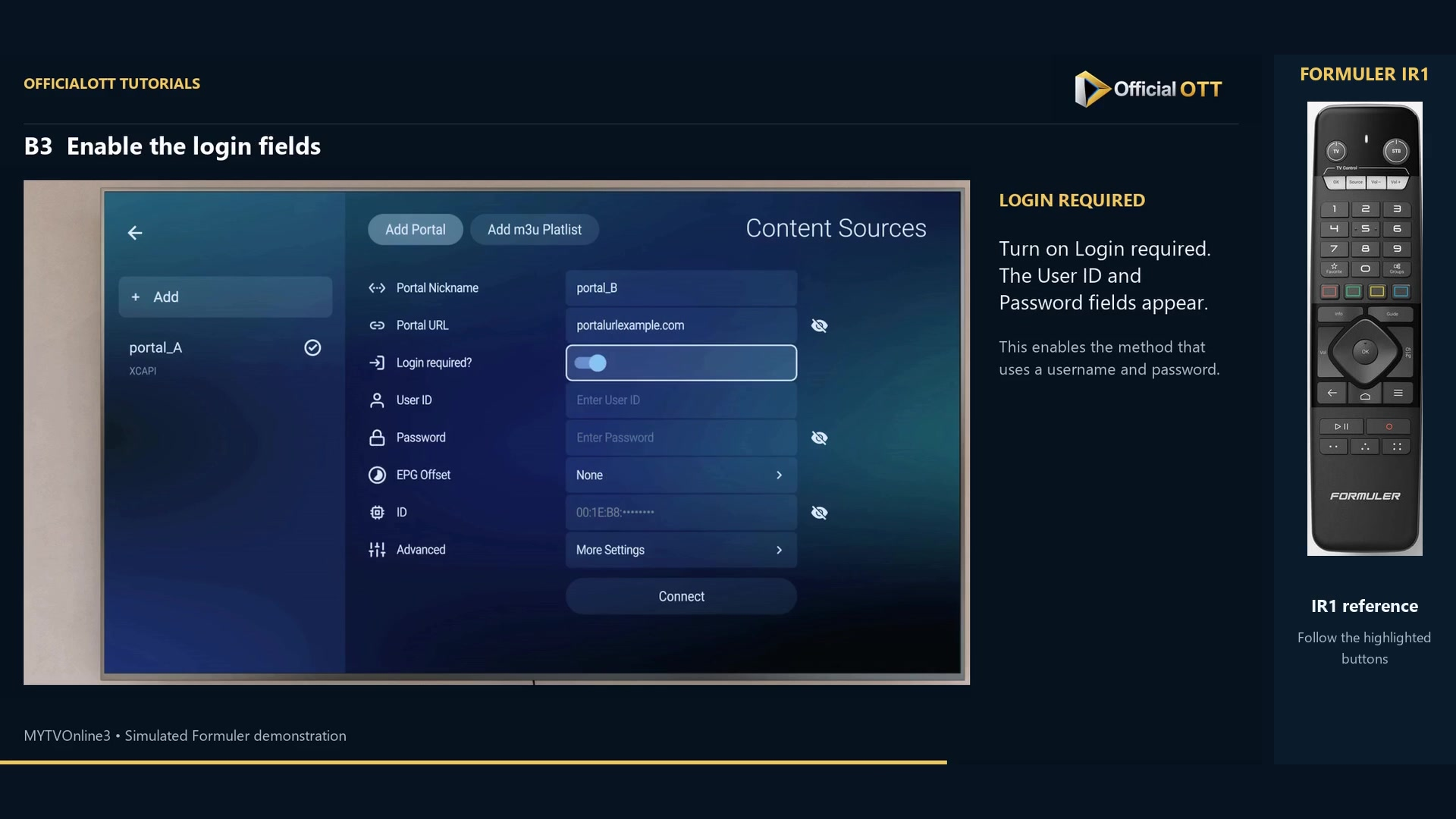
Frame from the simulated Formuler demonstration · 02:17 — Login required is on: User ID and Password fields are visible and empty. Connect and check the outcome
Review the fields for your method, choose Connect and wait for the response. Inspect the loading summary; a group setup wizard may follow. Then open an available program and check picture and sound. The simulated playback does not verify your connection.
Check the result
Check the portal response and content playback separately. A loaded list does not by itself establish that a program will play. Record the exact message if either stage fails.
If your result differs
Connection fails immediately
Check Internet and the full address. Then check the details for your chosen method: login credentials or device registration.
The catalogue loads but playback fails
Test available content and note the error. Contact your service if it persists; do not switch connection methods at random.
You are unsure whether to add a portal or playlist
Ask your service which access type it supplied before entering the details into another form.
Frequently asked questions
Do I need to follow both methods?
No. Use the method intended for your access, then proceed to the final checks.
Should Portal Nickname contain a server address?
No. It labels the access in your list. Portal URL contains the supplied address.
What to do next
Once connection and playback work, organize your groups. Keep your service information privately so you can investigate future access changes.
Scope and limitations
This tutorial is based on the published OfficialOTT video and cited Formuler sources. It is not a hardware test on your device. Menus, data and capabilities depend on version, hardware and your source. Steps identify examples and limits of the excerpts.
Sources and method
Associated video narration and Formuler documentation rechecked on November 1, 2026. Each excerpt includes its timestamp; diagrams are identified.