
Quick answer
Prepare compatible external storage, then open Settings → Backup and Restore Options → Backup. Wait for completion and keep the storage. To reapply an existing backup, use Restore in these options or Restore Backup on the initial welcome screen, then check your lists and preferences.
Watch the tutorial
MYTVOnline3: back up and restore app settings
Open on YouTubeBefore you start
- Formuler specifies at least 2 GB of external storage formatted as FAT32 or NTFS. Check its preparation; do not format storage containing files you need without preserving them elsewhere first.
- Backup creates a copy; Restore reapplies one. Restoration changes app settings, so do not start it merely to explore the menu.
Useful controls · IR1
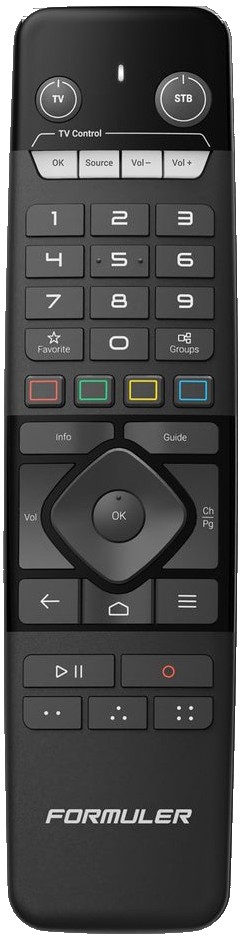
Open options
Create the backup
Reapply an existing backup

The steps
Connect storage and open the options
Leave the storage connected. Open Settings with OK in the main menu, then Backup and Restore Options. This tutorial concerns app data and preferences.
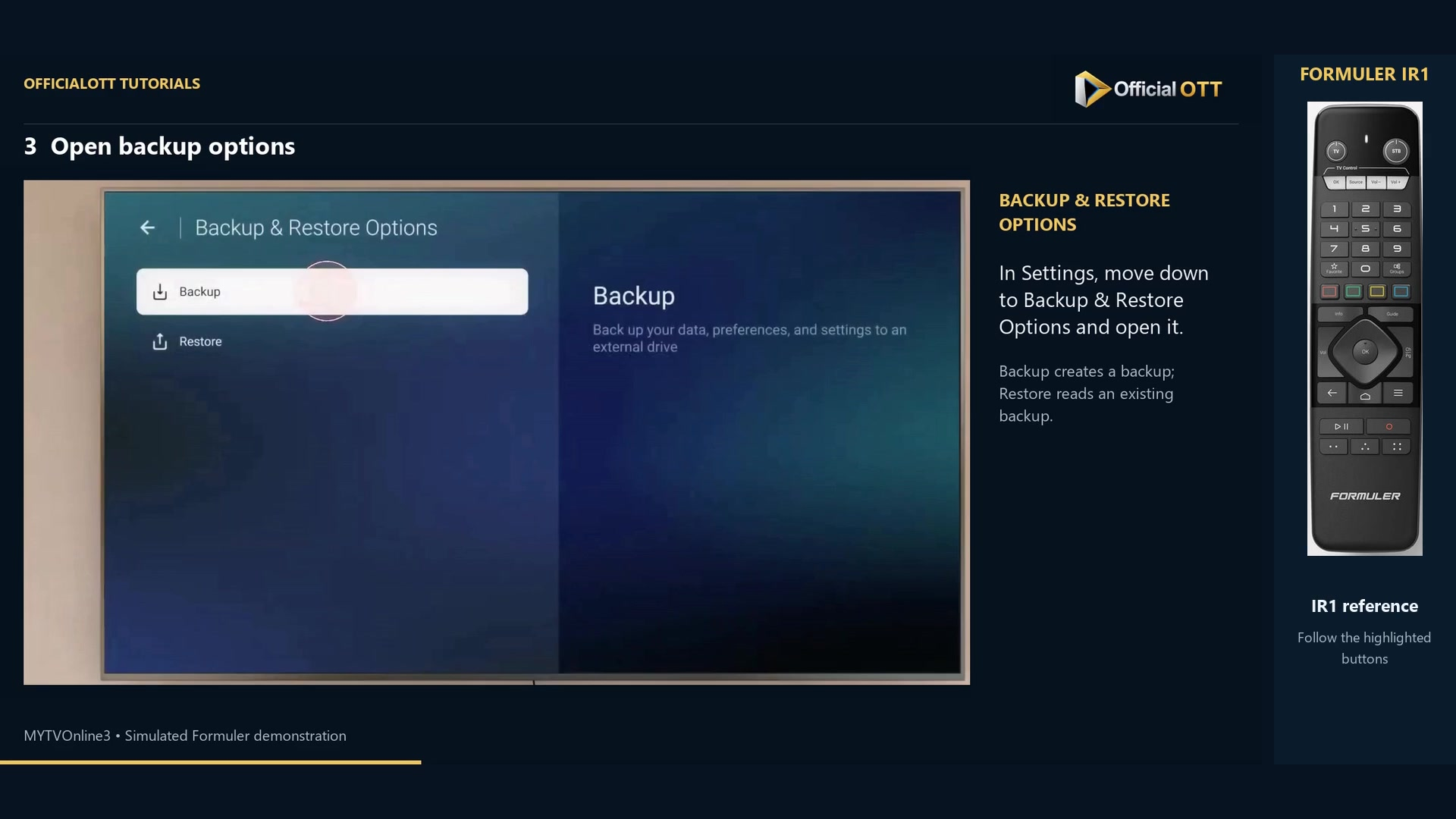
Frame from the simulated Formuler demonstration · 00:40 — Backup selected in Backup & Restore Options. Create the backup
Choose Backup and confirm with OK. Wait for completion without removing storage or cutting power. The example shows Backup Success; check your own confirmation and keep the storage used.
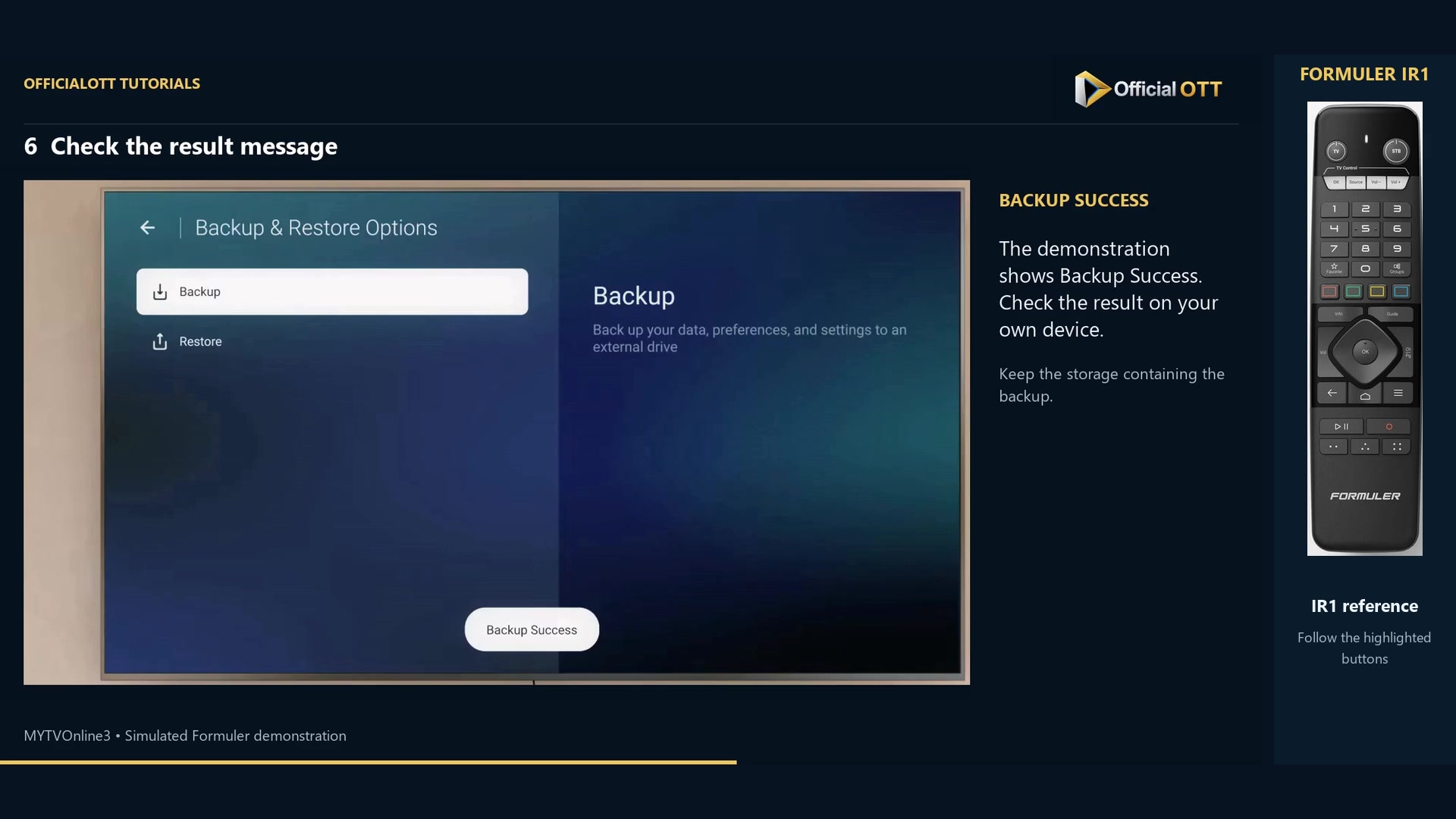
Frame from the simulated Formuler demonstration · 01:12 — Backup Success message visible in the demonstration; verify the result on your own device. Restore only when needed
The second part begins after a reinstall or reset already performed. It does not instruct you to reset the box. On the initial welcome screen choose Restore Backup; in a configured app, use the backup and restore options.
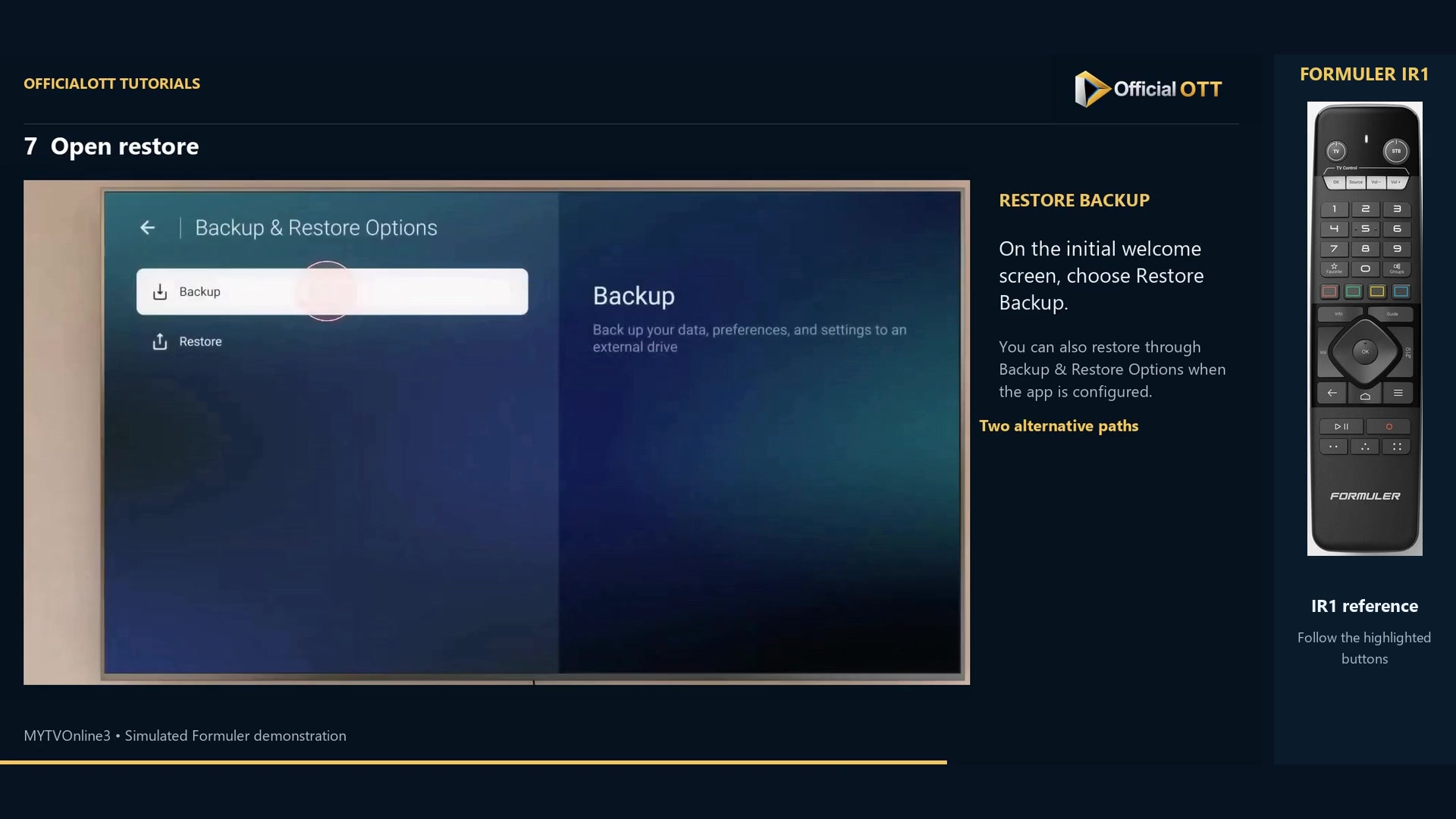
Frame from the simulated Formuler demonstration · 01:37 — Backup & Restore Options with Backup still selected; this frame does not show a completed restore. Check the recovered setup
Confirm only if you intend to reapply this backup, and wait with storage connected. Back in the app, inspect favourite groups and other preferences important to you. The demonstrated outcome remains an example.
Check the result
Keep the backup storage identifiable after creation. After restoring, compare the expected lists and settings. A success message does not replace that functional check.
If your result differs
The storage cannot be used
Check recognition, capacity and the specified format. Preserve existing files before any formatting.
You want to restore on a different model
Formuler rules out restoring between different models in its dedicated guidance. This guide remains limited to restoration on the same device; a backup is not a migration method for another model.
Recorded videos did not return
This tutorial does not cover backing up video files. Preserve those separately.
Frequently asked questions
Must I reset before making a backup?
No. A reset precedes only the second scene of the example; it is not a backup-creation step.
Is this a full Android system image?
No. The demonstrated scope is MYTVOnline3 data and settings.
What to do next
Keep the backup and important files separately. Before working on the device, identify what your copy actually contains and verify settings after any restoration.
Scope and limitations
This tutorial is based on the published OfficialOTT video and cited Formuler sources. It is not a hardware test on your device. Menus, data and capabilities depend on version, hardware and your source. Steps identify examples and limits of the excerpts.
Sources and method
Associated video narration and Formuler documentation rechecked on November 1, 2026. Each excerpt includes its timestamp; diagrams are identified.