
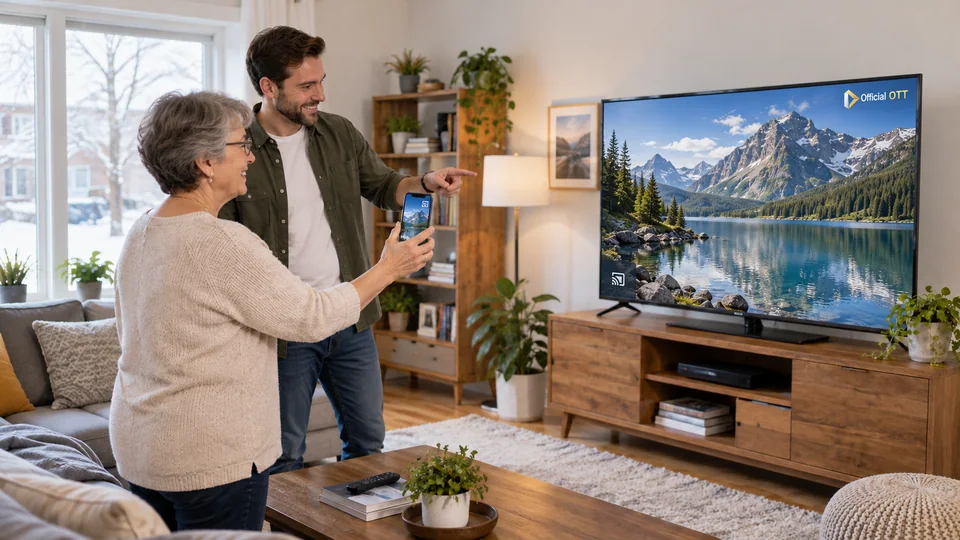
Sending video from a phone can mean several things. A compatible app can start playback on a receiver, while mirroring shows all or part of the phone’s screen. An app installed directly on the TV is a third option. For OTT, the right choice depends on the content, devices and desired simplicity.
1. Quick answer
Use the casting function officially supported by the app and receiver. Reserve mirroring for compatible uses and check what may appear on screen. If a TV app meets the need, it may simplify everyday viewing. Test the local network, controls and how to stop casting.
Five key points
- A Cast icon and screen mirroring do not describe the same operation.
- The app and receiver must be compatible.
- Discovery depends on the network and local permissions.
- Mirroring may expose items visible on the phone.
- No method guarantees playback of all protected content.
2. Choose between three approaches
With a TV app, you open the service using the remote. With compatible casting, the phone selects and controls content sent to the receiver according to the service’s operation. With mirroring, the phone’s or an app’s display is reproduced on the other screen.
These approaches may yield different quality, control and privacy results. Avoid calling them all simply streaming from the phone. The precise name helps you find the right documentation and describe a problem.
Documentation: Google — cast from a Cast-enabled app · Google — mirror an Android screen · Google — cast from a browser
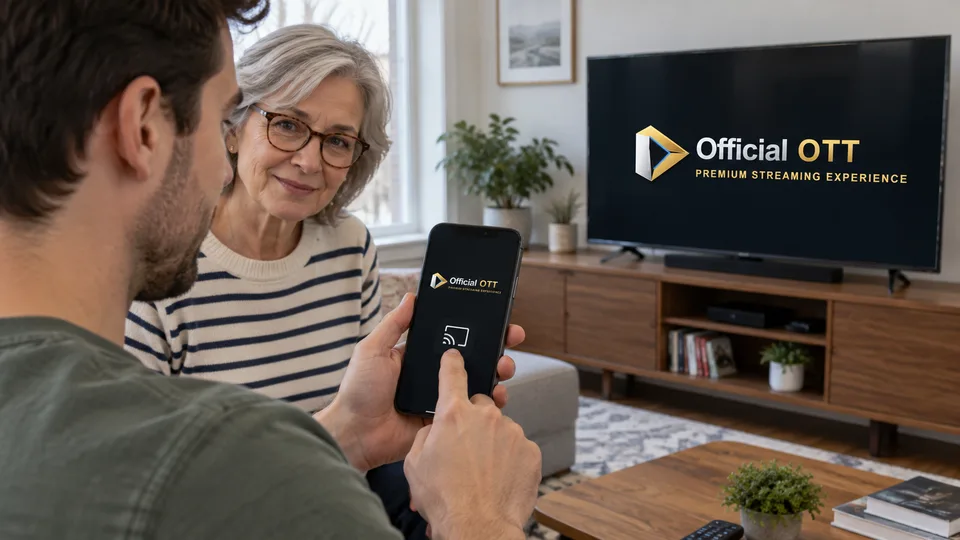
3. Check compatibility before the network
Find the official function in the app and the list of supported receivers. A smart TV does not necessarily include every protocol. Google distinguishes casting from a Cast-enabled app from mirroring an Android screen.
Check minimum versions and requested permissions in current documentation. If a function is missing from an app, mirroring is not automatically an authorized or working replacement. Some content may restrict external display.
| Method | Use to examine |
|---|---|
| TV app | Everyday viewing with a remote |
| Compatible casting | Selecting content from a phone |
| Mirroring | Presenting a screen or compatible app |
| Personal HDMI connection | Wired connection depending on device and content |
4. Check the network and discovery
Check the network actually selected on the phone and receiver. Google’s Cast process requires connection to the same Wi-Fi network and, on some systems, local-network permission. An isolated guest network can prevent discovery even when Internet access works.
If the TV does not appear, compare another compatible app and check permissions. Do not reset every device before establishing whether the problem concerns discovery or playback after connection. The two stages can have different causes.
In a shared place, confirm the receiver’s name before starting. A list of several televisions does not mean all of them are intended for you.
5. Protect the display and test controls
Before mirroring, check which notifications or information may appear in the selected mode. Close unnecessary personal content and adjust notifications to your needs. Casting one app and sharing the whole screen do not expose the same information.
Test pause, volume and stop. Check what happens when you leave the app or lock the phone without assuming identical behaviour across services. Video continuing on the TV may be normal in a compatible casting process.
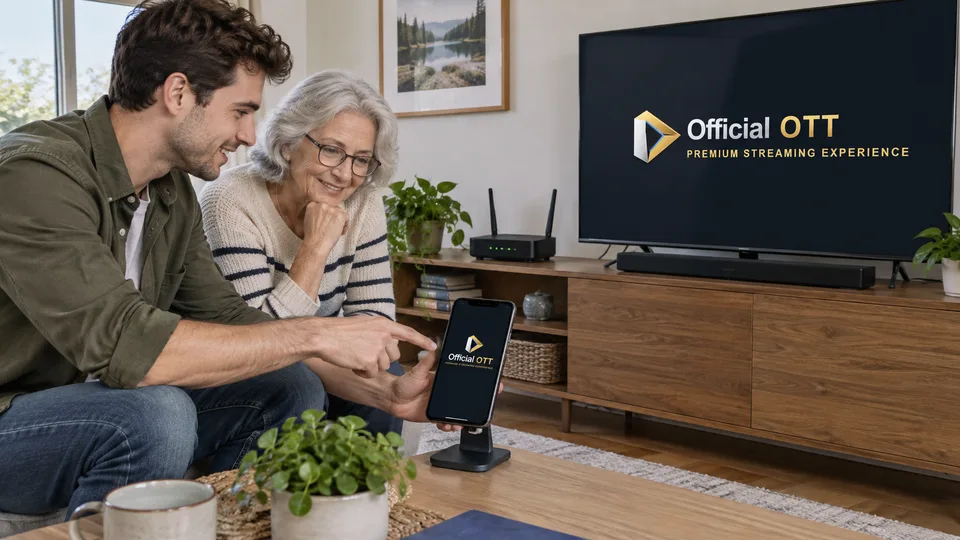
Fictional example: a family uses mirroring to show photos, then the TV’s official app for a film. They choose two suitable approaches instead of forcing the same method for all content.
6. Keep a simple, repeatable method
Choose the approach household members can repeat. Record the receiver’s name and how to stop casting. If the phone is essential, check that it remains available for the intended controls.
If only one programme fails, consult the service’s external-display capabilities. If no receiver is discovered, return to the local network and permissions. This distinction avoids searching in the wrong menu and changing subscriptions unnecessarily.
7. Frequently asked questions
Does Cast always copy my whole phone?
No. Casting from a compatible app and screen mirroring are different approaches.
Why does the TV not appear?
Check compatibility, the selected network, possible isolation and the app’s local permissions.
Can I display all content through mirroring?
That is not guaranteed. The service and content protections may restrict external display.
Which method should I use every day?
One that officially supports the content and remains simple for the household. A TV app may be convenient, while phone casting meets other needs.
8. Conclusion and limitations
Functions vary by app, system and receiver. The cited Google procedures do not describe AirPlay or every HDMI mode. No bypass of content protection is offered.
9. Method and sources
Documentary research completed on October 12 and 13, 2026 using the primary sources below. The procedures and examples are an original editorial synthesis. Household examples and illustrations are fictional. No purchase, service trial, private-account inspection or performance measurement was conducted for this article.
Menus, features and terms can change. Check your model documentation and the service terms when making your decision.
Editorial update and further reading: