
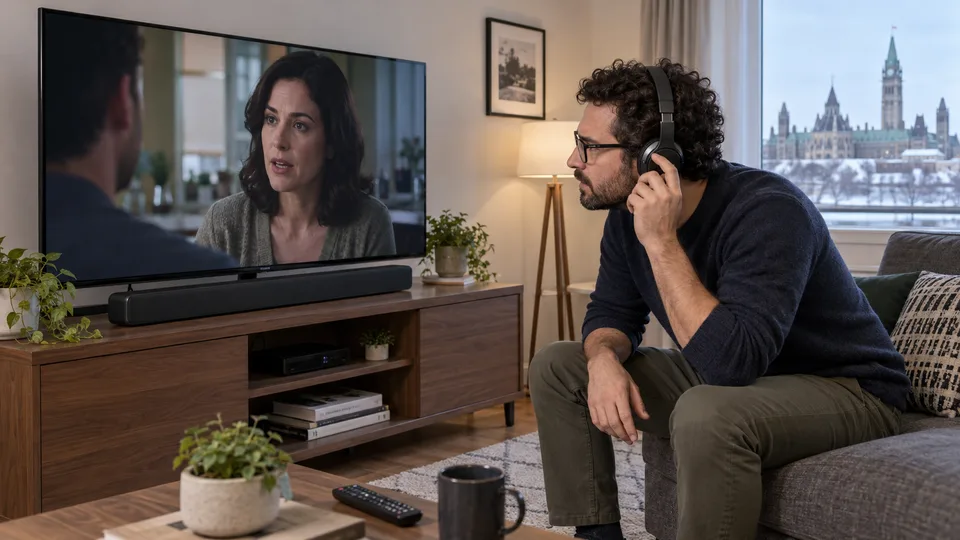
This article helps you observe delay direction and record a comparison. To locate the affected stage between player, TV, soundbar and headphones, start with the setup diagnostic guide.
Lips and voices that do not match make a programme hard to follow. The delay may come from the content, player, video processing or audio path. Adding a delay at random can even make it worse. To correct IPTV synchronization, first identify the direction of the problem and compare the available audio outputs.
1. Quick answer
Determine whether sound arrives before or after the picture. Compare the same excerpt through the internal speakers and then the soundbar or headphones. Apply only a correction suited to the direction of the delay and check several programmes before keeping it.
Five key points
- Early and late sound require different responses.
- A soundbar, headphones and TV do not always use the same path.
- A global setting can fix one programme and harm another.
- An echo between two speakers differs from a lip-sync problem.
- Record the original setting before adding compensation.
2. Identify the direction of the delay
Choose a spoken passage with a visible face. Observe whether you hear the voice before or after the lips move. A percussion sound or clear gesture can help, but programme editing may itself introduce ambiguity. Try another excerpt if necessary.
Note whether the delay stays constant or increases during playback. Stopping and resuming playback can provide a useful observation without becoming a permanent correction. Do not change all audio settings yet.
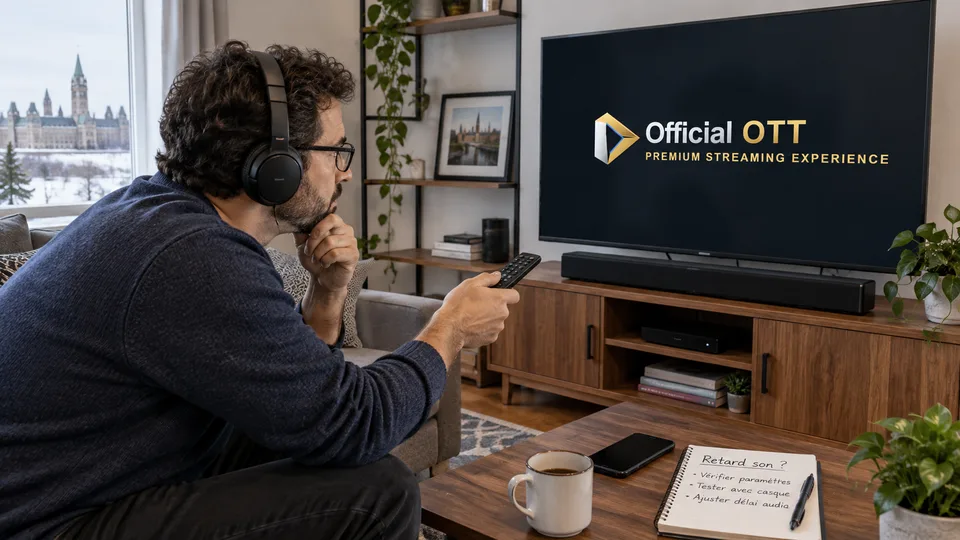
3. Compare audio outputs
Try the same content through the TV’s internal speakers and then the usual external system. Keep the same player and network. If the issue appears only with headphones or the soundbar, that difference helps locate the cause.
Check that only the intended output plays sound. Two active systems with a slight timing difference can create an echo even if each seems close to the picture. Apple documents a synchronization tool for wired and wireless outputs on compatible equipment; it is not a universal setting for every installation.
| Comparison | What it helps isolate |
|---|---|
| TV correct, soundbar delayed | External audio path |
| All outputs out of sync on one title | Content or app |
| Echo with two active outputs | Difference between sound systems |
| Delay after a format change | Processing and settings in the chain |
Documentation: Apple — video calibration and Wireless Audio Sync
4. Check processing and formats
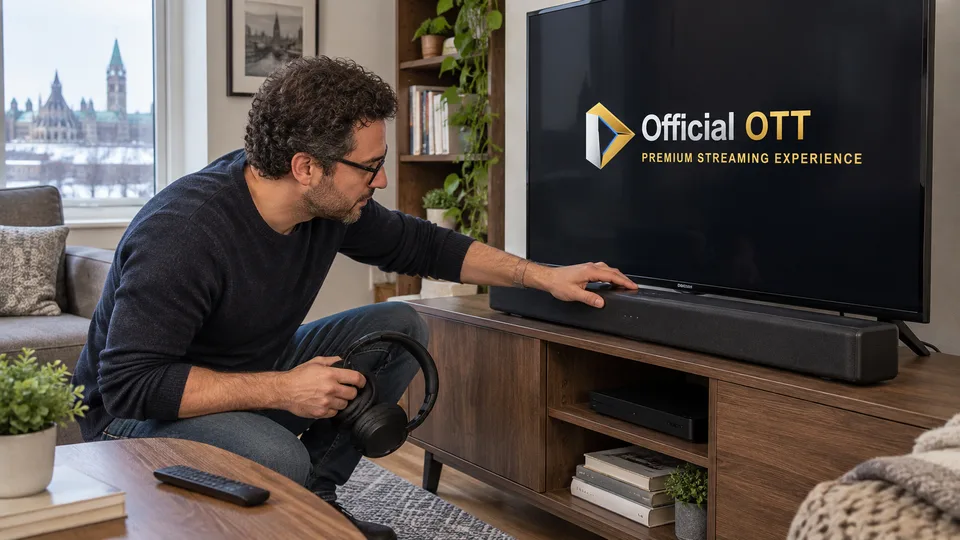
Consult the model’s synchronization, audio-processing and picture settings. A processing mode may change the time needed before display or sound output. Disable it only for a targeted comparison and retain its initial value.
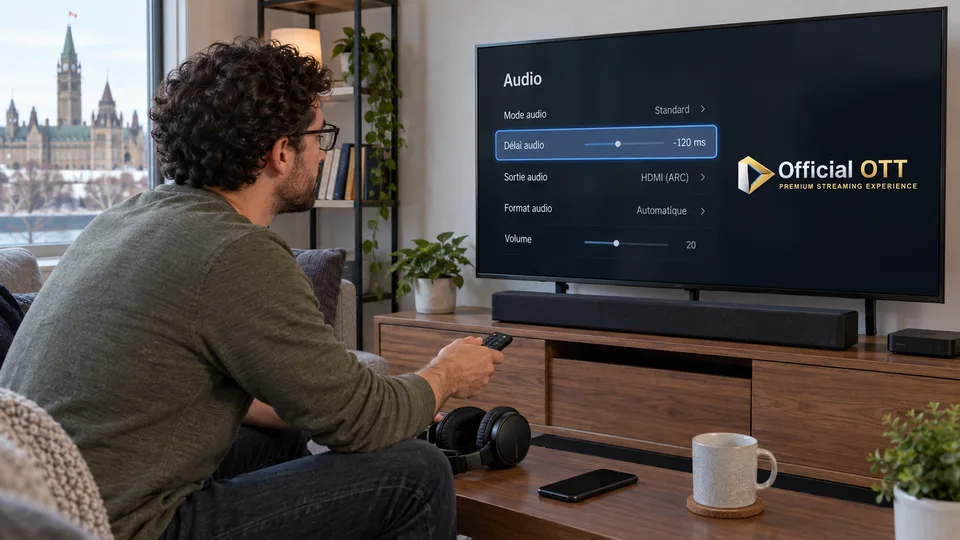
If a setting only adds audio delay, it may help when sound arrives too early, but not when the voice is already late. The control’s label and direction vary; read the documentation before moving the slider.
Avoid compensating for the same issue in the player, TV and soundbar at once. Multiple overlapping corrections make the result difficult to understand.
Documentation: Apple — audio-output troubleshooting
5. Apply a measured correction
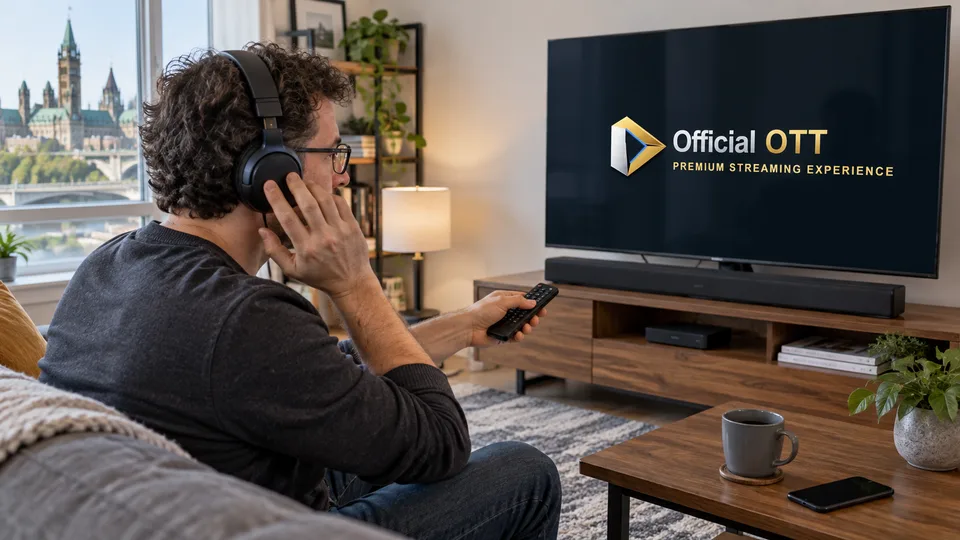
Change one setting in small steps and replay the same passage. Record the selected value and device. If the result does not improve, return to the starting point before examining another option.
Fictional example: the voice arrives before the picture only through a soundbar. A documented compensation improves the tested passage. The family then checks another programme and the return from standby to ensure the correction does not introduce a new delay elsewhere.
When a manufacturer provides automatic calibration compatible with your equipment, follow its exact conditions. A tool designed to synchronize wireless speakers should not be presented as a general repair for every IPTV app.
6. Confirm across several uses
Check live content, an on-demand programme and your most-used app when those are available. Also test the audio system after a normal restart. Keep notes on any cases that remain different.
If only one app retains the problem, send its support team the title, version and comparisons. If all content is affected on one specific output, contact the manufacturer of that part of the chain instead. Your summary should show where sound is correct and where it is not.
7. Frequently asked questions
Does adding audio delay always fix the problem?
No. It depends on the direction of the mismatch and what the setting actually allows.
Why are my headphones different from the TV?
They use another path and may add their own processing. Compare the same content to isolate that difference.
Should I adjust every app?
Start by determining whether the issue is global or limited. Avoid multiple compensations without a diagnosis.
Does automatic synchronization work everywhere?
No. Tools and prerequisites apply to compatible devices and the situation described by the manufacturer.
8. Conclusion and limitations
This process relies on household observation without instrument-based latency measurement. Settings and their direction vary. A local correction does not guarantee synchronization for all content or devices.
9. Method and sources
Documentary research completed on October 12 and 13, 2026 using the primary sources below. The procedures and examples are an original editorial synthesis. Household examples and illustrations are fictional. No purchase, service trial, private-account inspection or performance measurement was conducted for this article.
Menus, features and terms can change. Check your model documentation and the service terms when making your decision.
Further reading added:
Editorial review: