Introduction
Setting up IPTV in 2026 is far simpler than traditional cable TV installation. There’s no need for technicians, satellite dishes, or complicated hardware. Everything operates seamlessly through apps and internet connections.
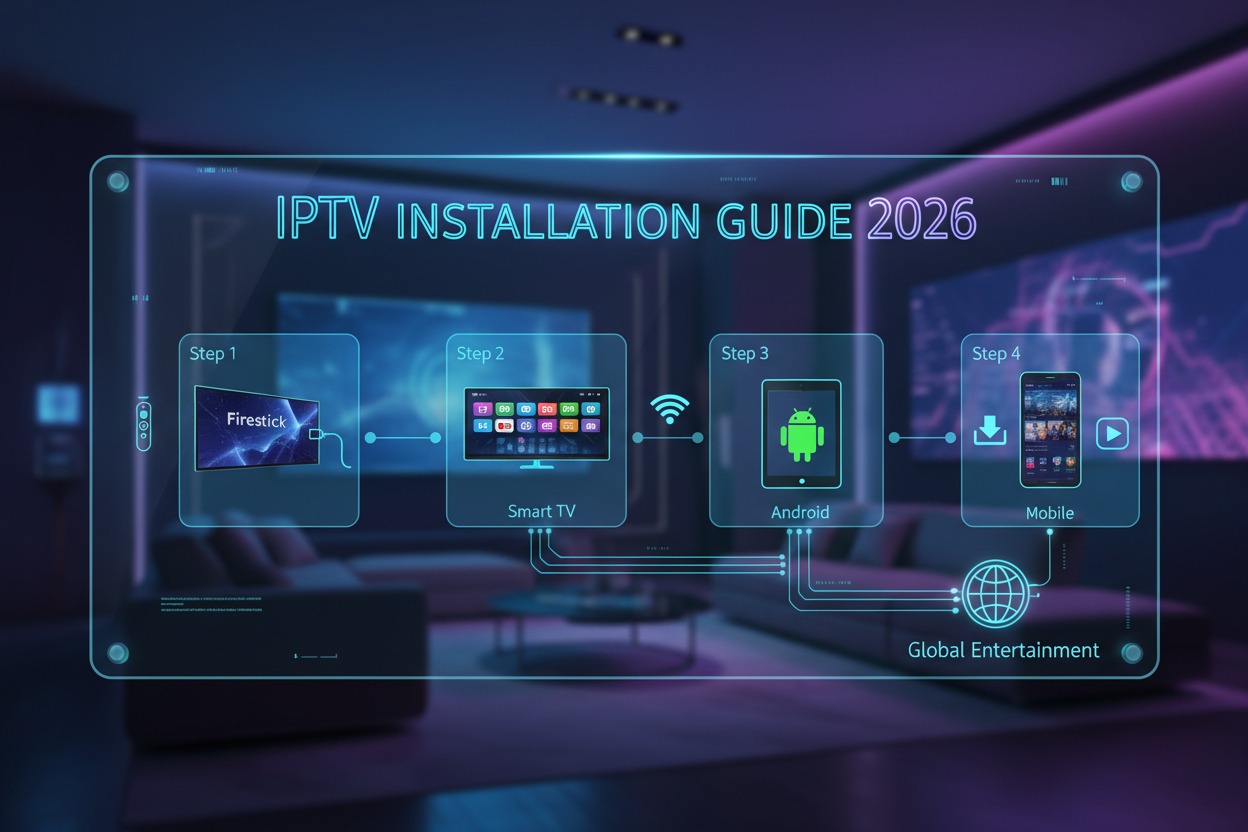
This OfficialOTT guide will walk you through installing IPTV on all major devices, including:
- Firestick / Fire TV
- Android TV
- Samsung Smart TV
- LG Smart TV
- Smartphones (Android & iOS)
You’ll also discover how to avoid common setup errors and achieve seamless streaming right from the beginning.
Table of Contents
- What You Need Before Installing IPTV
- IPTV Installation Methods Explained
- Firestick IPTV Setup Guide
- Android TV IPTV Installation
- Samsung Smart TV IPTV Setup
- LG Smart TV IPTV Setup
- Mobile IPTV Installation
- How to Add IPTV Playlist (M3U / Xtream Codes)
- Common Installation Errors
- Best IPTV Setup Tips
- Frequently Asked Questions
- Final Verdict
The Ultimate Guide to IPTV Installation Techniques
Before beginning installation, ensure you have the following:
✔ Reliable internet connection (minimum 25–50 Mbps)
✔ Active IPTV subscription or playlist (M3U / Xtream Codes)
✔ Compatible device (TV, Firestick, Android box, mobile)
✔ IPTV application installed and ready to use
Comprehensive Guide to IPTV Installation Methods
There are three primary methods to install IPTV:
1. App Store Method (Recommended)
- Install IPTV apps directly from official stores
- Safe and easy
- Best for beginners
2. APK Sideload Method (Android Only)
- Install apps manually
- More flexibility
- Requires enabling unknown sources
3. Smart TV Store Method
- Use built-in LG or Samsung app stores
- Limited app selection
Firestick IPTV Setup Guide
The Firestick is one of the most popular IPTV streaming devices available.
Step 1: Allow Installation from Unknown Sources
- Go to Settings
- Select “My Fire TV”
- Enable Developer Options
- Turn on “Apps from Unknown Sources”
Step 2: Download and Install the Downloader App
- Open Amazon App Store
- Search “Downloader”
- Install it
Step 3: Install the IPTV Application
Most Popular Apps Right Now:
- TiviMate
- IPTV Smarters Pro
- XCIPTV Player
Enter download URL (APK link) if needed.
Step 4: Add Your IPTV Playlist
- Open IPTV app
- Enter Xtream Codes or M3U URL
- Load channels
How to Install IPTV on Android TV
Step 1: Launch the Google Play Store app
Search for IPTV apps like:
- TiviMate
- IPTV Smarters Pro
- OTT Navigator
Step 2: Install App
Click install and wait.
Step 3: Add Login Details
Enter:
- Username
- Password
- Server URL
Or M3U playlist link.
Step 4: Load Content
Channels and EPG will appear automatically.
Samsung Smart TV IPTV Setup
Samsung uses Tizen OS.
Step 1: Open Smart Hub
Step 2: Go to Apps
Search:
- Smart IPTV
- SET IPTV
- Duplex IPTV
Step 3: Install App
Step 4: Upload Playlist
- Enter MAC address OR M3U URL
- Activate service if required
LG Smart TV IPTV Setup
LG uses webOS system.
Step 1: Open LG Content Store
Step 2: Install IPTV Apps
- SS IPTV
- Smart IPTV
- OTTPlayer
Step 3: Add Playlist
- M3U URL
- Or MAC-based activation
Step 4: Refresh Channels
Wait for channels to load.
Mobile IPTV Installation (Android & iOS)
Step 1: Install IPTV App
- IPTV Smarters Pro
- GSE Smart IPTV
- TiviMate Companion (Android)
Step 2: Enter Login Details
- Xtream Codes API
- OR M3U link
Step 3: Start Streaming
Watch live TV anywhere.
How to Add IPTV Playlist
Most IPTV apps support:
1. M3U Playlist
- Copy URL from provider
- Paste into app
2. Xtream Codes
- Username
- Password
- Server URL
👉 Xtream Codes is faster and more stable.
Common IPTV Installation Errors
App Not Installing
- Check storage space
- Restart device
Playlist Not Loading
- Verify URL
- Check internet connection
No Channels Showing
- Restart IPTV app
- Re-add playlist
Buffering After Installation
- Use better internet
- Switch to Ethernet
- Lower stream quality
Best IPTV Installation Tips
✔ Use official app stores when possible
✔ Prefer Xtream Codes login over M3U
✔ Restart device after setup
✔ Keep apps updated
✔ Use 5GHz Wi-Fi or Ethernet
✔ Avoid overloaded playlists
IPTV Setup Across Devices
| Device | Installation Difficulty | Performance |
|---|---|---|
| Firestick | Easy | High |
| Android TV | Easy | Very High |
| Samsung TV | Medium | Medium |
| LG TV | Medium | Medium |
| Mobile | Very Easy | High |
Frequently Asked Questions
Is IPTV hard to install?
No, most setups take less than 10 minutes.
What is the easiest device for IPTV?
Firestick and Android TV are the easiest.
Do I need a technician for IPTV?
No, IPTV is fully self-installable.
Why is IPTV not working after installation?
Usually due to wrong playlist, internet issues, or server problems.
Can I install IPTV on multiple devices?
Yes, depending on your subscription provider.
Final Verdict
Installing IPTV in 2026 is simple and fast on most modern devices.
- Firestick and Android TV offer the easiest setup
- Smart TVs require a few extra steps
- Mobile devices are the most flexible option
Once installed correctly, IPTV provides a powerful way to access live TV, sports, and movies across all your devices.
A proper setup + stable internet = smooth streaming experience.